How to See What a Canvas App Uses with Show Dependencies in Power Apps

Show dependencies lists the solution components a canvas app uses, such as environment variables and flows. Open it from the app's More commands in its solution, then Advanced, and read the Uses tab. It reflects the app's published version: a flow added since the last publish doesn't appear until you publish.
It's the quickest check that an app depends only on what its solution carries, before the solution moves to another environment. The example is the Overtime Timesheet app, after a flow was added to it.
Prerequisites
- A canvas app in a solution (How to Connect a Canvas App to SharePoint Lists with Environment Variables shows one being built).
Step 1: Open Show Dependencies
In Power Apps, open the solution, find the app in its Objects, and select the app's More commands (⋮) > Advanced > Show dependencies.
Step 2: Read the Uses Tab
The Dependencies panel has three tabs:
| Tab | Shows |
|---|---|
| Delete blocked by | The dependencies that block deleting the app |
| Used by | Other components that use the app |
| Uses | The components the app uses |
Microsoft's View dependencies article describes the same three reports. On Uses, each row has the component's display name, its schema name, its Object type and a Dependency type.
Step 3: Check the Published Version
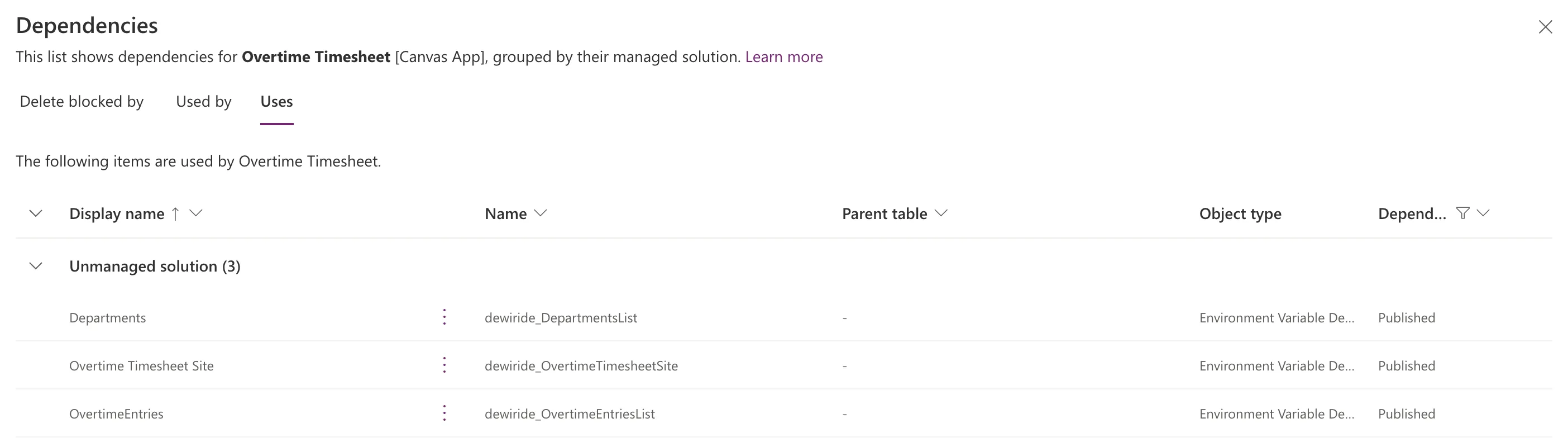
After I added the flow Get Waiting Approvals to the app and saved it, Uses still listed only three environment variables, the ones from the app's previous publish:
After publishing, it listed five, with the flow as a Process and the Settings list's environment variable, both added since the previous publish:
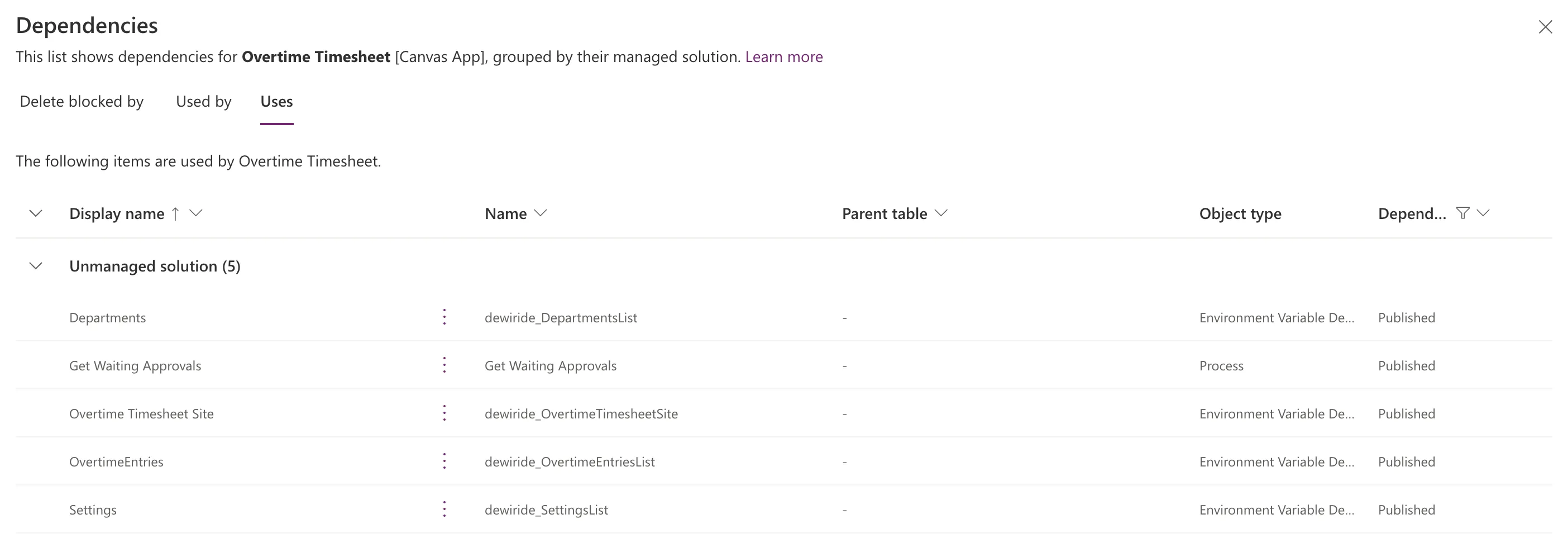
Microsoft's component library ALM article explains this: Dependencies are calculated based on the latest published state of an app.
What to Look For
- Every row under this solution. A component from another solution means the app needs that solution in every environment it moves to.
- Every environment variable the app should use. A missing one can mean a data source was added by its address instead of through the variable.
- Every flow the app runs. Each appears as a Process, the Dataverse table that stores flows in solutions.
Common Mistakes
| Mistake | What happens | Do this instead |
|---|---|---|
| Checking before publishing | New components are missing | Publish, then check |
| Reading Used by for what the app uses | It's the other direction | Uses |
| Ignoring a component from another solution | The app depends on something that may not move with it | Bring it into the app's solution |
Troubleshooting
| Symptom | Likely cause | Fix |
|---|---|---|
| Uses is empty | The app has never been published | Publish it |
| A flow the app runs isn't listed | The app hasn't been published since the flow was added | Publish |
| A SharePoint list isn't listed as a variable | It was added by address | Add it through its environment variable |
FAQ
Why is the flow called a Process?
Cloud flows in solutions are stored in Dataverse's Process (Workflow) table, as Microsoft's Work with cloud flows using code article says.
Does the list update as soon as I save?
No. In the example, saving the app didn't change it; publishing did.
Conclusion
More commands > Advanced > Show dependencies > Uses lists what a canvas app uses from its solution, including environment variables and flows. Publish first, because the list follows the published version.
Additional Resources
- View dependencies for a component in Power Apps
- Component library application lifecycle management
- Use environment variables in Power Platform solutions
