How to See the Version History of a SharePoint List Item

Every time someone saves a change to a SharePoint list item, the list can keep a version of it. Version history shows them all: the version number, when it was saved, who saved it and which columns changed. It's the item's audit trail, and it's two clicks away.
This guide reads the history of an overtime entry in the Overtime Timesheet series. It was created by its author, edited by her, approved by the site's owner and then corrected by her again.
Prerequisites
- Version history turned on for the list. On this list it was already on, keeping 50 versions: Settings → List settings → Versioning settings → Create a version each time you edit an item in this list? → Yes. Microsoft's Enable and configure versioning for a list or library covers the options.
- Permission to see versions. View Versions is part of Read and every level above it, but people can only open the versions of items they can open.
Step 1: Select the Item and Open the … Menu
Select the item, then … (more) in the command bar, and choose Version history:

Microsoft's article gives the same path: "If you don't see Version history, select More, and then select Version history."
Step 2: Read the History
The Version history dialog lists the versions, newest first, with Version, Modified, Modified By and Changes:
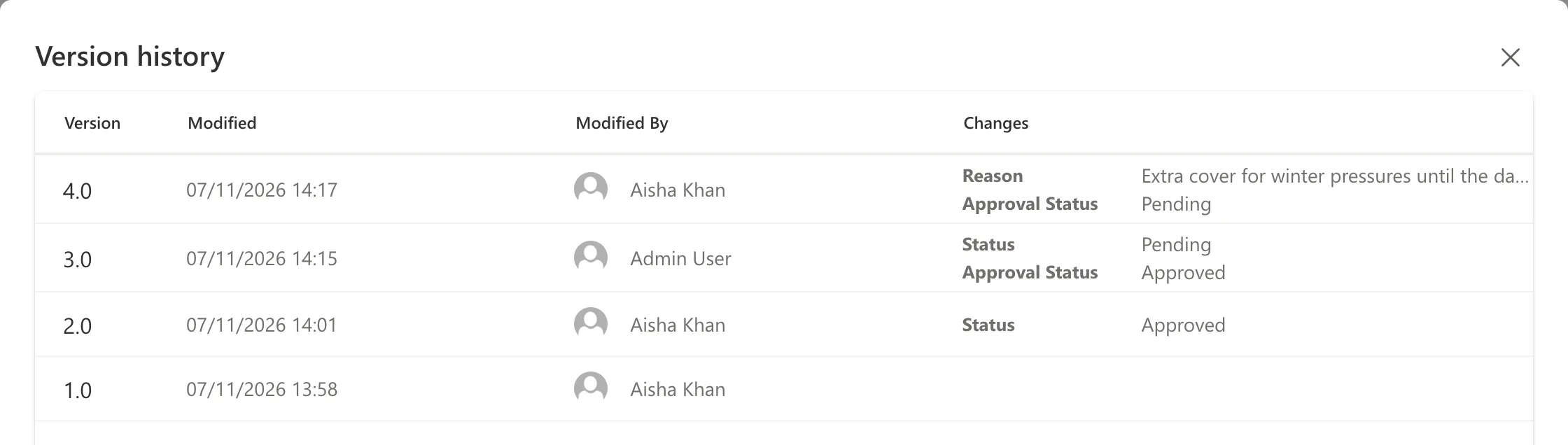
Read from the bottom up:
| Version | Saved | By | What changed |
|---|---|---|---|
| 1.0 | 13:58 | Aisha Khan | She created the entry. |
| 2.0 | 14:01 | Aisha Khan | She set her own Status column to Approved. |
| 3.0 | 14:15 | Admin User | Status back to Pending and Approval Status Approved. |
| 4.0 | 14:17 | Aisha Khan | She changed the Reason, and Approval Status went back to Pending. |
Version 3.0 needs a closer look. Aisha set Status back to Pending herself a few minutes after 14:01, and that saved version 3.0. When the owner approved the entry at 14:15, no new version was added: the approval was recorded on version 3.0, with the owner's name and time. So the history shows both, attributed to the approver.
What the History Is Good For
- Who changed what. Every edit is attributed to an account and a time, and the Changes column names the columns.
- Approvals. With content approval on, each approval appears with the approver's name: How to Turn On Content Approval for a SharePoint List.
- Disputes. Combined with a permission level that can't delete versions (How to Create a Custom Permission Level in SharePoint), the history can't be quietly trimmed by the people who edit the items.
Common Mistakes
| Mistake | What happens | Do this instead |
|---|---|---|
| Turning versioning off "to save space" | New changes leave no history | Keep it on and limit the number of versions |
| Keeping too few versions | Older versions are dropped as new ones arrive | Choose a number that covers your review period |
| Giving editors Delete Versions | They can remove versions | Use a level without it |
Troubleshooting
| Symptom | Likely cause | Fix |
|---|---|---|
| No Version history in the menu | No item is selected | Select one item first |
| Only one version, ever | Versioning is off for the list | Turn it on in Versioning settings |
| An approval doesn't have its own version | It's recorded on the version it approved | Read the Approval Status change on that version |
FAQ
Can I go back to an older version?
Microsoft's article describes a Restore option in the version's menu. This guide only reads the history.
Who can see an item's history?
Anyone who can open the item and has View Versions. On a list where people see only their own items, that's the item's author and the people who see everything, such as the site's owners.
Conclusion
Select the item → … → Version history. Each row is one saved version, with its time, its author and the columns that changed, so you can see exactly how an item reached its current state.
