How to See the Logs of a Docker Compose Service (docker compose logs)

When a container misbehaves, the first thing to read is what it printed. docker compose logs shows that output for any service in your compose.yaml: all of it, the last few lines, only the last few minutes, or live as it happens. This guide runs each option against a real MySQL 9.7 container and explains what you're looking at.
Where the Logs Come From
A program in a container writes messages to its console, the same way a program in your terminal does. Docker keeps that output for each container, and docker compose logs shows it for the services of your Compose project. Docker's reference page describes the command in four words: it "Displays log output from services".
The official MySQL image writes the server's error log to the console, so everything MySQL reports, from startup to shutdown, is in there.
Prerequisites
- Docker Desktop or Docker Engine with Compose. Check with
docker compose version. - A Compose project with a running service. The examples use the MySQL database from How to Run MySQL in Docker with Docker Compose, whose service is called
mysql.
Run every command from the folder that holds compose.yaml. Compose finds the project from that file.
Step 1: See the Last Few Lines
A database that has been running for a while has a long log. --tail shows only the end of it:
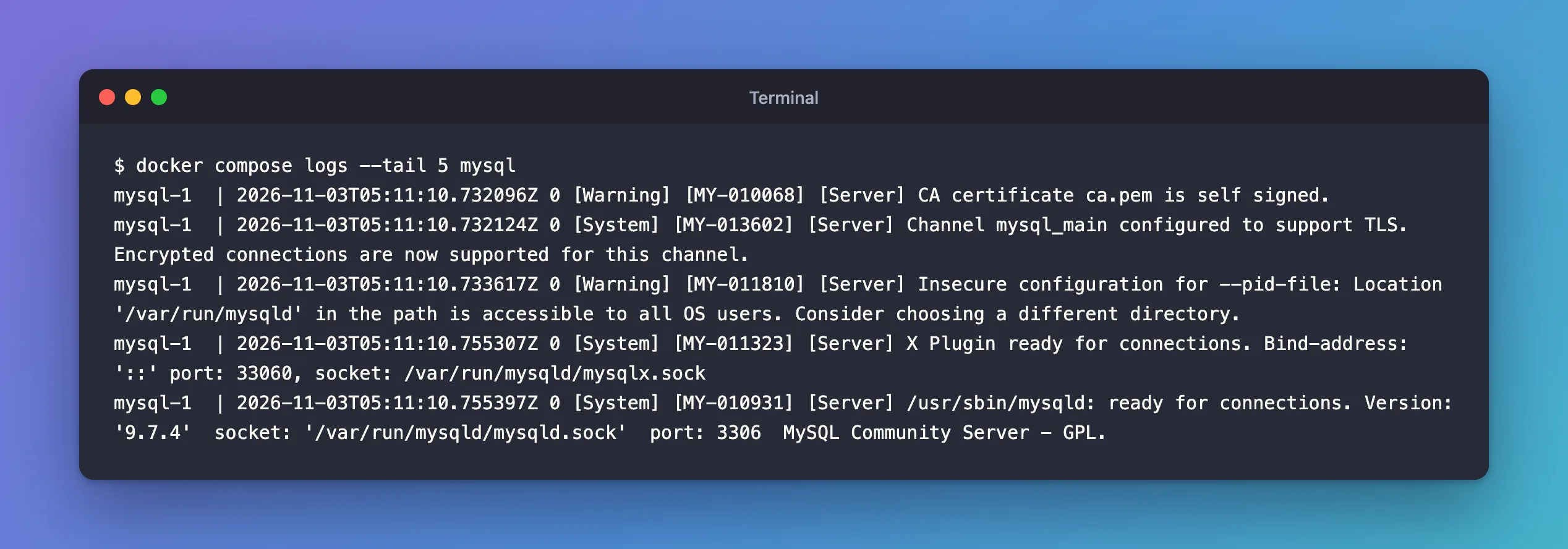
docker compose logs --tail 5 mysql
| Part | What it does |
|---|---|
docker compose logs | Shows the output of the project's containers |
--tail 5 | Only the last 5 lines of each container |
mysql | Only this service. Leave it out to see every service in the project |
mysql-1  | 2026-11-03T05:11:10.732096Z 0 [Warning] [MY-010068] [Server] CA certificate ca.pem is self signed.
mysql-1  | 2026-11-03T05:11:10.732124Z 0 [System] [MY-013602] [Server] Channel mysql_main configured to support TLS. Encrypted connections are now supported for this channel.
mysql-1  | 2026-11-03T05:11:10.733617Z 0 [Warning] [MY-011810] [Server] Insecure configuration for --pid-file: Location '/var/run/mysqld' in the path is accessible to all OS users. Consider choosing a different directory.
mysql-1  | 2026-11-03T05:11:10.755307Z 0 [System] [MY-011323] [Server] X Plugin ready for connections. Bind-address: '::' port: 33060, socket: /var/run/mysqld/mysqlx.sock
mysql-1  | 2026-11-03T05:11:10.755397Z 0 [System] [MY-010931] [Server] /usr/sbin/mysqld: ready for connections. Version: '9.7.4'  socket: '/var/run/mysqld/mysqld.sock'  port: 3306  MySQL Community Server - GPL.
How to read one line:
mysql-1 |is the prefix Compose adds: the service name and the container number. A service can run several containers, and the prefix tells them apart.2026-11-03T05:11:10.755397Zis MySQL's own timestamp, in UTC (theZ).[System],[Warning]: how important MySQL thinks the message is.[MY-010931]: MySQL's code for this message, useful for searching its documentation.
The last line is the one you usually look for: ready for connections, with the version and port 3306. The two warnings are normal for a local development container: MySQL created its own self-signed certificates on first start, and the image's PID-file folder is readable by every account inside the container.
Step 2: Add Docker's Timestamps
MySQL stamps its own lines, but not every program does. --timestamps (short form -t) adds the time Docker received each line:
docker compose logs --tail 3 --timestamps mysql
mysql-1  | 2026-11-03T05:11:10.733699005Z 2026-11-03T05:11:10.733617Z 0 [Warning] [MY-011810] [Server] Insecure configuration for --pid-file: Location '/var/run/mysqld' in the path is accessible to all OS users. Consider choosing a different directory.
mysql-1  | 2026-11-03T05:11:10.755442338Z 2026-11-03T05:11:10.755307Z 0 [System] [MY-011323] [Server] X Plugin ready for connections. Bind-address: '::' port: 33060, socket: /var/run/mysqld/mysqlx.sock
mysql-1  | 2026-11-03T05:11:10.755457588Z 2026-11-03T05:11:10.755397Z 0 [System] [MY-010931] [Server] /usr/sbin/mysqld: ready for connections. Version: '9.7.4'  socket: '/var/run/mysqld/mysqld.sock'  port: 3306  MySQL Community Server - GPL.
Each line now starts with Docker's timestamp, with nine decimal places, and then MySQL's own. For MySQL that's twice the same moment, so you rarely need -t here. For a program that doesn't stamp its output, it's the only way to know when something happened.
Step 3: Only the Last Few Minutes, Without the Prefix
--since takes either a timestamp or a duration such as 10m (10 minutes) or 2h. --no-log-prefix drops the mysql-1 | part, which helps when you copy lines into a bug report or search engine:
docker compose logs --since 5m --no-log-prefix mysql
2026-11-03T05:09:40.922779Z 0 [System] [MY-013172] [Server] Received SHUTDOWN from user <via user signal>. Shutting down mysqld (Version: 9.7.4).
2026-11-03T05:09:42.932608Z 0 [Warning] [MY-010909] [Server] /usr/sbin/mysqld: Forcing close of thread 55  user: 'inventory_app'.
2026-11-03T05:09:44.286682Z 0 [System] [MY-010910] [Server] /usr/sbin/mysqld: Shutdown complete (mysqld 9.7.4)  MySQL Community Server - GPL.
2026-11-03T05:09:44.286750Z 0 [System] [MY-015016] [Server] MySQL Server - end.
2026-11-03 05:09:44+00:00 [Note] [Entrypoint]: Entrypoint script for MySQL Server 9.7.4-1.el9 started.
2026-11-03 05:09:44+00:00 [Note] [Entrypoint]: Switching to dedicated user 'mysql'
2026-11-03 05:09:44+00:00 [Note] [Entrypoint]: Entrypoint script for MySQL Server 9.7.4-1.el9 started.
'/var/lib/mysql/mysql.sock' -> '/var/run/mysqld/mysqld.sock'
Five minutes earlier this container was restarted with docker compose restart, and the log tells the whole story: MySQL received the shutdown signal, closed the one connection that was still open, from the inventory_app account, finished, and the image's start-up script, the [Entrypoint] lines, started it again. The log survives a restart, because it belongs to the container, and restart keeps the same container.
--until is the opposite of --since: it shows only what was logged before a point in time. Use both together to cut out a window.
Step 4: Follow the Log Live
--follow (short form -f) prints the existing lines and then keeps waiting, printing each new line as it arrives. It's the way to watch a service while you start your app or reproduce a problem:
docker compose logs -f --tail 2 mysql
mysql-1  | 2026-11-03T05:11:10.755307Z 0 [System] [MY-011323] [Server] X Plugin ready for connections. Bind-address: '::' port: 33060, socket: /var/run/mysqld/mysqlx.sock
mysql-1  | 2026-11-03T05:11:10.755397Z 0 [System] [MY-010931] [Server] /usr/sbin/mysqld: ready for connections. Version: '9.7.4'  socket: '/var/run/mysqld/mysqld.sock'  port: 3306  MySQL Community Server - GPL.
^C
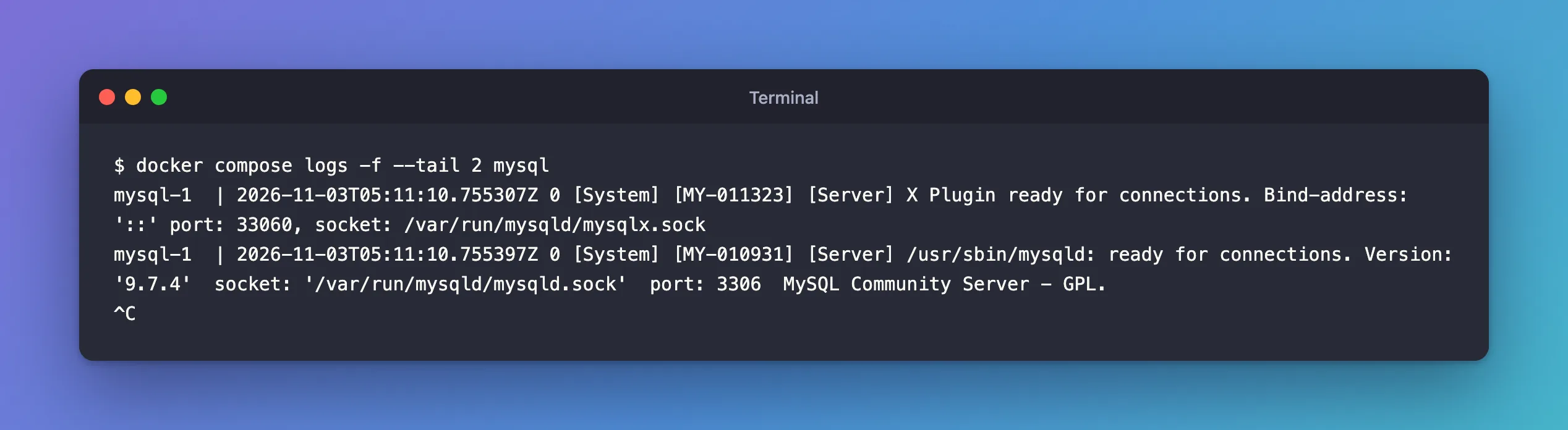
Press Ctrl+C to stop following. The ^C in the output is that keypress. It stops only the logs command: the container keeps running. Without --tail, -f first prints the whole log, which can take a while for a busy service.
Step 5: Search for One Message
To find a message in a long log, send the output to a search command. The command differs between shells:
- bash / zsh
- PowerShell
docker compose logs mysql | grep "ready for connections"
docker compose logs mysql | Select-String "ready for connections"
mysql-1  | 2026-11-03T04:32:07.083956Z 0 [System] [MY-011323] [Server] X Plugin ready for connections. Socket: /var/run/mysqld/mysqlx.sock
mysql-1  | 2026-11-03T04:32:07.083991Z 0 [System] [MY-010931] [Server] /usr/sbin/mysqld: ready for connections. Version: '9.7.4'  socket: '/var/run/mysqld/mysqld.sock'  port: 0  MySQL Community Server - GPL.
mysql-1  | 2026-11-03T04:32:10.853147Z 0 [System] [MY-011323] [Server] X Plugin ready for connections. Bind-address: '::' port: 33060, socket: /var/run/mysqld/mysqlx.sock
mysql-1  | 2026-11-03T04:32:10.853188Z 0 [System] [MY-010931] [Server] /usr/sbin/mysqld: ready for connections. Version: '9.7.4'  socket: '/var/run/mysqld/mysqld.sock'  port: 3306  MySQL Community Server - GPL.
mysql-1  | 2026-11-03T05:09:45.545080Z 0 [System] [MY-011323] [Server] X Plugin ready for connections. Bind-address: '::' port: 33060, socket: /var/run/mysqld/mysqlx.sock
mysql-1  | 2026-11-03T05:09:45.545147Z 0 [System] [MY-010931] [Server] /usr/sbin/mysqld: ready for connections. Version: '9.7.4'  socket: '/var/run/mysqld/mysqld.sock'  port: 3306  MySQL Community Server - GPL.
mysql-1  | 2026-11-03T05:11:10.755307Z 0 [System] [MY-011323] [Server] X Plugin ready for connections. Bind-address: '::' port: 33060, socket: /var/run/mysqld/mysqlx.sock
mysql-1  | 2026-11-03T05:11:10.755397Z 0 [System] [MY-010931] [Server] /usr/sbin/mysqld: ready for connections. Version: '9.7.4'  socket: '/var/run/mysqld/mysqld.sock'  port: 3306  MySQL Community Server - GPL.
The search turned the whole history of this container into a list of its starts. Look at the first pair, at 04:32:07: port: 0. That was the very first start, when the image initialized an empty data folder. The image ran MySQL once with networking turned off (port 0) to create the database and the user from compose.yaml, then restarted it for real three seconds later on port 3306. That's why the guide this database comes from checks MySQL's health over TCP: during that first run, nothing can connect yet. The last two pairs are the two restarts that came later.
PowerShell's Select-String prints the same lines and highlights the matching words.
Common Mistakes
| Mistake | What happens | Do this instead |
|---|---|---|
| Running the command outside the project folder | no configuration file provided: not found | cd into the folder with compose.yaml first |
Using the container name, such as dewiride-inventory-mysql-1, instead of the service name | no such service: dewiride-inventory-mysql-1 | Use the name under services: in compose.yaml, here mysql |
-f without --tail on a busy service | Thousands of old lines scroll past first | Add --tail 20 |
| Expecting Ctrl+C to stop the service | Nothing stops but the logs command | Stop the service with docker compose stop |
Troubleshooting
| Symptom | Likely cause | Fix |
|---|---|---|
| No output at all | The service hasn't started yet, or its container was removed with docker compose down | Check docker compose ps; after down, the old log is gone with the container |
| Only old lines, nothing new | The container stopped | docker compose ps shows its state; start it with docker compose start |
| Lines from other services mixed in | No service name was given | Add the service name at the end of the command |
FAQ
Does docker compose down delete the logs?
Yes. The log belongs to the container, and down removes the containers. stop and restart keep them, so their logs survive, as Step 3 showed.
Can I see the logs of several services at once?
Yes. Leave out the service name, or name several: docker compose logs mysql api. The prefix on each line tells you which one printed it.
Why does the MySQL log show times that differ from my clock?
MySQL writes its times in UTC, marked by the Z. Add or subtract your time zone's offset to compare them with your own clock.
Conclusion
docker compose logs <service> shows what a container printed. Add --tail for the last lines, --since for the last minutes, -t for Docker's timestamps, --no-log-prefix for clean copies, and -f to watch live until Ctrl+C. Piped into grep or Select-String, the log becomes a quick history of the service: for MySQL, every start, every shutdown and the very first initialization.
Additional Resources
- docker compose logs — every option of the command.
- View container logs — where container output comes from and how Docker keeps it.
