How to See the Code of a Control in Power Apps Studio

The formula bar shows one property at a time. View code in Power Apps Studio shows a control's whole code at once: its type and version, and the properties that aren't at their default values. It's the quickest way to check everything a control has, such as a copy that kept a property from its original.
The example below is an Add department button on a screen that lists departments, made from a copy of another screen's Refresh button.
Prerequisites
- An app open for editing in Power Apps Studio.
Step 1: Open View Code
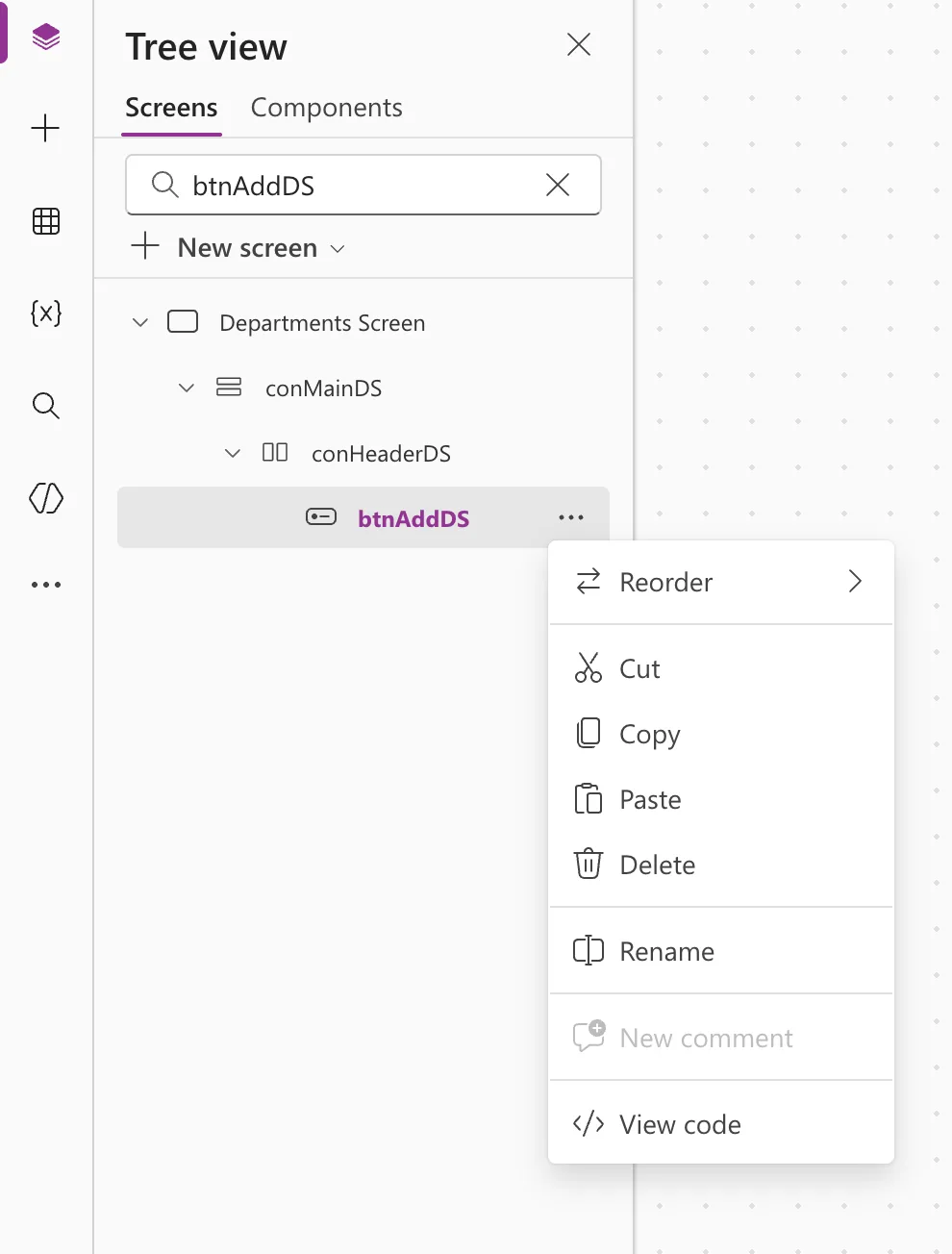
In the Tree view, hover over the control and select … (More options). Microsoft's code view page also lists right-clicking the control, in the tree view or on the screen. Select View code, at the end of the menu:
Step 2: Read the Code
A Code dialog opens. For a button, btnAddDS, it showed:
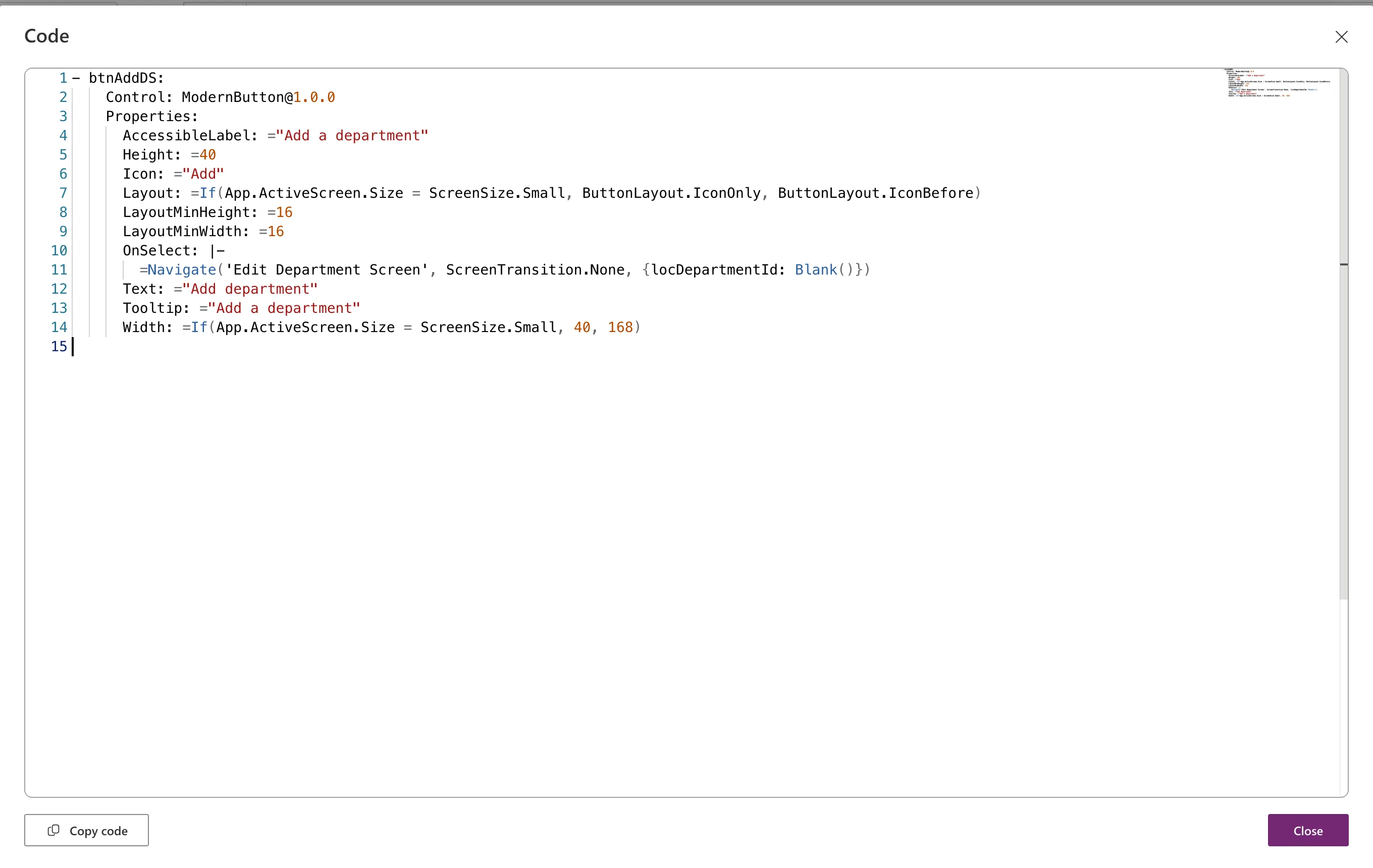
- btnAddDS:
    Control: ModernButton@1.0.0
    Properties:
      AccessibleLabel: ="Add a department"
      Height: =40
      Icon: ="Add"
      Layout: =If(App.ActiveScreen.Size = ScreenSize.Small, ButtonLayout.IconOnly, ButtonLayout.IconBefore)
      LayoutMinHeight: =16
      LayoutMinWidth: =16
      OnSelect: |-
        =Navigate('Edit Department Screen', ScreenTransition.None, {locDepartmentId: Blank()})
      Text: ="Add department"
      Tooltip: ="Add a department"
      Width: =If(App.ActiveScreen.Size = ScreenSize.Small, 40, 168)
btnAddDSis the control's name, andModernButton@1.0.0its type and version: the modern button, version 1.0.0.- The properties listed are the ones the button changes. Microsoft's page on the source code format says only properties that differ from their default values are written, so Visible, DisplayMode and the colors aren't there.
- Each property's value is its formula, starting with
=, as in the formula bar.
For a container or a screen, the code also lists every control inside it, each in the same form.
The code can't be edited in this dialog: change properties in the formula bar or the Properties pane. Copy code copies it, to paste as a new control or to share outside Studio. Select Close when you're done.
Example: What a Copy Kept
I made btnAddDS from a copy of a Refresh button and changed its text, icon, width and OnSelect. Reading the screen's code later, its Tooltip still said "Refresh this screen": the copy had kept it, and nothing on the canvas showed it. The fix was one property in the formula bar, "Add a department", the value in the code above.
Common Mistakes
| Mistake | What happens | Do this instead |
|---|---|---|
| Looking for every property in the code | Properties at their default values aren't listed | Use the Properties pane for those |
| Typing into the code to change a property | The dialog doesn't take edits | Change it in the formula bar |
| Reading only the properties you changed after copying a control | Values the copy kept go unnoticed | Read the copy's code once |
FAQ
Can I see the code of the whole app?
Microsoft's code view page says you can't view the code for the App object. Screens and controls work, and a screen's code includes everything on it.
How do I find something in a long piece of code?
Click in the code and press Ctrl+F, as Microsoft's page suggests.
Conclusion
More options → View code shows a control's type and version and every property that isn't at its default, in one place: a quick check after copying controls or before sharing one.
Additional Resources
- Use code view for canvas app controls: viewing, copying and pasting code.
- View source code files for canvas apps: the YAML format behind it.
