How to See How Many Licenses Are Available in Microsoft 365

Before you add people to an app, check that there are licenses left to give them. Billing → Licenses in the Microsoft 365 admin center lists every product your organization has, with how many licenses are free and how many are in use.
The example is the organization used in the Overtime Timesheet series, a Microsoft 365 Developer Program sandbox.
Prerequisites
- An admin role that can see billing in the Microsoft 365 admin center. I used the organization's administrator.
Step 1: Open Licenses
In the Microsoft 365 admin center, expand Billing in the left-hand menu and select Licenses:
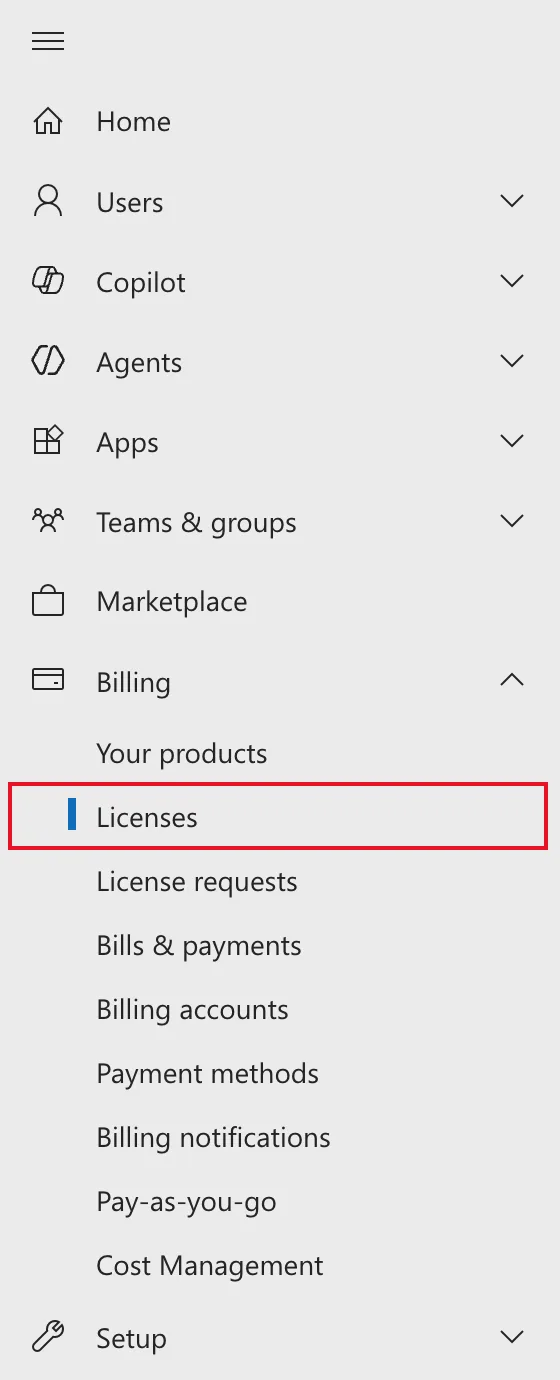
If Billing isn't in the menu, select Show all at the bottom of the menu.
Step 2: Read the Counts
The Subscriptions tab lists each product. Two columns answer the question:
- Available licenses is how many you can still assign.
- Assigned licenses shows how many are in use out of the total, with a bar.
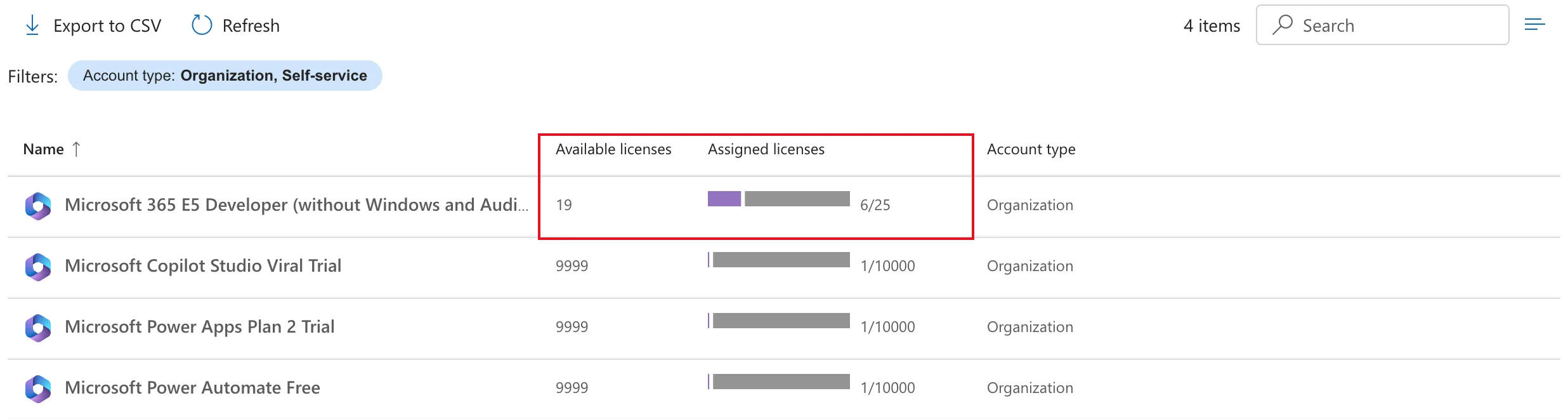
This organization has 19 Microsoft 365 E5 Developer licenses left, with 6 of 25 assigned: one for each person in the demo team. The other three products are trials and free plans, with 9,999 left each.
To give someone a license, follow How to Add a User and Assign a License in the Microsoft 365 Admin Center. To see what one person has, How to See a User's Licenses and Apps.
Above the list, the page showed an information banner: Some licensing information could not be fetched. Selecting Refresh didn't clear it, and Microsoft's documentation doesn't explain it. Every product and count above was still listed.
Common Mistakes
| Mistake | What happens | Do this instead |
|---|---|---|
| Reading Assigned licenses as the free count | 6/25 means 6 in use out of 25 | Read Available licenses for what's left |
| Checking one person to judge the whole organization | One person's licenses say nothing about what's left | Use Billing → Licenses |
| Counting trial licenses as permanent | Trials end, and their licenses go with them | Plan around the licenses you've bought or that come with your subscription |
Troubleshooting
| Symptom | Likely cause | Fix |
|---|---|---|
| Billing isn't in the menu | The menu shows only pinned items | Select Show all |
| A product you expected is missing | It's filtered out | Check the Filters chip above the list; mine showed Account type: Organization, Self-service |
FAQ
What makes a license "available"?
It's been bought, or comes with the organization's subscription, but isn't assigned to anyone yet.
Does deleting a user free a license?
Yes. Removing the license from someone, or deleting them, frees it, as How to Add a User and Assign a License explains.
Which license does the Overtime Timesheet series need?
Microsoft 365 E5 includes everything the series uses: SharePoint, Power Apps and Power Automate for Office 365, Teams and Power BI Pro. Part 1 explains what each person needs.
Conclusion
Billing → Licenses answers "do we have enough?" in one screen: Available licenses for what's left, Assigned licenses for what's in use.
