How to See Every Event in a Microsoft Agent Framework Workflow Run in C#

A Microsoft Agent Framework workflow reports everything it does as an event: when it starts, when each step begins and ends, when it produces output, and when something fails. Most code only looks at the output. This guide prints every event of a small C# workflow, first after the run and then live, while it runs.
Syntax
// After the run has finished
await using Run <run> = await InProcessExecution.RunAsync(<workflow>, <input>);
foreach (WorkflowEvent <evt> in <run>.NewEvents) { ... }

// While the workflow runs
await using StreamingRun <run> = await InProcessExecution.RunStreamingAsync(<workflow>, <input>);
await foreach (WorkflowEvent <evt> in <run>.WatchStreamAsync()) { ... }
| Part | What it is |
|---|---|
<workflow>, <input> | The workflow to run, and the value its first step receives |
RunAsync and NewEvents | RunAsync runs the workflow inside your app. NewEvents returns the events produced since you last read it |
RunStreamingAsync and WatchStreamAsync() | RunStreamingAsync starts the workflow, and WatchStreamAsync() hands you each event as it happens |
WorkflowEvent | The base type of every event. Its Data holds the event's value, such as an executor's result |
Microsoft's guide to workflow events lists the built-in types, with these descriptions:
| Event | Description |
|---|---|
WorkflowStartedEvent | Workflow execution begins |
WorkflowOutputEvent | Workflow outputs data |
WorkflowErrorEvent | Workflow encounters an error |
WorkflowWarningEvent | Workflow encountered a warning |
ExecutorInvokedEvent | Executor starts processing |
ExecutorCompletedEvent | Executor finishes processing |
ExecutorFailedEvent | Executor encounters an error |
AgentResponseEvent | An agent run produces output |
AgentResponseUpdateEvent | An agent run produces a streaming update |
SuperStepStartedEvent | Superstep begins |
SuperStepCompletedEvent | Superstep completes |
RequestInfoEvent | A request is issued |
The Example
A console app builds a workflow with two steps: Double doubles a number, then AddOne adds one. It runs the workflow with the number 20. There's no AI model in it, so nothing needs an Azure account.
Prerequisites
- The .NET 10 SDK.
dotnet --versionprints a version that starts with10.0.
Step 1: Create a Console App
In a terminal, in the folder where you keep your projects, create a console app, move into it and add the workflows package:
dotnet new console -n NumberWorkflow
cd NumberWorkflow
dotnet add package Microsoft.Agents.AI.Workflows --version 1.28.0
The template "Console App" was created successfully.

Processing post-creation actions...
Restoring /Users/you/source/NumberWorkflow/NumberWorkflow.csproj:
Restore succeeded.
Microsoft.Agents.AI.Workflows is Agent Framework's workflows package, and --version keeps you on the version this guide used. Open the NumberWorkflow folder in VS Code, or NumberWorkflow.csproj in Visual Studio.
Step 2: Run the Workflow and Print Its Output
Replace everything in Program.cs with:
using Microsoft.Agents.AI.Workflows;

// Two steps: double the number, then add one.
Func<int, int> doubleIt = number => number * 2;
Func<int, int> addOne = number => number + 1;

var doubler = doubleIt.BindAsExecutor("Double");
var adder = addOne.BindAsExecutor("AddOne");

Workflow workflow = new WorkflowBuilder(doubler)
    .AddEdge(doubler, adder)
    .WithOutputFrom(adder)
    .Build();

await using Run run = await InProcessExecution.RunAsync(workflow, 20);
foreach (WorkflowEvent evt in run.NewEvents)
{
    if (evt is WorkflowOutputEvent output)
    {
        Console.WriteLine($"Output: {output.Data}");
    }
}
BindAsExecutorturns each function into an executor, a step of the workflow, with the name in quotes.AddEdge(doubler, adder)sends whatDoublereturns toAddOne, andWithOutputFrom(adder)makes the result ofAddOnethe workflow's output.InProcessExecution.RunAsyncruns the workflow with the input20and returns once it's done.- The loop goes over the run's events and prints only the output event.
Run the app:
- VS Code
- Visual Studio
In the terminal, in the NumberWorkflow folder, run:
dotnet run
Press Ctrl+F5 (Debug > Start Without Debugging). The output appears in a console window.
Output: 41
20 doubled is 40, and one more is 41. That one line hides everything else the workflow did.
Step 3: Print Every Event
Replace the foreach loop with one that prints every event:
foreach (WorkflowEvent evt in run.NewEvents)
{
    Console.WriteLine(evt switch
    {
        ExecutorInvokedEvent invoked => $"{evt.GetType().Name}: {invoked.ExecutorId} received {invoked.Data}",
        ExecutorCompletedEvent completed => $"{evt.GetType().Name}: {completed.ExecutorId} returned {completed.Data}",
        SuperStepStartedEvent started => $"{evt.GetType().Name}: superstep {started.StepNumber}",
        SuperStepCompletedEvent finished => $"{evt.GetType().Name}: superstep {finished.StepNumber}",
        _ => $"{evt.GetType().Name}: {evt.Data}",
    });
}
evt.GetType().Nameis the event's type.- The executor events carry the executor's name in
ExecutorId, and its input or result inData. - The superstep events carry the superstep's number in
StepNumber. - Every other event prints its
Data.
Run the app again:
WorkflowStartedEvent:
SuperStepStartedEvent: superstep 0
ExecutorInvokedEvent: Double received 20
ExecutorCompletedEvent: Double returned 40
SuperStepCompletedEvent: superstep 0
SuperStepStartedEvent: superstep 1
ExecutorInvokedEvent: AddOne received 40
ExecutorCompletedEvent: AddOne returned 41
WorkflowOutputEvent: 41
SuperStepCompletedEvent: superstep 1
Ten events tell the whole story. The workflow started, ran Double in superstep 0 and AddOne in superstep 1, and produced 41 before the second superstep ended. Microsoft's guide explains supersteps: Workflow execution is organized into discrete supersteps, and the workflow does not advance to the next superstep until every executor completes. Executors that receive a message in the same superstep run at the same time, and when checkpoints are switched on, they're saved between supersteps.
Step 4: Watch the Events While the Workflow Runs
RunAsync hands you the events once the workflow has finished. For a workflow that takes a while, such as one with agents in it, you'll want to see each event as it happens. Replace these two lines:
await using Run run = await InProcessExecution.RunAsync(workflow, 20);
foreach (WorkflowEvent evt in run.NewEvents)
with:
await using StreamingRun run = await InProcessExecution.RunStreamingAsync(workflow, 20);
await foreach (WorkflowEvent evt in run.WatchStreamAsync())
RunStreamingAsyncstarts the workflow and returns aStreamingRunright away.WatchStreamAsync()gives you each event as the workflow emits it, and ends when the workflow does. Microsoft's events guide uses it withawait foreach, as here.
Run the app again:
WorkflowStartedEvent:
SuperStepStartedEvent: superstep 0
ExecutorInvokedEvent: Double received 20
ExecutorCompletedEvent: Double returned 40
SuperStepCompletedEvent: superstep 0
SuperStepStartedEvent: superstep 1
ExecutorInvokedEvent: AddOne received 40
ExecutorCompletedEvent: AddOne returned 41
WorkflowOutputEvent: 41
SuperStepCompletedEvent: superstep 1
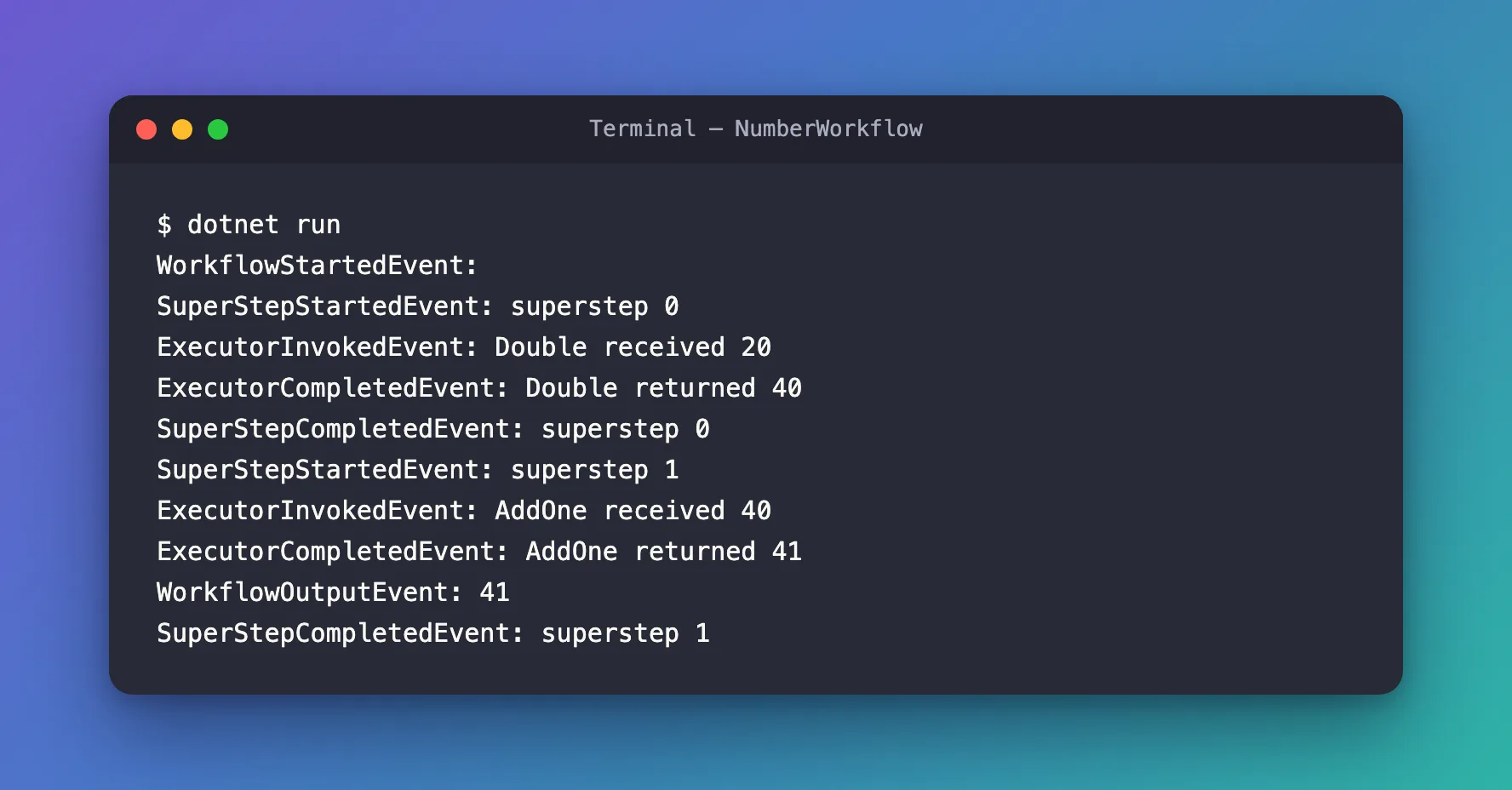
The same ten events in the same order. The difference is when you get them: as they happen, instead of all at once at the end.
The Complete File
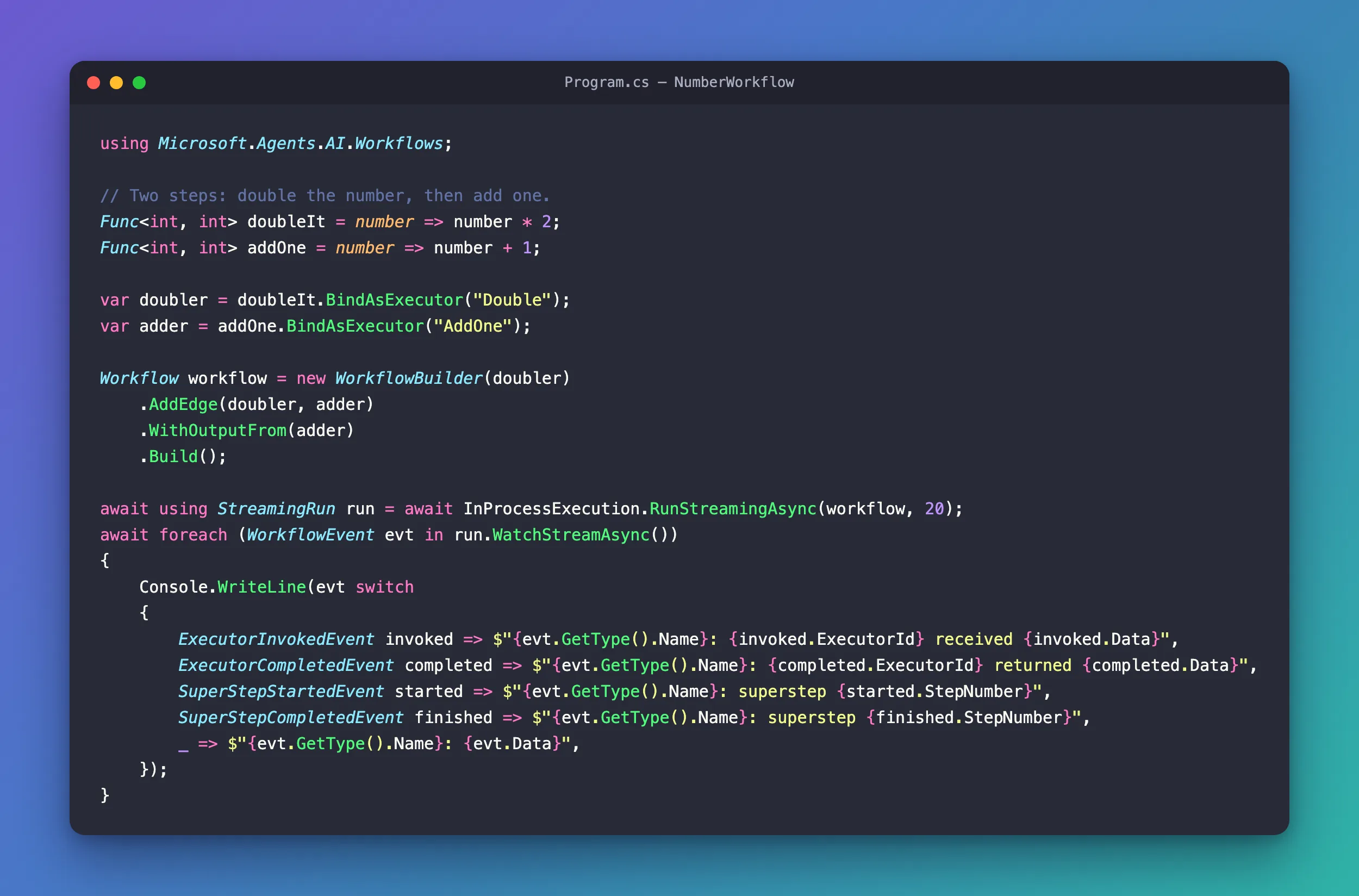
using Microsoft.Agents.AI.Workflows;

// Two steps: double the number, then add one.
Func<int, int> doubleIt = number => number * 2;
Func<int, int> addOne = number => number + 1;

var doubler = doubleIt.BindAsExecutor("Double");
var adder = addOne.BindAsExecutor("AddOne");

Workflow workflow = new WorkflowBuilder(doubler)
    .AddEdge(doubler, adder)
    .WithOutputFrom(adder)
    .Build();

await using StreamingRun run = await InProcessExecution.RunStreamingAsync(workflow, 20);
await foreach (WorkflowEvent evt in run.WatchStreamAsync())
{
    Console.WriteLine(evt switch
    {
        ExecutorInvokedEvent invoked => $"{evt.GetType().Name}: {invoked.ExecutorId} received {invoked.Data}",
        ExecutorCompletedEvent completed => $"{evt.GetType().Name}: {completed.ExecutorId} returned {completed.Data}",
        SuperStepStartedEvent started => $"{evt.GetType().Name}: superstep {started.StepNumber}",
        SuperStepCompletedEvent finished => $"{evt.GetType().Name}: superstep {finished.StepNumber}",
        _ => $"{evt.GetType().Name}: {evt.Data}",
    });
}
Common Mistakes
| Mistake | What happens | Do this instead |
|---|---|---|
Reading NewEvents twice | The second read is empty: NewEvents returns only the events since the last read. When I read it twice after a run, the first read returned every event and the second none | Read it once and keep what you need, or use OutgoingEvents, which returns every event of the run |
Looking only for WorkflowOutputEvent | A step that fails looks like a run that produced nothing | Also handle ExecutorFailedEvent and WorkflowErrorEvent |
Troubleshooting
| Symptom | Likely cause | Fix |
|---|---|---|
No WorkflowOutputEvent, and no exception | A step threw. RunAsync doesn't throw for it: the failure is in the events | Print every event: an ExecutorFailedEvent and a WorkflowErrorEvent hold the exception in Data |
FAQ
What happens when a step fails?
I made AddOne throw an exception for numbers over 30 to see it. RunAsync returned normally, without throwing. The events stopped after ExecutorInvokedEvent: AddOne received 40 with an ExecutorFailedEvent, which held the exception, and a WorkflowErrorEvent, which held it wrapped in a TargetInvocationException. There was no output event, and the run's status was Ended.
Why is the output event before the end of the superstep?
Because AddOne produced the output during superstep 1, and the superstep ends only after that. The output belongs to the superstep that produced it.
Can my own executors send events?
Yes. Microsoft's events guide shows how: derive a class from WorkflowEvent, and call AddEventAsync on the workflow context from inside an executor. Your events then arrive in the same loop as the built-in ones.
Conclusion
A workflow's events show everything it did: when it started, each executor with its input and result, the supersteps, the output and any failure. Read them after the run with RunAsync and NewEvents, or as they happen with RunStreamingAsync and WatchStreamAsync(). Print all of them while you build a workflow, and handle the failure events in code that runs for real.
Additional Resources
- Events — every built-in event, consuming them, and custom events.
- Workflow Builder and execution — supersteps and how a workflow runs.
- Executors — the steps that produce the events.
