How to See an Agent's Tool Calls in an AG-UI Stream

When an agent answers over AG-UI, the text isn't the only thing in the stream: every function tool the agent calls shows up too, as four events, before the answer. This guide builds the smallest agent with one tool, a die roller, and reads each event from a real Microsoft Agent Framework stream, first with one call and then with two calls in the same turn.
The Four Tool Events
A function tool is a method in your app that the AI model may ask to run. When an agent built with Microsoft Agent Framework is served over AG-UI with MapAGUIServer, the hosting package turns each tool call into protocol events. Microsoft's Backend Tool Rendering with AG-UI puts it this way: FunctionCallContent is emitted as AG-UI TOOL_CALL_START, TOOL_CALL_ARGS, and TOOL_CALL_END events. FunctionResultContent is emitted as a TOOL_CALL_RESULT event.
So between RUN_STARTED and the first TEXT_MESSAGE_START, a stream can tell you which tool the model picked, what arguments it chose, and what your code returned. The example is an agent that rolls dice for board game players: one tool, one number, nothing else in the way.
Prerequisites
- A model deployment in a Microsoft Foundry project, and the Foundry User role on the Foundry resource for your account: the app calls the model as you. Microsoft's Role-based access control for Microsoft Foundry lists the roles.
- The .NET 10 SDK (
dotnet --versionprints a version that starts with10.0) and the Azure CLI, signed in withaz login. - VS Code with the REST Client extension, or Visual Studio, to send the requests in a
.httpfile.
Step 1: Create the App and Add the Packages
Open a terminal in the folder where you keep your projects: VS Code's terminal, or View > Terminal in Visual Studio. Create an empty ASP.NET Core app and move into it:
dotnet new web -n DiceAgent
cd DiceAgent
The template "ASP.NET Core Empty" was created successfully.

Processing post-creation actions...
Restoring /Users/you/source/DiceAgent/DiceAgent.csproj:
Restore succeeded.
Then add three packages:
dotnet add package Microsoft.Agents.AI.Foundry --version 1.28.0-preview.261106.1
dotnet add package Microsoft.Agents.AI.Hosting.AGUI.AspNetCore --version 1.28.0-preview.261106.1
dotnet add package Azure.Identity --version 1.21.0
| Package | What it gives the app |
|---|---|
Microsoft.Agents.AI.Foundry | AsAIAgent, which turns a model in a Foundry project into an agent |
Microsoft.Agents.AI.Hosting.AGUI.AspNetCore | AddAGUIServer and MapAGUIServer, the AG-UI endpoint |
Azure.Identity | AzureCliCredential, which signs the app in to Foundry with your Azure CLI sign-in |
The Foundry and hosting packages of Microsoft Agent Framework 1.28.0 ship as previews, so each needs its exact --version. The project file now lists the three:
<Project Sdk="Microsoft.NET.Sdk.Web">

  <PropertyGroup>
    <TargetFramework>net10.0</TargetFramework>
    <Nullable>enable</Nullable>
    <ImplicitUsings>enable</ImplicitUsings>
  </PropertyGroup>

  <ItemGroup>
    <PackageReference Include="Azure.Identity" Version="1.21.0" />
    <PackageReference Include="Microsoft.Agents.AI.Foundry" Version="1.28.0-preview.261106.1" />
    <PackageReference Include="Microsoft.Agents.AI.Hosting.AGUI.AspNetCore" Version="1.28.0-preview.261106.1" />
  </ItemGroup>

</Project>
Open the project in your editor:
- VS Code
- Visual Studio
Select File > Open Folder and open the DiceAgent folder.
Select File > Open > Project/Solution and open DiceAgent.csproj.
Step 2: Give an Agent One Tool and Serve It over AG-UI
Replace everything in Program.cs with:
using System.ComponentModel;
using Azure.AI.Projects;
using Azure.Identity;
using Microsoft.Agents.AI;
using Microsoft.Agents.AI.Hosting.AGUI.AspNetCore;
using Microsoft.Extensions.AI;

// Your Foundry project endpoint and the name of your model deployment.
const string ProjectEndpoint = "https://<your-foundry-resource>.services.ai.azure.com/api/projects/<your-project>";
const string ModelDeployment = "gpt-5.6-luna";

var builder = WebApplication.CreateBuilder(args);
builder.Services.AddAGUIServer();

// An agent with one tool: it can roll dice, which a language model can't do by itself.
AIAgent agent = new AIProjectClient(new Uri(ProjectEndpoint), new AzureCliCredential())
    .AsAIAgent(
        model: ModelDeployment,
        instructions: "You roll dice for board game players. Use the roll_dice tool for every roll.",
        tools: [AIFunctionFactory.Create(RollDice, name: "roll_dice")]);

var app = builder.Build();
app.MapAGUIServer("/", agent);
app.Run();

[Description("Rolls one die and returns the number it lands on.")]
static int RollDice([Description("How many sides the die has, such as 6 or 20.")] int sides) =>
    Random.Shared.Next(1, sides + 1);
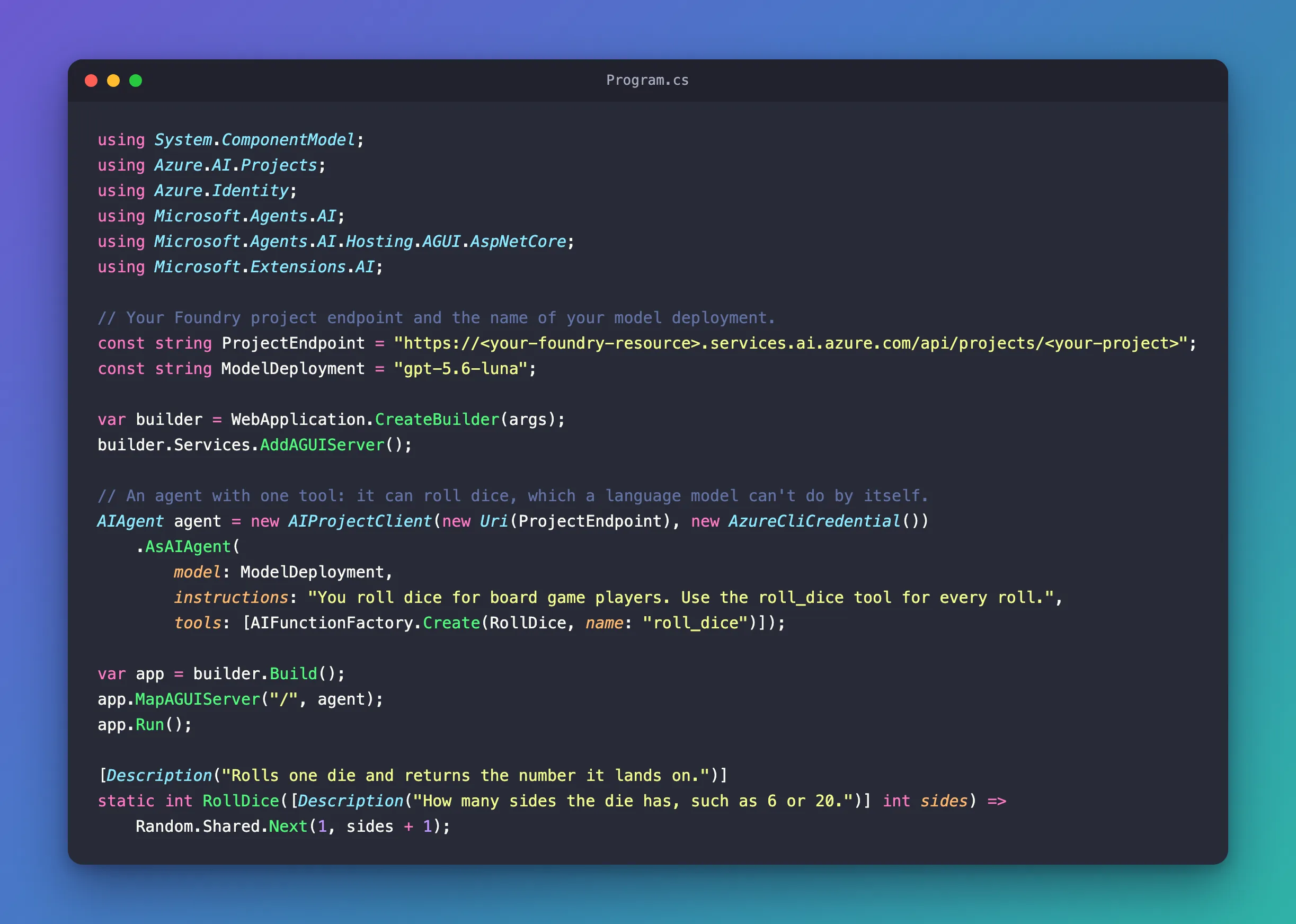
Put your own values in the two constants: the project endpoint from your Foundry project's Overview page, and the name of your model deployment. Then the pieces:
| Code | What it does |
|---|---|
AddAGUIServer() and MapAGUIServer("/", agent) | Serve the agent over AG-UI at the app's root address, as in Microsoft's Getting Started with AG-UI |
AIFunctionFactory.Create(RollDice, name: "roll_dice") | Turns the RollDice method into a tool named roll_dice |
[Description(...)] | The text the model reads to decide when to call the tool and what to pass |
RollDice | The tool itself: a random whole number from 1 to sides |
How to Add a Function Tool to a Microsoft Agent Framework Agent in C# explains AIFunctionFactory.Create and the Description attributes in detail. For this guide, what matters is that the model can't run RollDice itself: it can only ask for it, and every ask is visible in the stream.
Step 3: Give the App a Fixed Address
The template picks a random port. Open Properties/launchSettings.json and change two lines of the http profile, so the requests below always find the app and Visual Studio doesn't open a browser on start:
"http": {
  "commandName": "Project",
  "dotnetRunMessages": true,
  "launchBrowser": false,
  "applicationUrl": "http://localhost:5320",
  "environmentVariables": {
    "ASPNETCORE_ENVIRONMENT": "Development"
  }
},
Step 4: Run the App
- VS Code
- Visual Studio
In VS Code's terminal, in the DiceAgent folder, run:
dotnet run
Make sure http is selected in the drop-down list next to the green Start button (▶), and press Ctrl+F5 (Debug > Start Without Debugging).
Using launch settings from /Users/you/source/DiceAgent/Properties/launchSettings.json...
Building...
info: Microsoft.Hosting.Lifetime[14]
      Now listening on: http://localhost:5320
info: Microsoft.Hosting.Lifetime[0]
      Application started. Press Ctrl+C to shut down.
info: Microsoft.Hosting.Lifetime[0]
      Hosting environment: Development
info: Microsoft.Hosting.Lifetime[0]
      Content root path: /Users/you/source/DiceAgent
Leave the app running.
Step 5: Ask for One Roll
Create a file named DiceAgent.http in the DiceAgent folder, with two requests (How to Send API Requests from a .http File in VS Code and Visual Studio covers the format):
@baseUrl = http://localhost:5320

# Ask for one roll. The agent calls roll_dice once, then answers.
POST {{baseUrl}}/
Content-Type: application/json
Accept: text/event-stream

{
  "threadId": "thread-1",
  "runId": "run-1",
  "messages": [
    {
      "id": "message-1",
      "role": "user",
      "content": "Roll a 20-sided die for me."
    }
  ]
}

###

# Ask for two rolls at once. The agent calls roll_dice twice in the same turn.
POST {{baseUrl}}/
Content-Type: application/json
Accept: text/event-stream

{
  "threadId": "thread-2",
  "runId": "run-1",
  "messages": [
    {
      "id": "message-1",
      "role": "user",
      "content": "Roll a 6-sided die and a 20-sided die."
    }
  ]
}
Send the first request — Send Request above its POST line, in either editor. The response is a stream of events. Here it is, with each rawEvent shortened to {…} and most of the text left out:
HTTP/1.1 200  - OK
cache-control: no-cache,no-store
content-encoding: identity
content-type: text/event-stream
date: Fri, 20 Nov 2026 09:15:18 GMT
pragma: no-cache
server: Kestrel
transfer-encoding: chunked

data: {"type":"RUN_STARTED","threadId":"thread-1","runId":"run-1"}

data: {"type":"TOOL_CALL_START","toolCallId":"call_okOb9sGIDtVF9mo3fr2GNq9m","toolCallName":"roll_dice","rawEvent":{…}}

data: {"type":"TOOL_CALL_ARGS","toolCallId":"call_okOb9sGIDtVF9mo3fr2GNq9m","delta":"{\"sides\":20}","rawEvent":{…}}

data: {"type":"TOOL_CALL_END","toolCallId":"call_okOb9sGIDtVF9mo3fr2GNq9m","rawEvent":{…}}

data: {"type":"TOOL_CALL_RESULT","messageId":"call_okOb9sGIDtVF9mo3fr2GNq9m","toolCallId":"call_okOb9sGIDtVF9mo3fr2GNq9m","content":"7","rawEvent":{…}}

data: {"type":"TEXT_MESSAGE_START","messageId":"msg_0e60d991…","role":"assistant","rawEvent":{…}}

data: {"type":"TEXT_MESSAGE_CONTENT","messageId":"msg_0e60d991…","delta":"You","rawEvent":{…}}

data: {"type":"TEXT_MESSAGE_CONTENT","messageId":"msg_0e60d991…","delta":" rolled","rawEvent":{…}}

… 4 more TEXT_MESSAGE_CONTENT events …

data: {"type":"TEXT_MESSAGE_CONTENT","messageId":"msg_0e60d991…","delta":".","rawEvent":{…}}

data: {"type":"TEXT_MESSAGE_END","messageId":"msg_0e60d991…"}

data: {"type":"RUN_FINISHED","threadId":"thread-1","runId":"run-1","outcome":{"type":"success"},"usage":[{"model":"gpt-5.6-luna-2026-07-09","inputTokens":225,"outputTokens":31,"totalTokens":256,"reasoningTokens":0,"cachedInputTokens":0}]}
Put together, the text reads You rolled a **7**.: the 7 from the tool. The four tool events, field by field:
| Event | Fields | What they say in this run |
|---|---|---|
TOOL_CALL_START | toolCallId, toolCallName | The model asked for roll_dice. The ID, call_okOb…, ties the next three events to this call |
TOOL_CALL_ARGS | toolCallId, delta | The arguments the model chose, as JSON text: {"sides":20} |
TOOL_CALL_END | toolCallId | The arguments are complete |
TOOL_CALL_RESULT | messageId, toolCallId, content | What RollDice returned, as JSON text: "7". Its messageId is the same as the toolCallId |
Two things happen between these events that the stream doesn't show. After TOOL_CALL_END, your server ran RollDice. After TOOL_CALL_RESULT, the agent called the model a second time, now with the result. That loop is FunctionInvokingChatClient: By default, ChatClientAgent wraps the provided chat client with function-calling support, says Microsoft's agent pipeline architecture, and that client's reference explains that it might perform that invocation and send the results back to the inner client in a new request. Only then did the answer start.
Step 6: Ask for Two Rolls in One Turn
Send the second request. This time the model asked for both rolls at once. The stream, from RUN_STARTED to the start of the answer:
data: {"type":"RUN_STARTED","threadId":"thread-2","runId":"run-1"}

data: {"type":"TOOL_CALL_START","toolCallId":"call_4s1fDU1rc9VVbzyK8kfvP5nD","toolCallName":"roll_dice","rawEvent":{…}}

data: {"type":"TOOL_CALL_ARGS","toolCallId":"call_4s1fDU1rc9VVbzyK8kfvP5nD","delta":"{\"sides\":6}","rawEvent":{…}}

data: {"type":"TOOL_CALL_END","toolCallId":"call_4s1fDU1rc9VVbzyK8kfvP5nD","rawEvent":{…}}

data: {"type":"TOOL_CALL_START","toolCallId":"call_GwK4D3OjO5vsz9K4n1pobiqf","toolCallName":"roll_dice","rawEvent":{…}}

data: {"type":"TOOL_CALL_ARGS","toolCallId":"call_GwK4D3OjO5vsz9K4n1pobiqf","delta":"{\"sides\":20}","rawEvent":{…}}

data: {"type":"TOOL_CALL_END","toolCallId":"call_GwK4D3OjO5vsz9K4n1pobiqf","rawEvent":{…}}

data: {"type":"TOOL_CALL_RESULT","messageId":"call_4s1fDU1rc9VVbzyK8kfvP5nD","toolCallId":"call_4s1fDU1rc9VVbzyK8kfvP5nD","content":"2","rawEvent":{…}}

data: {"type":"TOOL_CALL_RESULT","messageId":"call_GwK4D3OjO5vsz9K4n1pobiqf","toolCallId":"call_GwK4D3OjO5vsz9K4n1pobiqf","content":"8","rawEvent":{…}}

data: {"type":"TEXT_MESSAGE_START","messageId":"msg_0e4d9f69…","role":"assistant","rawEvent":{…}}
Both calls come first, each as START, ARGS and END with its own toolCallId. Then both results, in the same order. Match a result to its call by toolCallId, never by position: call_4s1f… asked for 6 sides and got 2, call_GwK4… asked for 20 and got 8. The answer that followed:
6-sided die: **2**
20-sided die: **8**
The two RollDice calls ran one after the other. The reference for FunctionInvokingChatClient.AllowConcurrentInvocation says: By default, such function calls are processed serially.
Step 7: Watch the Same Events from a Terminal
You can send the same question from a terminal, without the .http file:
- bash / zsh
- PowerShell
curl -N http://localhost:5320/ \
  -H "Content-Type: application/json" \
  -H "Accept: text/event-stream" \
  -d '{"threadId":"thread-3","runId":"run-1","messages":[{"id":"message-1","role":"user","content":"Roll a 20-sided die for me."}]}'
-N turns off curl's output buffer, so each event prints as it arrives.
$body = @{
    threadId = 'thread-4'
    runId    = 'run-1'
    messages = @(@{ id = 'message-1'; role = 'user'; content = 'Roll a 20-sided die for me.' })
} | ConvertTo-Json -Depth 5

Invoke-RestMethod -Uri http://localhost:5320/ -Method Post -ContentType 'application/json' -Body $body
ConvertTo-Json builds the request body, so you don't have to escape quotes. Invoke-RestMethod prints the stream as text.
Both printed the same sequence as Step 5: RUN_STARTED, the four tool events, the text events and RUN_FINISHED, with a different roll each time.
What the rawEvent Carries
Each tool event also has a rawEvent: the Agent Framework update it came from. For the call in Step 5, the rawEvent of TOOL_CALL_START held a functionCall with the name, the arguments and the call ID, plus Foundry's responseId, conversationId and the exact modelId. The rawEvent of TOOL_CALL_RESULT held the functionResult, 7.
That is useful for debugging, and more than a browser needs. Microsoft's documentation adds that tool results are model-facing values that AG-UI also exposes to the client: whatever a tool returns to the model, an AG-UI client receives too. If a browser talks to your agent through your own server, that server can drop the tool events and every rawEvent before they leave, as How to Filter AG-UI Events Before They Reach the Browser shows.
Common Mistakes
| Mistake | What happens | Do this instead |
|---|---|---|
| Matching results to calls by their order | With several calls, the wrong result can end up with the wrong call | Match by toolCallId |
Reading the arguments from the TOOL_CALL_START event | TOOL_CALL_START names the tool but carries no arguments | Read delta from TOOL_CALL_ARGS |
Treating content in TOOL_CALL_RESULT as a number or an object | It is JSON text: "7", not 7 | Parse it as JSON |
| Passing a browser's stream straight from the agent | The browser receives every tool result and the model provider's data in rawEvent | Filter the events in your own server first |
Troubleshooting
| Symptom | Likely cause | Fix |
|---|---|---|
The stream has no TOOL_CALL_START | The model answered without the tool | Make the instructions and the [Description] text say when to use it |
curl: (7) Failed to connect to localhost port 5320 … Couldn't connect to server | The app isn't running, or runs on another port | Start it, and check applicationUrl in launchSettings.json |
The only event is RUN_ERROR with An error occurred while streaming the agent response., and the app's terminal shows nothing | The model call failed. I got this with a deployment name that doesn't exist | Check the two constants in Program.cs, and that az login is done |
FAQ
Do the arguments always arrive in one TOOL_CALL_ARGS event?
In these runs, each call's arguments came in one event. The Python section of Microsoft's Backend Tool Rendering with AG-UI describes TOOL_CALL_ARGS as Tool arguments (may stream in chunks), so a client should join the delta values of one toolCallId until its TOOL_CALL_END.
Does a client have to do anything with the tool events?
No. The tool ran on the server, and the answer arrives as text either way. A client can use the events to show progress, such as Rolling a die…, or ignore them.
Do I need a session store for this?
No. Without one, each request gets a new conversation, which is all these single questions need. How to Keep Conversation History in a Microsoft Agent Framework AG-UI Server adds one.
Conclusion
An AG-UI stream from a Microsoft Agent Framework agent shows every backend tool call before the answer: TOOL_CALL_START names the tool, TOOL_CALL_ARGS carries the model's arguments, TOOL_CALL_END closes them, and TOOL_CALL_RESULT carries what your code returned, all tied together by one toolCallId. When the model asks for several tools in one turn, all the calls come first and the results after them. Read the events from a .http file or a terminal to debug, and decide in your own server which of them a browser may see.
Additional Resources
- Backend Tool Rendering with AG-UI — how function calls and results map to AG-UI events.
- Getting Started with AG-UI —
AddAGUIServerandMapAGUIServer. - Using function tools with an agent —
AIFunctionFactory.Createand descriptions. - FunctionInvokingChatClient — the loop that runs the tools and calls the model again.
