How to See a User's Licenses and Apps in the Microsoft 365 Admin Center

A Microsoft 365 license is a bundle of apps and services. To see what a user actually has, open their Licenses and apps tab in the Microsoft 365 admin center: it shows each license and every app it switches on, such as Power Apps for Office 365.
Prerequisites
- An admin account that can view users and their licenses in the Microsoft 365 admin center.
- A user with a license (How to Add a User and Assign a License).
The example is Olivia Bennett, a demo user in a Microsoft 365 developer tenant.
Step 1: Open Active Users
In the admin center, go to Users → Active users. The Licenses column shows each user's licenses at a glance.
Step 2: Open the User's Licenses and Apps
Select the user's name. In the panel that opens, choose Licenses and apps. Licenses lists the licenses available in the organization, with a check next to the ones this user has:
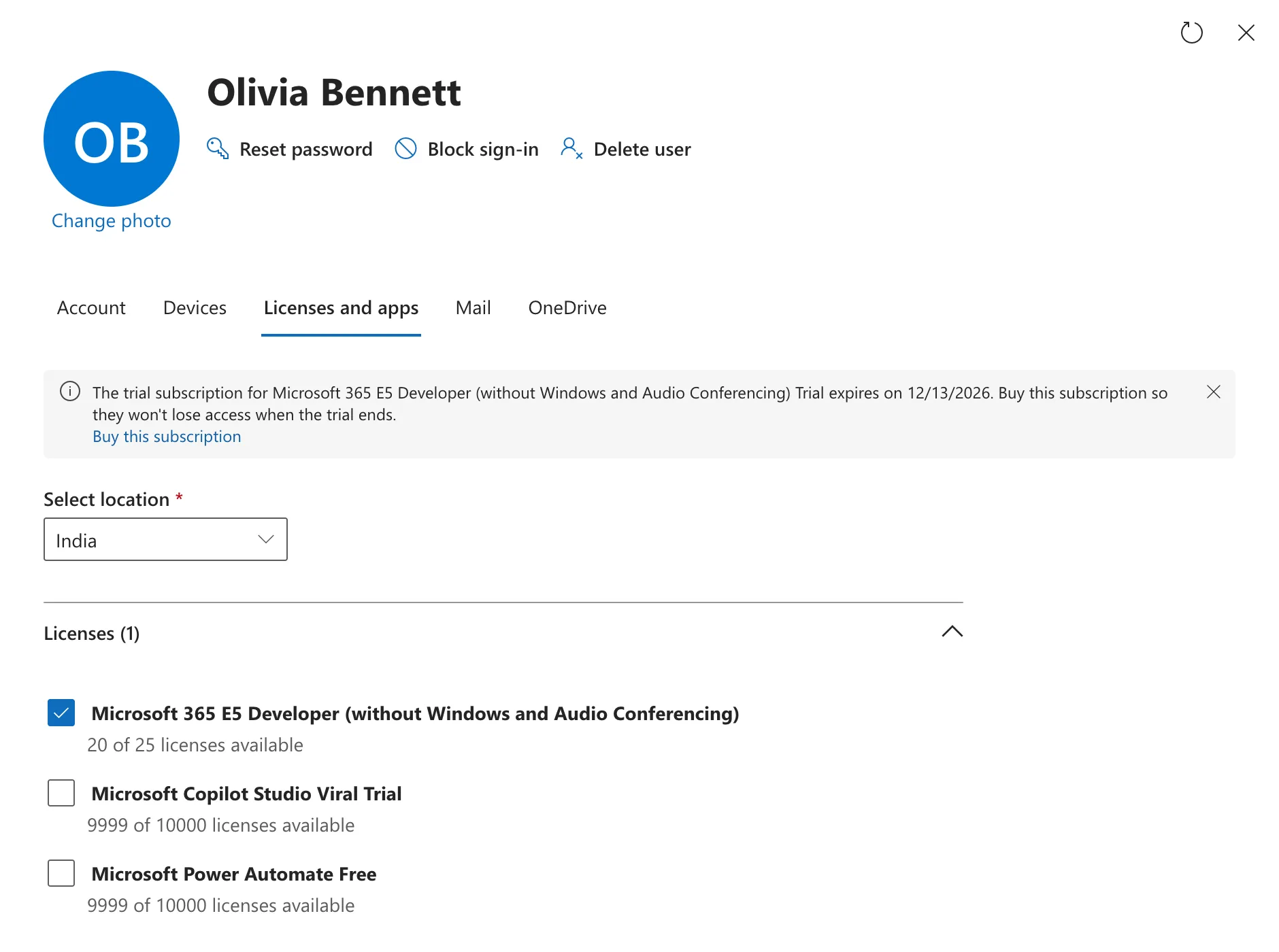
Olivia has one license: Microsoft 365 E5 Developer (without Windows and Audio Conferencing). The note at the top only says when this developer tenant's trial subscription ends.
Step 3: See the Apps in Each License
Expand Apps below the licenses. It lists every app and service the user's licenses include, each with the license it comes from:
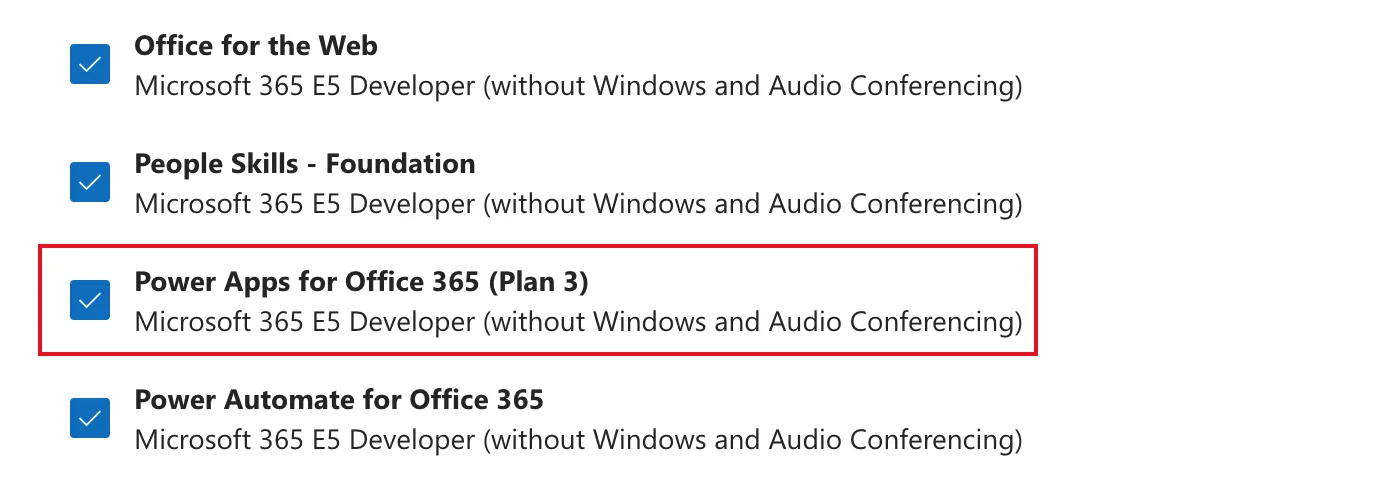
Olivia's license includes Power Apps for Office 365 (Plan 3), which lets her run canvas apps that use standard connectors (How to Check a Canvas App's License Designation in Power Apps).
The checks are switches. Clearing one and selecting Save changes turns that app off for the user. To only look, close the panel without saving.
Common Mistakes
| Mistake | What happens | Do this instead |
|---|---|---|
| Looking only at the license name | You can't tell which apps it includes | Expand Apps |
| Clearing a check to "see what happens" | The app is turned off for the user | Only look, and close without saving |
| Assuming every license has Power Apps | Some don't | Search the Apps list for Power Apps |
Troubleshooting
| Symptom | Likely cause | Fix |
|---|---|---|
| Licenses and apps is read-only | Your admin role can view but not assign | Ask a license or user administrator |
| An app is listed but unchecked | It was turned off for this user | Check with whoever manages licenses before changing it |
FAQ
Where can I compare what each license includes?
Microsoft publishes the service plans in each license in its product names and service plan identifiers reference.
Conclusion
Users → Active users → the user → Licenses and apps shows their licenses, and Apps shows what each one switches on. It's the quickest way to check whether someone has Power Apps for Office 365 before you share an app with them.
