How to See a SharePoint Column's Internal Name and SchemaXml in the Browser

Every SharePoint column has an internal name, which flows and apps use, and an XML definition, its SchemaXml. The browser shows both when you type one REST address into its address bar while you're signed in to SharePoint. Nothing to install.
Syntax
https://<site address>/_api/web/lists/getbytitle('<list name>')/fields/getbyinternalnameortitle('<column>')?$select=InternalName,TypeAsString,SchemaXml
<site address>: the site, as in its own address, such ascontoso.sharepoint.com/sites/Finance. The rest of the address follows Microsoft's Determine SharePoint REST service endpoint URIs:_api/webis the site, andlists/getbytitle('<list name>')is one of its lists.<list name>: the list's title, as in Site contents. Spaces are fine.fields/getbyinternalnameortitle('<column>'): one column, found by its internal name or by the name you see (GetByInternalNameOrTitle).$select=InternalName,TypeAsString,SchemaXml: only these three of the column's properties:InternalName: the name flows and apps use, which never changes (Field.InternalName);TypeAsString: the column's type, such asTextorUserMulti(Field.TypeAsString);SchemaXml: the column's whole definition as aFieldelement (Field.SchemaXml).
The Example
A list called Rooms, on the root site contoso.sharepoint.com, has a column called RoomCode: required, at most 20 characters, indexed and unique. The address reads its definition.
Prerequisites
- Access to the list, at least read access, and a signed-in SharePoint session in the same browser. The browser sends your sign-in with the request.
Step 1: Open the Address
In the browser where you use SharePoint, type the address in the address bar and press Enter:
https://contoso.sharepoint.com/_api/web/lists/getbytitle('Rooms')/fields/getbyinternalnameortitle('RoomCode')?$select=InternalName,TypeAsString,SchemaXml
Use your own site's address in place of contoso.sharepoint.com.
Step 2: Read the Answer
SharePoint answers in XML. Microsoft's Working with lists and list items with REST says to ask for JSON with the Accept header application/json;odata=verbose, and a browser's address bar sends no such header. In my browser, the answer appeared as plain text:
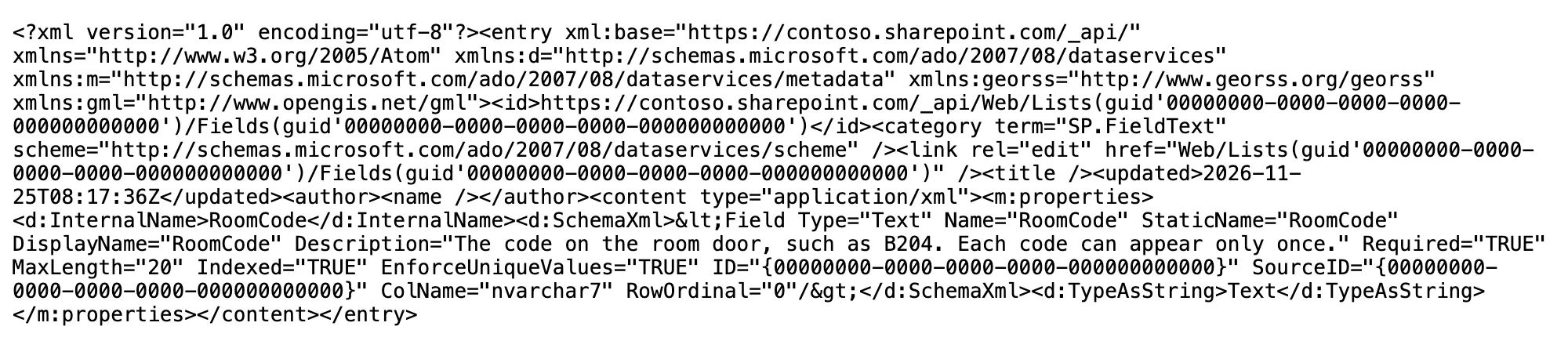
The three values are inside m:properties:
| Element | Value | Meaning |
|---|---|---|
d:InternalName | RoomCode | The name to use in flows, apps and REST requests |
d:TypeAsString | Text | A single line of text |
d:SchemaXml | <Field Type="Text" Name="RoomCode" …/> | The definition, with < and > for the angle brackets |
Step 3: Reuse the Definition
The definition is a ready-made Field element for creating the same column elsewhere with createfieldasxml (How to Add a Column to a SharePoint List with CreateFieldAsXml in Power Automate). Compared with the XML that created this column, SharePoint added four attributes of its own: ID, SourceID, ColName and RowOrdinal. Leave those out when you reuse it, because SharePoint sets them when it creates a column. Put back the angle brackets, and switch the double quotes to single quotes when the XML goes inside a JSON string:
<Field Type='Text' Name='RoomCode' StaticName='RoomCode' DisplayName='RoomCode' Description='The code on the room door, such as B204. Each code can appear only once.' Required='TRUE' MaxLength='20' Indexed='TRUE' EnforceUniqueValues='TRUE' />
Common Mistakes
| Mistake | What happens | Do this instead |
|---|---|---|
| Using the display name in a flow after a rename | The internal name stayed the same, and it's the one REST and apps use | Read InternalName |
Copying ID and SourceID into a new column | The new column would carry the original column's IDs | Leave out ID, SourceID, ColName and RowOrdinal |
Pasting <Field …/> as it is | It isn't XML until the angle brackets are back | Replace < with < and > with > |
Troubleshooting
| Symptom | Likely cause | Fix |
|---|---|---|
| An error saying the list doesn't exist | The title in getbytitle('…') is wrong | Copy the title from Site contents |
| An error about the column | No column with that name in the list | Check the spelling, or try the internal name |
| A sign-in page or an access error | The browser isn't signed in, or you can't open the list | Sign in to SharePoint in the same browser |
FAQ
Can I see every column of the list?
Leave out getbyinternalnameortitle('<column>'): …/fields?$select=InternalName,Title lists every column, including SharePoint's own built-in ones.
Is this safe to try on a real list?
Yes. Opening an address in the browser sends a GET request, which only reads: Microsoft's Get to know the SharePoint REST service lists GET as the way to read a resource.
Does this work for document libraries?
Yes. A library is a list, so getbytitle('<library name>') works the same way.
Conclusion
Open https://<site address>/_api/web/lists/getbytitle('<list name>')/fields/getbyinternalnameortitle('<column>')?$select=InternalName,TypeAsString,SchemaXml in a signed-in browser. The answer gives the column's internal name, its type and its full Field element, ready to reuse without ID, SourceID, ColName and RowOrdinal.
Additional Resources
- Determine SharePoint REST service endpoint URIs
- Field.SchemaXml property
- Field element (List): every attribute in a column's XML.
