How to See a Flow's Run History in Power Automate

Every run of a cloud flow is kept for 28 days. The flow's details page lists them with their start time, duration and status. Open a run to see which actions ran, and select an action to read exactly what it received and returned.
Microsoft's cloud flow article says: To view the run history of a cloud flow, select the flow from the My flows page. Then, select Details to see the history under the 28 day run history section. Select a cloud flow run from the list to view the inputs and outputs of each step.
The example is the approval flow of the Overtime Timesheet app, after an afternoon of tests.
Prerequisites
- A flow that has run at least once, in an environment you can open.
Step 1: Open the Flow's Details
In Power Automate, select My flows, then the flow's name. Its details page has a 28-day run history card with each run's start, duration and status:
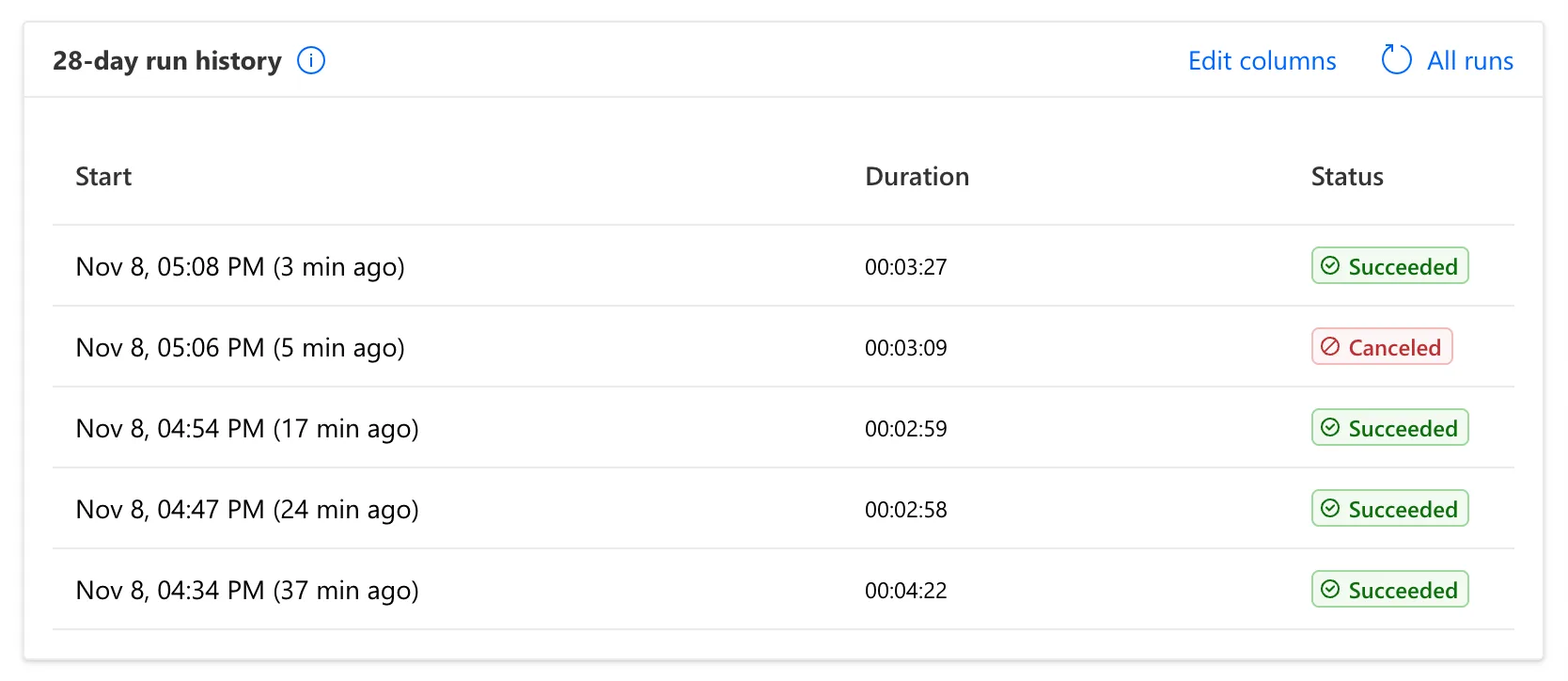
The durations include the time each run waited for an approver. All runs opens the full list.
Step 2: Open a Run
Select a run's start time. The run view shows the flow with a status on each action: a green tick for succeeded, a grey dash for skipped, a cross for failed or terminated, and how long each took. Expand a condition to see its branches:
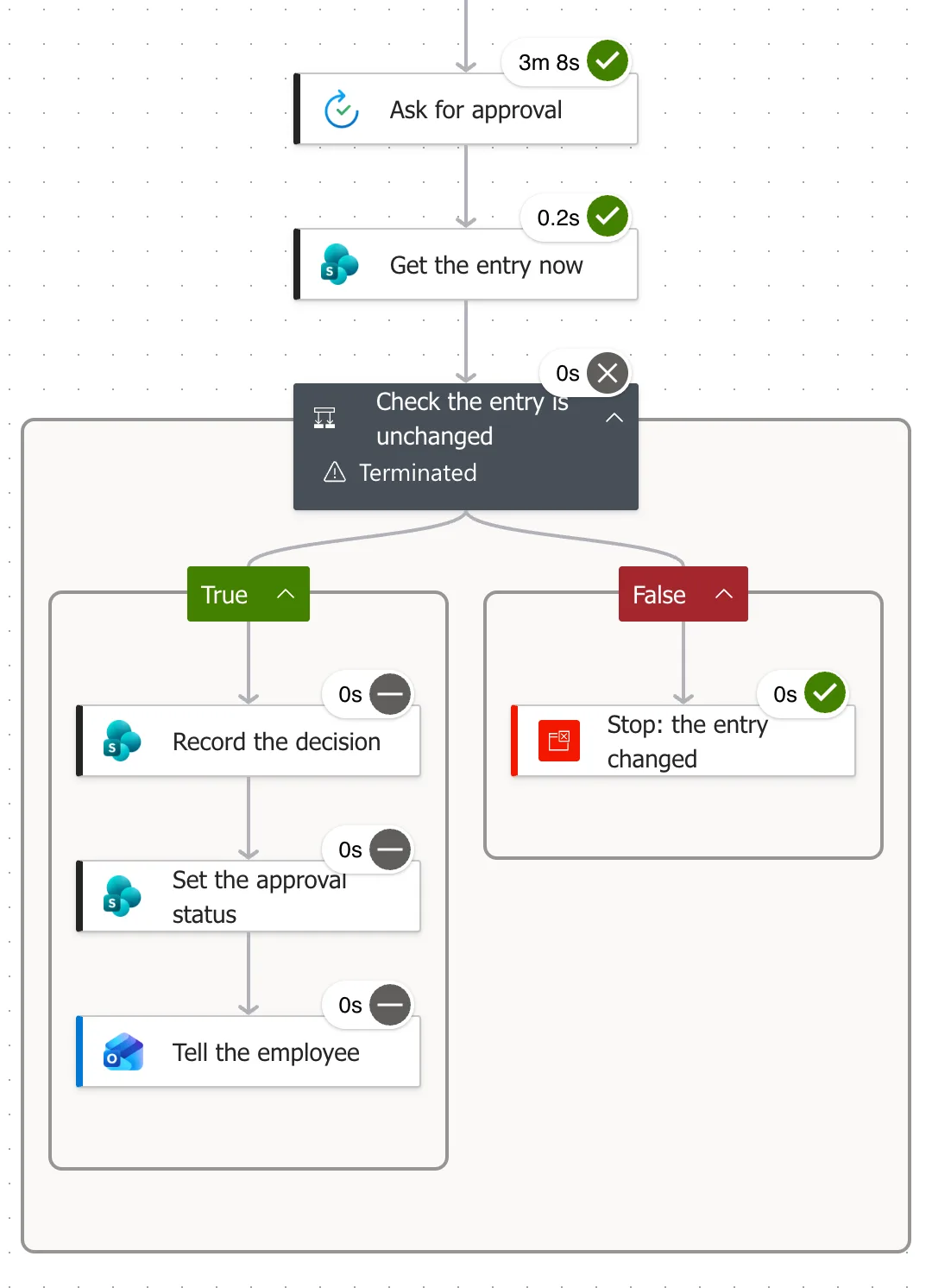
A banner at the top says how the run ended, such as Your flow run has been canceled.
Step 3: Read an Action's Inputs and Outputs
Select an action. Its Run results tab shows INPUTS and OUTPUTS. For a Compose, they're the value it held:
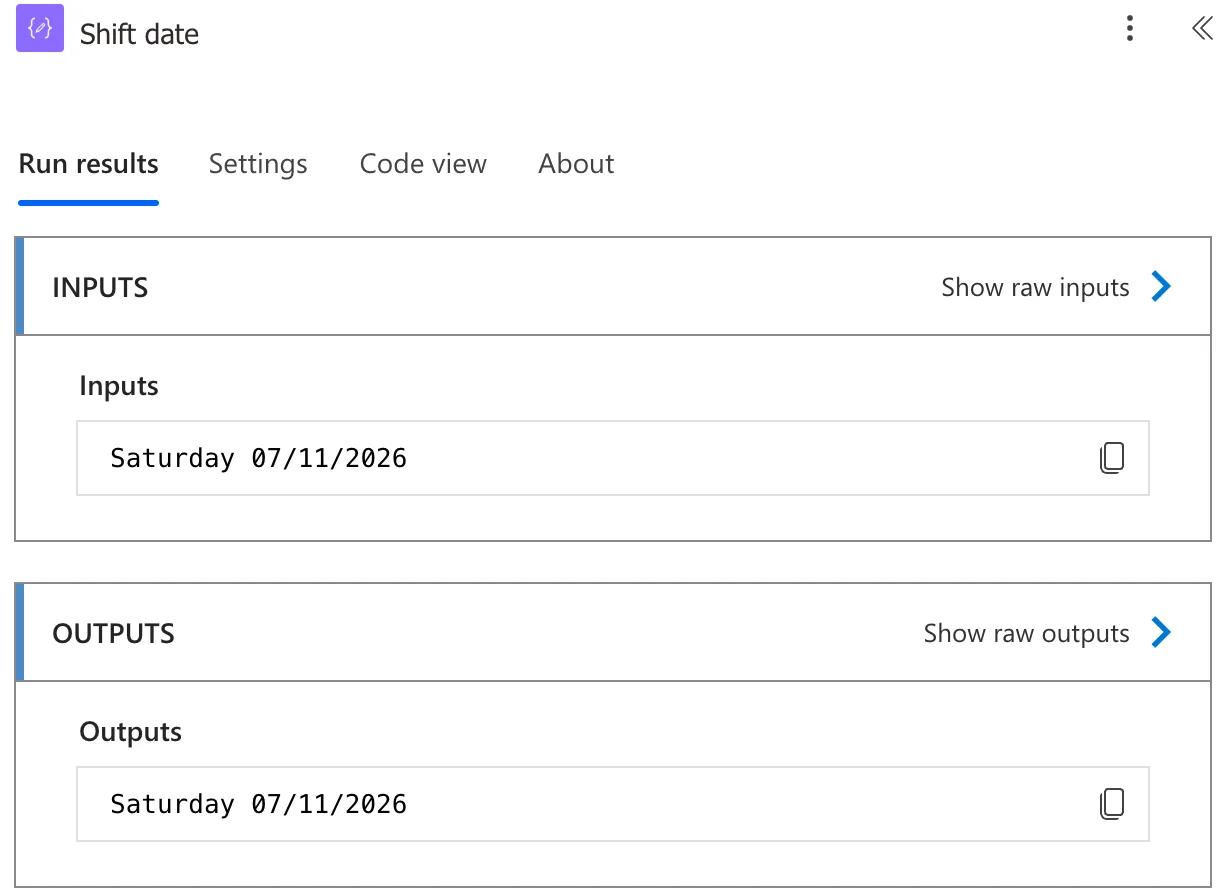
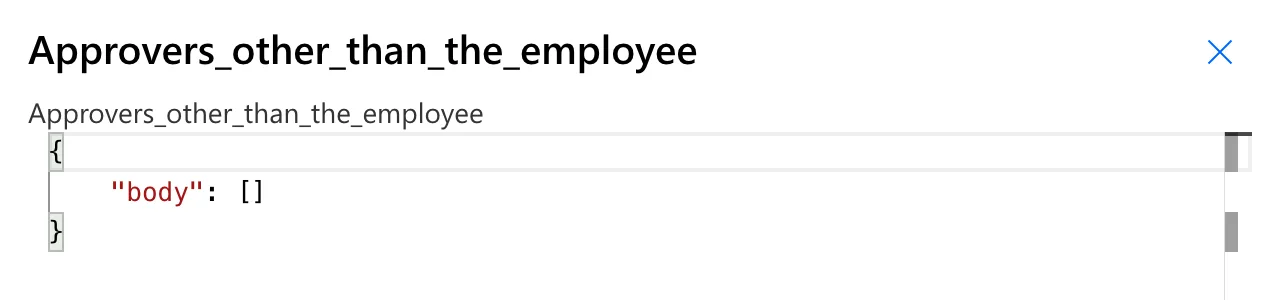
For a connector action, the outputs are in tables, field by field. Show raw outputs and Show raw inputs give the same values as JSON, which is quicker to read for arrays:
Step 4: Compare Two Values
To find out why a run took a branch, read the values the condition compared. This run stopped because the entry had changed: the trigger had version 4.0 of the item, and Get the entry now read 5.0:


What the History Doesn't Show
Runs that never started. A trigger condition that isn't met leaves nothing in the history (How to Add a Trigger Condition in Power Automate), so if a run is missing, check the trigger, not this list.
Common Mistakes
| Mistake | What happens | Do this instead |
|---|---|---|
| Reading only the run's status | You don't see which branch ran | Open the run and expand the conditions |
| Looking for runs older than 28 days | They're gone | Check within 28 days |
| Taking a long duration for a slow flow | It includes waiting for people | Look at each action's time |
Troubleshooting
| Symptom | Likely cause | Fix |
|---|---|---|
| No runs at all | The trigger hasn't fired, or its condition said no | Check the trigger |
| A run shows Running for a long time | It's waiting for an approval | Expected until someone answers |
| A condition's details show ? for its values | The run view can't show those tokens | Read the actions that produced the values |
FAQ
How long is run history kept?
28 days, as the details card says. Microsoft's troubleshooting article says By default, flow run data is stored for 28 days.
Can I see a run that's still going?
Yes. It shows as Running, and its view shows which actions have finished; here, the ones before the approval.
Conclusion
My flows, the flow, then 28-day run history lists every run. Open one to see which actions ran, and select an action for its inputs and outputs, raw if you need the JSON. It's where every question about what a flow did gets answered.
Additional Resources
- Get started with cloud flows: manage a cloud flow: the run history.
- Missing runs or trigger history: how long runs are kept.
