How to Search Text in a File in PowerShell with Select-String

To find the lines of a log that mention an error, Linux and macOS have grep. PowerShell has Select-String: it searches a file or piped text and returns each matching line, with the file name and line number. This guide finds the errors in a small log file, with real output from PowerShell 7.6.10.
Syntax
Select-String -Path <file> -Pattern "<text>"
<command> | Select-String "<text>"
| Part | What it means |
|---|---|
-Path <file> | The file to search. Wildcards such as *.log search several |
-Pattern "<text>" | What to look for. It's a regular expression, so plain words work as they are |
| Select-String | Searches text that another command sends down the pipeline |
The reference: "The Select-String cmdlet uses regular expression matching to search for text patterns in input strings and files."
Prerequisites
- PowerShell 7. This guide uses PowerShell 7.6.10.
Step 1: Create a Log File
Save this as app.log:
INFO Started
ERROR Disk is full
INFO Saved the report
ERROR Network is down
Step 2: Find the Errors
Select-String -Path app.log -Pattern "ERROR"
app.log:2:ERROR Disk is full
app.log:4:ERROR Network is down
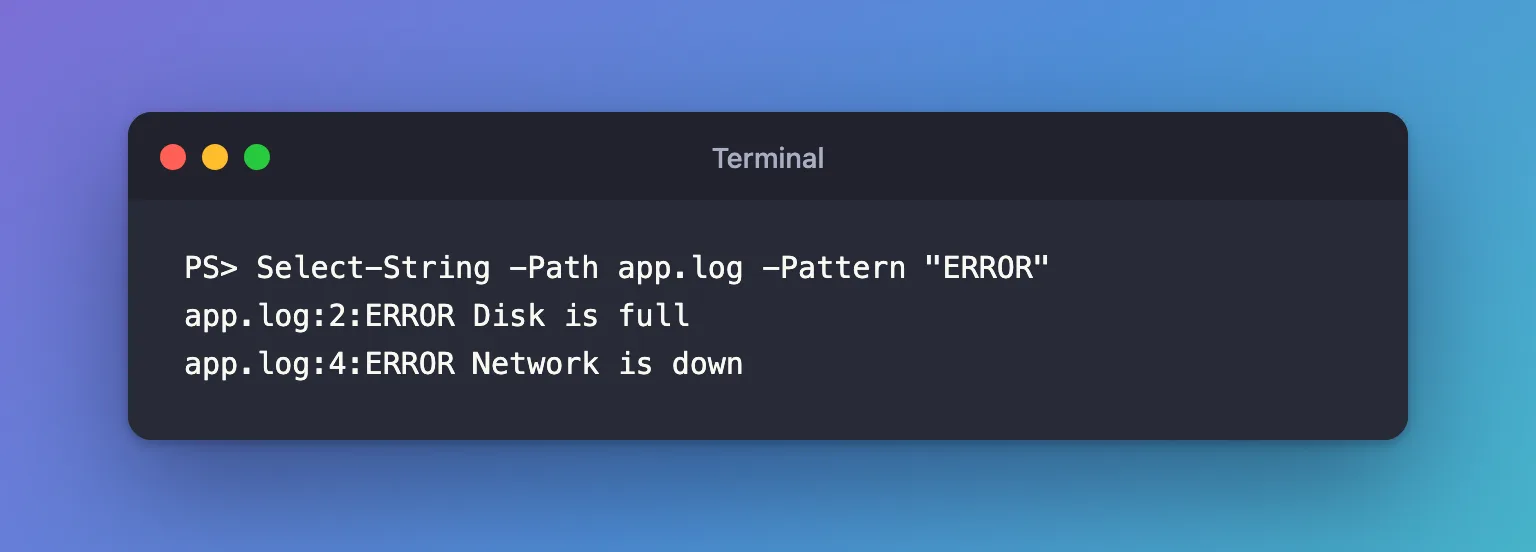
Each match shows the file, the line number and the line: the errors are on lines 2 and 4.
Common Mistakes
| Mistake | What happens | Do this instead |
|---|---|---|
| Expecting the search to match case | -Pattern "error" found the same two ERROR lines | Add -CaseSensitive: with it, error matched nothing |
Searching for a character with special meaning, such as ( | The pattern is a regular expression: -Pattern "(" failed with The string ( is not a valid regular expression | Add -SimpleMatch to search for the text as it is: it found the line with ( |
Troubleshooting
| Symptom | Likely cause | Fix |
|---|---|---|
| Lines appear without a file name and number | The text came down the pipeline, not from a file: Get-Content app.log | Select-String "ERROR" printed only the two lines | Use -Path when you want the line numbers |
FAQ
How do I count the matches?
Wrap the command and read Count: (Select-String -Path app.log -Pattern "ERROR").Count printed 2.
Is it case-sensitive by default?
No. The reference, for -CaseSensitive: "Indicates that the cmdlet matches are case-sensitive. By default, matches aren't case-sensitive."
Conclusion
Select-String -Path app.log -Pattern "ERROR" found the two error lines and named their line numbers, 2 and 4. Add -CaseSensitive to match case exactly.
Additional Resources
- Select-String — every parameter, including
-SimpleMatchand-Context.
