How to Search Runs in the MLflow UI

Once an experiment holds more than a handful of runs, scrolling stops working, and the search box above the MLflow runs table takes over. You type a condition such as metrics.accuracy > 0.8, and the table keeps only the runs that match. This guide searches three small runs by a metric and by a parameter, reads the box's built-in help, and shows what a rejected search looks like, with real screens from MLflow 3.18.0.
Prerequisites
- An MLflow tracking server at
http://127.0.0.1:8080. MLflow's tracking server guide shows how to start one.
Step 1: Create Three Runs to Search
The example is three training runs that differ only in their learning rate, each with the accuracy it reached. Create three_runs.py:
import mlflow

mlflow.set_tracking_uri("http://127.0.0.1:8080")
mlflow.set_experiment("ui-search-demo")

for name, learning_rate, accuracy in [
    ("slow", 0.001, 0.81),
    ("medium", 0.01, 0.88),
    ("fast", 0.1, 0.74),
]:
    with mlflow.start_run(run_name=name):
        mlflow.log_param("learning_rate", learning_rate)
        mlflow.log_metric("accuracy", accuracy)
Run it:
uv run python three_runs.py
2026/11/20 15:01:19 INFO mlflow.tracking.fluent: Experiment with name 'ui-search-demo' does not exist. Creating a new experiment.
🏃 View run slow at: http://127.0.0.1:8080/#/experiments/12/runs/53247727885a4f3c9e1ca5a541509630
🧪 View experiment at: http://127.0.0.1:8080/#/experiments/12
🏃 View run medium at: http://127.0.0.1:8080/#/experiments/12/runs/d8cdad3d18504447bc461858e486df9a
🧪 View experiment at: http://127.0.0.1:8080/#/experiments/12
🏃 View run fast at: http://127.0.0.1:8080/#/experiments/12/runs/edfdda9af70b4dd69d06a78302f12449
🧪 View experiment at: http://127.0.0.1:8080/#/experiments/12
Step 2: Open the Runs Table
Open the View experiment link, or http://127.0.0.1:8080, then Experiments and ui-search-demo. The runs table lists the three runs. To see their values, I added the accuracy and learning_rate columns with the Columns button, as How to Compare Runs in the MLflow UI shows:
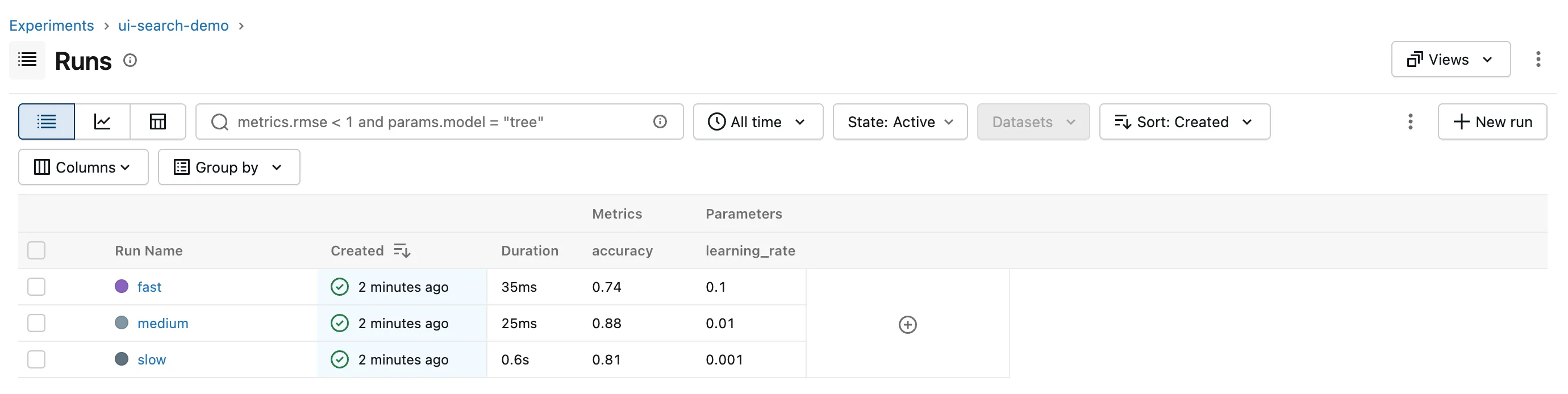
The grey text in the box, metrics.rmse < 1 and params.model = "tree", is only an example; the box is empty.
Step 3: Search by a Metric
Click the search box and type:
metrics.accuracy > 0.8
As you type, a list of matching names opens under the box. Press Esc to close it, then Enter to search. (With the list open, the first Enter picks the highlighted name instead of searching; Fixed: MLflow Search Box Adds Backticks and Doesn't Search When You Press Enter explains it.)
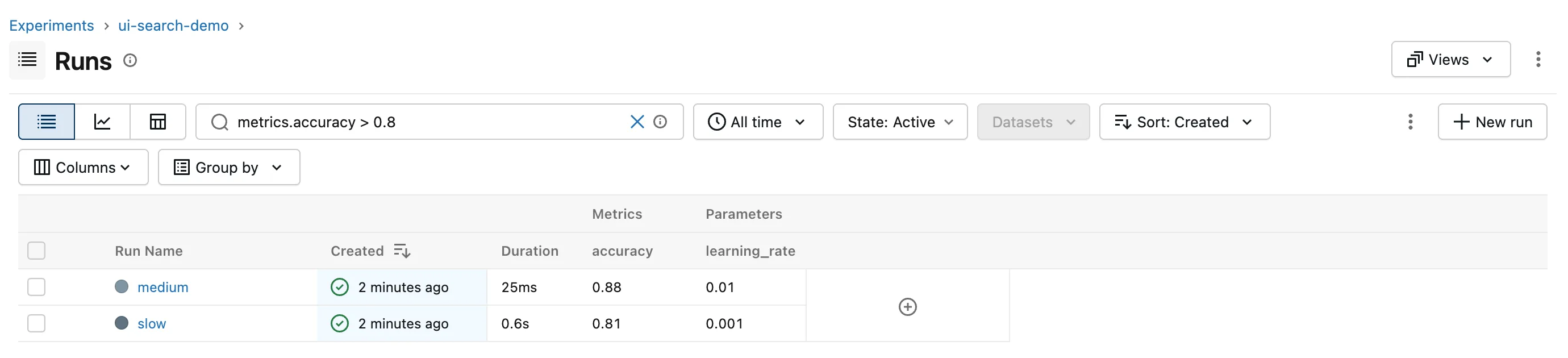
Two runs are left, and the line under the table reads 2 matching runs. A condition has three parts: what to compare, metrics.accuracy, a comparison, >, and a value, 0.8. How to Write a Search Filter for MLflow Runs covers every kind of condition.
Step 4: Search by a Parameter
Replace the text with:
params.learning_rate = '0.01'
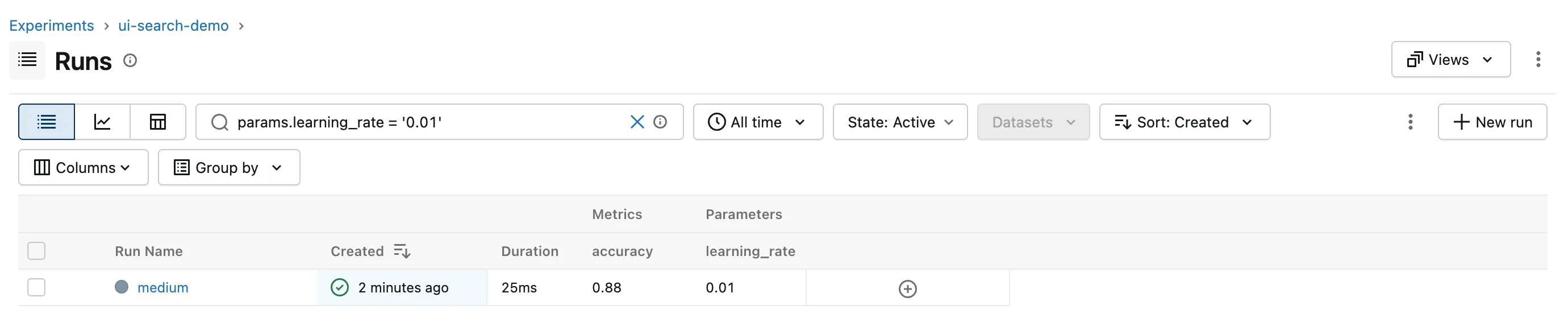
Only medium matches. The value is in quotes because MLflow stores every parameter as text, even a number like 0.01. Metrics are numbers and take no quotes.
Step 5: Use the Help, and Read an Error
The ⓘ at the right end of the search box opens a short guide with examples:
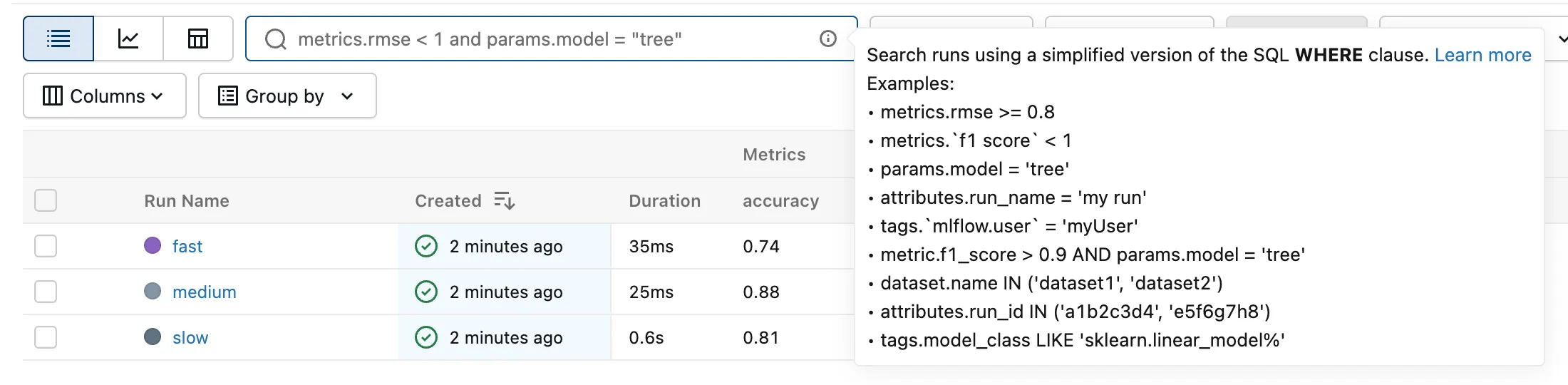
If MLflow can't run your search, the table is replaced by Request error and MLflow's reason, and the help opens by itself. Here the search compared a parameter with >:
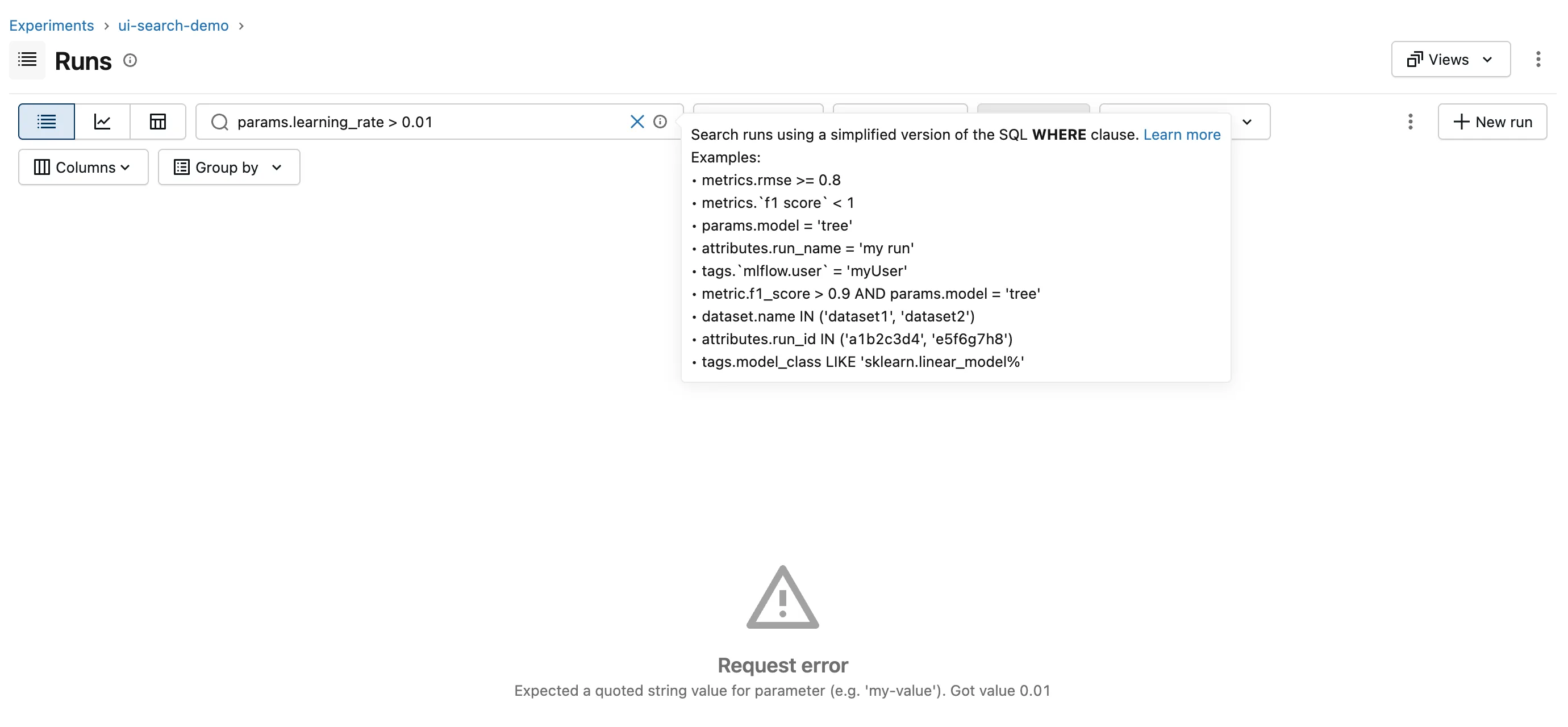
The message names the problem: a parameter needs a value in quotes. Even with quotes, a parameter can't be compared with >, because it's text; Fixed: "Invalid comparator '>' not one of" When You Search MLflow Runs by a Parameter shows that error and what to do instead.
Step 6: Clear or Share a Search
- Clear: the ✕ in the box removes the search, and the table lists every run again.
- Share: the page's address holds the search. After Step 4 it ends with
searchFilter=params.learning_rate+=+'0.01', followed by the sort, time and state settings. Opening that address shows the same search and the same result, so you can bookmark it or send it to someone using the same server.
Common Mistakes
| Mistake | What happens | Do this instead |
|---|---|---|
A parameter value without quotes, params.learning_rate = 0.01 | Request error: Expected a quoted string value for parameter (e.g. 'my-value'). Got value 0.01 | Quote it: params.learning_rate = '0.01' |
| Pressing Enter once while the name list is open | The name gets backticks and nothing is searched | Press Esc, then Enter |
Leaving out the prefix, as in accuracy > 0.8 | Request error: Invalid attribute key 'accuracy' specified. A name without a prefix is read as one of the run's own attributes, such as its name or status | Start with metrics., params., tags. or attributes. |
Troubleshooting
| Symptom | Likely cause | Fix |
|---|---|---|
| The count under the table doesn't change after Enter | The search never ran | Close the name list with Esc, then press Enter |
| No runs match, though one should | State is set to Deleted, or the time filter, such as Last 24 hours, leaves the run out | Set State: Active and All time |
| No runs match, and there's no error | A name's capitalisation differs: metrics.ACCURACY finds nothing in runs that logged accuracy | Copy the name from a column header or a run's Overview |
FAQ
Can I combine conditions?
Yes, with AND, as in metrics.accuracy > 0.8 AND params.learning_rate = '0.01'. MLflow has no OR.
Does the search look at deleted runs?
Not by default. The State filter next to the search box switches the table to deleted runs: How to Restore a Deleted Run in MLflow uses it.
Is the search case-sensitive?
Names are: metrics.ACCURACY > 0.8 finds no runs here. = and LIKE compare text exactly, and ILIKE ignores case: attributes.run_name ILIKE 'SLOW' finds slow.
Conclusion
The search box filters the runs table with conditions such as metrics.accuracy > 0.8 or params.learning_rate = '0.01': metrics are numbers, parameters are text in quotes. Close the name list with Esc before Enter, read Request error for MLflow's reason when a search is rejected, and keep or share a search through the page's address.
Additional Resources
- Search Runs — MLflow's guide to the search syntax, in the UI and in Python.
