How to Save People to a SharePoint Person Column with Patch in Power Apps

A SharePoint Person column that allows several people takes a table of person records. A people picker built on Choices already gives you that table in its SelectedItems, so saving the people is one field in the Patch record.
Syntax
Patch(DataSource, BaseRecord, {PersonColumn: ComboBoxName.SelectedItems})
| Part | What it is |
|---|---|
| DataSource | The SharePoint list. |
| BaseRecord | Defaults(DataSource) to add an item, or the item to change (How to Create or Update a SharePoint List Item with Patch in Power Apps). |
| PersonColumn | The Person column, one that allows several people. |
| ComboBoxName.SelectedItems | The people chosen in the people picker. Microsoft's combo box page describes it as a table of the records currently selected. |
The column gets exactly the people in the table: anyone taken out of the box is taken out of the column when the item is saved.
The example below is the Save button of a form that adds and edits departments. Its people picker chooses each department's approvers.
Prerequisites
- A people picker on the same Person column,
Choices(List.PersonColumn, Self.SearchText)(How to Add a People Picker in Power Apps). The example's iscmbApproversED, on the Approvers column of a Departments list. - A button that saves the item with Patch.
Step 1: Add the Column to the Patch Record
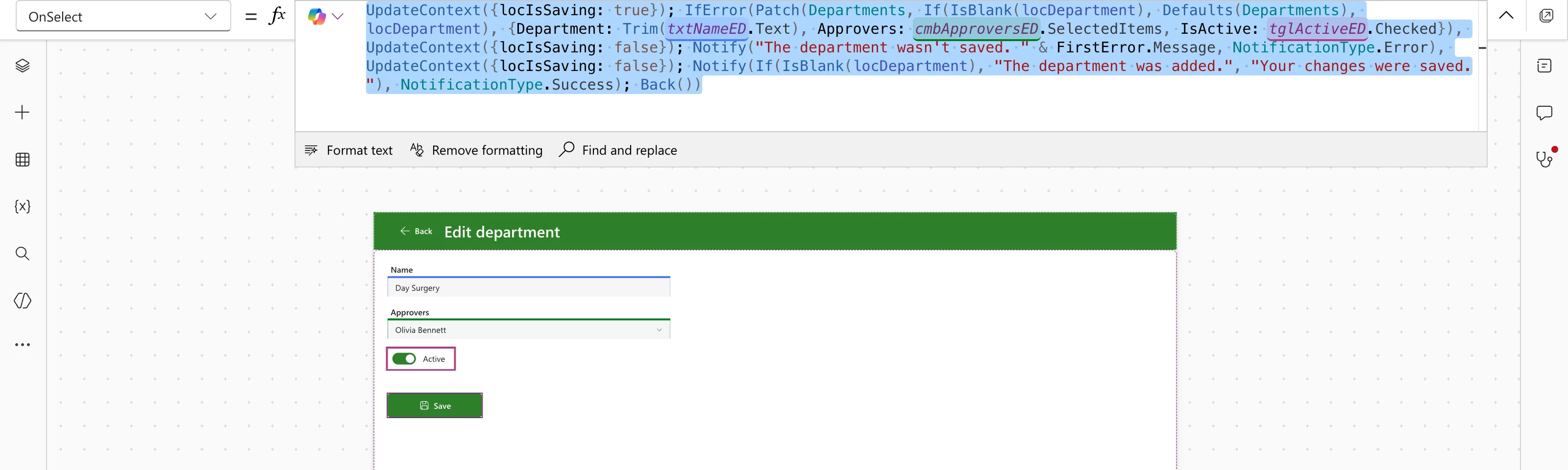
In the example, btnSaveED adds or updates the department, and the people are one line of the record:
UpdateContext({locIsSaving: true});
IfError(
    Patch(
        Departments,
        If(IsBlank(locDepartment), Defaults(Departments), locDepartment),
        {
            Department: Trim(txtNameED.Text),
            Approvers: cmbApproversED.SelectedItems,
            IsActive: tglActiveED.Checked
        }
    ),
    UpdateContext({locIsSaving: false});
    Notify("The department wasn't saved. " & FirstError.Message, NotificationType.Error),
    UpdateContext({locIsSaving: false});
    Notify(If(IsBlank(locDepartment), "The department was added.", "Your changes were saved."), NotificationType.Success);
    Back()
)
Approvers: cmbApproversED.SelectedItemssaves the people chosen. They're the records Choices returned for the column, so they need no conversion.IfErrorshows SharePoint's message if the save fails (How to Handle Errors in Power Apps with IfError).
Step 2: Try It
In Preview, Day Surgery had one approver, Olivia Bennett. I searched for Daniel Brooks and chose him too:
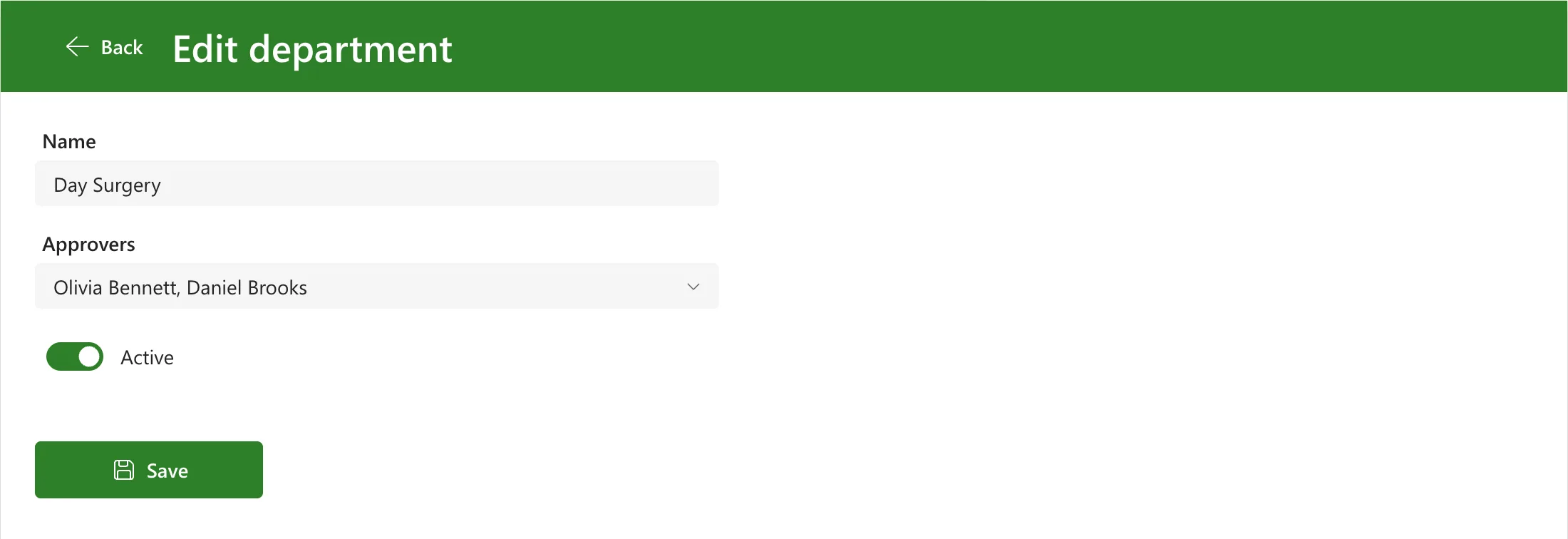
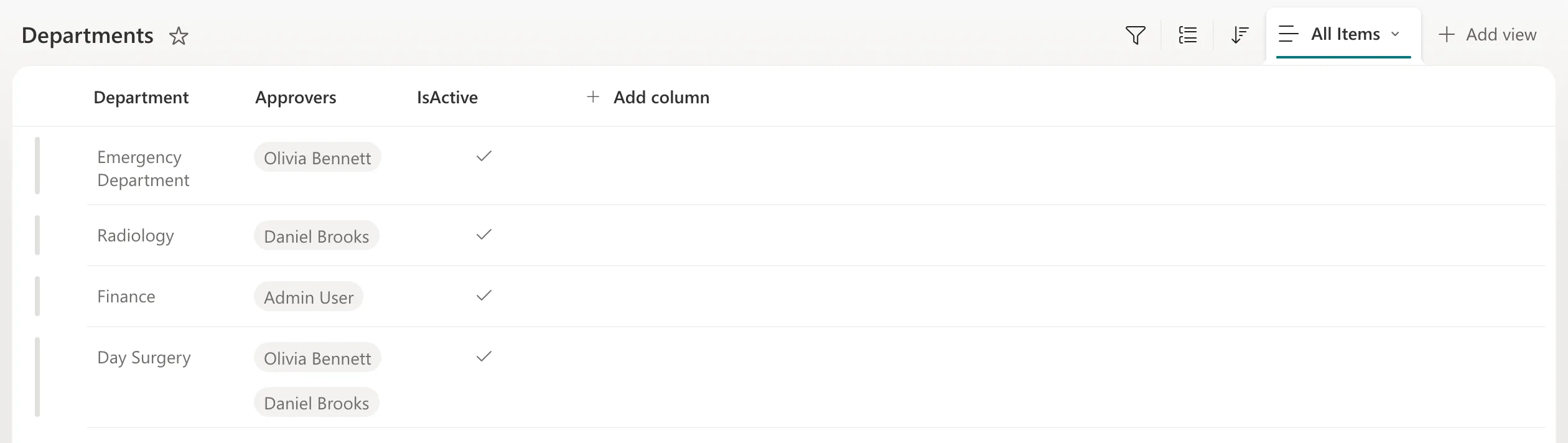
After Save, the app said Your changes were saved., and the Departments list in SharePoint showed both people in Day Surgery's Approvers column:
Then I opened Day Surgery again, unticked Daniel and saved. Olivia was the only approver again: the column holds exactly the people in the box.
Common Mistakes
| Mistake | What happens | Do this instead |
|---|---|---|
| Expecting Save to add to the people already saved | The column gets the box's people only; anyone not in it is removed | Keep everyone who should stay ticked |
Troubleshooting
| Symptom | Likely cause | Fix |
|---|---|---|
| The department wasn't saved. | SharePoint refused the change | Read the message that follows it, from FirstError.Message |
| Someone disappeared from the column | They were unticked before Save | Choose them again and save |
FAQ
Do I need the Office 365 Users connector?
Not for this: the people come from Choices on the SharePoint list, and Patch saves them to the same list.
What about a column that allows only one person?
Then the column holds one record, not a table. Microsoft's combo box page says Selected returns the single selected item when SelectMultiple is false. The example's column allows several people, so that case isn't shown here.
Conclusion
Put the people picker's SelectedItems in the Patch record for the Person column. The column then holds exactly the people chosen: add one in the box and it's added, untick one and it's removed.
Additional Resources
- Patch function: adding and changing items.
- Combo box modern control: SelectedItems and Selected.
