How to Save an Office Script to SharePoint

A new Office Script lives in your own OneDrive, so it stops working for everyone else the day your account goes. Saved in a SharePoint folder, it belongs to the team: anyone who can open that folder can run it, and Power Automate can run it from there too.
The example moves Say Hello, the script from How to Create and Run an Office Script in Excel, into a Scripts folder in the Documents library of a SharePoint site called Communication site (How to Create a Folder in a SharePoint Document Library).
Microsoft's Office Scripts file storage and ownership explains the difference: scripts are saved in /Documents/Office Scripts/ in your OneDrive by default, and Office Scripts that are saved to a SharePoint site are owned by your team.
Prerequisites
- Permission to add files to the SharePoint folder, such as membership of the site's Members group.
Step 1: Open the Script's Menu
In Excel for the web, select Automate, View Scripts. On the script's card, select ... (More options), then Move script:
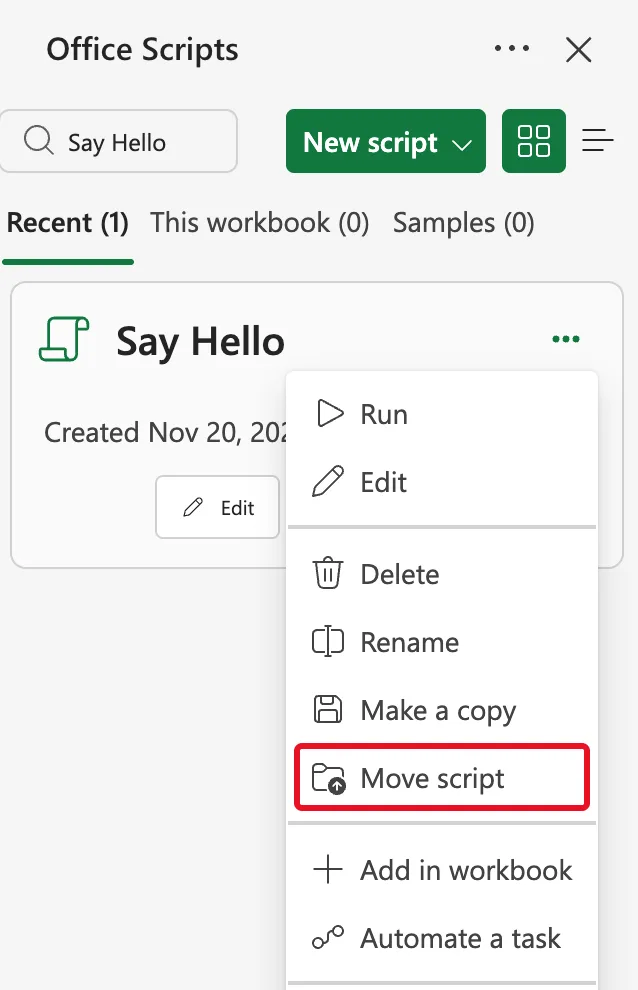
Make a copy is a different command: it leaves the script where it is and makes a second one. Microsoft's article describes the same move from the Code Editor, with a Move button that appears when you select the script's name; in my Code Editor that button wasn't there, and the card's Move script did the job.
Step 2: Choose the Folder
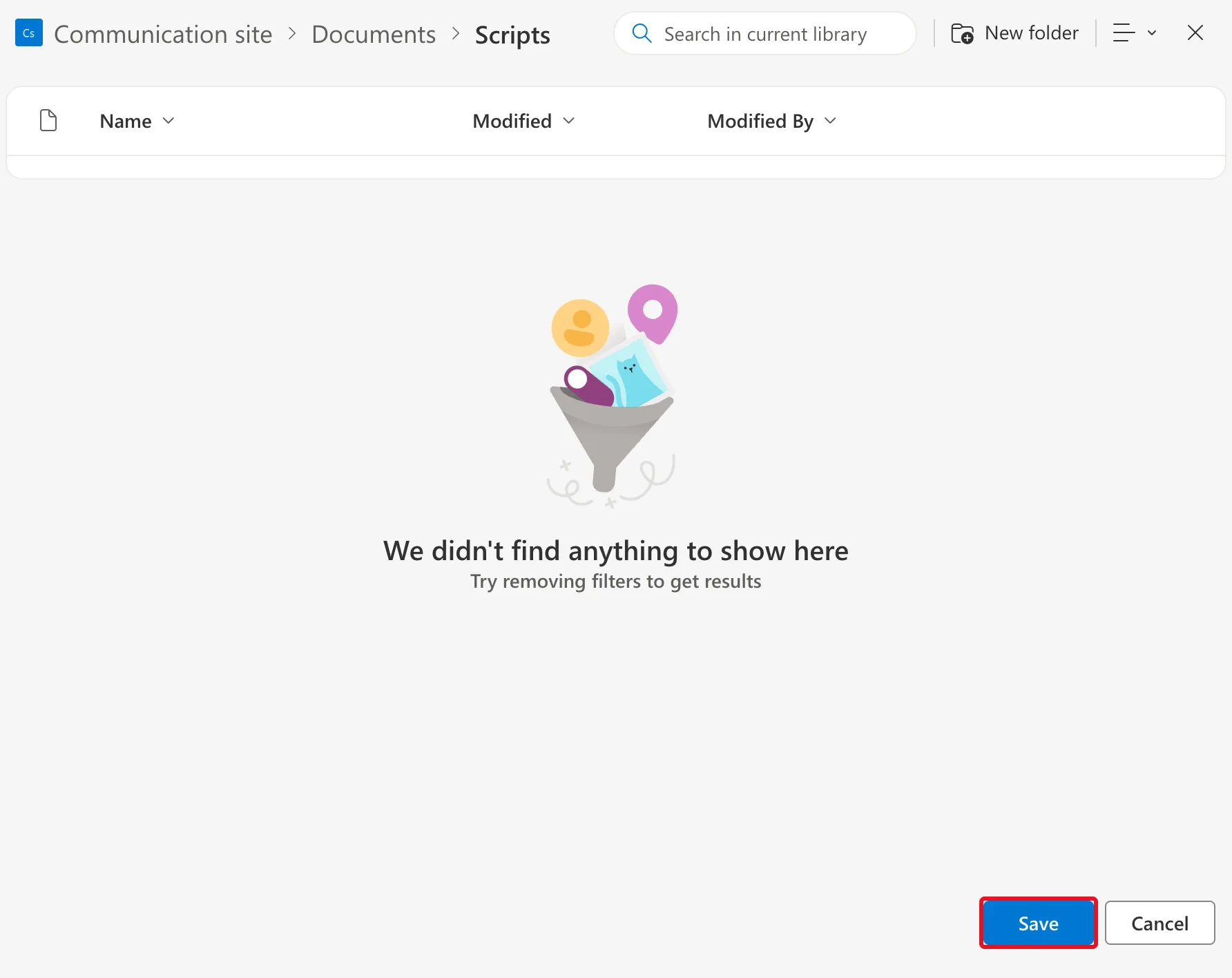
A file picker opens. It starts in your OneDrive: select More places..., choose the site, then the library and the folder. Here that's Communication site, Documents, Scripts. Select Save:
Step 3: Check Where It Went
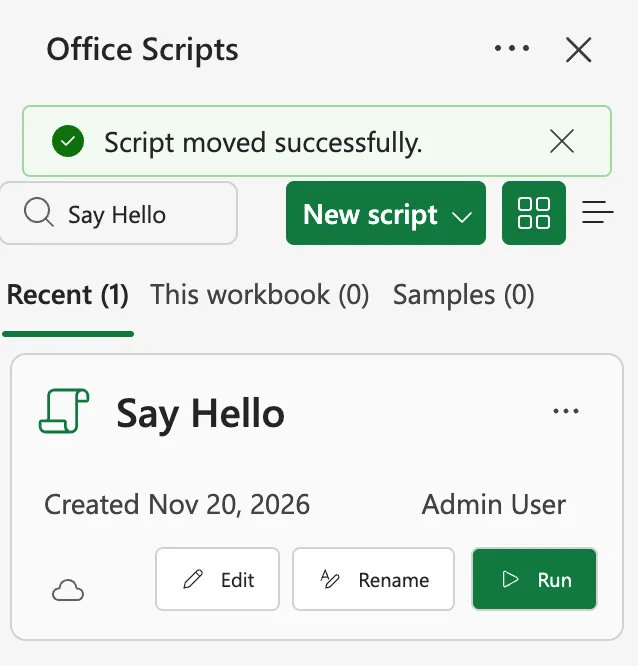
Excel says Script moved successfully., and a cloud appears at the bottom left of the card:
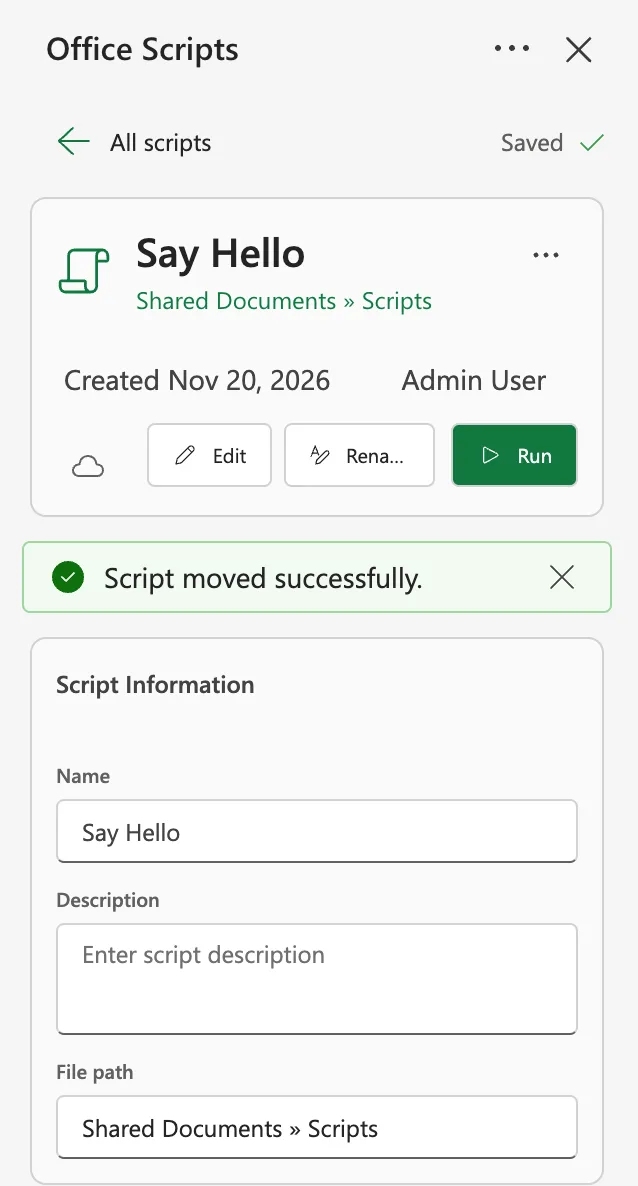
Select the script's name to open its details. Under the name, and in File path, it now says Shared Documents » Scripts. Shared Documents is the address of the library that's called Documents:
The Result
In SharePoint, the Scripts folder holds Say Hello.osts:

The script is no longer in your OneDrive's Office Scripts folder. It runs from Excel as before, and Power Automate runs it with Run script from SharePoint library (How to Run an Office Script from a SharePoint Library in Power Automate).
Common Mistakes
| Mistake | What happens | Do this instead |
|---|---|---|
| Make a copy instead of Move script | Two scripts, and changes to one don't reach the other | Move script |
| Moving it to a folder people can't open | They can't run it | Choose a folder the team can read |
| Expecting Run script in Power Automate to find it | That action lists only the scripts in your OneDrive | Run script from SharePoint library |
Troubleshooting
| Symptom | Likely cause | Fix |
|---|---|---|
| The script isn't in Recent for someone else | They haven't opened it yet | All scripts, View more scripts, then pick the .osts file |
| The move takes a while | Microsoft says moving can take up to a minute | Wait, then check File path |
| The script stops with a network error after the move | Microsoft says scripts with external calls can't run from SharePoint | Keep that script in OneDrive |
FAQ
How do other people open a script from SharePoint?
Microsoft's article: in All scripts, select View more scripts at the bottom of the list, and pick the .osts file. After that it's in their recent scripts.
Can I move it back?
Yes: Move script again and choose a folder in your OneDrive.
Which Power Automate action runs it now?
Microsoft's Excel Online (Business) connector reference says Run script is for a script saved in the default location, your OneDrive, and Run script from SharePoint library for one saved outside of the default location. For a script in SharePoint, use the second, and choose the script in its new place.
Conclusion
On the script's card, ..., Move script, More places... and a SharePoint folder move an Office Script out of your OneDrive. Its File path shows the new place, and the team, and Power Automate, can run it from there.
