How to Save a Toggle to a SharePoint Yes/No Column in Power Apps

A SharePoint Yes/No column is a true-or-false value in Power Apps, and a toggle is a true-or-false control. Show the saved value with the toggle's Default, and save it with Patch and the toggle's Checked.
Syntax
// ToggleName → Default: the saved value, or a starting value for a new item
If(IsBlank(Item), NewItemValue, Item.YesNoColumn)

// In the Patch that saves the item
Patch(DataSource, BaseRecord, {YesNoColumn: ToggleName.Checked})
| Part | What it is |
|---|---|
| Item | The item being edited, such as a variable that holds it. Blank for a new item. |
| NewItemValue | true or false: how the toggle starts for a new item. |
| YesNoColumn | The Yes/No column. |
| DataSource, BaseRecord | The list, and Defaults(DataSource) for a new item or the item to change (How to Create or Update a SharePoint List Item with Patch in Power Apps). |
| ToggleName.Checked | true while the toggle is on, false while it's off. |
The example below is a Departments list whose IsActive column says whether a department is in use, with an Active switch on the form that adds and edits departments.
Prerequisites
- A SharePoint list with a Yes/No column, connected to the app.
- A toggle on the form (How to Add a Toggle in Power Apps).
- The item being edited in a variable, or blank for a new one. The example's screen loads it into
locDepartmentwhen it opens (How to Use One Screen to Add and Edit Items in Power Apps).
How Power Apps Sees a Yes/No Column
Microsoft's SharePoint connector page maps Yes/No (checkbox) to Power Apps' Boolean type: true for Yes and false for No. A toggle's Checked is a Boolean too, so the two fit together without converting anything.
Step 1: Show the Saved Value
Set the toggle's Default to the column of the item being edited, with a starting value for a new item:
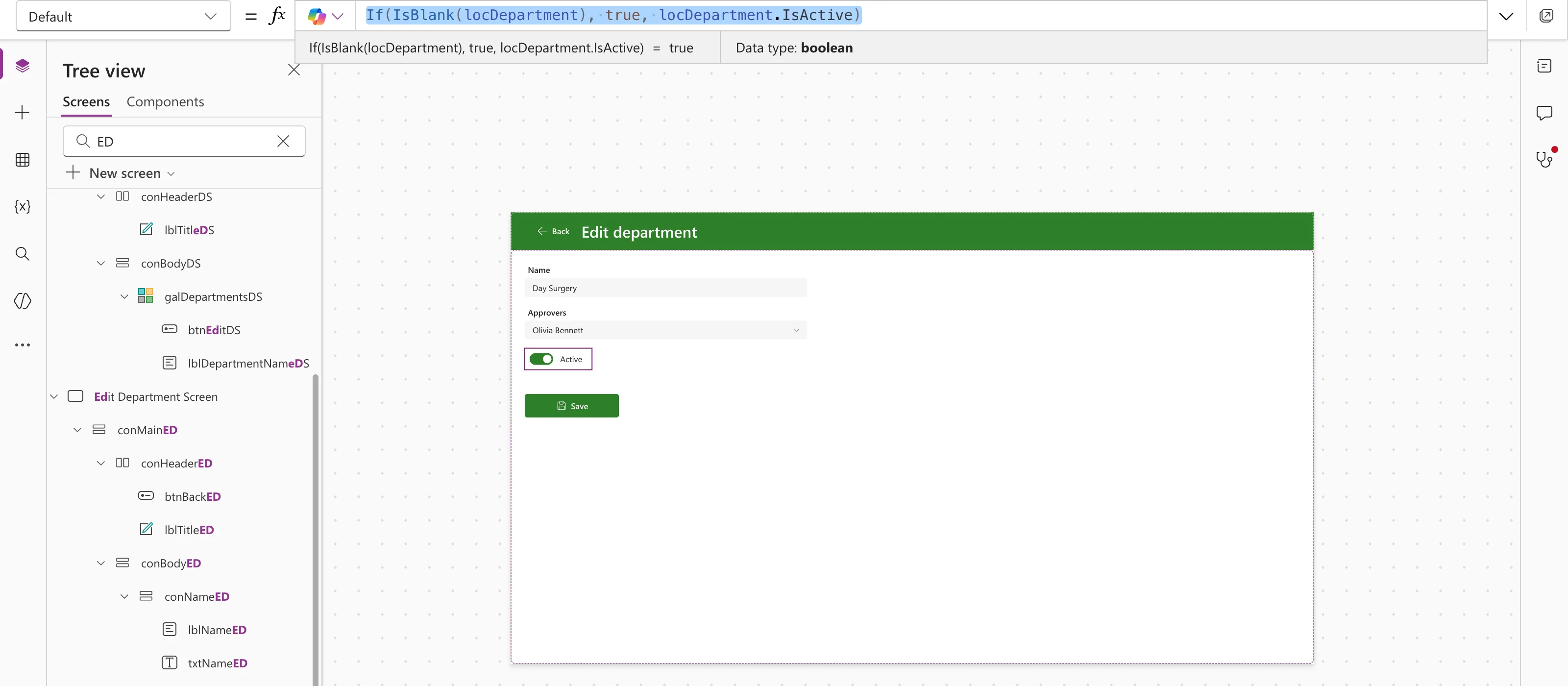
If(IsBlank(locDepartment), true, locDepartment.IsActive)
A new department starts active. Editing Day Surgery, the preview strip showed its saved value, true:
A toggle keeps what the user set until it's reset, so reset it when the screen opens: then each item shows its own value (How to Reset a Control to Its Default Value in Power Apps with Reset).
Reset(tglActiveED)
Step 2: Save It with Patch
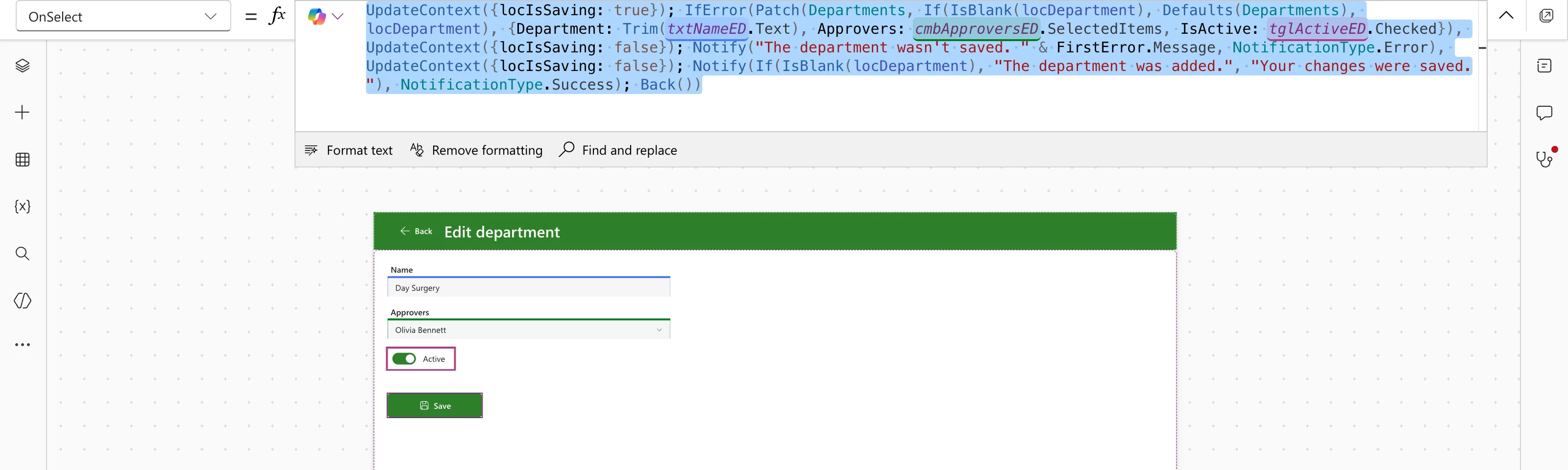
Put the column in the Patch record with the toggle's Checked. The example's Save button adds or updates the department, with the toggle's value as IsActive:
UpdateContext({locIsSaving: true});
IfError(
    Patch(
        Departments,
        If(IsBlank(locDepartment), Defaults(Departments), locDepartment),
        {
            Department: Trim(txtNameED.Text),
            Approvers: cmbApproversED.SelectedItems,
            IsActive: tglActiveED.Checked
        }
    ),
    UpdateContext({locIsSaving: false});
    Notify("The department wasn't saved. " & FirstError.Message, NotificationType.Error),
    UpdateContext({locIsSaving: false});
    Notify(If(IsBlank(locDepartment), "The department was added.", "Your changes were saved."), NotificationType.Success);
    Back()
)
Step 3: Check What Was Saved
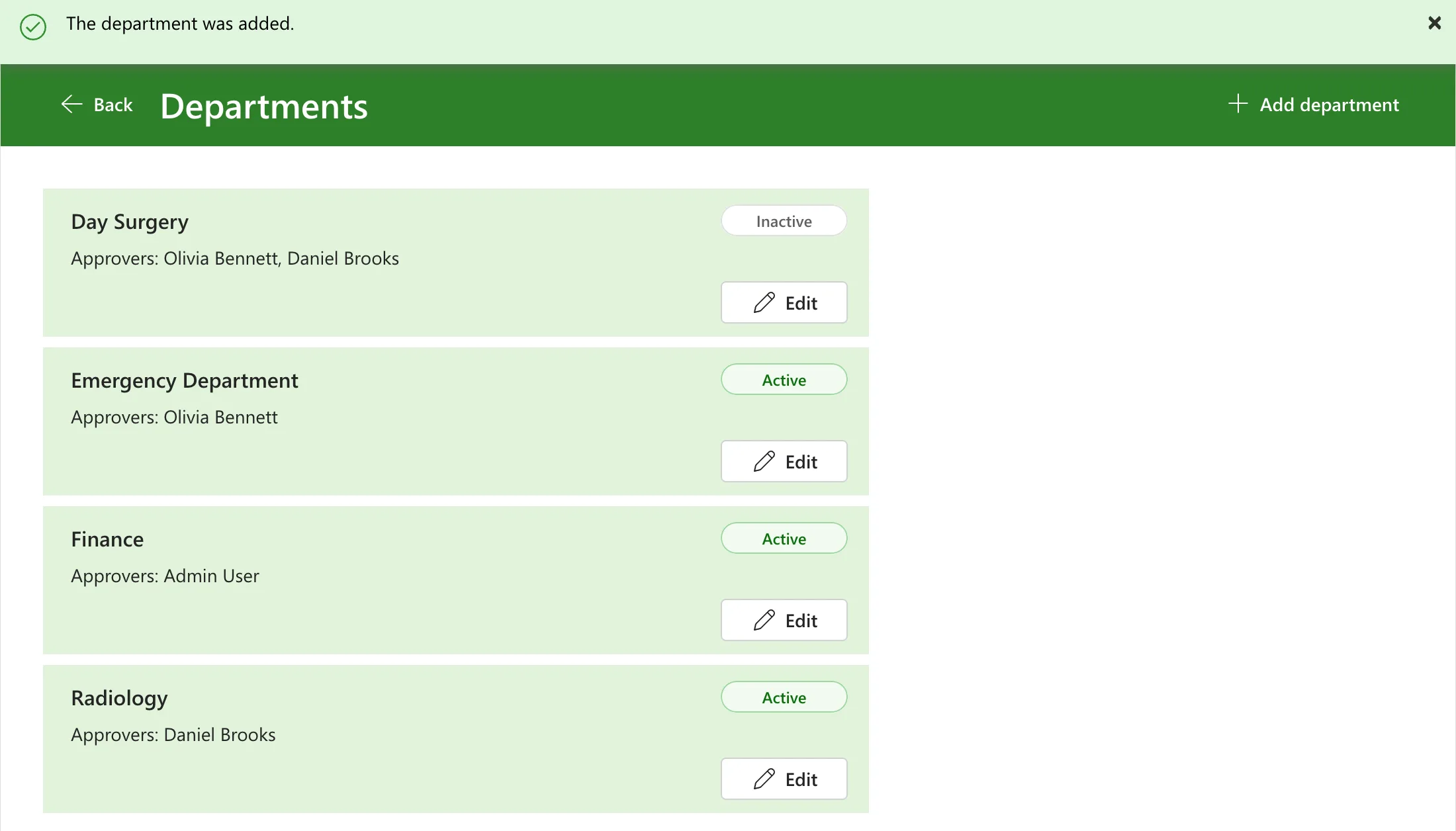
I added Day Surgery with the toggle off. The app's list of departments showed it as Inactive:
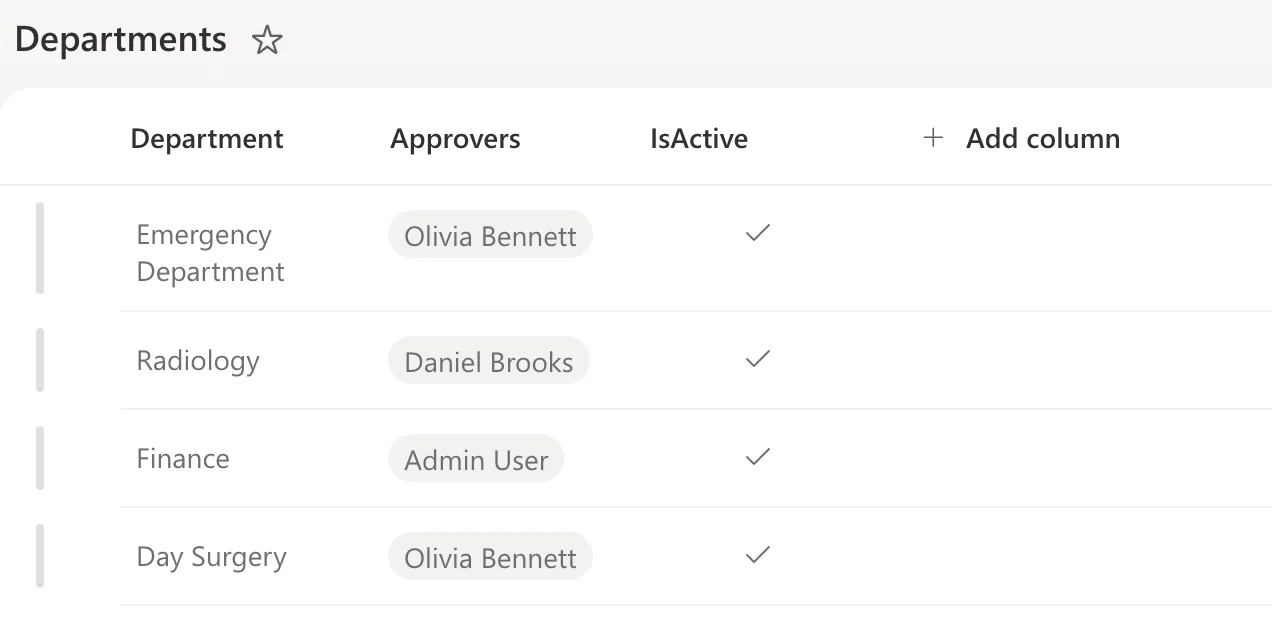
Then I edited it and switched the toggle on. In SharePoint, the IsActive column shows a tick for Yes, and Day Surgery had one, like the others:
Common Mistakes
| Mistake | What happens | Do this instead |
|---|---|---|
Saving tglActiveED.Default | The starting value is saved, not what the user set | Save .Checked |
Patching the text "Yes" or "No" | The column takes a Boolean | true, false or .Checked |
| Not resetting the toggle when the screen opens | The next item shows the last item's value | Reset(tglActiveED) in OnVisible |
| No starting value for new items | Default reads a column of a blank record | Give new items a value: If(IsBlank(record), true, record.Column) |
Troubleshooting
| Symptom | Likely cause | Fix |
|---|---|---|
| The toggle always starts off when editing | Default doesn't read the item | locDepartment.IsActive in Default |
| SharePoint shows the old value | The Patch failed | Read the message from FirstError.Message |
FAQ
Why does SharePoint show a tick instead of Yes?
That's how the modern list view shows Yes in a Yes/No column. The value behind it is still Yes, and Power Apps reads it as true.
Can I filter on the column?
Yes. Filter(Departments, IsActive = true) runs in SharePoint (Fixed: Delegation Warning. The "Filter" Part of This Formula Might Not Work Correctly on Large Data Sets).
Conclusion
Set the toggle's Default to the item's Yes/No column (or true for a new item), reset it when the screen opens, and save .Checked in the Patch record.
Additional Resources
- Connect to SharePoint from a canvas app: data type mappings.
- Patch function: adding and changing items.
