How to Save a pandas DataFrame to a CSV File

A CSV file is the simplest way to hand a table to someone else: Excel, Google Sheets and nearly every tool can open it. DataFrame.to_csv writes one in a single call, but its default adds the table's row numbers as an extra, nameless first column. This guide writes the same table twice, with and without them, and shows both files, with real output from pandas 3.1.1.
Syntax
<table>.to_csv("<file path>", index=False)
| Part | What it means |
|---|---|
<table> | The DataFrame to save |
"<file path>" | Where to write the file: text such as "houses.csv" or a pathlib.Path. The file is created, or replaced if it exists |
index=False | Leave out the row labels. The default, index=True, "Write row names (index)" as the first column |
Other common arguments: sep=";" for a different separator, float_format="%.2f" to round decimals, and encoding, which "defaults to 'utf-8'".
Step 1: Write the Same Table Twice
The example saves three houses, once with the default and once with index=False, then prints both files. Create to_csv.py:
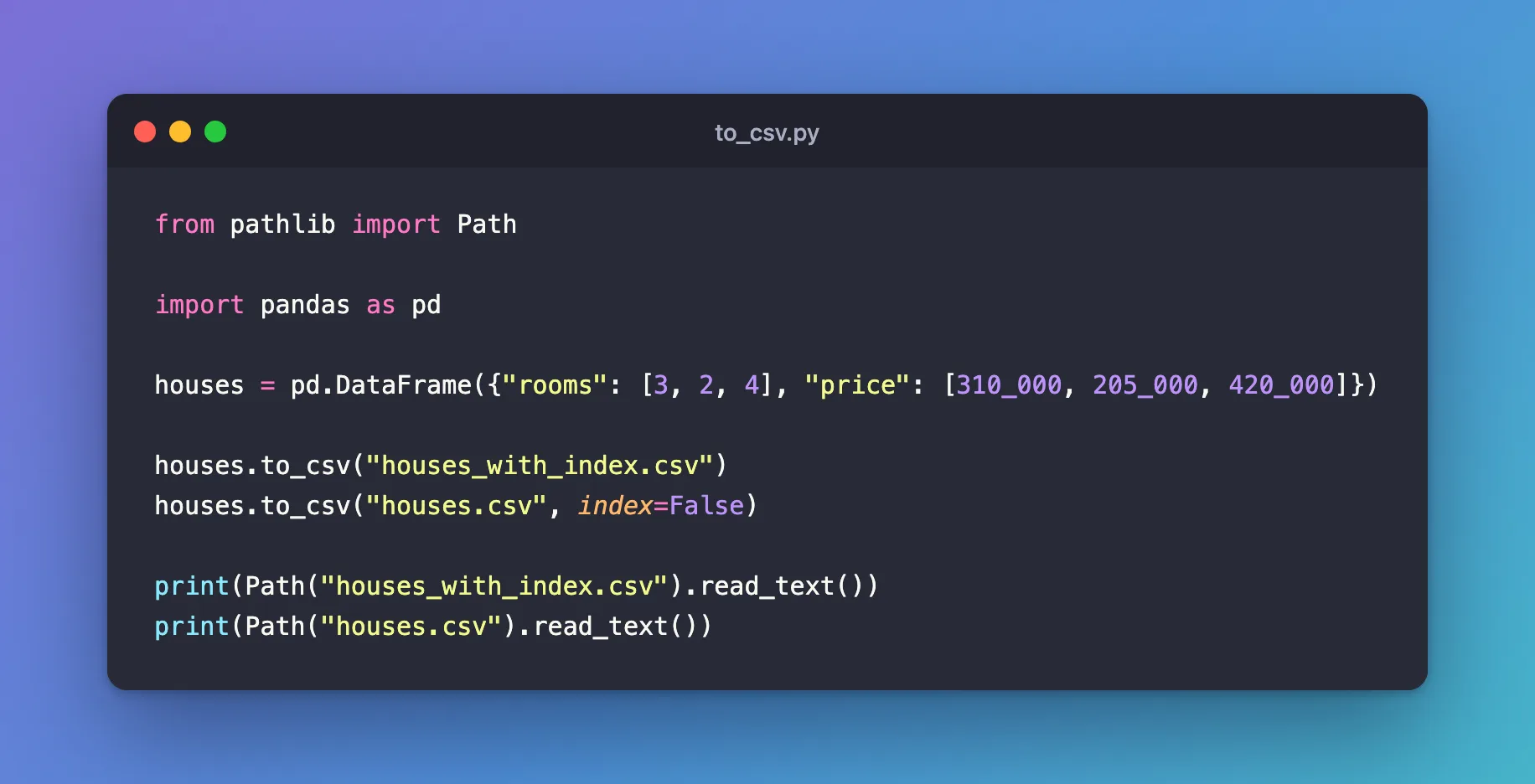
from pathlib import Path

import pandas as pd

houses = pd.DataFrame({"rooms": [3, 2, 4], "price": [310_000, 205_000, 420_000]})

houses.to_csv("houses_with_index.csv")
houses.to_csv("houses.csv", index=False)

print(Path("houses_with_index.csv").read_text())
print(Path("houses.csv").read_text())
| Line | What it does |
|---|---|
houses.to_csv("houses_with_index.csv") | Writes the table with the default settings |
houses.to_csv("houses.csv", index=False) | Writes it without the row labels |
Path(...).read_text() | Reads a file back as text, so you can see exactly what was written |
Step 2: Run It
uv run python to_csv.py
,rooms,price
0,3,310000
1,2,205000
2,4,420000

rooms,price
3,310000
2,205000
4,420000
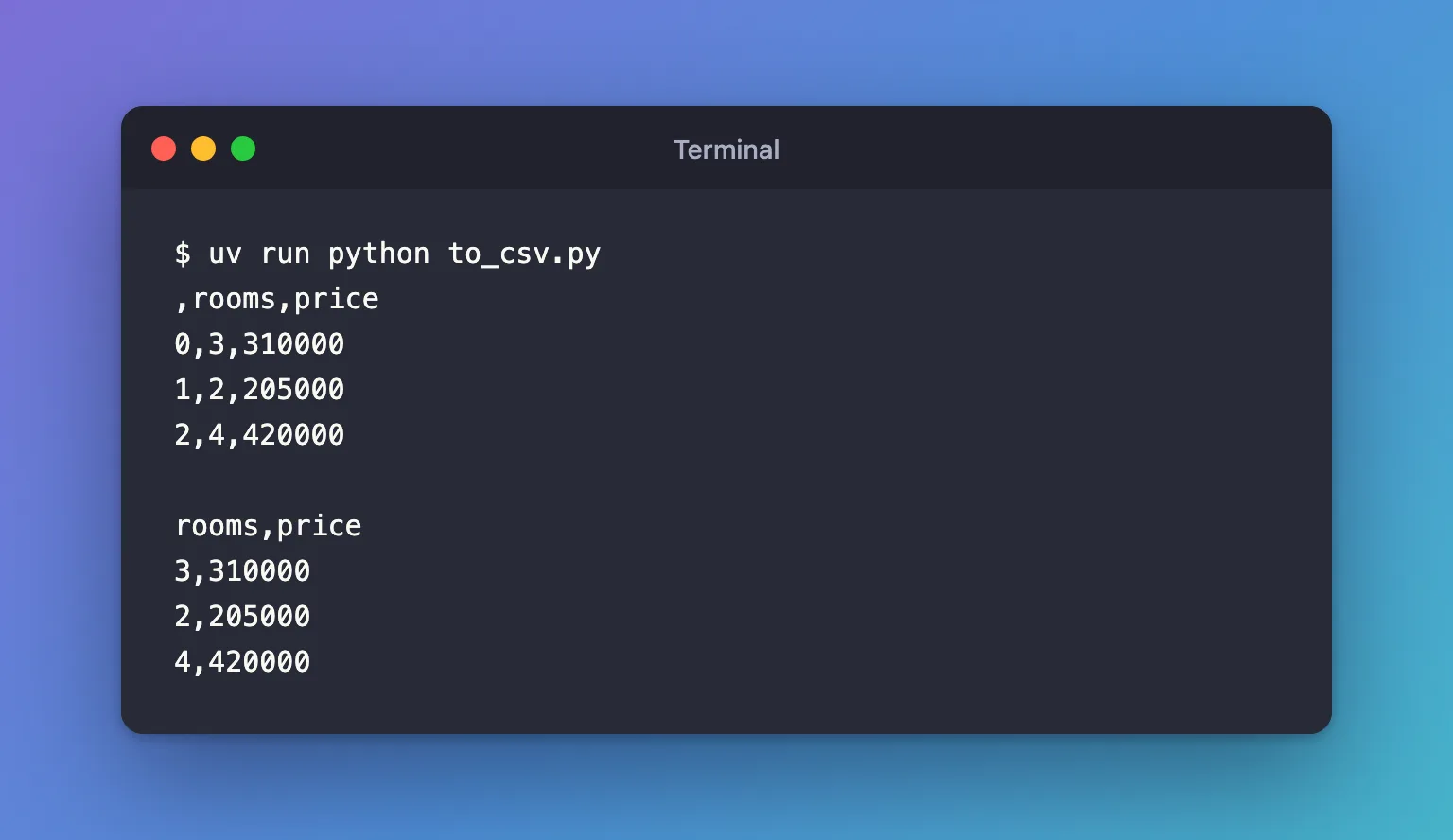
- The first file starts every line with the row label, 0 to 2, under a column with no name: the header line begins with a comma.
- The second file holds only the data. That's what other tools, and people, usually expect.
Both files are in the folder you ran the script from. Open houses.csv in a spreadsheet and you get two columns, rooms and price.
Common Mistakes
| Mistake | What happens | Do this instead |
|---|---|---|
Leaving out index=False | The file gets an extra first column; pd.read_csv reads it back as Unnamed: 0 | Pass index=False unless the row labels mean something |
| Saving into a folder that doesn't exist | OSError: Cannot save file into a non-existent directory: 'nofolder' | Create it first: Path("nofolder").mkdir(parents=True, exist_ok=True) |
Expecting to_csv to add to an existing file | It replaces the file | Pass mode="a" and header=False to append rows |
Troubleshooting
| Symptom | Likely cause | Fix |
|---|---|---|
| A spreadsheet shows every value in one column | It expected another separator, such as ; in some regions | Pass sep=";", or import the file with the spreadsheet's import tool |
| Decimals show many digits | Floats are written in full | Pass float_format="%.2f" when the extra precision isn't needed |
FAQ
Can I get the CSV as text instead of a file?
Yes. Without a path, to_csv returns the text: houses.to_csv(index=False) gives 'rooms,price\n3,310000\n...'.
When is the index worth keeping?
When the row labels carry information, such as dates or IDs set as the index. Then the first column is real data, and pd.read_csv(..., index_col=0) restores it as the index.
Can I pass a pathlib path?
Yes. to_csv accepts a path object, such as Path("reports") / "houses.csv".
Conclusion
houses.to_csv("houses.csv", index=False) wrote a clean file of three houses with two columns, while the default added a nameless column of row numbers that comes back as Unnamed: 0. Pass index=False, and make sure the folder exists first.
Additional Resources
- pandas.DataFrame.to_csv — the method's reference, including
index,sep,float_formatandmode. - pandas.read_csv — reading the file back, including
index_col.
