How to Save a Draft and Publish a Flow in Power Automate

In the new designer, a flow in a solution has two buttons where there used to be one: Save draft keeps your changes, finished or not, and Publish makes them the version that runs. Until you publish, the flow keeps running its last published version.
Microsoft's drafts and versioning article puts it this way: Save a draft of a flow whenever you want, even with errors. And: When you're ready for changes to a flow to have an effect at runtime, the flow can be published. It also says The drafts and versioning feature set is available only for solution-aware cloud flows.
The example is the approval flow of the Overtime Timesheet app, built over an afternoon and published at the end.
Prerequisites
- A flow in a solution, open in the new designer (How to Create an Automated Cloud Flow in a Solution in Power Automate).
Step 1: Save Drafts as You Build
Save draft is in the toolbar, next to Test and Publish:

Each save shows a green banner, and the header says Draft:
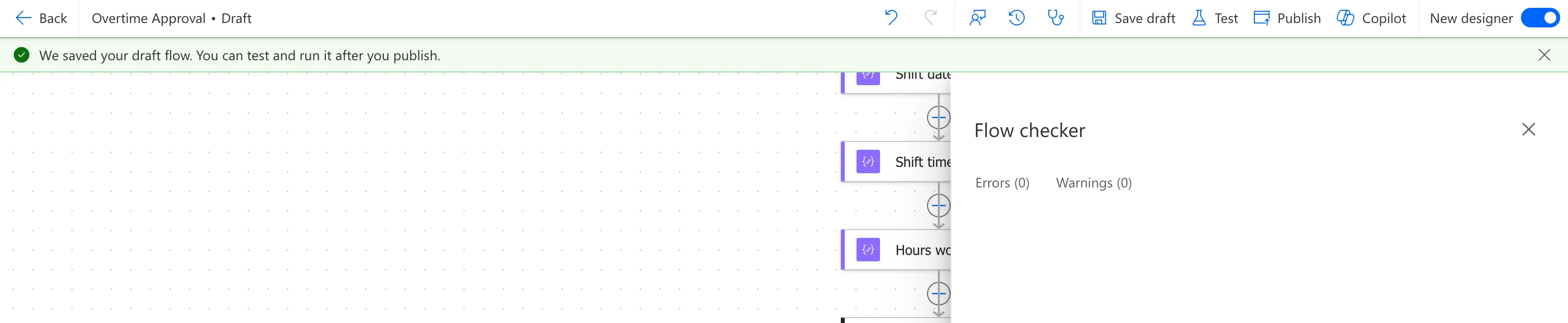
The banner's second sentence matters: a draft doesn't run. Microsoft's article answers Can drafts be tested? with Not at this time. Currently, flow changes need to be published and runnable to be tested.
Step 2: Check, Then Publish
Run Flow checker first (How to Check a Flow for Errors with Flow Checker in Power Automate), then select Publish.
If publishing finds a problem, a red banner says what, and the flow stays a draft. The approval flow's first publish stopped at an expression:

Fix what it names and publish again. Here, two problems in action names needed fixing, one per publish (Fixed: "The input parameter(s) of operation contains invalid expression(s)" in Power Automate and Fixed: "The provided workflow run action name has these invalid characters" (InvalidWorkflowRunActionName) in Power Automate).
When it works, the banner is green, and the header says Published:
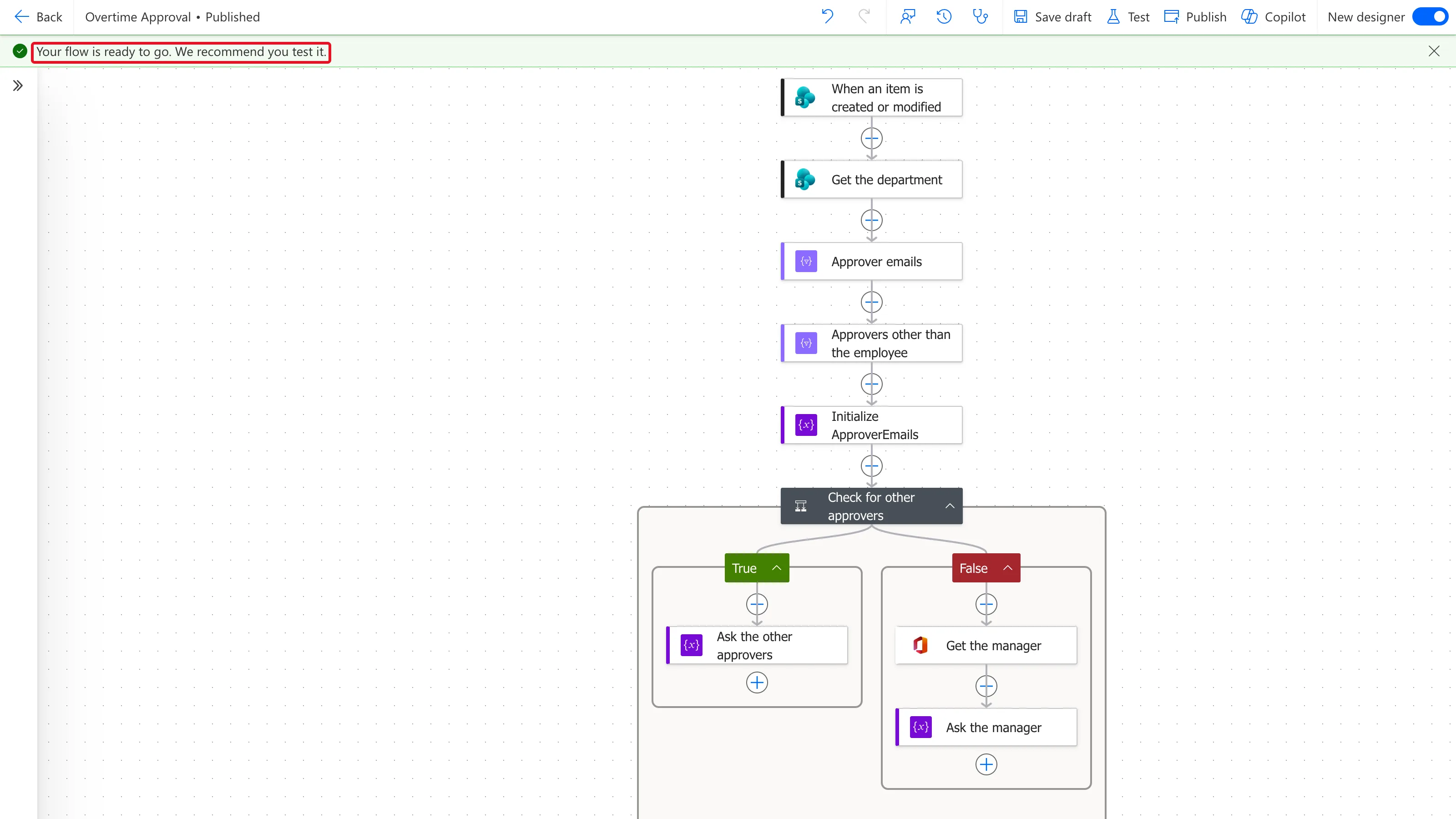
From then on, the flow runs the published version, and its next save is a new draft.
Common Mistakes
| Mistake | What happens | Do this instead |
|---|---|---|
| Saving a draft and waiting for a run | Drafts don't run | Publish |
| Testing a change before publishing it | Microsoft's article says drafts can't be tested | Publish, then test |
| Leaving a draft unpublished after a fix | The old version keeps running | Publish the fix |
Troubleshooting
| Symptom | Likely cause | Fix |
|---|---|---|
| My change has no effect | It's only in a draft | Publish |
| A red banner after Publish | Something publishing checks for | Fix what the banner names |
| No Save draft button | The flow isn't in a solution, or it's the classic designer | Open the solution flow from My flows |
FAQ
Can I go back to an earlier version?
The toolbar has Version history, part of the same drafts and versioning features. I didn't need it for this flow.
Does publishing turn the flow on?
The approval flow was on, and stayed on after each publish. Publishing changes which version runs.
Conclusion
Save draft keeps your work, even unfinished; Publish makes it the version that runs. Read the banner after each publish: green means it's live, red names what to fix.
Additional Resources
- Drafts and versioning for cloud flows: drafts, publishing and testing.
