How to Save a Date and Time to a SharePoint List with Patch in Power Apps

To save a date to SharePoint with Patch, pass a Date to a date-only column and a DateTime to a date-and-time column, as values, not text. SharePoint then shows exactly what the person chose, as long as the site's time zone is the one they work in. A night shift saved this way showed as 24/10/2026 22:00 to 25/10/2026 06:00.
The example is the Overtime Timesheet app. Its Log overtime screen saves each shift to the OvertimeEntries list: the day it started, its real start and finish, the month as text, and its hours.
Prerequisites
- Creating an item with Patch: How to Create or Update a SharePoint List Item with Patch in Power Apps and How to Use the Defaults Function in Power Apps.
- A real start and finish: How to Combine a Date and a Time in Power Apps with DateTime, with the finish on the next day for night shifts: How to Calculate Hours for an Overnight Shift in Power Apps.
- The site in your time zone: How to Change the Time Zone of a SharePoint Site. The example's site is on London time, with UK dates and a 24-hour clock (How to Change the Date Format of a SharePoint Site).
The Columns and Their Values
| SharePoint column | Type | Value from the app |
|---|---|---|
| WorkDate | Date only | The date picker's SelectedDate, a Date |
| StartTime | Date and time | ShiftStart(...), a DateTime |
| EndTime | Date and time | ShiftEnd(...), a DateTime, on the next day for a night shift |
| WorkMonth | Single line of text | Text(date, "yyyy-mm"), such as 2026-10 |
| Hours | Number, 2 decimal places | Minutes worked divided by 60, rounded to 2 places |
| Status | Choice | {Value: "Pending"} |
Step 1: Work Out the Start and Finish Once
With names the start and finish, so the Patch and the hours use exactly the same moments (How to Use the With Function in Power Apps):
With(
    {
        Starts: ShiftStart(dpWorkDateLO.SelectedDate, cmbStartLO.Selected.Value),
        Ends: ShiftEnd(dpWorkDateLO.SelectedDate, cmbStartLO.Selected.Value, cmbEndLO.Selected.Value)
    },
    ...
)
ShiftStart and ShiftEnd are the app's own functions (How to Create a User-Defined Function in Power Apps).
Step 2: Patch the Values
Inside the With:
Patch(
    OvertimeEntries,
    Defaults(OvertimeEntries),
    {
        WorkDate: dpWorkDateLO.SelectedDate,
        StartTime: Starts,
        EndTime: Ends,
        BreakMinutes: numBreakLO.Value,
        Hours: Round((DateDiff(Starts, Ends, TimeUnit.Minutes) - numBreakLO.Value) / 60, 2),
        DepartmentId: cmbDepartmentLO.Selected.ID,
        Department: cmbDepartmentLO.Selected.Department,
        Reason: Trim(txtReasonLO.Text),
        EmployeeName: MyProfile.displayName,
        EmployeeEmail: MyEmail,
        Status: {Value: "Pending"},
        WorkMonth: Text(dpWorkDateLO.SelectedDate, "yyyy-mm")
    }
)
- WorkDate takes the date as it is: the column shows a date and no time.
- StartTime and EndTime take the DateTime values. Power Apps works with them as real moments, so nothing needs converting first.
- WorkMonth is the month as sortable text,
yyyy-mm, for finding a month's entries later (How to Format a Date in Power Apps with Text). - Hours is rounded to the 2 decimal places of the column (How to Round a Number in Power Apps with Round, RoundDown and RoundUp).
- Status is a Choice column, written as a record with a Value (How to Write to a SharePoint Choice Column with Patch in Power Apps).
The column's default in SharePoint is Pending, but Defaults doesn't bring it into the app: in Studio, Defaults(OvertimeEntries).Status.Value showed Blank, while Defaults(OvertimeEntries).BreakMinutes showed its default, 0. Microsoft's Defaults function page warns that data sources vary in how much default information they provide. So the Patch sets Status itself.
The Patch sits inside IfError, so a failed save tells the person why (How to Stop a Button Being Selected Twice While It Saves in Power Apps has the whole formula). In the formula bar:

Step 3: Check the List in SharePoint
I saved two shifts from the app in Preview: the night of 24 October from 22:00 to 06:00 with a 60-minute break, and 6 November from 17:00 to 20:30. In the list's All Items view, they appear with the times as entered, the night shift's EndTime on the 25th, and Status Pending:
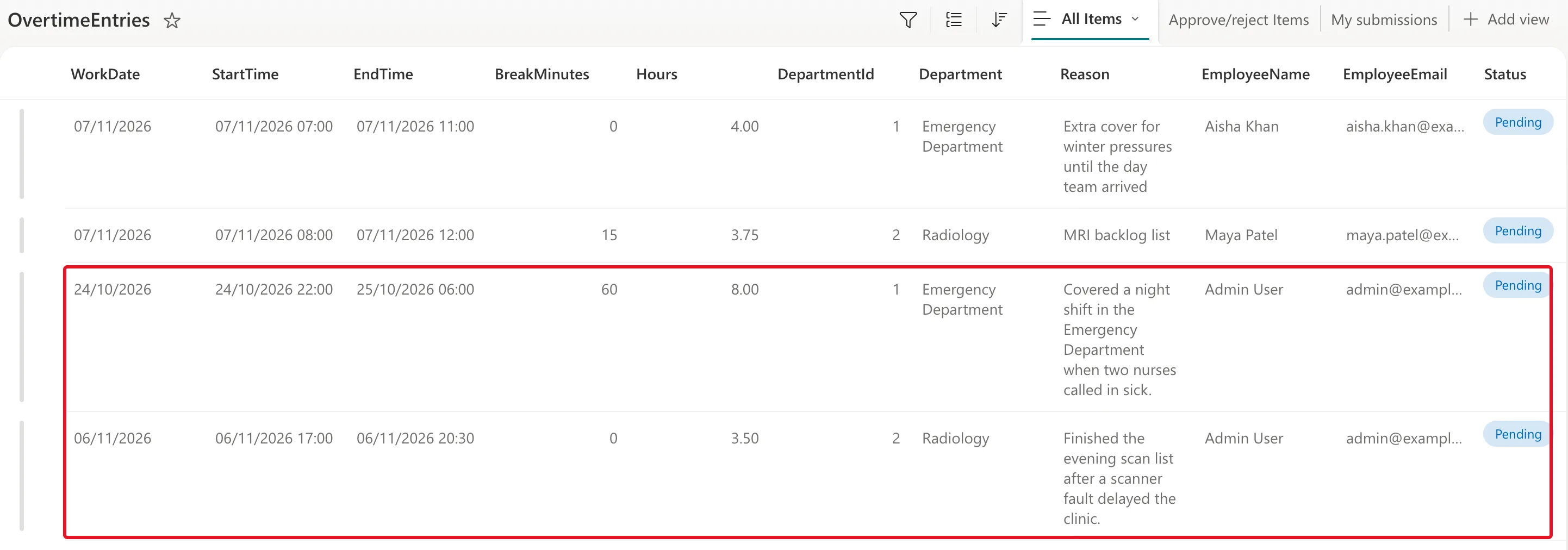
Their WorkMonth values were 2026-10 and 2026-11.
Why the Times Match
Canvas apps hold every date and time in UTC and show it in the time zone of the browser or device (data types). SharePoint shows date and time columns in the site's time zone. The app ran in a browser on London time and the site is on London time, so both show the same clock times, including across the night the clocks went back.
If people work in a different time zone from the site's, SharePoint shows their times shifted by the difference. Set the site's time zone to the one people work in.
Common Mistakes
| Mistake | What happens | Do this instead |
|---|---|---|
| Saving the finish on the start date for a night shift | The finish is before the start, which the list's validation rule doesn't allow | Build the finish with ShiftEnd, on the next day when it's earlier |
| Relying on Defaults for a Choice column's default | The value can be blank in the app | Set the column in the Patch |
| Converting times to UTC before saving | The saved times are shifted | Save the DateTime values as they are |
| A site in another time zone from its users | SharePoint shows the times shifted | Set the site's time zone where people work |
Troubleshooting
| Symptom | Likely cause | Fix |
|---|---|---|
| The times in SharePoint differ from the app | The site's time zone isn't the user's | Check the site's Regional settings and the device's time zone |
| A date-only value shows a day out for some people | Time zone adjustment of a date | Microsoft's date and time troubleshooting guide covers it |
FAQ
Do I need to convert to UTC before saving?
No. The app saved the times as they were, and SharePoint showed them unchanged. Converting first would move them: How to Convert Local Time to UTC in Power Apps with TimeZoneOffset.
Why store the month as text when the date is there?
2026-10 is the same for every day in October and sorts in order, so finding or totalling a month's entries is a simple equality check on one indexed column.
Conclusion
Pass a Date to a date-only column and a DateTime to a date-and-time column, set every value your app depends on in the Patch, and keep the site's time zone where people work. SharePoint then shows exactly the shift that was entered.
Additional Resources
- Patch function: creating a record.
- Defaults function: what a data source supplies.
- Data types: Date, Time, and DateTime: how canvas apps hold dates and times.
