How to Run User Diagnostics in the Power Platform Admin Center

When someone can't open an app in an environment, the Power Platform admin center can check the usual causes for you. Run diagnostics looks at one person's sign-in, license, group membership and roles, and says what to fix. This guide runs it and reads the results, including one that looks like a problem and isn't.
What It Checks
Microsoft's Troubleshoot user access lists the four requirements for using an environment, and the diagnostics check each:
- Enabled for sign-in in Microsoft Entra ID.
- A valid license with a Dynamics 365 or Power Platform service plan, or per-app plans in the environment.
- A member of the environment's Microsoft Entra group, if it has one.
- At least one Dataverse security role, given directly or to a group team they're in.
Running it also syncs the person's details from Microsoft Entra ID into the environment first, so the results are current.
Prerequisites
- Admin access to the environment.
- The person has a user record there. The list only shows people who were added or who've visited (How to Add a User to a Power Platform Environment).
Step 1: Open the Person
In the Power Platform admin center, open your environment, then Users (Access → Users → See all). Select the person's name. Their record opens with User status, their roles and teams, and Run diagnostics at the top:
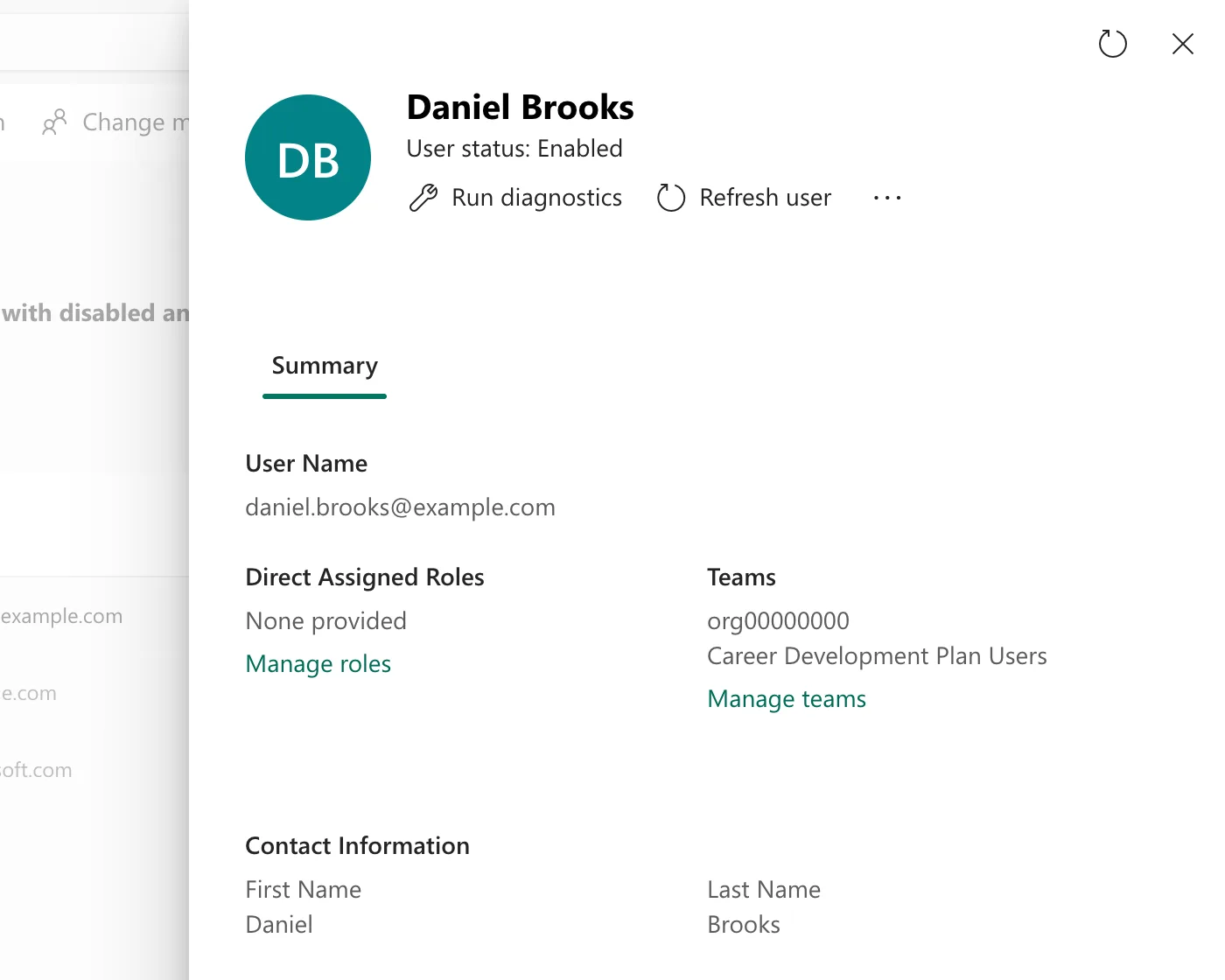
In the example, Daniel had tried to open an app and got You can't open apps in this environment. You are not a member of the environment's security group. His record says Enabled, with no direct roles, and the Career Development Plan Users team.
Step 2: Run the Diagnostics
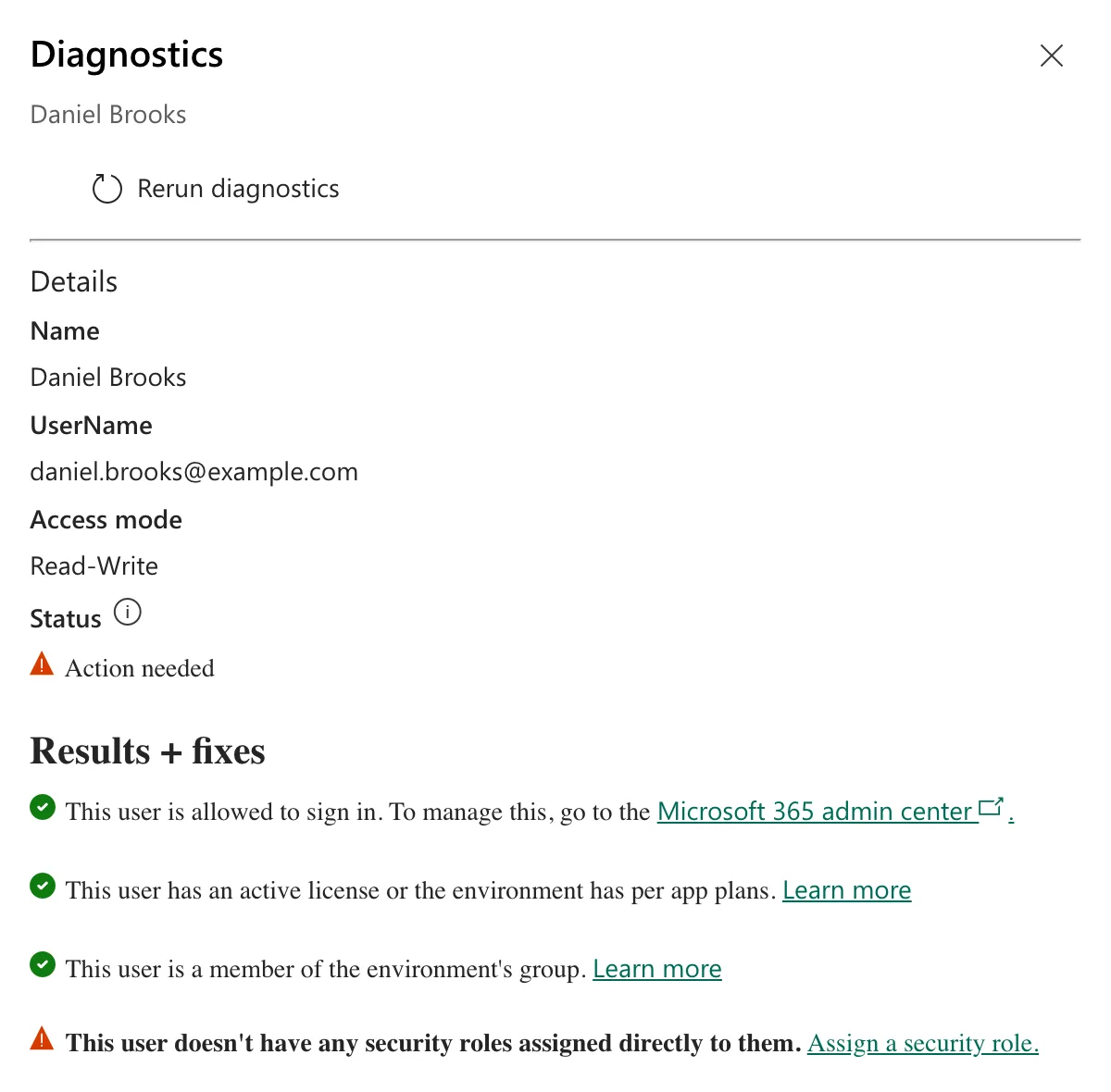
Select Run diagnostics. A few seconds later, the Diagnostics pane shows the person's details and Results + fixes:
Step 3: Read the Results
Each line is one requirement, with a link to fix it when it fails:
| Result | What it means |
|---|---|
| This user is allowed to sign in. | Requirement 1 is met; the link goes to the Microsoft 365 admin center |
| This user has an active license or the environment has per app plans. | Requirement 2 is met |
| This user is a member of the environment's group. | Requirement 3 is met |
| This user doesn't have any security roles assigned directly to them. | No role given to him directly |
So Daniel met the group requirement that the app's message said he didn't. He had already been added to the environment by then, and opening the app again worked.
The last line isn't a real problem here. Daniel gets Basic User from his group's team, and Microsoft's article lists a known issue: The system currently checks only for security roles assigned directly to a user. It doesn't check for roles inherited through group team memberships. So the status says Action needed for everyone whose role comes from a team. Only act on it if the person also has no team with a role (How to Assign a Dataverse Security Role to a Microsoft Entra Group).
Common Mistakes
| Mistake | What happens | Do this instead |
|---|---|---|
| Giving a direct role because of the last warning | Two places give the same role | Check the person's teams first |
| Running it before the person has visited | They aren't in the list to select | Add them, or ask them to open the environment once |
| Ignoring a failed requirement because the app's message named another | You fix the wrong thing | Fix what the diagnostics show |
Troubleshooting
| Symptom | Likely cause | Fix |
|---|---|---|
| The person isn't on the Users page | No user record yet | Add them |
| Everything is green but they still can't open the app | The app isn't shared with them, or the app needs more | Share the app; check its data access |
| A result changed after you fixed something in Microsoft Entra ID | The diagnostics sync the person first | Expected: Rerun diagnostics after each change |
FAQ
Does it change anything?
Microsoft says running it syncs the person's details from Microsoft Entra ID into the environment. It doesn't assign roles itself: the Assign a security role link is there for you to do that.
What do I do if it doesn't explain the problem?
Microsoft's article suggests including the diagnostics' results in a support request.
Conclusion
Open the person on the environment's Users page, select Run diagnostics, and read Results + fixes line by line. Fix any failed requirement, and treat no security roles assigned directly as a known gap when their role comes from a group team.
Additional Resources
- Troubleshoot user access problems for different environments: the requirements, the diagnostics and the known issue.
- User settings: the other commands on the Users page.
