How to Run the Solution Checker in Power Apps

The solution checker reads everything in a solution against Microsoft's best-practice rules and lists what it finds, each with a severity and a link to guidance. This guide runs it in Power Apps, reads the results, and runs the same check from the Power Platform CLI, whose result file also says which control each issue is on.
What the Solution Checker Checks
Microsoft's article Improve solution performance, stability and reliability lists what it analyzes: web resources, plug-ins and custom workflow activities, Dataverse configuration, Power Automate flows, through the flow checker, and Power Fx in canvas apps, through the app checker. Every issue gets a severity: Critical, High, Medium, Low or Informational.
Two limits from the same article:
- It works on unmanaged solutions, the ones you can export.
- A clean result doesn't guarantee that an import will succeed, because the checker doesn't know the environment you'll import into.
Prerequisites
- An unmanaged solution in an environment with Dataverse (How to Create a Solution and Publisher in Power Apps). The example is the Career Development Plan series' app solution: a canvas app and three environment variables.
Step 1: Run the Check
In Power Apps, select Solutions. Next to your solution, select ... (More actions), point to Solution checker, and select Run:
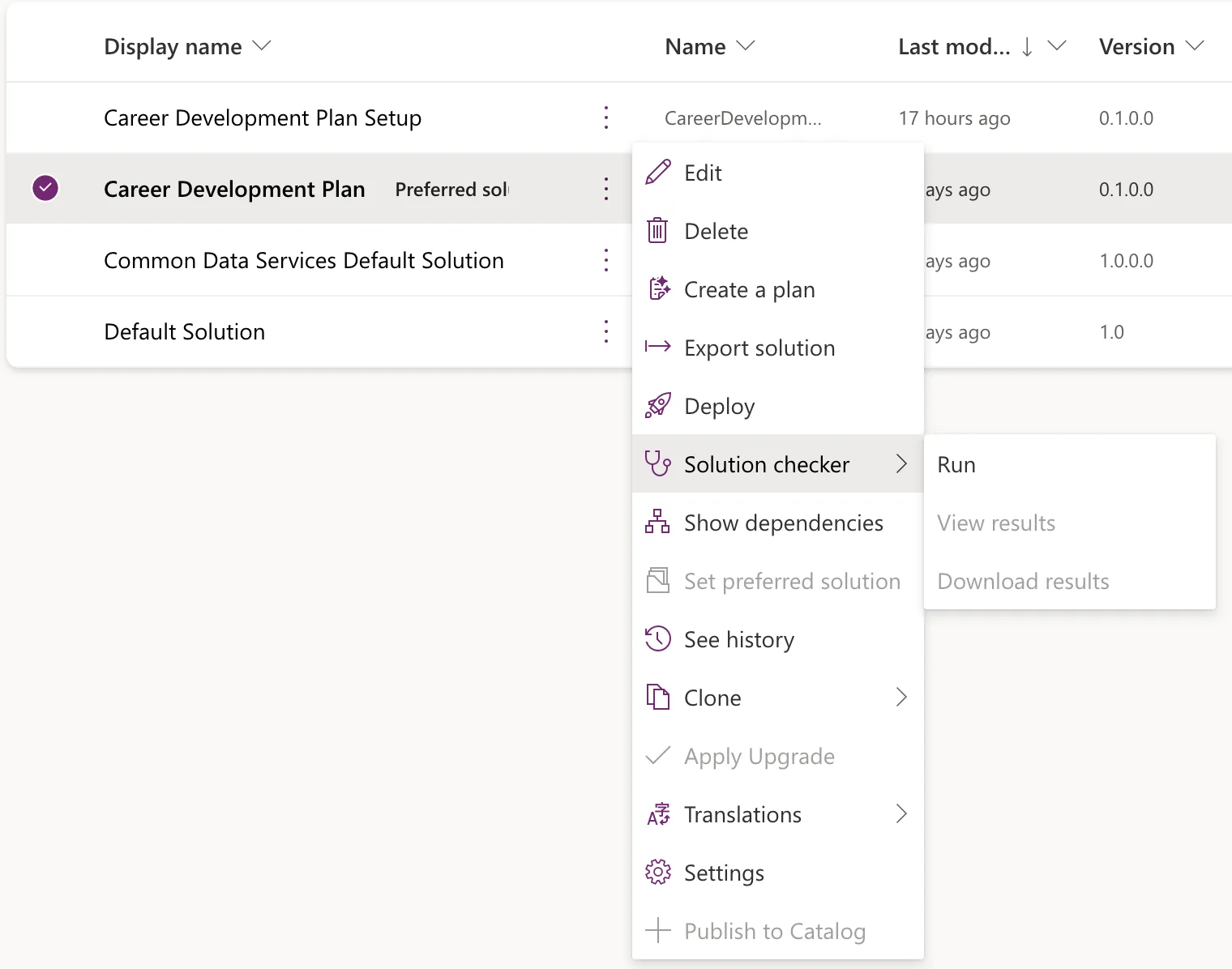
View results and Download results stay greyed out until the solution has been checked once. The same Solution checker menu is in the command bar when the solution's row is selected.
Step 2: Wait for It to Finish
The list's Solution check column follows the check. In the example, it still said Hasn't been run for about 25 seconds, then changed to Running...:

About 75 seconds after Run, it read Results as of 5:22 AM, 10/29/26. Microsoft says a check can take a few minutes, and that you also get a notification in Power Apps and an email when it's done.
Step 3: View the Results
Select ... → Solution checker → View results:
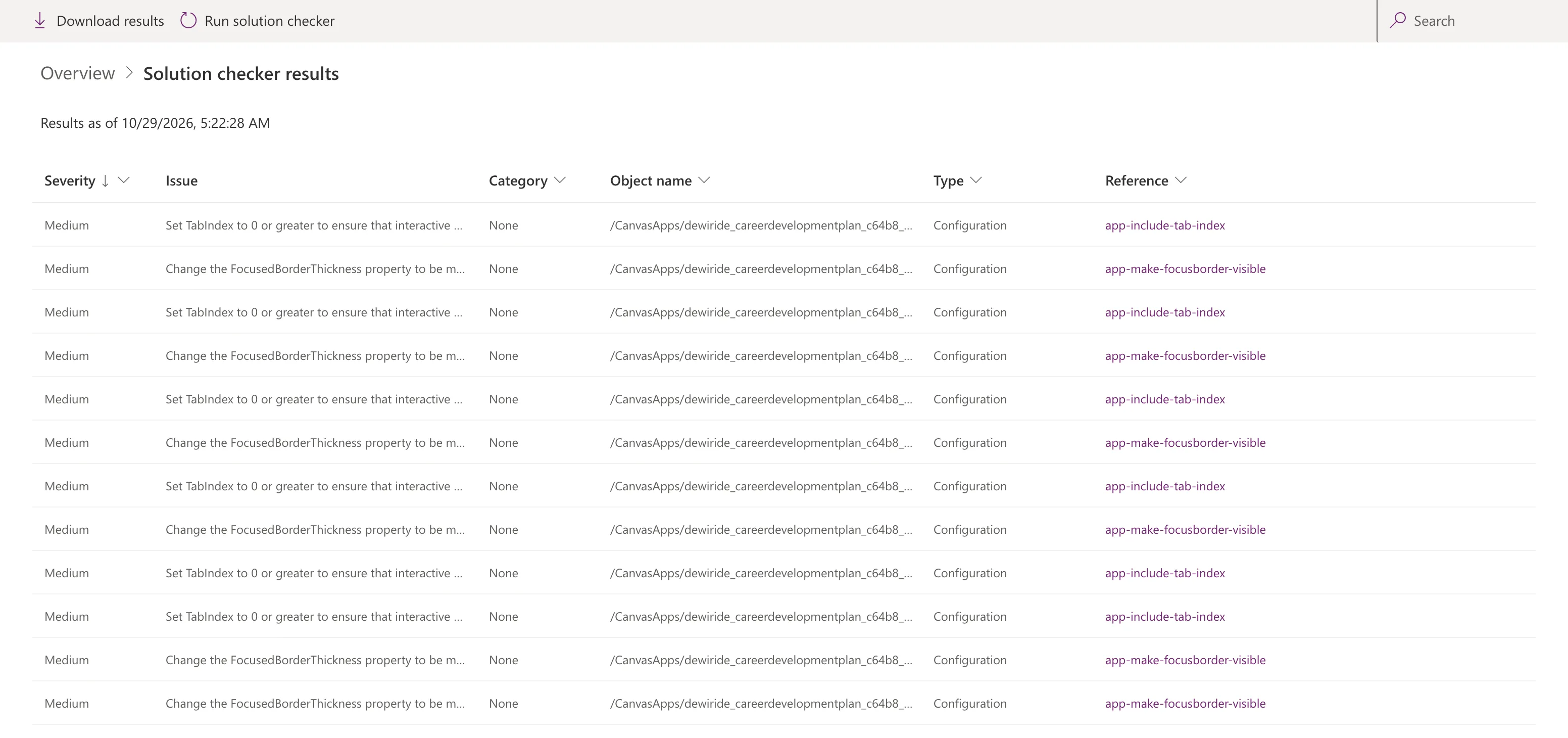
Each row is one issue:
| Column | What it shows |
|---|---|
| Severity | How much the issue matters, from Critical to Informational |
| Issue | What's wrong, in a sentence |
| Category | The kind of issue; None in this example |
| Object name | The file inside the solution, here the canvas app's .msapp |
| Type | The kind of finding, here Configuration |
| Reference | The rule's name, which opens the details |
The example found twelve Medium issues, all in the canvas app, from two rules, each six times:
Set TabIndex to 0 or greater to ensure that interactive elements have a tab stop.   (app-include-tab-index)
Change the FocusedBorderThickness property to be more than 0.                       (app-make-focusborder-visible)
A solution with nothing to report shows We didn't find anything to show here.
Step 4: Read an Issue's Details
Select the rule name in the Reference column. A Details pane opens:
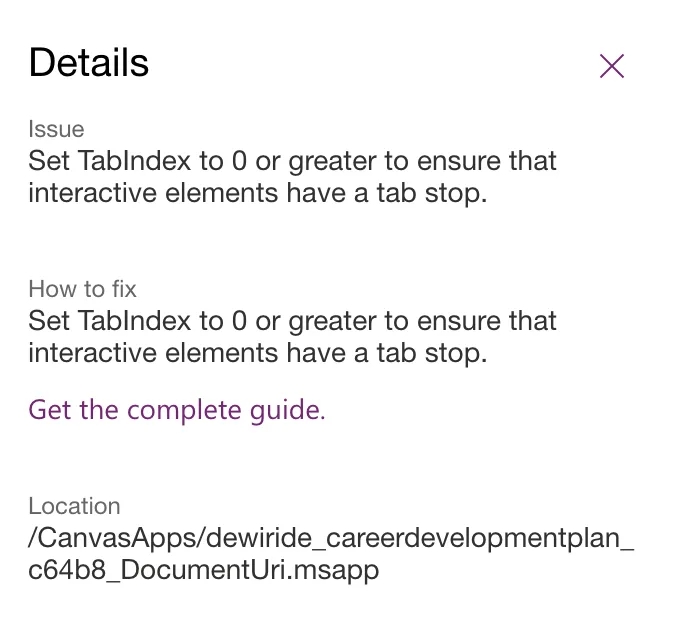
Get the complete guide opens Microsoft's accessibility checker article for these rules. Location names only the app file, not the control. To see which controls are meant, run the check with the CLI below: its result file names each one.
Step 5: Decide What to Do About Each Issue
Fix what should be fixed, run the check again, and write down why you leave the rest. In the example, all twelve issues are on the six screen headings, which are labels on purpose: a label with TabIndex 0 is read out as a button. Fixed: "Missing Tab Stop" in the Power Apps App Checker and Fixed: "Focus Isn't Showing" explain, with Microsoft's guidance, why the headings keep TabIndex -1.
Microsoft also offers Download results: a zip with an Excel report of the same issues, with more columns.
Do It with the CLI
The Power Platform CLI runs the same rules on an exported solution file with pac solution check. You need:
- an unmanaged solution zip (How to Export a Solution in Power Apps);
- the CLI, signed in (How to Sign In to the Power Platform CLI with pac auth create).
pac solution check --path release/CareerDevelopmentPlan_1_0_0_0.zip --outputDirectory checker --geo India
--pathis the solution zip.--outputDirectoryis where the results are saved.--geopicks which region's checker service to use; Microsoft's reference lists them, fromUnitedStatestoIndia. The example's environment is in India.
The CLI uploads the file, waits, and prints a summary. The report's download link is masked here: it's a private, signed address.
Connected as admin@example.com

Endpoint: https://india.api.advisor.powerapps.com/

Checking these solution files:

- ~/CareerDevelopmentPlan/release/CareerDevelopmentPlan_1_0_0_0.zip
Entering InvokePowerAppsChecker - EndProcessing
Executing InvokePowerAppsChecker
Upload started : 1 files
Uploaded finished: 1 files taking 00:00:00.4673118
Calling status check API. Loop count 1
Finished calling status check API. Loop count 1
... Activity Waiting on results(1); Status: Analyzing; PercentComplete: 30
Pausing for 30 seconds.
Calling status check API. Loop count 2
Finished calling status check API. Loop count 2
... Activity Waiting on results(1); Status: Analyzing; PercentComplete: 100
Processing 1 result file URIs for download to ~/CareerDevelopmentPlan/checker
Finished downloading 1 files
Exiting with Finished InvokePowerAppsChecker - EndProcessing : 00:00:35.9469119

Checker results:
	Files: 202610290554588195_CareerDevelopmentPlan_e40c.zip
	Correlation ID: 00000000-0000-0000-0000-000000000000
	Status: Finished
	Results : https://<report-link>


 Critical High Medium  Low Informational

        0    0      12   0             0
The same twelve Medium issues. The zip in checker holds a .sarif file, the standard format for code analysis results, with each issue's location down to the control. List them:
- macOS / Linux
- Windows (PowerShell)
unzip -p checker/*.zip '*.sarif' | grep -o '"fullyQualifiedName": *"[^"]*"' | sort -u
Expand-Archive -Path checker/*.zip -DestinationPath checker/results -Force
$sarif = Get-Content -Path checker/results/*.sarif -Raw | ConvertFrom-Json
$sarif.runs.results | ForEach-Object { $_.locations.logicalLocations.fullyQualifiedName } | Sort-Object -Unique
"fullyQualifiedName": "'Competency Screen'.conMainCS.conHeaderCS.lblTitleCS.FocusedBorderThickness"
"fullyQualifiedName": "'Competency Screen'.conMainCS.conHeaderCS.lblTitleCS.TabIndex"
"fullyQualifiedName": "'My Plan Screen'.conMainMPS.conHeaderMPS.lblTitleMPS.FocusedBorderThickness"
"fullyQualifiedName": "'My Plan Screen'.conMainMPS.conHeaderMPS.lblTitleMPS.TabIndex"
"fullyQualifiedName": "'My Team Screen'.conMainMTS.conHeaderMTS.lblTitleMTS.FocusedBorderThickness"
"fullyQualifiedName": "'My Team Screen'.conMainMTS.conHeaderMTS.lblTitleMTS.TabIndex"
"fullyQualifiedName": "'Response Screen'.conMainRS.conHeaderRS.lblTitleRS.FocusedBorderThickness"
"fullyQualifiedName": "'Response Screen'.conMainRS.conHeaderRS.lblTitleRS.TabIndex"
"fullyQualifiedName": "'Review Screen'.conMainRVS.conHeaderRVS.lblTitleRVS.FocusedBorderThickness"
"fullyQualifiedName": "'Review Screen'.conMainRVS.conHeaderRVS.lblTitleRVS.TabIndex"
"fullyQualifiedName": "'Team Member Screen'.conMainTMS.conHeaderTMS.lblTitleTMS.FocusedBorderThickness"
"fullyQualifiedName": "'Team Member Screen'.conMainTMS.conHeaderTMS.lblTitleTMS.TabIndex"
PowerShell prints the same names without the "fullyQualifiedName": prefix. Each one is screen, containers, control and property: here, the heading label of six screens.
A CLI check doesn't change the Solution check column in Power Apps. The reference's --saveResults option, off by default, stores the results in the environment, for the Solution Health Hub app.
Common Mistakes
| Mistake | What happens | Do this instead |
|---|---|---|
| Checking a managed solution | Microsoft lists managed solutions as Checked by Microsoft or Checked by Publisher, not analyzed | Check the unmanaged solution it was exported from |
| Fixing every issue the same way | A heading set to TabIndex 0 is read out as a button | Read each rule's guidance first |
Troubleshooting
| Symptom | Likely cause | Fix |
|---|---|---|
| The column stays on Hasn't been run after Run | The check hasn't started yet | Wait; in the example it took about 25 seconds to show Running... |
| Couldn't be completed | The analysis failed | Run it again; Microsoft says the last good results stay available |
Location shows only the .msapp file | The portal doesn't show controls | Use the CLI's .sarif file, or Power Apps Studio's App checker |
FAQ
Does running the checker change my solution?
No. It reads the solution and reports. The only thing that changes is the Solution check column.
Should I run it before every export?
Yes. The export pane even has a Run solution checker on export option, and a release is the moment to know what's in it.
Why are the issues Medium and not Critical?
The severity comes from each rule. Microsoft's article lists its canvas app accessibility rules at Medium, and both rules here came back as Medium.
Conclusion
... → Solution checker → Run, wait for Results as of, and View results lists every issue with its severity and rule. The portal's Location stops at the app file, while pac solution check saves a .sarif file that names the control behind each issue.
Additional Resources
- Improve solution performance, stability and reliability: running the checker and its rules.
- pac solution check: every option.
- Review a canvas app for accessibility: the accessibility rules behind the canvas app issues.
