How to Run Code Only in Development in ASP.NET Core

Some code belongs only on a developer's machine: an in-memory store, a relaxed setting, a debugging aid. ASP.NET Core knows which environment it runs in, and one if around builder.Environment.IsDevelopment() keeps that code out of everywhere else. This guide shows the check, where to put it, and how to try the other branch on your own machine.
What the Environment Is
Every ASP.NET Core app runs in a named environment. The framework provides three names: Development, Staging and Production (ASP.NET Core runtime environments). The app reads the name at startup from the DOTNET_ENVIRONMENT or ASPNETCORE_ENVIRONMENT environment variable — and when neither is set, the environment is Production.
On your machine, the project's launch profile sets the variable. A new web project gets a Properties/launchSettings.json like this one, from the API in the Microsoft Agent Framework series:
"http": {
  "commandName": "Project",
  "dotnetRunMessages": true,
  "launchBrowser": true,
  "launchUrl": "health",
  "applicationUrl": "http://localhost:5180",
  "environmentVariables": {
    "ASPNETCORE_ENVIRONMENT": "Development",
    "AZURE_TOKEN_CREDENTIALS": "AzureCliCredential"
  }
}
launchSettings.json is only used on the development machine and isn't deployed. That is what makes Development a safe signal: a published app doesn't get it unless someone sets it on purpose.
Prerequisites
- An ASP.NET Core app with a
Program.csthat callsWebApplication.CreateBuilder(args), as every project template since .NET 6 does. The examples use .NET 10. - The .NET SDK, to run
dotnet run.
Step 1: Check Which Environment Your App Runs In
Start the app the usual way. From the solution folder of the example API:
dotnet run --project src/Dewiride.ServiceDesk.Api
Using launch settings from src/Dewiride.ServiceDesk.Api/Properties/launchSettings.json...
Building...
info: Microsoft.Hosting.Lifetime[14]
      Now listening on: http://localhost:5180
info: Microsoft.Hosting.Lifetime[0]
      Application started. Press Ctrl+C to shut down.
info: Microsoft.Hosting.Lifetime[0]
      Hosting environment: Development
info: Microsoft.Hosting.Lifetime[0]
      Content root path: /Users/you/source/DewirideServiceDesk/src/Dewiride.ServiceDesk.Api
Hosting environment: Development is the line to look for. The first line shows where the value came from: the launch settings file.
Step 2: Wrap the Code in IsDevelopment()
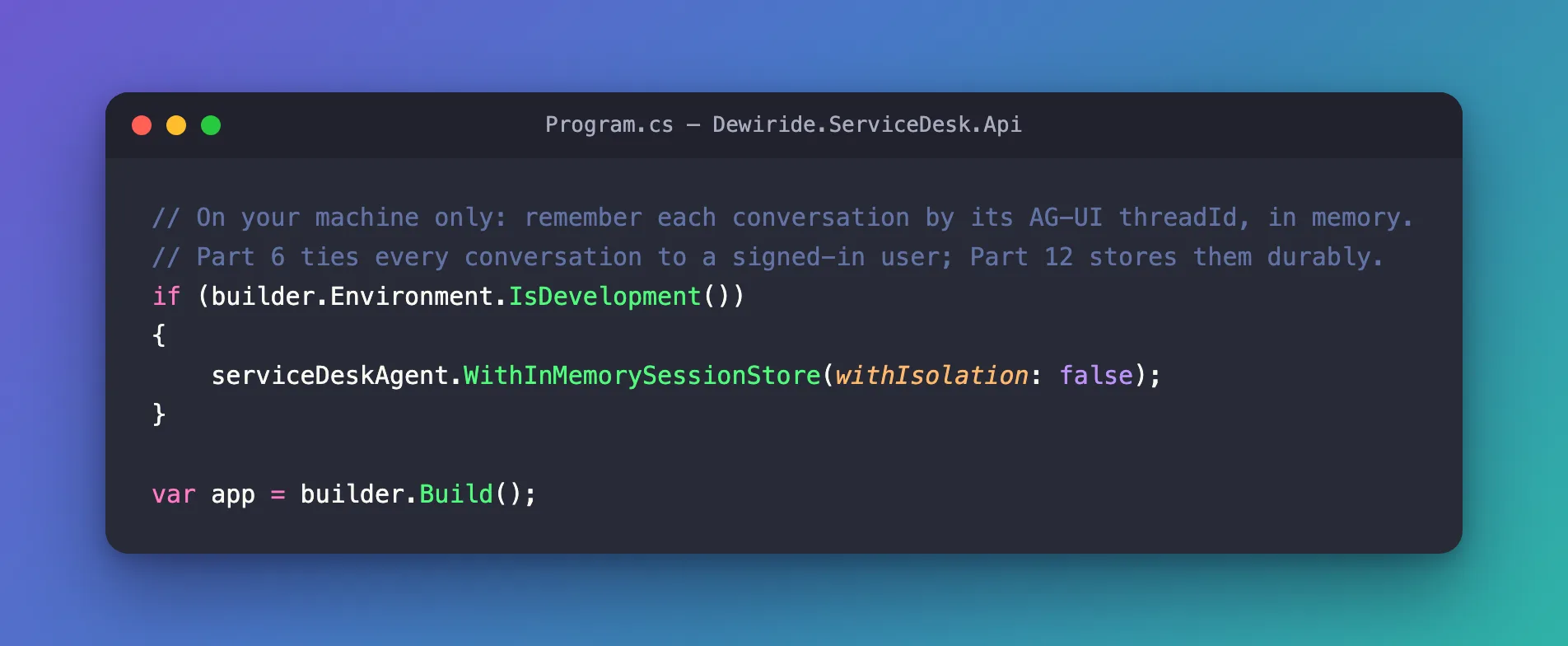
builder.Environment is available as soon as CreateBuilder returns, so you can decide what to register before the app is built. The example API keeps conversations in memory, but only in Development:
// On your machine only: remember each conversation by its AG-UI threadId, in memory.
// Part 6 ties every conversation to a signed-in user; Part 12 stores them durably.
if (builder.Environment.IsDevelopment())
{
    serviceDeskAgent.WithInMemorySessionStore(withIsolation: false);
}

var app = builder.Build();
| Code | What it does |
|---|---|
builder.Environment | The app's environment, available while you register services |
.IsDevelopment() | true when the environment's name is Development |
The if block | Runs only on a developer's machine. Everywhere else, the store is never registered |
The check must come before builder.Build(), because that is when services are registered. For middleware, which you add after Build(), use app.Environment instead. Microsoft's own example adds an error page and HSTS everywhere except Development:
if (!app.Environment.IsDevelopment())
{
    app.UseExceptionHandler("/Error");
    app.UseHsts();
}
Microsoft's guidance in one sentence: To check the current environment while configuring services, use builder.Environment instead of app.Environment.
Besides IsDevelopment(), there are IsStaging(), IsProduction() and IsEnvironment("Testing") for a name of your own.
Step 3: Try the Other Branch on Your Machine
Code that runs only outside Development is easy to break without noticing, so run it once. dotnet run -e sets an environment variable for the app, and its value wins over the launch profile:
dotnet run --project src/Dewiride.ServiceDesk.Api -e ASPNETCORE_ENVIRONMENT=Production
The command works unchanged in bash, zsh and PowerShell.
Using launch settings from src/Dewiride.ServiceDesk.Api/Properties/launchSettings.json...
Building...
info: Microsoft.Hosting.Lifetime[14]
      Now listening on: http://localhost:5180
info: Microsoft.Hosting.Lifetime[0]
      Application started. Press Ctrl+C to shut down.
info: Microsoft.Hosting.Lifetime[0]
      Hosting environment: Production
info: Microsoft.Hosting.Lifetime[0]
      Content root path: /Users/you/source/DewirideServiceDesk/src/Dewiride.ServiceDesk.Api
Hosting environment: Production, and the launch profile's other settings still apply. In this run the if block was skipped. The example API's agent then forgot each message as soon as it had answered it: after the Wi-Fi question, the follow-up "It's a Windows 11 laptop." got:
What would you like help with on your Windows 11 laptop?
In Development, the same follow-up got Windows 11 Wi-Fi steps. The branch works both ways. Press Ctrl+C to stop the app; the next plain dotnet run is back in Development.
Microsoft's environments page shows dotnet run -e Staging, but -e expects NAME=VALUE. With -e Staging, the app quietly starts in Development (Fixed: dotnet run -e Staging Still Starts the App in Development).
Common Mistakes
| Mistake | What happens | Do this instead |
|---|---|---|
Checking app.Environment to decide which services to register | Too late: services are registered before Build() | Use builder.Environment for services, app.Environment for middleware |
dotnet run -e Production | The app still starts in Development | dotnet run -e ASPNETCORE_ENVIRONMENT=Production |
Expecting Development on a server | A deployed app runs in Production unless the variable is set | Treat Production as the default and opt in to anything else |
| Putting secrets in Development-only code | The code is in your repository for everyone who can read it | Keep secrets out of code; the check only decides what runs |
Troubleshooting
| Symptom | Likely cause | Fix |
|---|---|---|
The log says Hosting environment: Production on your machine | The app started without a launch profile | Start it with dotnet run and its launch profile, or set ASPNETCORE_ENVIRONMENT |
| Development-only code runs on a server | Someone set ASPNETCORE_ENVIRONMENT=Development there | Remove the setting from the server's configuration |
The environment didn't change after editing launchSettings.json | The app was still running | Stop it and start it again — the environment is read once, at startup |
FAQ
Which environment do apps in Azure run in?
Production, unless you set ASPNETCORE_ENVIRONMENT or DOTNET_ENVIRONMENT. Microsoft's environments page says it directly for Azure App Service, and the same default applies anywhere the variables aren't set.
Can the environment change while the app runs?
No. The environments page is clear: the environment can't be changed while the app is running. Restart the app with the new value.
Is there a Development-only settings file too?
Yes. appsettings.Development.json is read on top of appsettings.json when the environment is Development. It holds settings; the IsDevelopment() check decides which code runs.
Conclusion
builder.Environment.IsDevelopment() is true only where the environment is Development — on your machine, through the launch profile. Wrap development-only registrations in it before builder.Build(), use app.Environment for middleware, and try the other branch with dotnet run -e ASPNETCORE_ENVIRONMENT=Production.
Additional Resources
- ASP.NET Core runtime environments — how the environment is chosen and checked.
- dotnet run — the
-e|--environment <KEY=VALUE>option. - WebApplication and WebApplicationBuilder — reading the environment while building the app.
