How to Run an Office Script from a SharePoint Library in Power Automate

Run script only finds the Office Scripts in your own OneDrive. When a script is saved in a SharePoint library, where the whole team can use it, a flow runs it with Run script from SharePoint library, which asks where the workbook is and, separately, where the script is.
The example runs Say Hello, a script saved as Say Hello.osts in the Scripts folder of the Documents library of a SharePoint site called Communication site (How to Save an Office Script to SharePoint). It runs the script in Team Budget.xlsx, a workbook in the same library (How to Create an Excel Workbook in a SharePoint Document Library). The script writes Hello from Office Scripts! in cell A1:
function main(workbook: ExcelScript.Workbook) {
    // Write a greeting in cell A1 of the open sheet.
    const sheet = workbook.getActiveWorksheet();
    sheet.getRange("A1").setValue("Hello from Office Scripts!");
}
In a flow, getActiveWorksheet() means the workbook's first sheet, which is fine for Team Budget.xlsx, a workbook with one sheet. For a workbook with several, get the sheet by name (How to Run an Office Script from Power Automate).
Prerequisites
- A business Microsoft 365 licence. Microsoft's Run Office Scripts with Power Automate says you need one to use Office Scripts in Power Automate.
Step 1: Create the Flow
Create an instant cloud flow with the trigger Manually trigger a flow (How to Create an Instant Cloud Flow Inside a Solution in Power Automate). I called it Run a Script from SharePoint.
Step 2: Add Run script from SharePoint library
Under the trigger, select +, Add an action, search for Run script from SharePoint library and select it under Excel Online (Business). Microsoft's Excel Online (Business) connector reference describes it as the action to use when the script is saved outside of the default location.
Step 3: Choose the Workbook
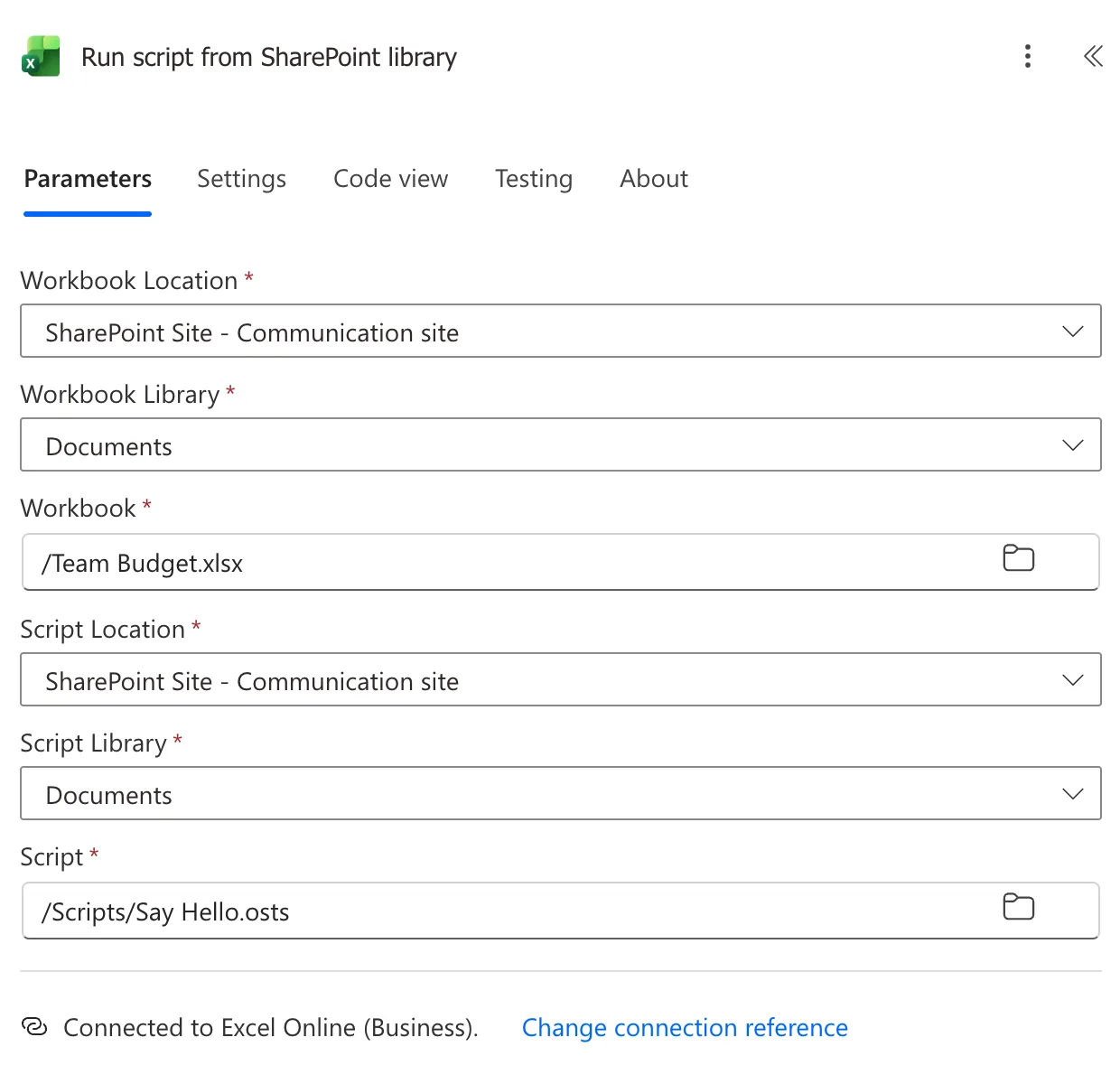
The first three fields say which workbook the script runs in:
- Workbook Location: the site, here SharePoint Site - Communication site.
- Workbook Library: the library, here Documents.
- Workbook: select the folder icon and pick the file, here /Team Budget.xlsx.
Step 4: Choose the Script
The next three say where the script is. They're separate because the script and the workbook don't have to be in the same place:
- Script Location: the script's site, again SharePoint Site - Communication site.
- Script Library: Documents.
- Script: select the folder icon and pick the .osts file, here /Scripts/Say Hello.osts.
Step 5: Run the Flow
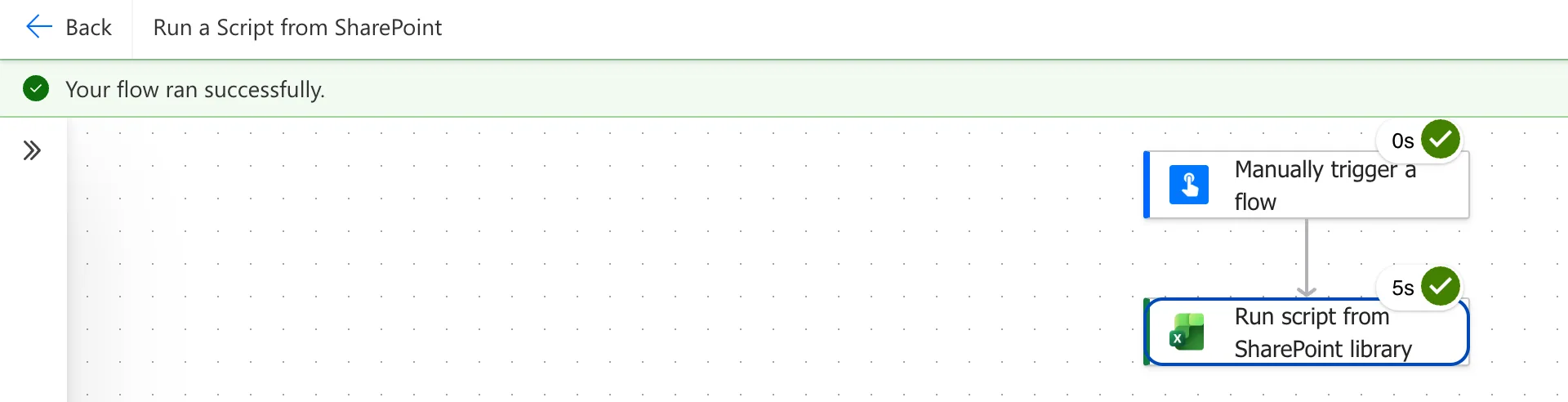
Save the flow, then select Test, Manually and Test, then Continue and Run flow (How to Test a Cloud Flow Manually in Power Automate). The action took 5 seconds:
The Result
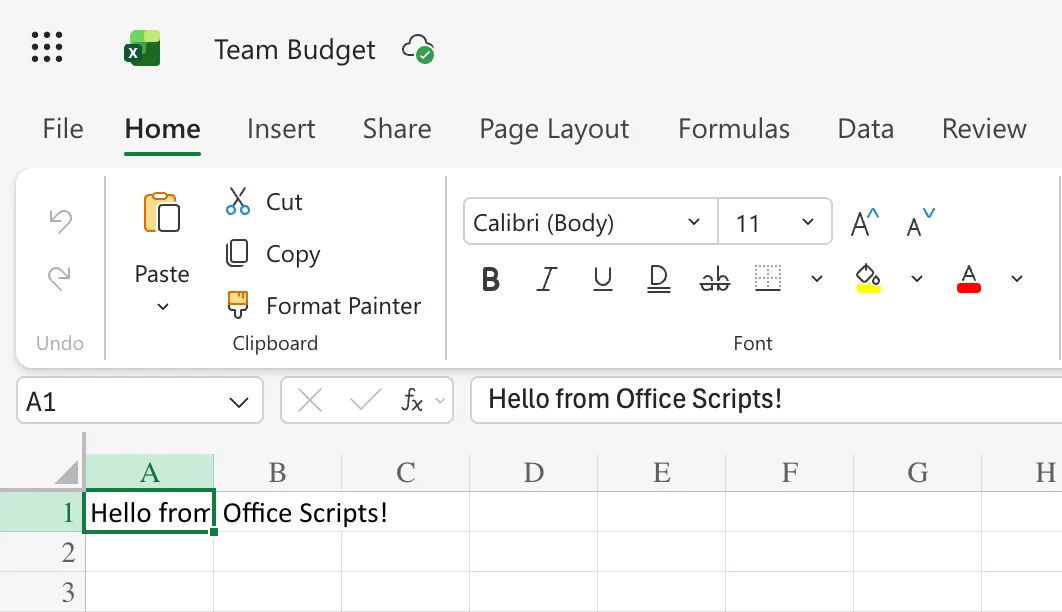
Team Budget.xlsx now has Hello from Office Scripts! in A1:
Common Mistakes
| Mistake | What happens | Do this instead |
|---|---|---|
| Run script for a script in SharePoint | Its Script list shows only the scripts in your OneDrive | Run script from SharePoint library |
| Choosing the script's place in the workbook fields | The flow looks for a workbook where the script is | Workbook fields first, script fields second |
getActiveWorksheet() in a workbook with several sheets | The script uses the first sheet | getWorksheet("<name>") |
Troubleshooting
| Symptom | Likely cause | Fix |
|---|---|---|
| The script's folder isn't offered | Script Library is a different library | Choose the library the .osts file is in |
| 403 Forbidden | The connector reference says the file needs write access | Give the flow's account edit access to the workbook |
| 502 BadGateway | The same reference says the workbook is read-only | Turn off read-only for the workbook |
FAQ
Can the workbook be in OneDrive and the script in SharePoint?
Yes. The two halves are separate: Microsoft's own example picks a workbook in OneDrive for Business and a script in a SharePoint site.
Why isn't my new script in SharePoint already?
New scripts are saved in your OneDrive, in /Documents/Office Scripts/, as Microsoft's Office Scripts file storage and ownership explains. Move one to a SharePoint folder first (How to Save an Office Script to SharePoint).
Can I pass values to a script in SharePoint?
Yes, in the same way as with Run script: its parameters appear as fields under Script (How to Pass a Value to an Office Script from Power Automate).
Conclusion
Run script from SharePoint library runs a team's script: three fields for the workbook, three for the .osts file. Pick both with the folder icons, and the script runs without anyone opening the workbook.
Additional Resources
- Run Office Scripts with Power Automate
- Excel Online (Business) connector reference
- Office Scripts file storage and ownership
