How to Run an Instant Cloud Flow in Power Automate

An instant cloud flow runs when someone starts it. You don't need the designer for that: the flow's details page has a Run button that asks for the flow's inputs and starts it. This guide runs a setup flow that arrived in a managed solution, and checks the result.
Run or Test?
The designer's Test → Manually also runs a flow, and shows each step's result on the canvas, which is what you want while you're building it (How to Test a Cloud Flow Manually). Run is for using the flow: no designer, just the inputs and the result.
For a flow installed with a managed solution, stay out of the designer. Changes saved to it there become an unmanaged customization on top of the installed version, and Microsoft's Solution layers explains that unmanaged customizations sit above every managed solution, so they'd hide its future updates.
Prerequisites
- An instant cloud flow that's turned on. The example is Create Career Development Plan Lists, from the Career Development Plan Setup solution (How to Create an Instant Cloud Flow in a Solution).
- The values its inputs need. Here, the address of a SharePoint site.
Step 1: Open the Flow's Details
In Power Apps, open Solutions → the flow's solution. Next to the flow, select ... (More actions) → Details. The menu also has Edit, which opens the designer.
The details page opens:
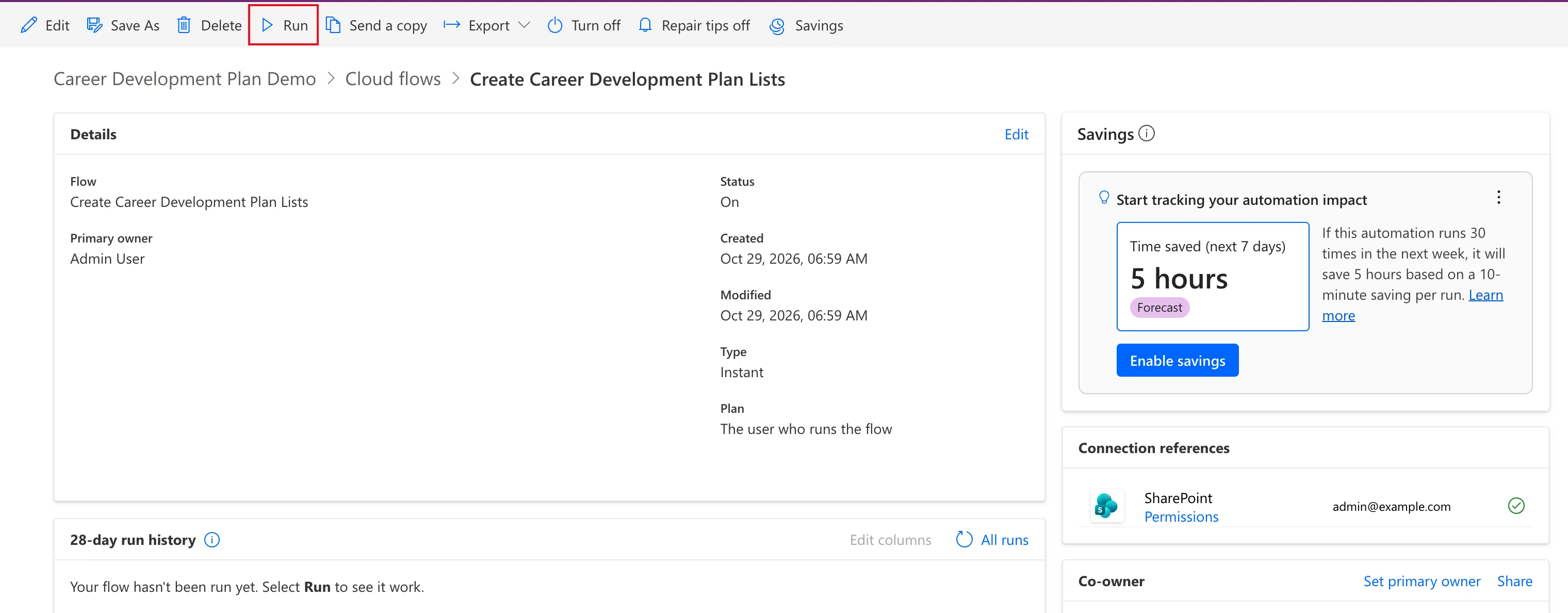
Check two things before you run it:
- Status is On. Turn off in the command bar confirms it.
- Connection references shows a green check for each.
Your own flows are also under My flows in Power Automate, where Microsoft's Get started with cloud flows runs them with the Run icon next to each flow.
Step 2: Select Run and Check the Connections
Select Run. The Run flow panel opens with the flow's name and owner, and lists the apps it signs in to under Sign in: A green check means you're ready to go.
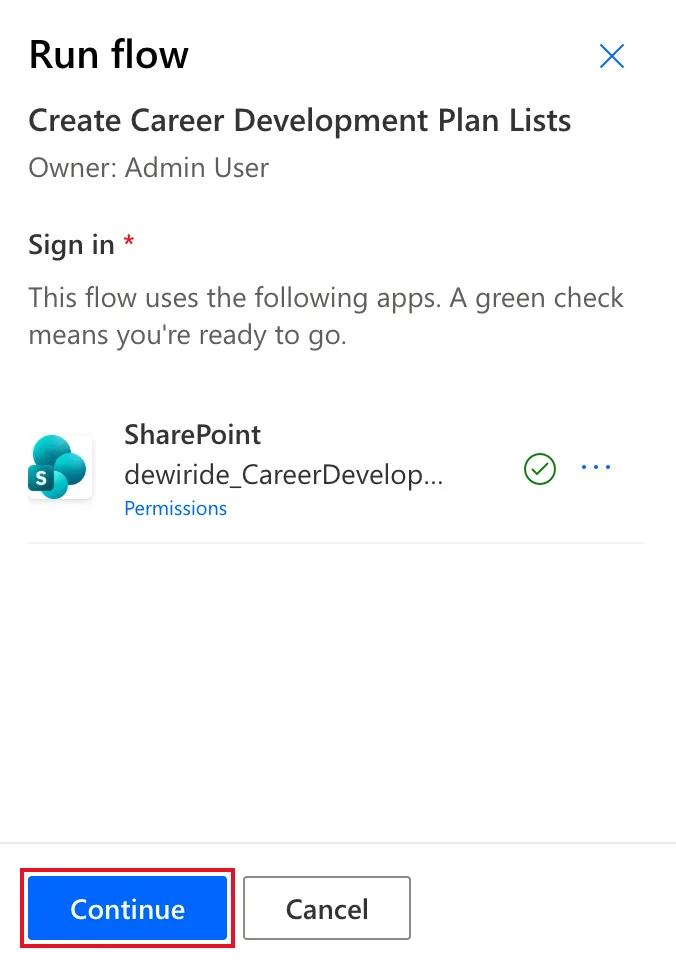
Select Continue.
Step 3: Enter the Inputs and Run
The panel shows a box for each of the flow's inputs, with its description. Site URL is required (the red asterisk). Type the value: here, the address of the site the flow should create its lists on.
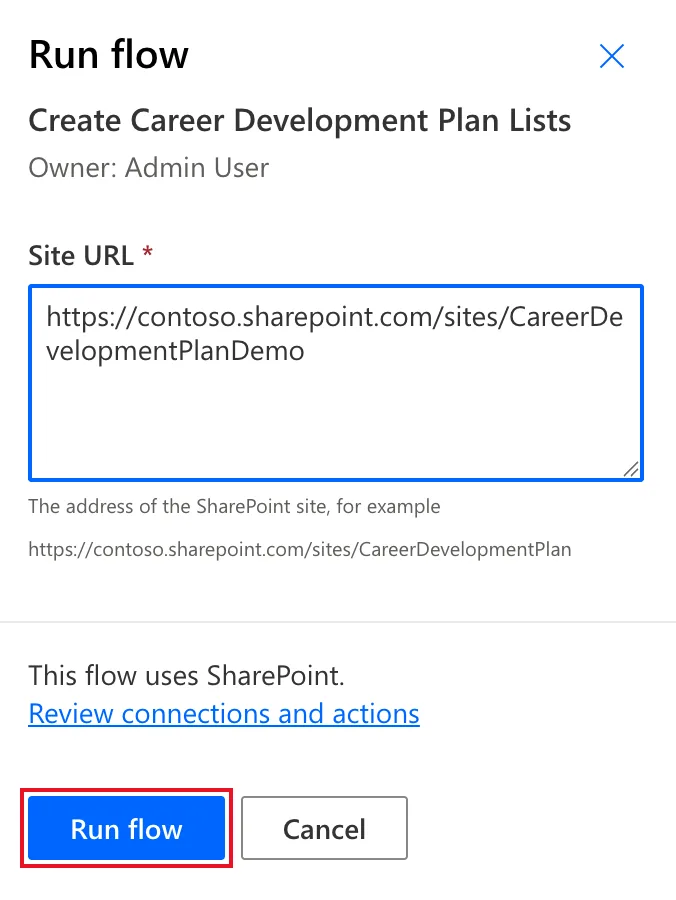
Select Run flow. The panel confirms it:
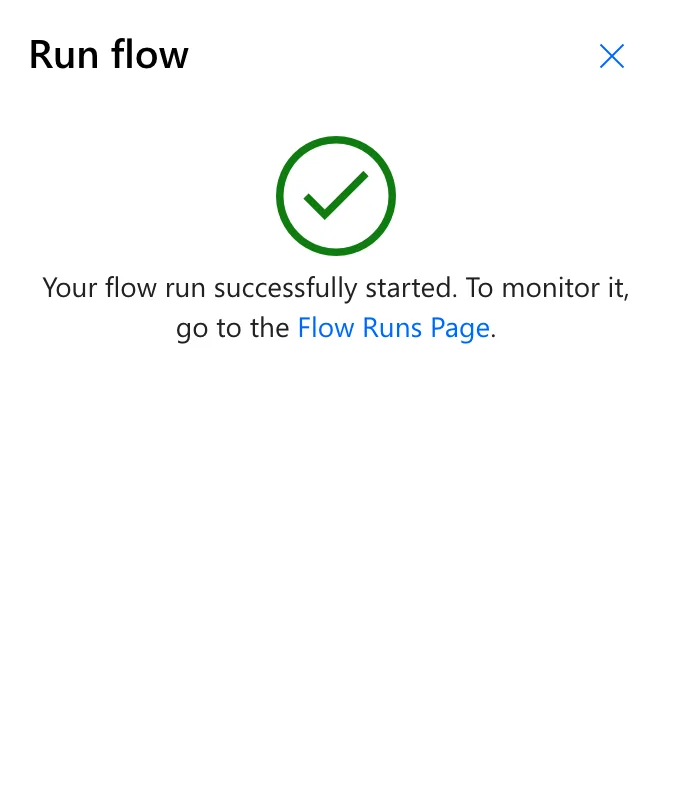
Select Done.
Step 4: Check the Run
The run appears under 28-day run history on the same page. Select the refresh icon next to All runs until it finishes:

Succeeded after 12 seconds. A green status only says the flow finished without an error, so check the result where it happened too: here, the site's Site contents listed the two lists the flow creates.
Common Mistakes
| Mistake | What happens | Do this instead |
|---|---|---|
| Opening a managed flow with Edit to run it | Anything you save there becomes an unmanaged layer above the installed flow | Use Run on Details |
| Checking only the run history | A run can succeed and still not do what you expected | Check the result where it happened |
Troubleshooting
| Symptom | Likely cause | Fix |
|---|---|---|
| The run stays Running for many minutes | An action failed with a server error and is being retried: in Part 11, such a call was retried twice, 5 to 10 minutes apart | Wait for it, then read the failed action (Fixed: "Invalid Field Name" BadGateway) |
FAQ
Can other people run it?
The details page has a Run-only user card for sharing the flow so others can run it. This one wasn't shared: Your flow hasn't been shared with anyone.
Can I run it from my phone?
Microsoft's Manage cloud flows says instant flows can be run from the Power Automate mobile app. I ran this one in the browser.
Conclusion
Open the flow's Details, check Status and the connections, select Run → Continue, fill in the inputs, Run flow, Done, and watch the 28-day run history until it says Succeeded.
Additional Resources
- Get started with cloud flows: Run your cloud flow: the Run flow pane.
- Solution layers: managed and unmanaged layers.
