How to Run a Single C# File with dotnet run (.NET 10 File-Based Apps)

Until .NET 10, even a three-line C# program needed a project file. Now dotnet run hello.cs runs a single .cs file directly, and a line at the top can pull in NuGet packages. It's perfect for small tools and quick tests, like checking that a database connection string works. This guide writes one, adds a package, shows where .NET builds it, and turns it into a normal project when it outgrows one file.
What a File-Based App Is
Microsoft's file-based apps page describes them: "File-based apps let you build, run, and publish .NET applications from a single C# file without creating a traditional project file." The SDK does the project work behind the scenes: "The .NET SDK automatically generates the necessary project configuration based on the directives in your source file."
Prerequisites
- The .NET 10 SDK or later. The page says: "This article applies to: ✔️ .NET 10 SDK and later versions". Check yours with
dotnet --version; this guide uses 10.0.403. - An empty folder for the file. Not a folder with a project file in it: Step 2 explains why.
Step 1: Write and Run One Line
Create hello.cs with a single line:
Console.WriteLine($"Hello from .NET {Environment.Version} on {Environment.OSVersion.Platform}");
There's no Main method and no namespace. C#'s top-level statements let the file's code be the program. Run it:
dotnet run hello.cs
Hello from .NET 10.0.14 on Unix
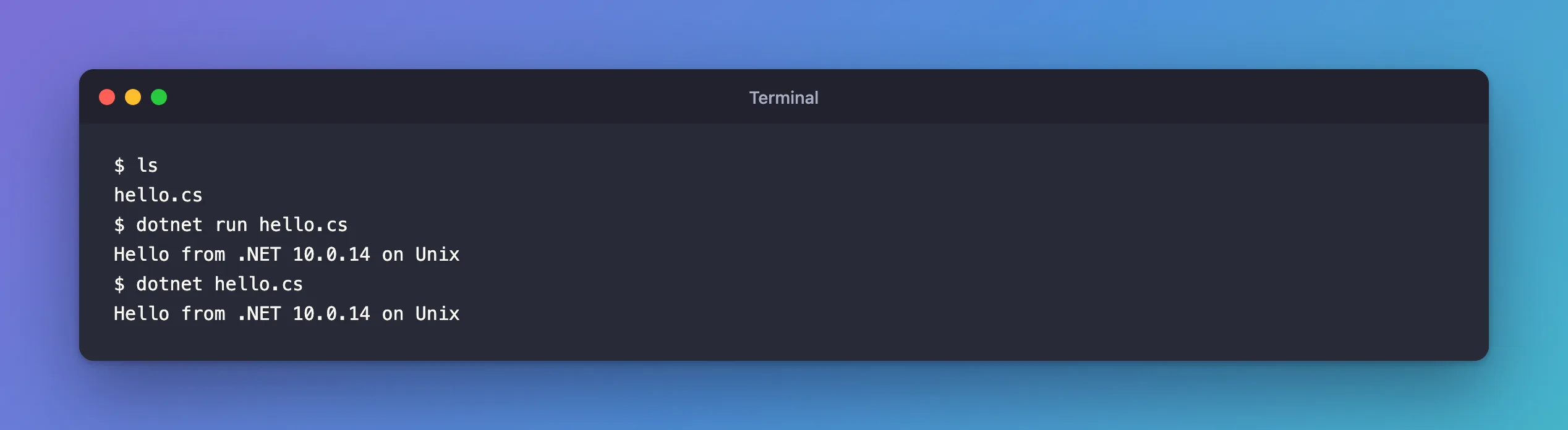
10.0.14 is the runtime the program ran on, and macOS reports itself as Unix. There's an even shorter form, which gave the same output:
dotnet hello.cs
The folder still contains only hello.cs. The build output goes elsewhere, as Step 4 shows.
Step 2: Know When dotnet run Ignores Your File
There's one trap. The page explains: "When a project file exists in the current working directory, dotnet run file.cs without the --file option runs that project and passes file.cs as an argument to the target app to preserve backwards compatibility." So in a folder with a .csproj, your file isn't what runs. Keep file-based apps in their own folder, or say so explicitly:
dotnet run --file hello.cs
Step 3: Add a NuGet Package with #:package
Lines that start with #: at the top of the file configure the build; the page calls them directives: "File-based apps use directives prefixed with #: to configure the build and run the application." #:package "Adds a NuGet package reference to your application."
Here's a real, useful one: a program that tests a MySQL connection string, with Oracle's MySql.Data driver:
#:package MySql.Data@26.10.0

using MySql.Data.MySqlClient;

// The connection string comes from an environment variable, so no password is written in the code.
var connectionString = Environment.GetEnvironmentVariable("MYSQL_CONNECTION_STRING")
    ?? throw new InvalidOperationException("Set the MYSQL_CONNECTION_STRING environment variable first.");

await using var connection = new MySqlConnection(connectionString);
await connection.OpenAsync();

// Ask MySQL who we are, which version it runs, and which TLS version this connection uses.
await using var command = new MySqlCommand(
    "SELECT CURRENT_USER(), VERSION(), " +
    "(SELECT VARIABLE_VALUE FROM performance_schema.session_status WHERE VARIABLE_NAME = 'Ssl_version')",
    connection);
await using var reader = await command.ExecuteReaderAsync();
await reader.ReadAsync();

var tls = reader.GetString(2);
Console.WriteLine($"Connected as {reader.GetString(0)} to MySQL {reader.GetString(1)}");
Console.WriteLine($"TLS: {(tls.Length == 0 ? "not used" : tls)}");
#:package MySql.Data@26.10.0 means "the package MySql.Data, version 26.10.0". Always write the version: the page says that leaving it out "currently only works when you use central package management with a Directory.Packages.props file", and otherwise to "specify the version number explicitly". await works at the top level too, so the program can be asynchronous without any ceremony.
With the connection string in the MYSQL_CONNECTION_STRING environment variable, dotnet run test-connection.cs printed:
Connected as inventory_app@% to MySQL 9.7.4
TLS: TLSv1.2
How to Write a MySQL Connection String for .NET C# shows how to set the variable without typing the password.
Step 4: See Where It Was Built
dotnet build works on a single file too, and shows where the output goes:
dotnet build test-connection.cs
Restore complete (1.9s)
  test-connection.cs net10.0 succeeded (0.4s) → /Users/you/Library/Application Support/dotnet/runfile/test-connection-6ef13498c57fd7651a0dea955e431ead95d0ecf337b11b25e4cef8a68730367c/bin/debug/test-connection.dll

Build succeeded in 2.6s
On this Mac, the build lives under ~/Library/Application Support/dotnet/runfile/, in a folder named after the file plus a long hash. That's why the program's own folder stays clean. Microsoft's pages describe the location differently; the file-based apps page says "the system's temporary directory under <temp>/dotnet/runfile/…", while its tutorial shows the Library/Application Support path for Unix. The path your build prints is the one that counts. The first run is slower because of this build; the page notes that "The .NET SDK caches build outputs to improve performance on subsequent invocations of dotnet run."
Step 5: Convert It to a Project When It Grows
When the program needs a second file, tests, or settings a directive can't express, convert it:
dotnet project convert test-connection.cs --output test-connection-project
It prints nothing. Afterwards, the folder holds the original file and a new project folder:
test-connection.cs
test-connection-project/test-connection.cs
test-connection-project/test-connection.csproj
The original test-connection.cs is untouched; the new folder holds a copy, without the #:package line, and a project file:
<Project Sdk="Microsoft.NET.Sdk">

  <PropertyGroup>
    <OutputType>Exe</OutputType>
    <TargetFramework>net10.0</TargetFramework>
    <ImplicitUsings>enable</ImplicitUsings>
    <Nullable>enable</Nullable>
    <PublishAot>true</PublishAot>
    <PackAsTool>true</PackAsTool>
    <UserSecretsId>test-connection-…</UserSecretsId>
  </PropertyGroup>

  <ItemGroup>
    <PackageReference Include="MySql.Data" Version="26.10.0" />
  </ItemGroup>

</Project>
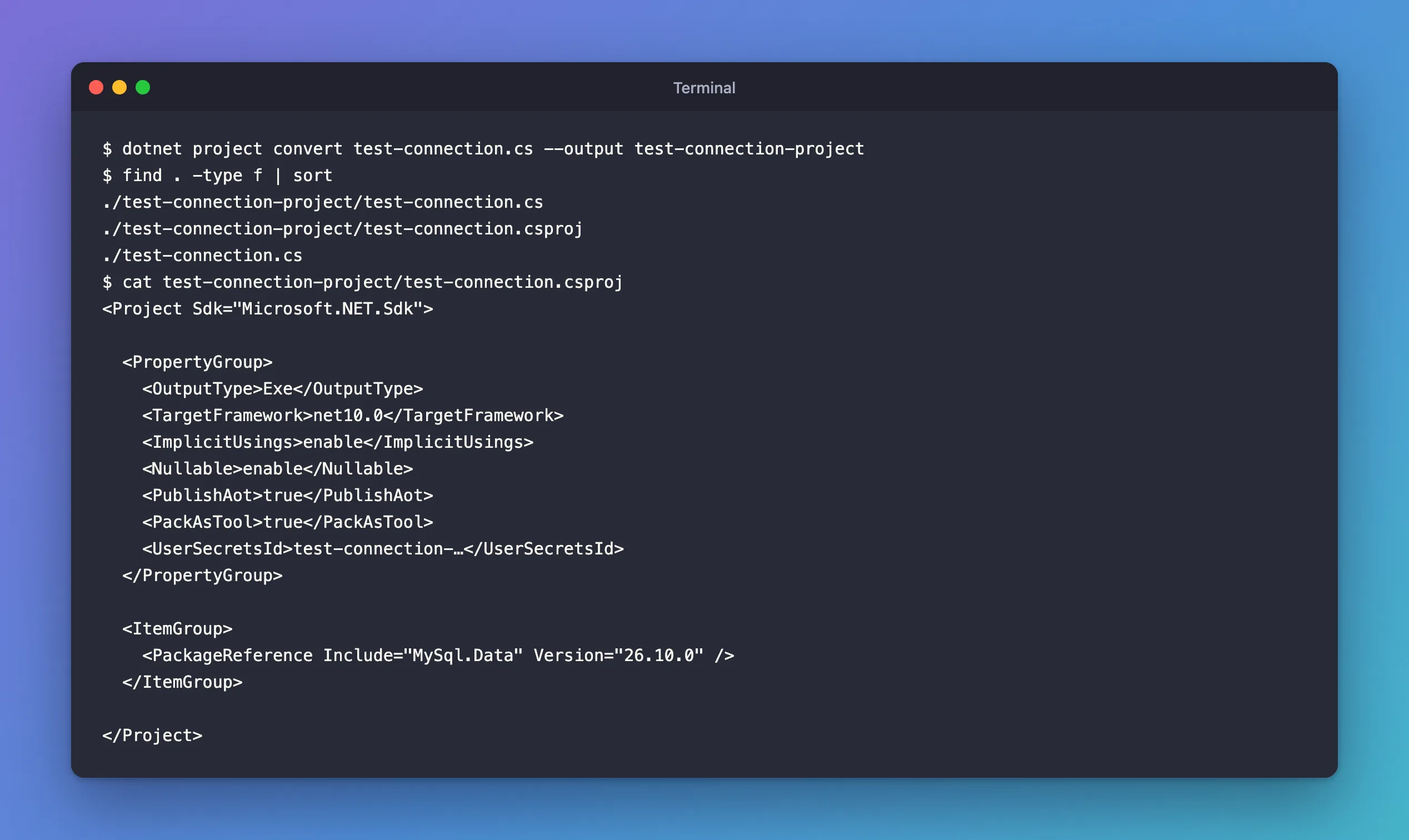
The project shows the defaults a file-based app had all along: net10.0, implicit usings, nullable reference types, and three you might not expect:
PublishAot: the page notes that "File-based apps enable native AOT publishing by default", and gives the way out for a single file: "Disable this feature by adding#:property PublishAot=falseat the top of your file."PackAsTool: the program can be packed as a .NET tool.UserSecretsId: the app can read .NET user-secrets in development.
Without --output, the command asks where to put the project, in your terminal: Specify the output directory (press Enter for default: 'test-connection', directory must not exist):. --output answers that up front, which is also what scripts need.
Common Mistakes
| Mistake | What happens | Do this instead |
|---|---|---|
Running a .cs file in a folder with a .csproj | The project runs instead of your file | Use its own folder, or dotnet run --file |
#:package without a version | Fails unless the folder uses central package management | Write Name@Version |
| Directives below the code | They're not read as directives | Put every #: line at the top of the file |
Expecting a bin folder next to the file | It isn't there | Read the path dotnet build prints |
Troubleshooting
| Symptom | Likely cause | Fix |
|---|---|---|
| The first run takes several seconds | The SDK restores packages and builds the file once | Run it again; later runs reuse the build |
dotnet project convert waits for input | It's asking for the output folder | Press Enter, or pass --output |
FAQ
Is this a script, like a .ps1 or .sh file?
It's a real C# program, compiled and type-checked like any project, just without the project file. On macOS and Linux it can behave like a script, though: with #!/usr/bin/env dotnet as its first line and chmod +x hello2.cs, running ./hello2.cs printed Hello from a shebang.
Can a file-based app use Directory.Build.props from a parent folder?
Yes. I put a Directory.Build.props that sets <AssemblyName>NameFromDirectoryBuildProps</AssemblyName> in a parent folder, and dotnet build hello2.cs produced NameFromDirectoryBuildProps.dll. So a file-based app inside a solution folder gets the solution's build settings, strict analyzers and warnings-as-errors included.
Conclusion
With .NET 10, dotnet run file.cs, or just dotnet file.cs, runs a single C# file with no project. #:package Name@Version adds NuGet packages, the build output lives outside your folder, and dotnet project convert file.cs --output folder turns it into a normal project, leaving the original untouched, once it needs more than one file.
Additional Resources
- File-based apps — every directive, building, publishing and converting.
- Tutorial: Build file-based C# programs — a longer walkthrough.
- dotnet project convert — the conversion command and its options.
