How to Run a Python Script with uv run

You added a package with uv, ran your script with python3, and got ModuleNotFoundError. The package is installed, just not in the Python you started. uv run runs everything inside the project's own environment, and brings that environment up to date first. This guide explains the command's syntax first, then runs a small script, a project command and a tool in a hello-world project, with real output from uv 0.13.8.
Syntax
uv run [OPTIONS] <COMMAND> [ARGS]...
| Part | What it means |
|---|---|
uv run | Runs a command in the project's environment, after making sure the environment is up to date |
[OPTIONS] | uv's own settings. Square brackets mean you can leave them out |
<COMMAND> | What to run: a Python file, a command from the project's pyproject.toml, or a tool installed in the project. Angle brackets mean you must fill it in |
[ARGS]... | Anything you type after the command. It goes to your program, not to uv |
uv's command reference states the two rules that trip people up: "uv run file.py is equivalent to uv run python file.py", and "All options to uv must be provided before the command".
The forms you'll use most:
| Form | What it runs |
|---|---|
uv run <file>.py | A Python file, with the project's Python |
uv run <file>.py <args> | The same file, with arguments for it |
uv run <command> | A command listed under [project.scripts] in pyproject.toml |
uv run <tool> <args> | A tool installed in the project, such as pytest or Ruff |
uv run python <args> | Python itself, for example uv run python --version |
Prerequisites
- A uv project with a package added. The example uses the
hello-worldproject from How to Create a Python Project with uv, with Rich, pytest and Ruff added in How to Add a Package to a Python Project with uv. - A terminal in the project folder.
uv run works the same in Terminal (macOS), PowerShell (Windows) and Linux shells. Only the command for your computer's own Python differs, and the tabs in Step 2 show both.
Step 1: Write a Small Script
The example script greets someone in a box drawn by Rich, the package the project added. Save it as hello.py in the project folder, next to pyproject.toml:
import sys

from rich import print
from rich.panel import Panel

name = sys.argv[1] if len(sys.argv) > 1 else "world"
print(Panel.fit(f"Hello, {name}!"))
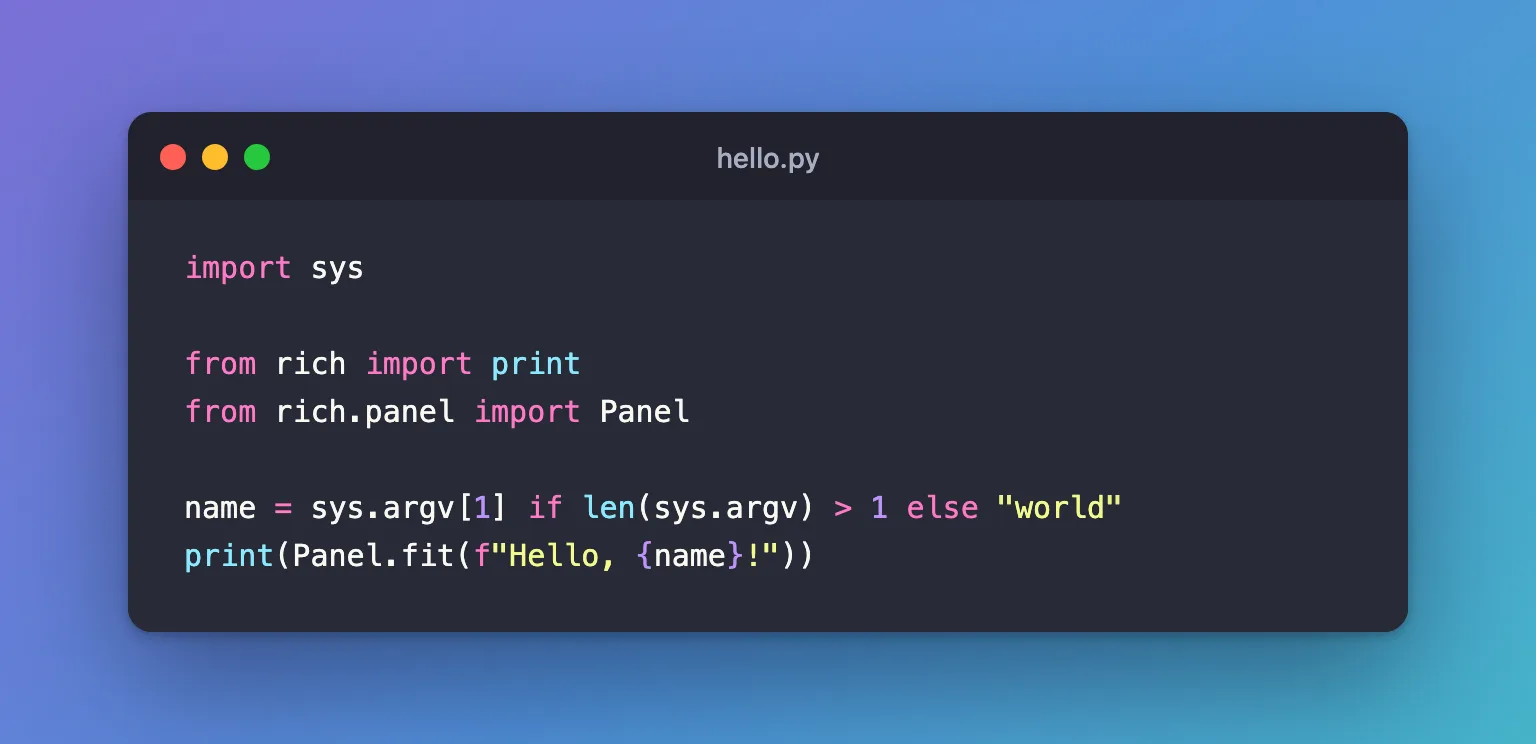
| Line | What it does |
|---|---|
import sys | Python's built-in sys module. Its sys.argv list holds the script's name followed by the words typed after it |
from rich import print | Rich's print, which can draw boxes and colors. It replaces the normal print in this file |
from rich.panel import Panel | Rich's box |
name = ... | The first word after the file name, or "world" when there isn't one |
print(Panel.fit(...)) | Prints the greeting in a box that fits the text |
The project now looks like this:
hello-world/
├── .git/
├── .venv/
├── .gitignore
├── .python-version
├── README.md
├── hello.py
├── pyproject.toml
├── src/
│   └── hello_world/
│       └── __init__.py
└── uv.lock
Step 2: See Why Your Computer's Python Can't Find Rich
uv add installed Rich into the project's .venv folder, not into the Python on your computer. Run the script with your computer's Python first:
- macOS / Linux
- Windows (PowerShell)
python3 hello.py
python hello.py
Traceback (most recent call last):
  File "/Users/you/source/hello-world/hello.py", line 3, in <module>
    from rich import print
ModuleNotFoundError: No module named 'rich'
Now run the same file with uv run:
uv run hello.py
╭───────────────╮
│ Hello, world! │
╰───────────────╯
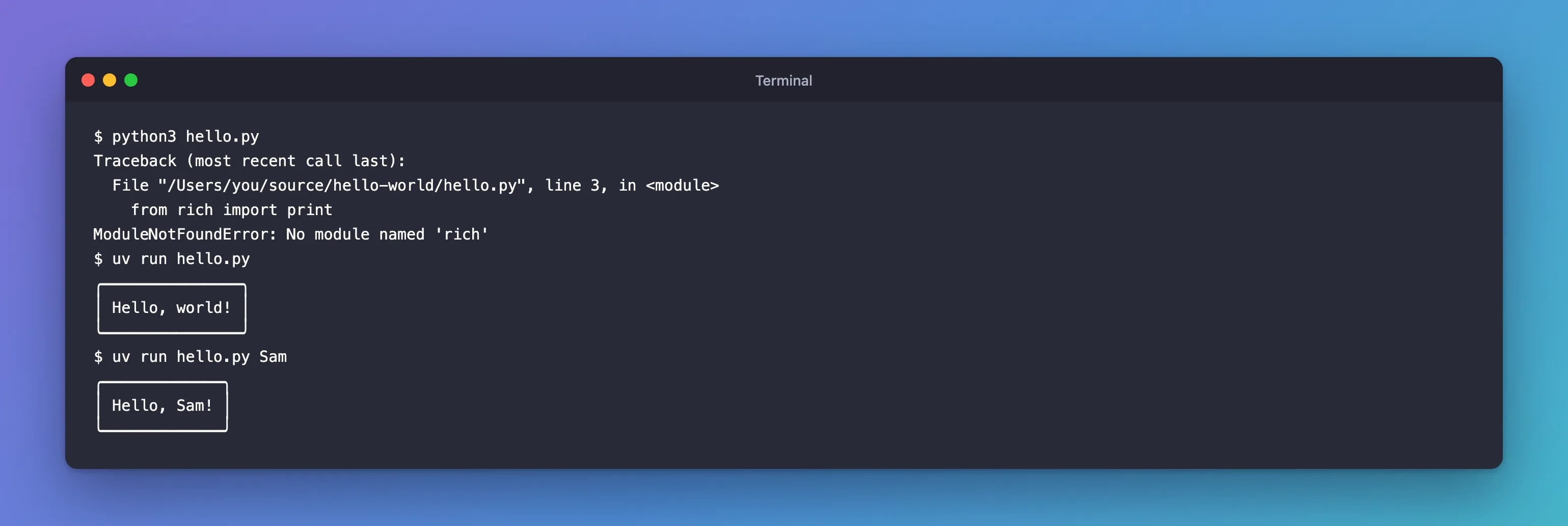
Same computer, same folder: uv run used the Python in .venv, where Rich is installed. The longer uv run python hello.py printed exactly the same box.
Step 3: Pass Arguments to Your Script
Everything after the file name goes to the script:
uv run hello.py Sam
╭─────────────╮
│ Hello, Sam! │
╰─────────────╯
That includes words that look like uv's own options. --verbose is one of uv's options, but here it comes after the file name, so uv hands it to the script, which greets it:
uv run hello.py --verbose
╭───────────────────╮
│ Hello, --verbose! │
╰───────────────────╯
To give an option to uv, put it before the command, as in the reference's own example, uv run --verbose foo.
Step 4: Run a Project Command
Commands listed under [project.scripts] in pyproject.toml become real commands inside the environment. uv init gave the project one:
[project.scripts]
hello-world = "hello_world:main"
It runs the main() function in src/hello_world/__init__.py:
uv run hello-world
Hello from hello-world!
Step 5: Run a Tool Installed in the Project
Packages that come with their own commands are run the same way. Ruff, added as a development tool, checks hello.py for mistakes:
uv run ruff check hello.py
All checks passed!
Python is a command too. This shows the project's Python version:
uv run python --version
Python 3.15.2
Step 6: Watch uv run Update the Environment
Before it runs anything, uv run checks that .venv matches pyproject.toml and uv.lock, and fixes it if not. uv's reference puts it this way: "the project environment will be created and updated before invoking the command". To see it, open pyproject.toml and change the project's version from 0.1.0 to 0.2.0:
version = "0.2.0"
Then run the project command again:
uv run hello-world
      Built hello-world @ file:///Users/you/source/hello-world
Uninstalled 1 package in 2ms
Installed 1 package in 3ms
Hello from hello-world!
The first three lines are uv rebuilding your project, because pyproject.toml changed; the last line is your program. Run it once more and there's nothing to update, so you get only Hello from hello-world!. The same happens when a teammate adds a package and you pull their change: your next uv run installs it before running anything.
Common Mistakes
| Mistake | What happens | Do this instead |
|---|---|---|
Running python3 hello.py in a uv project | ModuleNotFoundError: No module named 'rich', although uv add installed it | uv run hello.py |
Typing uv run --version to see Python's version | error: unexpected argument '--version' found | uv run python --version |
Putting a uv option after the command, as in uv run hello.py --verbose | uv passes it to your program instead | Put it before the command: uv run --verbose hello.py |
| Running a project command from another folder | error: Failed to spawn: hello-world with cause: No such file or directory (os error 2) | cd into the project folder first |
Troubleshooting
| Symptom | Likely cause | Fix |
|---|---|---|
error: Failed to spawn: hello-wrold | The command name is misspelled, or you're outside the project folder | Check the spelling against [project.scripts] in pyproject.toml, and run from the project folder |
No module named hello_world.__main__; 'hello_world' is a package and cannot be directly executed | You ran the package with uv run python -m hello_world | Run the command from [project.scripts] instead: uv run hello-world |
Built … Uninstalled … Installed before your program's output | uv is updating the environment after pyproject.toml changed | Expected |
FAQ
Is uv run hello.py the same as uv run python hello.py?
Yes. uv's reference says so, and both printed the same box here. The shorter form is all you need.
Do I still need to activate the virtual environment?
No. uv run uses .venv directly. You can still activate it if you prefer, but you don't have to.
Does uv run work in PowerShell?
Yes. Every uv run command on this page is the same in PowerShell; only running your computer's own Python differs (python instead of python3).
Conclusion
uv run [OPTIONS] <COMMAND> [ARGS]... runs a command with the project's environment. python3 hello.py used your computer's Python, which doesn't have Rich, so it failed. uv run hello.py used the project's .venv and passed Sam on to the script. The same works for project commands such as hello-world and for tools such as ruff, and every run brings the environment up to date first.
Additional Resources
- Running commands — uv's guide to
uv run. - uv run reference — every option of the command.
- Entry points and scripts — how
[project.scripts]commands work. - Rich documentation — boxes, tables and colors in the terminal.
