How to Run a Formula When a Screen Opens in Power Apps (OnVisible)

A screen's OnVisible property runs each time the screen is shown. It's the place to load what that screen needs and to set its starting values, instead of loading everything when the app starts.
What OnVisible Is For
Microsoft describes OnVisible as the behavior of an app when the user navigates to a screen, and suggests it for setting up variables and preloading data the screen uses (Screen control). The App object's documentation lists it as the alternative to App.OnStart for logic that belongs to one screen (App object). Its counterpart, OnHidden, runs when the user leaves the screen.
Step 1: Open the Screen's OnVisible
Select the screen in Tree view (not a control on it), then choose OnVisible in the property list.
Step 2: Write the Formula
The Career Development Plan app's My Plan screen loads two lists and tracks whether it's still loading:
UpdateContext({locIsLoading: true});
Concurrent(
    UpdateContext(
        {
            locMyPlan: Sort(
                Filter(
                    RoleCompetencies,
                    JobTitle = MyJobTitle && IsActive
                ),
                Competency
            )
        }
    ),
    UpdateContext(
        {
            locMyResponses: Filter(
                CompetencyResponses,
                EmployeeId = MyProfile.id
            )
        }
    )
);
UpdateContext({locIsLoading: false})
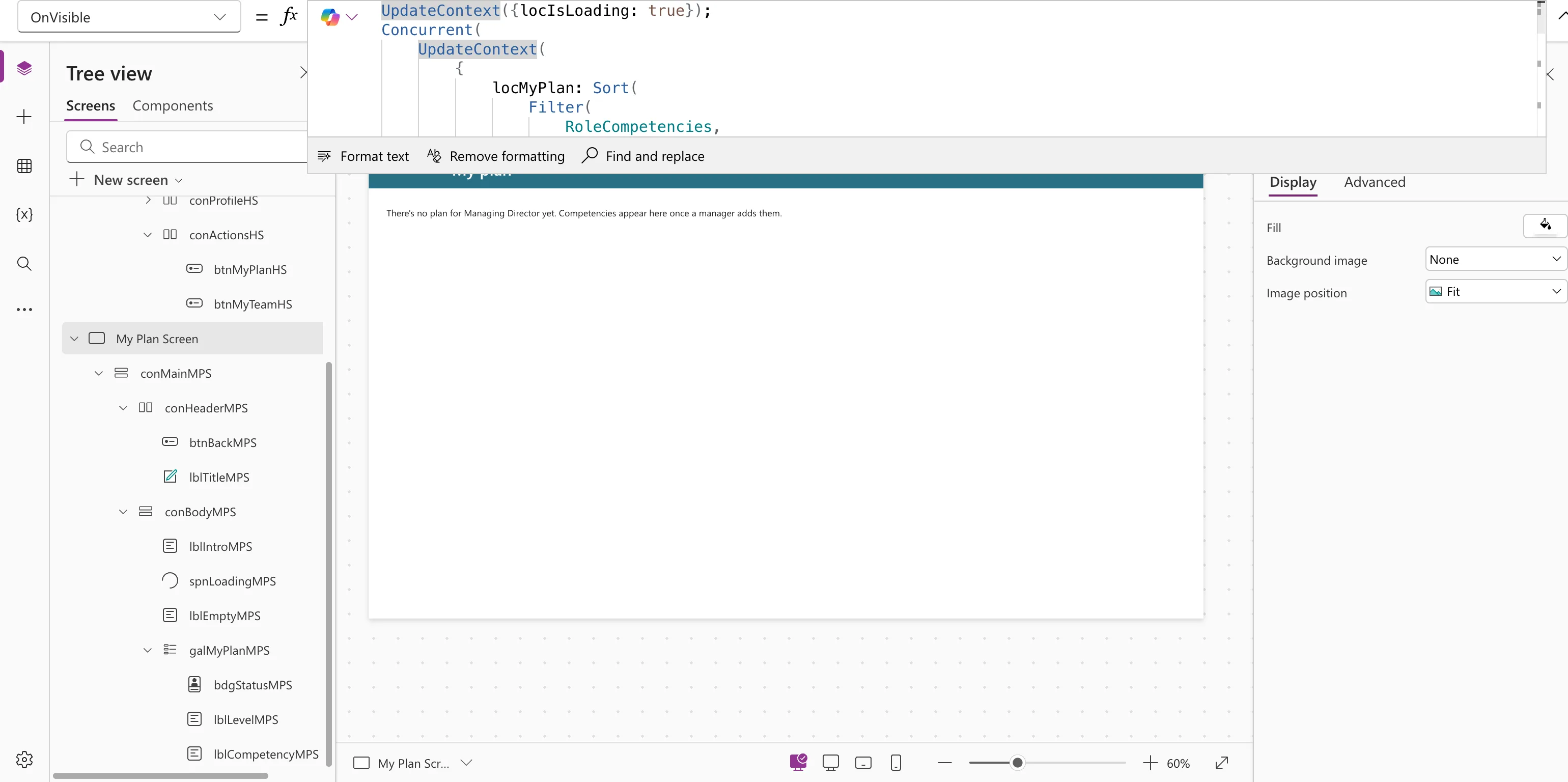
UpdateContext keeps values for the screen (How to Use Context Variables in Power Apps), and Concurrent runs the two loads together (How to Load Data Faster with Concurrent).
Step 3: Run It
OnVisible runs when the screen is shown. Selecting the screen in Studio doesn't run it: in the example, the variables stayed empty until the screen was opened in preview. To run it, preview the app (F5) from the screen before it and go to the screen with its button (How to Go to Another Screen with Navigate).
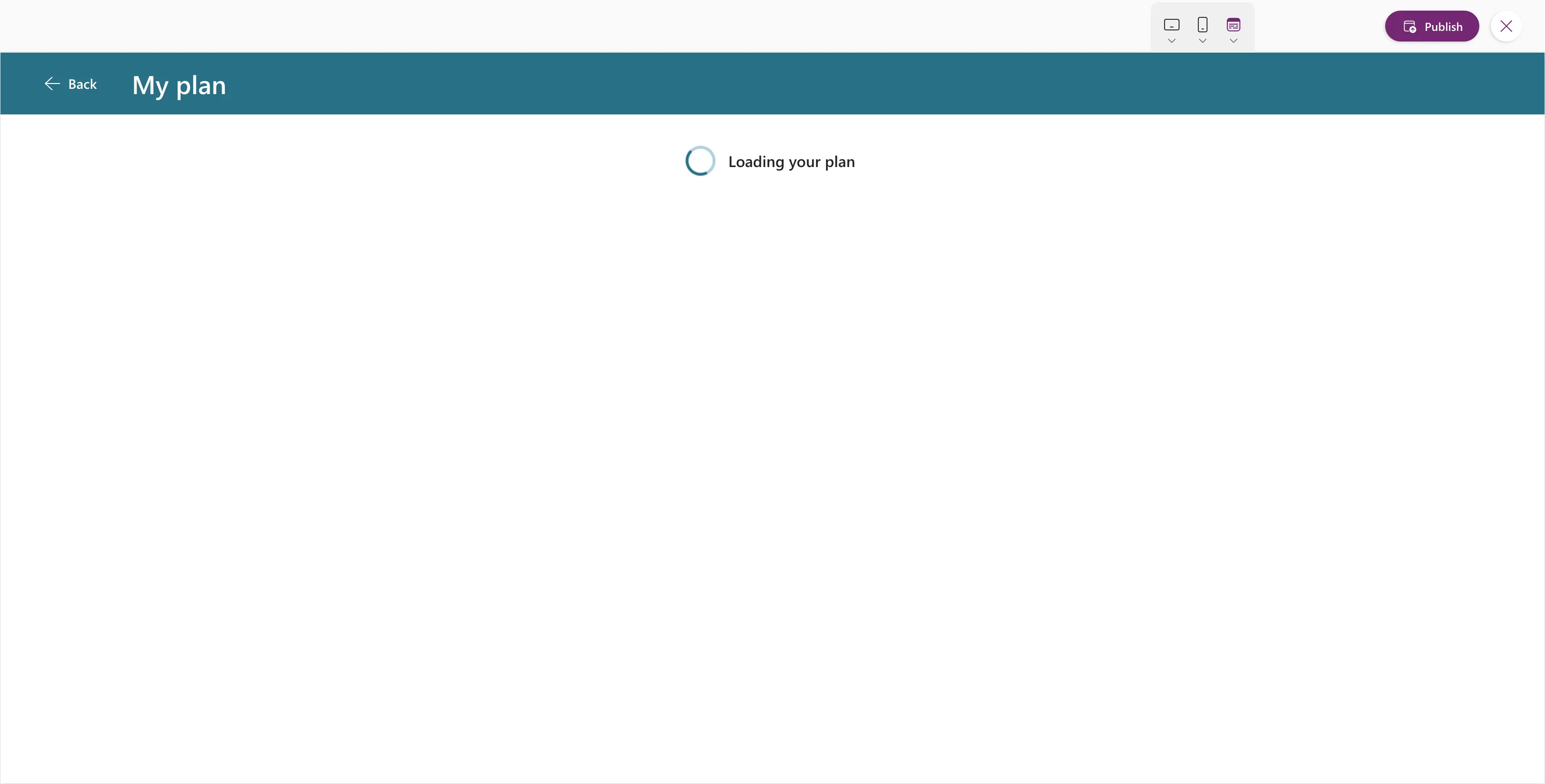
The loading state showed for a moment, then the content:
Why a Loading State
Microsoft notes that a screen can render and become interactive before OnVisible finishes. Without a loading state, people may see empty or wrong values for a moment. A flag set at the start and cleared at the end lets the screen show a spinner instead (How to Add a Loading Spinner in Power Apps).
Common Mistakes
| Mistake | What happens | Do this instead |
|---|---|---|
| Loading every screen's data in App.OnStart | A slower start | Load each screen's data in its OnVisible, or use named formulas |
| Expecting OnVisible to run when you select the screen in Studio | Variables stay empty in Studio | Preview and navigate to the screen |
| Setting a value another screen needs | Context variables stay on this screen | Use Set, or pass it with Navigate |
Troubleshooting
| Symptom | Likely cause | Fix |
|---|---|---|
| The screen shows nothing in Studio | OnVisible hasn't run yet | Preview and navigate to it |
| Behavior function in a non-behavior property on a control | The formula is on a control's display property | Move it to the screen's OnVisible |
FAQ
Does OnVisible run every time the screen is shown?
Yes: each time the user navigates to it.
Should data loading go in OnVisible or in named formulas?
Named formulas are simpler when the value never needs setting. OnVisible suits work that happens at a known moment, such as a load with a spinner.
Conclusion
Put a screen's own loading and setup in its OnVisible. Test it by previewing and navigating to the screen, and use a loading flag so the screen doesn't show half-loaded data.
Additional Resources
- Screen control: OnVisible, OnHidden and the other screen properties.
- App object: OnStart: why screen-level logic belongs in OnVisible.
