How to Run a Flow When a SharePoint Item Is Created or Modified in Power Automate

SharePoint's When an item is created or modified trigger starts a flow each time an item is added to a list or changed. Give it the site and the list, and every column of the item becomes something the flow can use. It isn't instant: in my tests, the flow started about a minute after each save.
Microsoft's SharePoint connector reference describes it in one line: Triggers when an item is created, and also each time it is modified.
The example is the approval flow of the Overtime Timesheet app, which runs for each overtime entry saved in the OvertimeEntries list.
Prerequisites
- An automated cloud flow with this trigger, or a new one (How to Create an Automated Cloud Flow in a Solution in Power Automate).
- Permission to read the list with the account the flow's SharePoint connection uses.
Step 1: Choose the Site and the List
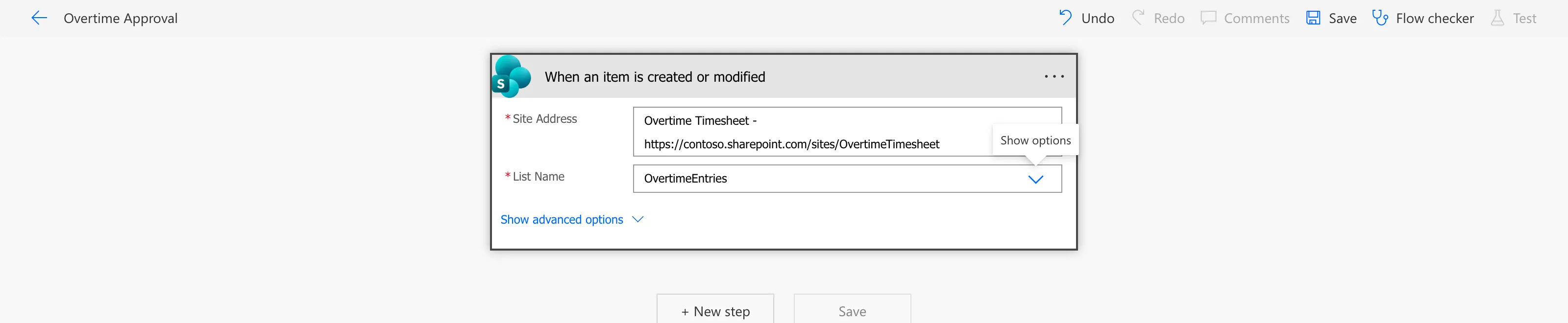
Select the trigger and fill in its two required fields:
| Field | What to enter |
|---|---|
| Site Address | The site the list is on |
| List Name | The list to watch |
Both can be picked from their drop-downs, as in the classic designer here:
In a flow that moves between environments, use environment variables instead, so each environment points at its own site and list (How to Use Environment Variables in a Power Automate Flow):
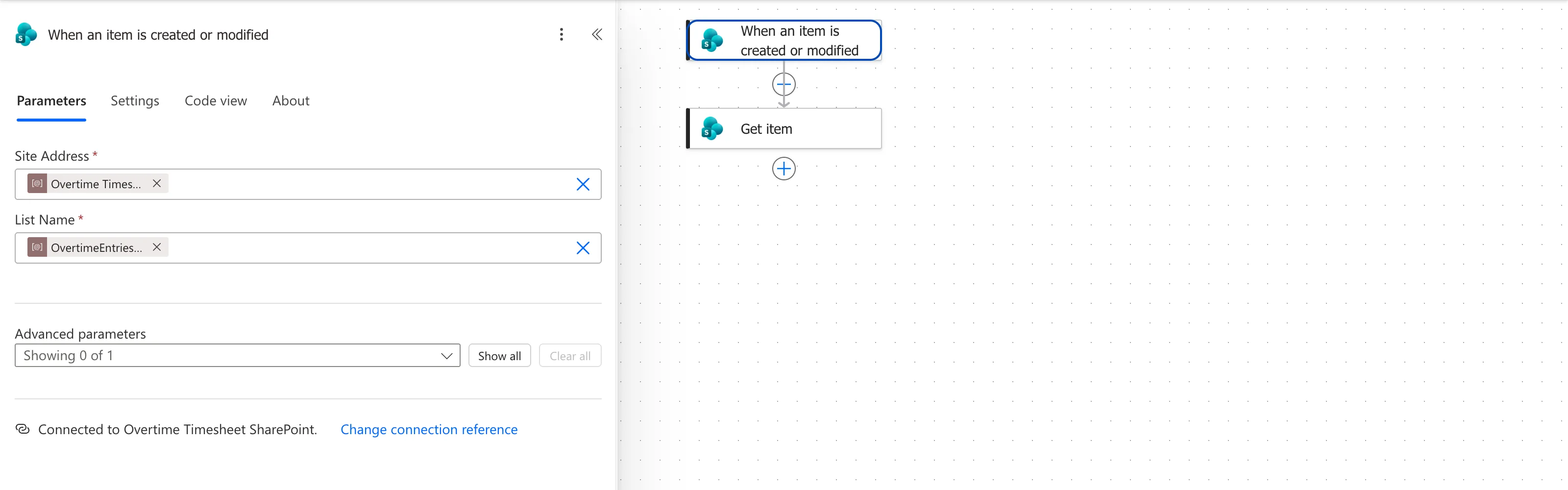
The last line of the pane says which connection reference the trigger uses; in a solution, it should be one in the same solution (Fixed: A Flow in a Solution Uses Another Solution's Connection Reference in Power Automate).
Step 2: Use What the Trigger Returns
After the trigger, the dynamic content list has a token for each column of the item, plus SharePoint's own: ID, Created By Email, Created By DisplayName and others. In the example flow, the trigger's outputs for an entry included:
| Output | What it held |
|---|---|
ID | The item's ID, for reading or updating it later |
Author/Email (Created By Email) | The email of the person who created the item |
Author/DisplayName | Their name |
Status/Value | The text of the Status choice column |
StartTime, EndTime | Date and time columns, in UTC |
WorkDate | A date-only column, such as 2026-11-02 |
{VersionNumber} | The item's version, such as 4.0 |
In an expression, the trigger's outputs are read with triggerOutputs()?['body/...'] or triggerBody()?['...'], for example:
triggerOutputs()?['body/Status/Value']
Date and time columns arrive in UTC, so show them in local time with convertFromUtc (How to Convert UTC to Local Time in Power Automate with convertFromUtc).
Step 3: Know When It Runs
How soon. This trigger checks the list for changes from time to time; it isn't told about each change. Microsoft's trigger troubleshooting article says The wake-up time depends on the license plan on which the flow runs, and for the Office 365 plan that comes with Microsoft 365, your flow doesn't run again until five minutes elapses. In my tests, each run started about a minute after the save, never more than a few minutes.
One run per item. The trigger's Settings have Split on switched on, on the array @triggerOutputs()?['body/value']. Two entries saved 19 seconds apart started two runs, one for each:
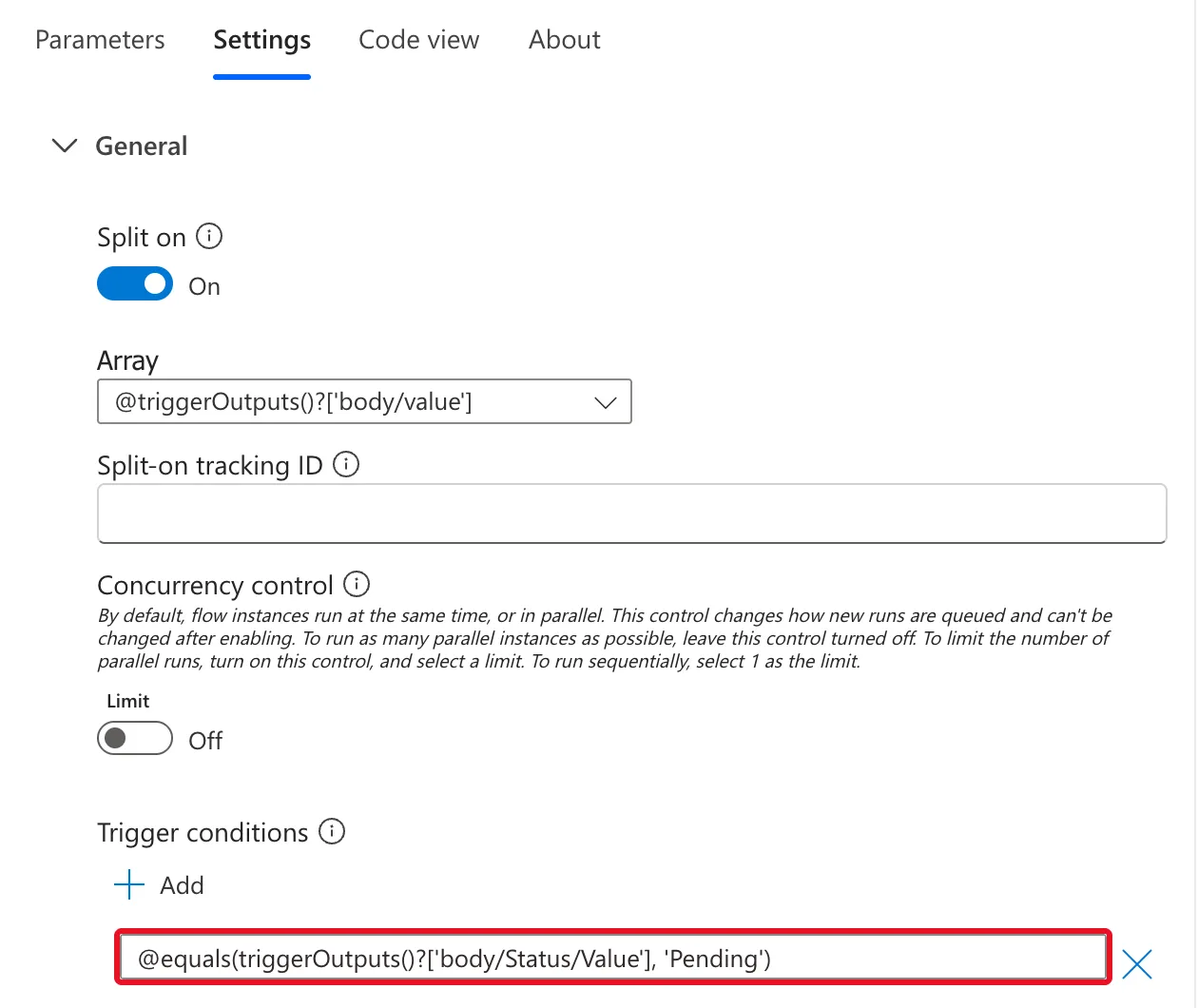
Every change. A change made by the flow itself, such as writing a decision back to the item, is a change too. A trigger condition decides which changes start a run (How to Add a Trigger Condition in Power Automate).
Not before it existed. Items that were last saved before the flow was turned on don't start a run. In the example, two older entries waited until they were saved again.
Common Mistakes
| Mistake | What happens | Do this instead |
|---|---|---|
| Expecting the flow to start the moment an item is saved | It starts a little later | Wait a minute or two, more on some licenses |
| Writing back to the item without a trigger condition | Each write starts another run | Add a trigger condition |
Showing StartTime as it arrives | UTC times in an email or approval | Convert with convertFromUtc |
| Turning Split on off without a reason | One run gets several items at once | Leave it on |
Troubleshooting
| Symptom | Likely cause | Fix |
|---|---|---|
| No run after saving an item | Wait for the trigger to check, or a trigger condition said no | Wait, then check the condition |
| An older item never started a run | It hasn't changed since the flow was turned on | Save it again |
| The flow runs again after it updates the item | Its own change triggered it | Add a trigger condition |
| Times are an hour off in summer | The UTC value is shown as it is | Convert to the local time zone |
FAQ
Is there a trigger for new items only?
Yes: SharePoint also has When an item is created. Use When an item is created or modified when a change to an item should run the flow too, as an edited overtime entry should.
Does it need a premium license?
No. SharePoint is a standard connector.
Conclusion
When an item is created or modified runs a flow for each item added to or changed in a list: choose the site and the list, read the item's columns from the trigger's outputs, and expect each run to start a minute or more after the save. Every change counts, including the flow's own, so pair it with a trigger condition.
Additional Resources
- SharePoint connector: When an item is created or modified: the trigger.
- Troubleshoot flow triggers: trigger firing is delayed: how often polling triggers check.
