How to Run a Flow and Use Its Result in Power Apps

FlowName.Run() runs a flow from a canvas app and returns what the flow sent back, with each output as a field. Call it in a button's OnSelect, keep the result in a variable for the screen to show, and select that button from the screen's OnVisible so the data loads when the screen opens.
The example is the Waiting for Approval screen of the Overtime Timesheet app. Its Refresh button runs Get Waiting Approvals, which returns the overtime entries waiting for the approver as JSON text in an output named entries.
Prerequisites
- The flow added to the app (How to Add a Flow to a Canvas App in Power Apps).
- A button to run it. Here, a Refresh button in the screen's header (How to Add a Refresh Button to a Screen in Power Apps).
Step 1: Run the Flow in a Button's OnSelect
Run() belongs in a property that runs when something happens, such as a button's OnSelect. Microsoft's Power Automate pane article uses the same place. The output is a field of the result:
GetWaitingApprovals.Run().entries
Step 2: Keep the Result in a Variable
A screen's labels and gallery can't call a flow themselves, so the button stores what the flow returned in context variables (How to Use Context Variables in Power Apps with UpdateContext). The complete OnSelect:
UpdateContext({ locIsLoadingWA: true });
With(
    { response: IfError(GetWaitingApprovals.Run(), Blank()) },
    If(
        IsBlank(response),
        UpdateContext({ locLoadFailedWA: true });
        Notify("The entries waiting for you couldn't be loaded. Select Refresh to try again.", NotificationType.Error),
        UpdateContext({
            locLoadFailedWA: false,
            locEntriesWA: ForAll(
                ParseJSON(response.entries),
                {
                    ID: Value(ThisRecord.id),
                    Employee: Text(ThisRecord.employee),
                    Department: Text(ThisRecord.department),
                    StartTime: DateTimeValue(ThisRecord.startTime),
                    EndTime: DateTimeValue(ThisRecord.endTime),
                    BreakMinutes: Value(ThisRecord.breakMinutes),
                    SavedOn: DateTimeValue(ThisRecord.savedOn)
                }
            )
        })
    )
);
UpdateContext({ locIsLoadingWA: false })
What each part does:
locIsLoadingWAis true while the flow runs. A loading spinner shows while it's true (How to Add a Loading Spinner in Power Apps).Withruns the flow once and keeps the result inresponse(How to Use the With Function in Power Apps).IfError(..., Blank())turns a failed call into a blank, so the formula can say so itself (How to Handle a Failed Flow Call in Power Apps).ParseJSONandForAllturn the JSON text into a table with proper types (How to Turn JSON Text into a Table with ParseJSON in Power Apps).locEntriesWAholds the table, and the gallery's Items islocEntriesWA.
Step 3: Load It When the Screen Opens
In the screen's OnVisible, select the button, so opening the screen runs the same formula (How to Use the Select Function in Power Apps):
Select(btnRefreshWA)
One formula then serves both cases: opening the screen and selecting Refresh.
The Result
For an approver with one entry waiting, the screen showed it after the flow answered:
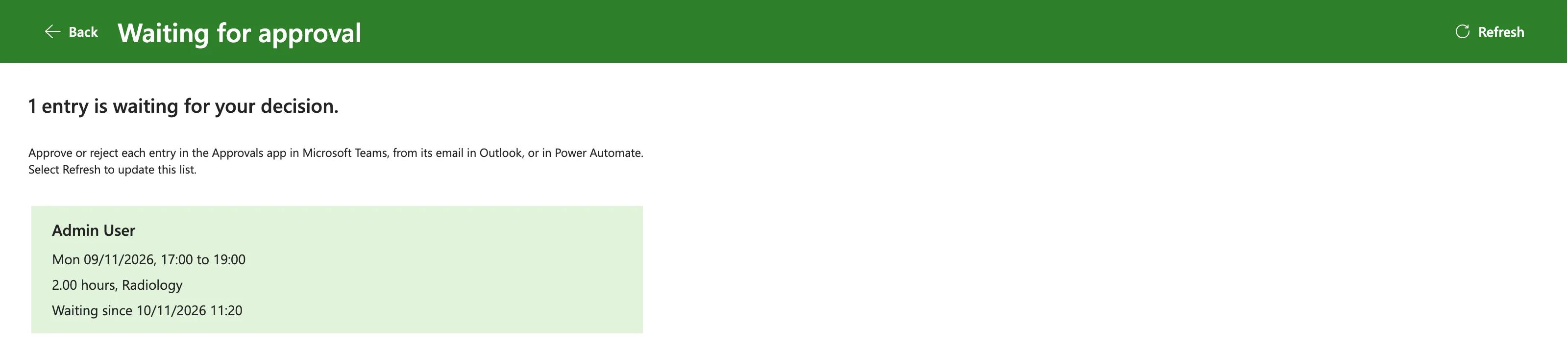
In Studio, selecting the screen in the tree ran its OnVisible, so the flow ran there too, under the maker's account.
Common Mistakes
| Mistake | What happens | Do this instead |
|---|---|---|
Run() in a gallery's Items | Behavior function in a non-behavior property | Run it in OnSelect, store the result |
Calling Run() twice in one formula | The flow runs twice | With keeps one result |
IfError around UpdateContext | It doesn't catch the failure | IfError around Run() (the fix) |
| No loading indicator | The screen looks stuck while the flow runs | A spinner on a loading variable |
Troubleshooting
| Symptom | Likely cause | Fix |
|---|---|---|
.entries isn't offered after Run() | The app has the flow's old definition | Refresh the flow in the app |
| Works for you, fails for others | The flow isn't shared with them | How to Share a Flow with Run-Only Users in Power Automate |
| The screen stays empty | The flow returned nothing, or the call failed | Check the flow's run history |
FAQ
Does the app wait for the flow?
Yes. The formula continues once the flow has responded, which must happen within 120 seconds (How to Send Values Back to Power Apps from a Flow in Power Automate).
Can I pass values to the flow?
Yes, if the flow's trigger has inputs: they go inside the brackets, in order, such as MyFlow.Run("value"). Microsoft warns that those values can be seen as network traffic, so the flow should check them. This flow takes none: it works out who's calling by itself.
Conclusion
Run the flow with FlowName.Run() in a button's OnSelect, keep its result in a variable with a loading flag around the call, and select the button from OnVisible. The screen then shows the flow's answer whenever it opens or the user refreshes it.
