How to Run a Docker Container in the Background

docker run on its own keeps the terminal busy until the container stops. With -d, Docker starts the container in the background, prints its ID and gives the terminal back, so a server can keep running while you use the terminal for something else. This guide starts the nginx web server that way, names it, and checks that it's running, with real output from Docker Desktop 4.100.1.
Syntax
docker run -d --name NAME IMAGE
| Part | What it means |
|---|---|
-d, --detach | Start the container in the background and print its ID |
--name NAME | A name to use in later commands instead of the ID |
IMAGE | The image to start, such as nginx:alpine |
The docker run reference: "-d, --detach Run container in background and print container ID" and "--name Assign a name to the container". The same commands work in PowerShell.
Prerequisites
- Docker: Docker Desktop on Mac or Windows, running. Docker's licence terms make it free for personal use, education, non-commercial open source and small businesses.
Step 1: Download the Image
nginx:alpine is the nginx web server on Alpine Linux, a small image:
docker pull nginx:alpine
alpine: Pulling from library/nginx
b90627b8f429: Already exists
6d14a3e596f2: Pull complete
...
Digest: sha256:7fc0fb4af7bf006aeb31aea88069976060f8f0a0a86b667126742cc17f4e31ae
Status: Downloaded newer image for nginx:alpine
docker.io/library/nginx:alpine
docker run would download it by itself too; pulling first keeps the download out of the next step.
Step 2: Start the Container in the Background
docker run -d --name web nginx:alpine
540be37b12b6f98901076227c8500b9792513020d194bd33bff10ff941a25470
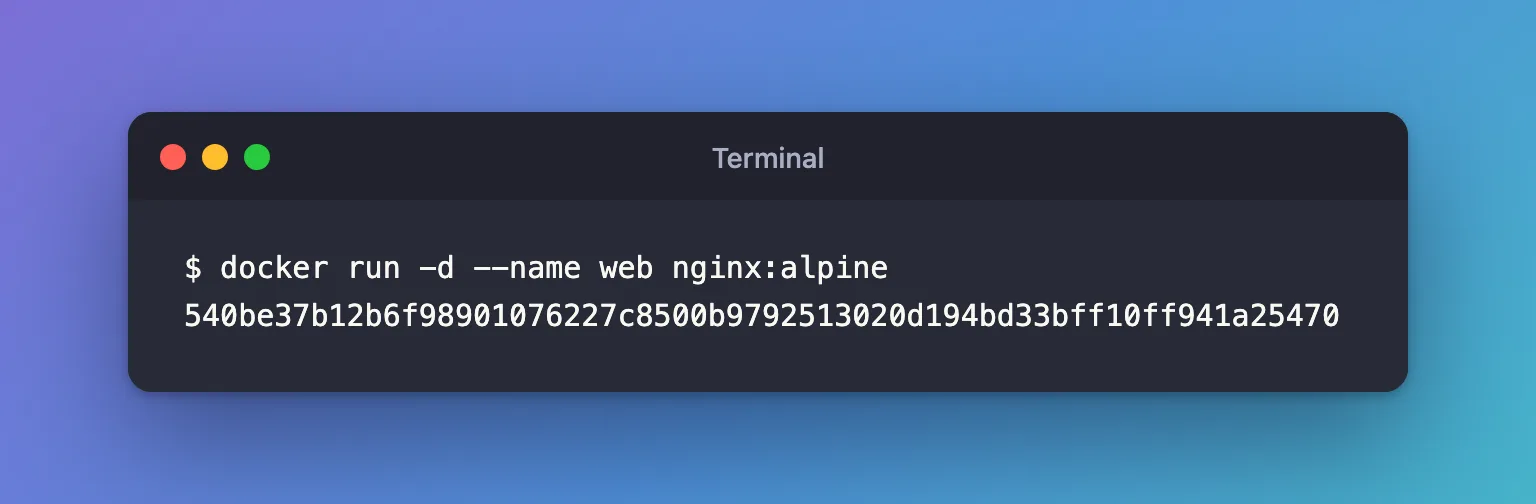
That's the container's ID; the terminal is free again. Later commands can use web instead.
Step 3: Check That It's Running
docker ps --filter name=web
CONTAINER ID   IMAGE          COMMAND                  CREATED         STATUS        PORTS     NAMES
540be37b12b6   nginx:alpine   "/docker-entrypoint.…"   2 seconds ago   Up 1 second   80/tcp    web
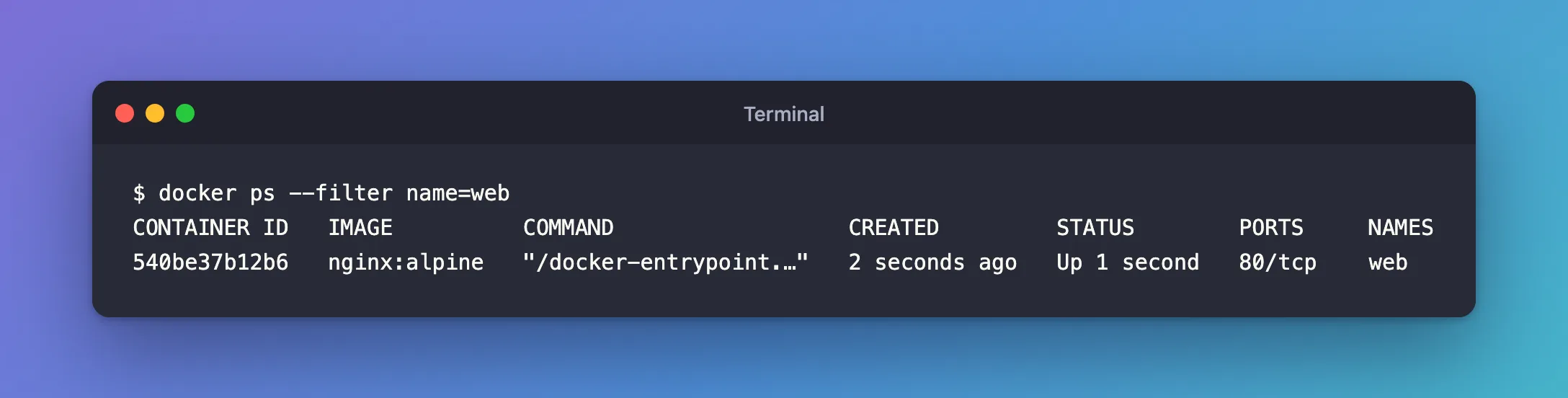
STATUS Up 1 second: it's running. docker ps lists running containers, and --filter name=web keeps the list to this one. PORTS 80/tcp is the port nginx listens on inside the container; nothing outside can reach it yet: How to Publish a Docker Container's Port Only on Your Computer.
To run a command inside it, such as nginx's version:
docker exec web nginx -v
nginx version: nginx/1.31.10
Common Mistakes
| Mistake | What happens | Do this instead |
|---|---|---|
Forgetting -d for a server | The terminal stays busy with the container's output | Add -d |
Starting a second container with the same --name | Conflict. The container name "/web" is already in use by container "..." | Remove the first, or use another name |
Troubleshooting
| Symptom | Likely cause | Fix |
|---|---|---|
Cannot connect to the Docker daemon | Docker Desktop isn't running | Fixed: Cannot connect to the Docker daemon |
The container isn't in docker ps | It stopped already | docker ps -a shows stopped ones, and docker logs NAME why |
FAQ
How do I see its output?
docker logs web: How to See the Logs of a Docker Container.
How do I stop it?
docker stop web, then docker rm web to delete it: How to Stop and Remove a Docker Container.
Conclusion
docker run -d --name web nginx:alpine started nginx in the background, printed the container's ID and gave the terminal back, and docker ps --filter name=web showed it Up.
Additional Resources
- docker container run —
-d,--nameand every other option. - docker container ls — what
docker pslists and its filters.
