How to Run a Command Inside a Running Docker Compose Container (docker compose exec)

Sometimes you need to look inside a running container: check a tool's version, read an environment variable, or poke around its files. docker compose exec runs a command inside a container that Compose started, without stopping it and without installing anything on your computer. This guide runs it against a real MySQL 9.7 container, from a one-line command to a full interactive shell.
What exec Does
A container is a running program with its own files, its own users and its own tools. The official MySQL image, for example, brings the mysql command-line client, a bash shell and a Linux system of its own. exec starts one more program inside that container, next to the one already running.
Docker's reference page puts it this way: "This is the equivalent of docker exec targeting a Compose service. With this subcommand, you can run arbitrary commands in your services." The difference from plain docker exec is that you name the service from compose.yaml, not the container, so you don't have to look up the container's generated name.
Prerequisites
- Docker Desktop or Docker Engine with Compose. Check with
docker compose version. - A running Compose service. The examples use the MySQL database from How to Run MySQL in Docker with Docker Compose, whose service is called
mysql.
Run every command from the folder that holds compose.yaml.
Step 1: Run One Command
The shape of the command is docker compose exec <service> <command>. Ask the MySQL client inside the container for its version:
docker compose exec mysql mysql --version
| Part | What it is |
|---|---|
docker compose exec | Run a command in a running service's container |
mysql (first) | The service name from compose.yaml |
mysql --version | The command to run inside the container: the MySQL client, asked for its version |
mysql Ver 9.7.4 for Linux on aarch64 (MySQL Community Server - GPL)
The two mysql words mean different things: the first is the service, the second is the program inside it. The client reports Linux on aarch64: the container runs Linux, on this computer's ARM processor, even though the computer itself is a Mac. The command ran, printed its answer and ended. The container kept running.
Step 2: Read the Container's Environment
The environment variables in compose.yaml are set inside the container. printenv prints the ones you name:
docker compose exec mysql printenv MYSQL_DATABASE MYSQL_USER
inventory
inventory_app
This is a quick way to check that Compose passed the values you expected, for example after editing an .env file.
The same container also has MYSQL_PASSWORD and MYSQL_ROOT_PASSWORD. printenv would show them in plain text, and from there they end up in your terminal history, screenshots and screen shares. Ask only for the variables you need.
Step 3: Open an Interactive Shell
For more than one command, open a shell inside the container. The MySQL image has bash:
docker compose exec mysql bash
The prompt changes to the container's. Every command you type now runs inside it, until you type exit:
bash-5.1# whoami
root
bash-5.1# head -2 /etc/os-release
NAME="Oracle Linux Server"
VERSION="9.8"
bash-5.1# ls /var/lib/mysql | head -5
#ib_16384_0.dblwr
#ib_16384_1.dblwr
#innodb_redo
#innodb_temp
auto.cnf
bash-5.1# exit
exit
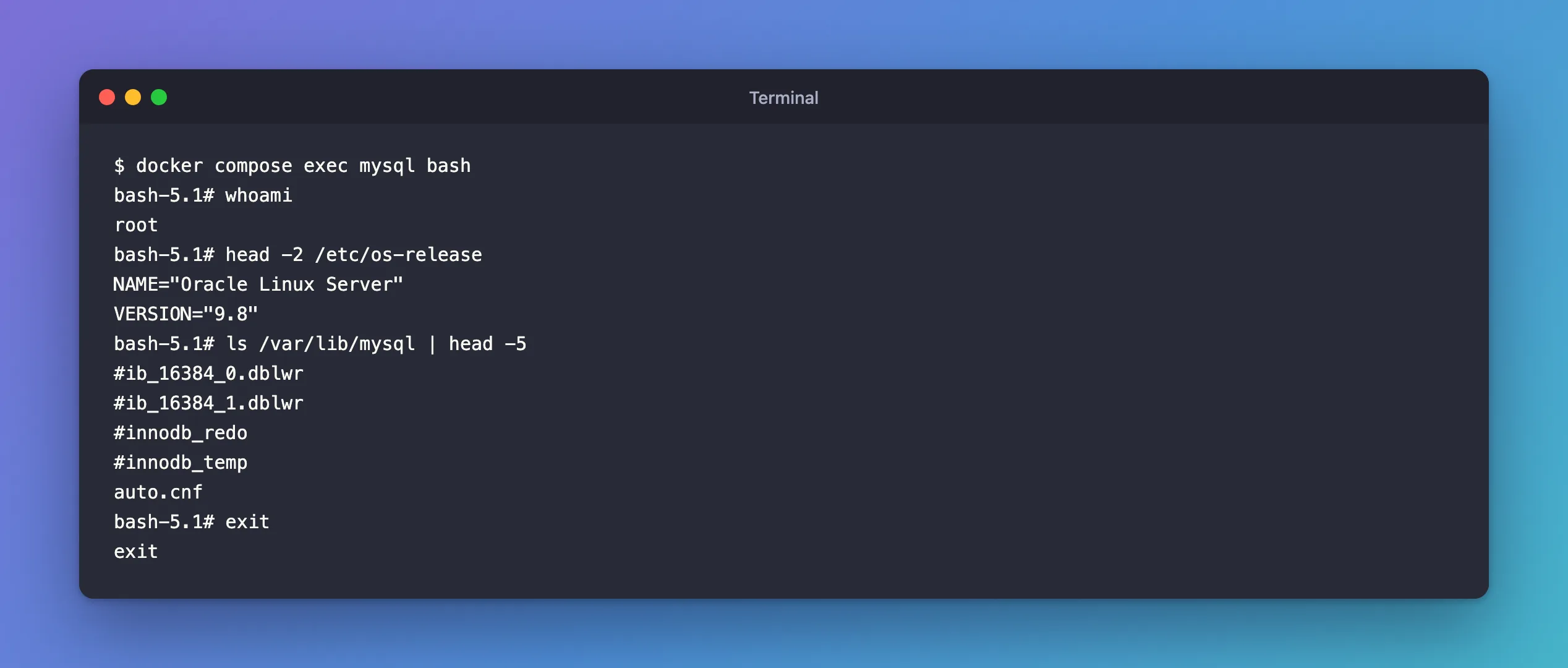
What you just saw:
bash-5.1#is the container's prompt. The#means you're therootaccount inside the container, whichwhoamiconfirms.- Oracle Linux Server 9.8 is the Linux system the MySQL image is built on.
/var/lib/mysqlis MySQL's data folder, the files that live in the Compose volume and survive when the container is recreated.exitleaves the shell and brings you back to your own terminal. The container keeps running.
Docker's reference explains why this works without extra options: "Commands allocate a TTY by default, so you can use a command such as docker compose exec web sh to get an interactive prompt." A TTY is a terminal: it's what lets the shell show a prompt and read your keys. Images built for a small size often have only sh, not bash; use sh then.
Files you change in the container's own system are lost when Compose recreates the container. Only the folders mapped to volumes, such as /var/lib/mysql, keep their contents. Look around freely, but make lasting changes in compose.yaml or the image instead.
Step 4: Run as Another User
Commands run as the image's default account, root here. --user (short form -u) picks another account that exists inside the container:
docker compose exec --user mysql mysql whoami
mysql
The first mysql after --user is the account, the next is the service, and whoami is the command. The MySQL server itself runs as the mysql account, so this is how you check what that account is allowed to read and write.
Step 5: Use -T in Scripts
The terminal that exec creates by default gets in the way when the command's input comes from a file or a pipe, and in scripts that run without a terminal. -T turns it off; the reference describes it as "Disable pseudo-TTY allocation. By default 'docker compose exec' allocates a TTY." Here is the difference, with a line of text sent through a pipe to cat, a program that prints whatever it receives:
echo "hello from a pipe" | docker compose exec mysql cat
cannot attach stdin to a TTY-enabled container because stdin is not a terminal
echo "hello from a pipe" | docker compose exec -T mysql cat
hello from a pipe
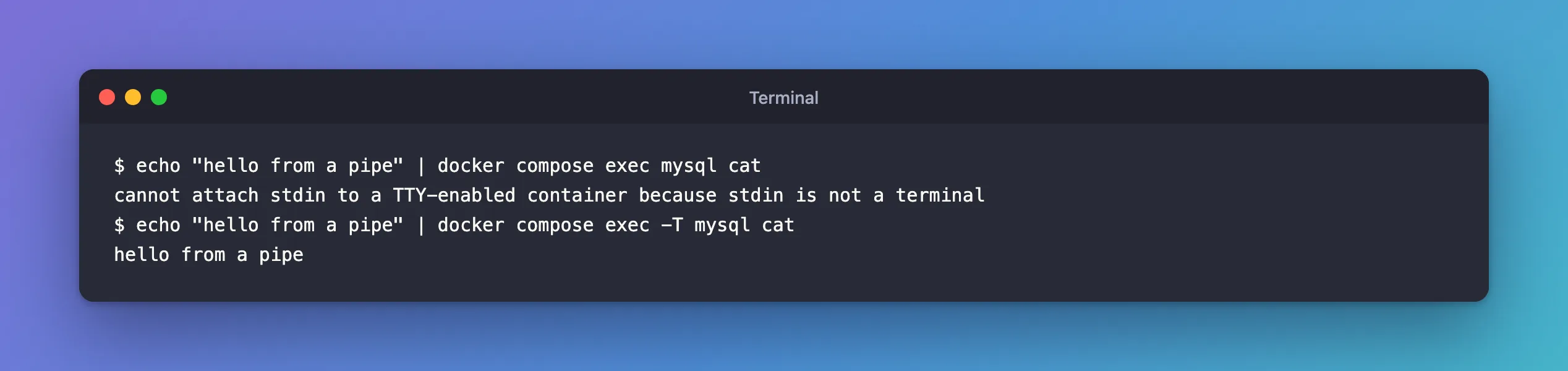
Without -T, Compose refuses, because a pipe isn't a terminal. With -T, the text flows into the container. The most common real use is sending a SQL file to the MySQL client, which How to Connect to MySQL in a Docker Container with the mysql Client shows step by step.
Other options worth knowing, from the same reference page:
| Option | What it does |
|---|---|
-e, --env | Set an environment variable for this one command |
-w, --workdir | Run the command in this folder inside the container |
-d, --detach | Run the command in the background |
--index | Pick one container when a service runs several |
Common Mistakes
| Mistake | What happens | Do this instead |
|---|---|---|
Using the container name, such as dewiride-inventory-mysql-1 | no such service: dewiride-inventory-mysql-1 | Use the service name from compose.yaml |
Running exec on a stopped service | service "mysql" is not running | Start it with docker compose start or up -d |
| Changing system files inside the container | The change disappears when the container is recreated | Change compose.yaml or the image |
Running printenv without names | Passwords appear on screen | Name the variables you need |
Troubleshooting
| Symptom | Likely cause | Fix |
|---|---|---|
service "mysql" is not running | The container is stopped, or was removed with down | docker compose ps, then docker compose start or docker compose up -d |
no configuration file provided: not found | You're not in the project folder | cd into the folder with compose.yaml |
cannot attach stdin to a TTY-enabled container because stdin is not a terminal | exec was given a file or pipe as input | Add -T |
FAQ
What's the difference between exec and run?
docker compose exec works in the container that's already running. docker compose run starts a new container from the service's settings; its reference page sums it up as "Runs a one-time command against a service." For looking inside your database container, exec is the one you want.
How do I leave the shell?
Type exit, or press Ctrl+D. Both end the shell inside the container and return you to your own terminal. The container keeps running.
Can I open a shell as root when the image's default user isn't root?
Yes: docker compose exec --user root <service> sh. Use it only to look around on your own computer, never to fix things you should fix in the image.
Conclusion
docker compose exec <service> <command> runs a command inside a running container: one command, such as mysql --version or printenv, or a whole shell with bash or sh, which you leave with exit. --user picks the account, -T turns off the terminal for scripts and piped input, and only the folders mapped to volumes keep what you change.
Additional Resources
- docker compose exec — every option of the command.
- docker compose run — starting a new container for one command instead.
