How to Return a Table from a Flow to Power Apps as JSON in Power Automate

Respond to a Power App or flow has outputs for text, yes or no, files, emails, numbers and dates, but none for a list. To send a table, shape the rows with Select, turn the array into JSON text with string(), and return it as a Text output. The app turns the text back into a table with ParseJSON.
The example is Get Waiting Approvals, a flow of the Overtime Timesheet app. It returns the overtime entries waiting for an approver, one row per entry, and the app shows them in a gallery.
Prerequisites
- A flow that Power Apps runs, ending with Respond to a Power App or flow (How to Send Values Back to Power Apps from a Flow in Power Automate).
Step 1: Shape the Rows with Select
Before the response, use Select to build one small object per row, with only the fields the app needs. In the example, Waiting entries keeps seven: id, employee, department, startTime, endTime, breakMinutes and savedOn (How to Keep Several Fields from Each Item with Select in Power Automate).
Its output is an array: one object per entry, with those seven keys.
Step 2: Return the Array as Text
In the response, add a Text output. I named it entries, and set its value with an expression:
string(body('Waiting_entries'))
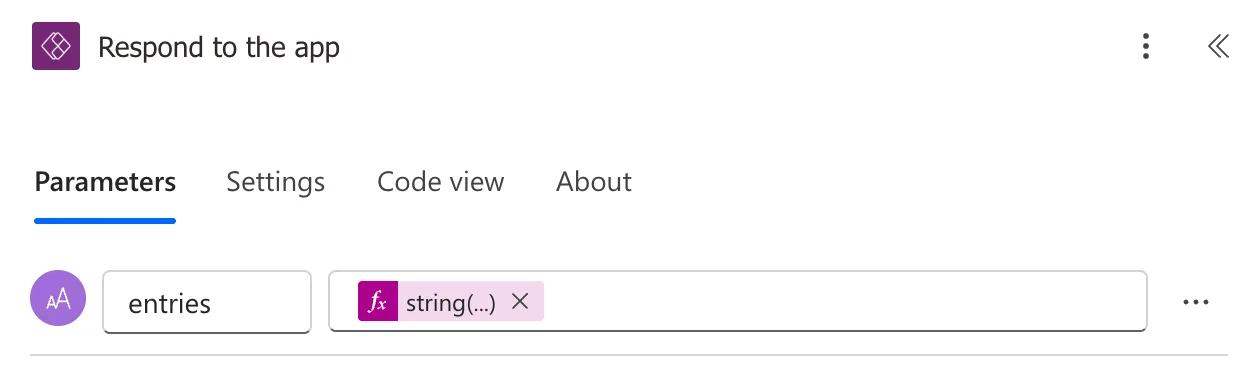
body('Waiting_entries') is the array Select built. Microsoft's functions reference says string() returns the string version for a value: here, the array written out as JSON text. When nothing matches, it's an empty array:
[]
That was the output of my own test run, because I approve no department.
Step 3: Turn It Back into a Table in the App
In the app, ParseJSON reads the text, and ForAll builds a typed record from each element (How to Turn JSON Text into a Table with ParseJSON in Power Apps):
ForAll(
    ParseJSON(GetWaitingApprovals.Run().entries),
    {
        ID: Value(ThisRecord.id),
        Employee: Text(ThisRecord.employee),
        Department: Text(ThisRecord.department),
        StartTime: DateTimeValue(ThisRecord.startTime),
        EndTime: DateTimeValue(ThisRecord.endTime),
        BreakMinutes: Value(ThisRecord.breakMinutes),
        SavedOn: DateTimeValue(ThisRecord.savedOn)
    }
)
The keys in the app, such as ThisRecord.startTime, are the keys from Select, spelled the same way. The ParseJSON reference says that reading a field that isn't there returns blank.
The Result
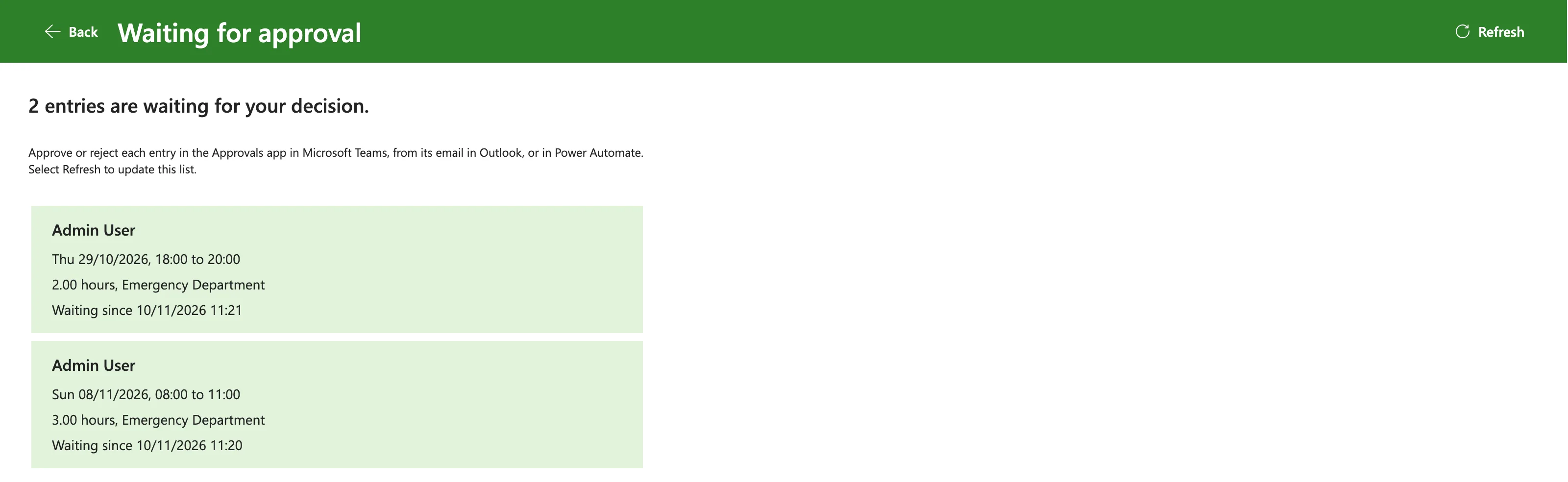
For an approver with two entries waiting, the gallery shows both rows that came through the text output:
Why Not Return Whole SharePoint Items?
The text carries every field you put in it to the app, and so to the person's device. Returning only what the screen shows keeps everything else, such as other columns of the list, in SharePoint. It also keeps the text short.
Common Mistakes
| Mistake | What happens | Do this instead |
|---|---|---|
Returning body('Get_items') | Every column of every item reaches the app | Select the fields first |
| Reading a key spelled differently in the app | A field that isn't in the JSON is blank | Use the keys exactly as in Select |
| Several outputs, one per row | An output count can't follow the data | One Text output with JSON |
Using a date without DateTimeValue | It stays text | DateTimeValue(ThisRecord.startTime) |
Troubleshooting
| Symptom | Likely cause | Fix |
|---|---|---|
| The app doesn't see a change to the output | The app has the flow's old definition | Refresh the flow in the app |
| A column is blank | The key is spelled differently | Match the key in Select |
ParseJSON fails | The output isn't JSON | Return string(body('Select')), not text you built by hand |
FAQ
How many rows should the flow return?
Only those the screen needs, filtered in the flow. Every row travels to the device, and the flow must respond within 120 seconds (How to Send Values Back to Power Apps from a Flow in Power Automate).
Can the app filter the table further?
Yes. Once ForAll has built it, it's an ordinary table in the app, which can be filtered, sorted or counted.
Conclusion
To return a table from a flow to Power Apps, Select the fields, return string(body('Select')) as a Text output, and rebuild the table in the app with ParseJSON and ForAll.
