How to Restrict a SharePoint Document Library to One Group

A document library starts out open to everyone who can open its site. To keep one, say a payroll library, for a single group, give it its own permissions: stop inheriting, remove the site's groups, and grant the one group that should have it. People outside the group then get You need access if they try the library's address.
In the Overtime Timesheet series, the Payroll Exports library will hold a monthly overtime workbook for payroll. All staff can read the site, so the library needs to be closed to everyone except the Overtime Payroll group, who get Read.
Prerequisites
- Owner of the site.
- The library. See How to Create a Document Library in SharePoint Online.
- The group, in Microsoft Entra: How to Create a Security Group in the Microsoft Entra Admin Center.
Step 1: Open Library Settings
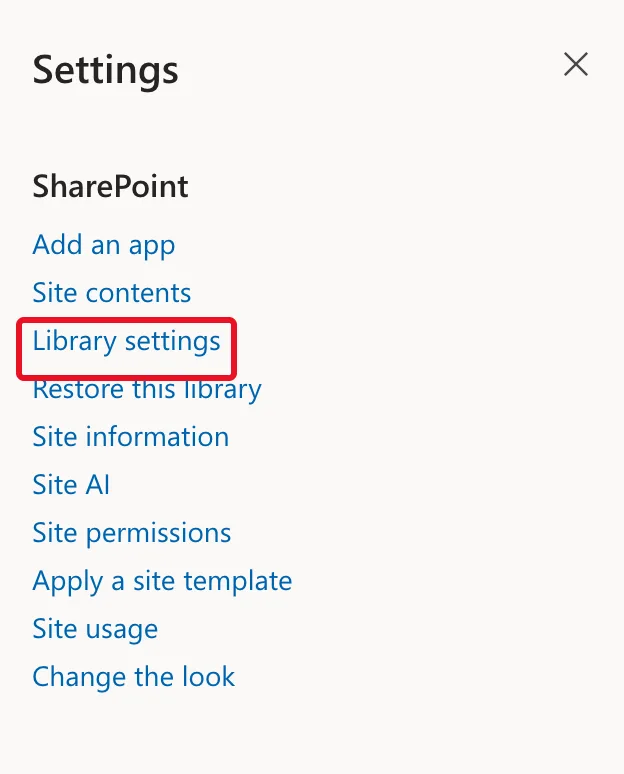
Open the library, then Settings → Library settings:
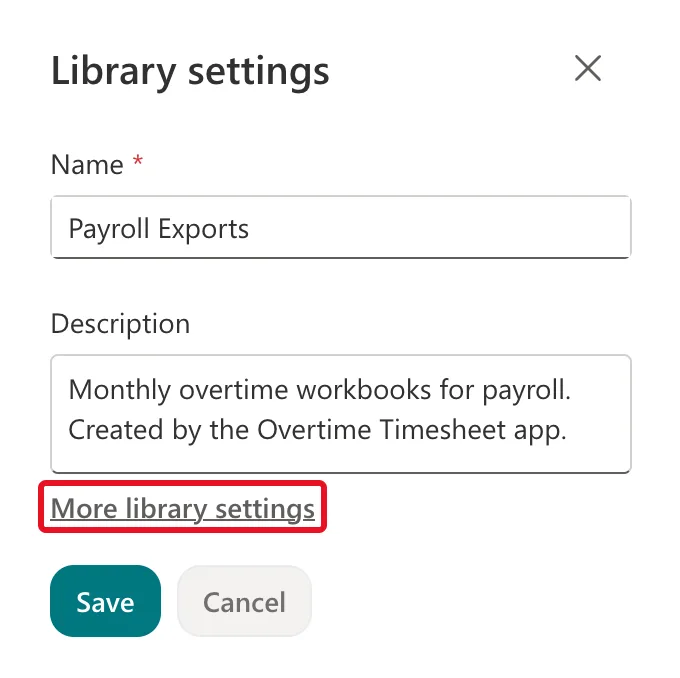
A Library settings panel opens with the name and description. Select More library settings:
Step 2: Open Permissions for This Document Library
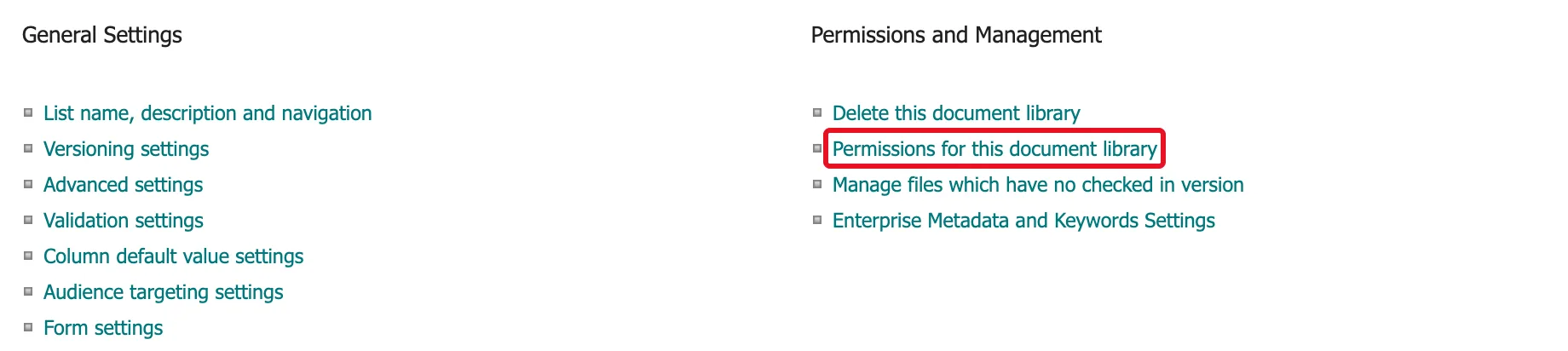
Under Permissions and Management, select Permissions for this document library:
Step 3: Stop Inheriting Permissions
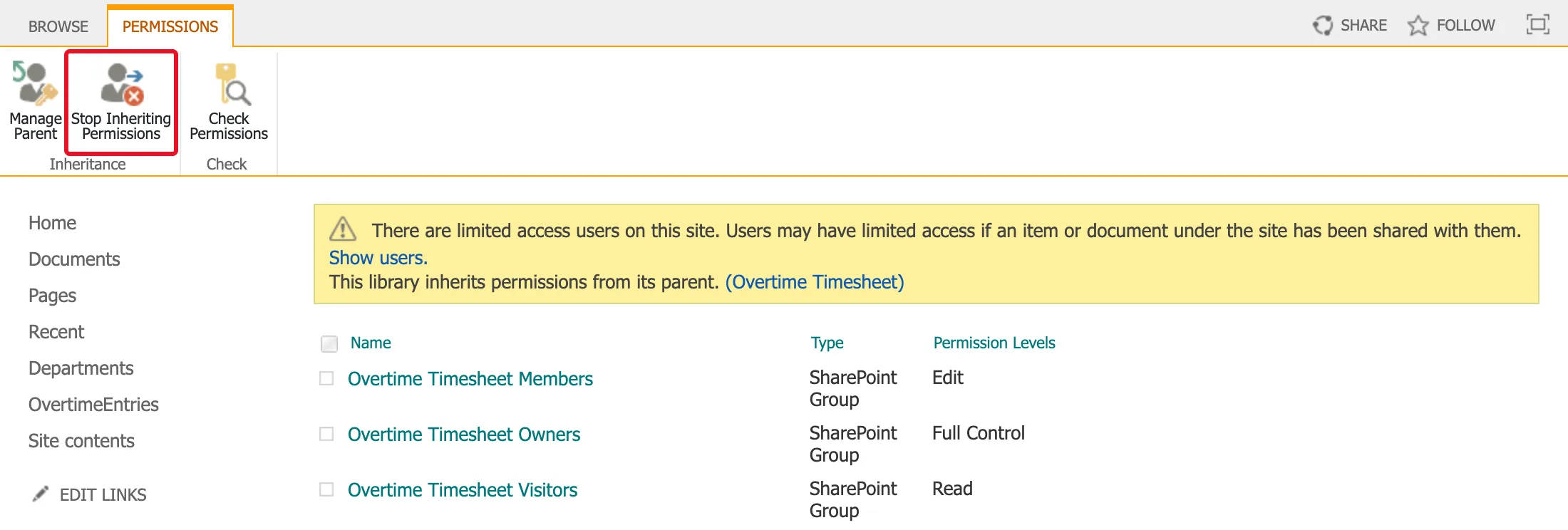
The page says This library inherits permissions from its parent. (Overtime Timesheet): the site's three groups, including Visitors, which on this site holds all staff. Select Stop Inheriting Permissions:
The browser asks:
You are about to create unique permissions for this document library. Changes made to the parent site permissions will no longer affect this document library.
Select OK. The message becomes This library has unique permissions. How to Stop Inheriting Permissions on a SharePoint List explains what the copy means.
Step 4: Remove Members and Visitors
Tick Overtime Timesheet Members and Overtime Timesheet Visitors, select Remove User Permissions, and confirm the browser's question with OK:
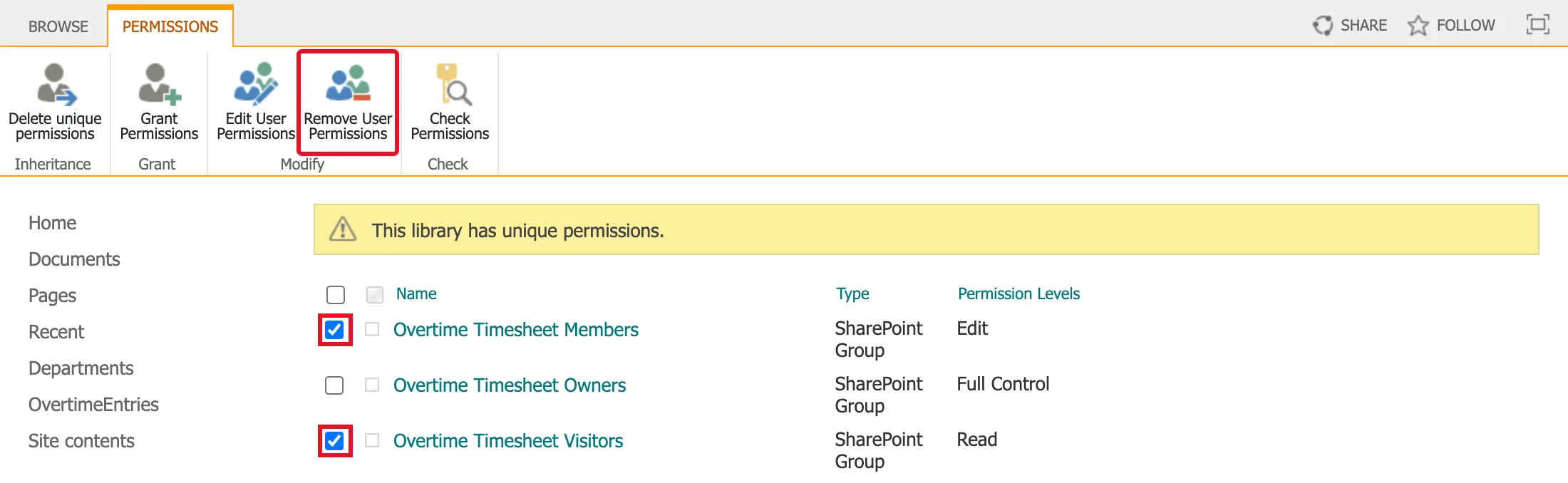
The question was: "Are you sure you want to remove all permissions for the selected users and groups to "Payroll Exports"?" Only Owners stays. How to Remove a Group's Permissions from a SharePoint List covers this step in detail; it works the same for a library.
Step 5: Grant the Group Read
Select Grant Permissions, add Overtime Payroll, open SHOW OPTIONS, clear Send an email invitation and choose Read in place of the default Edit:
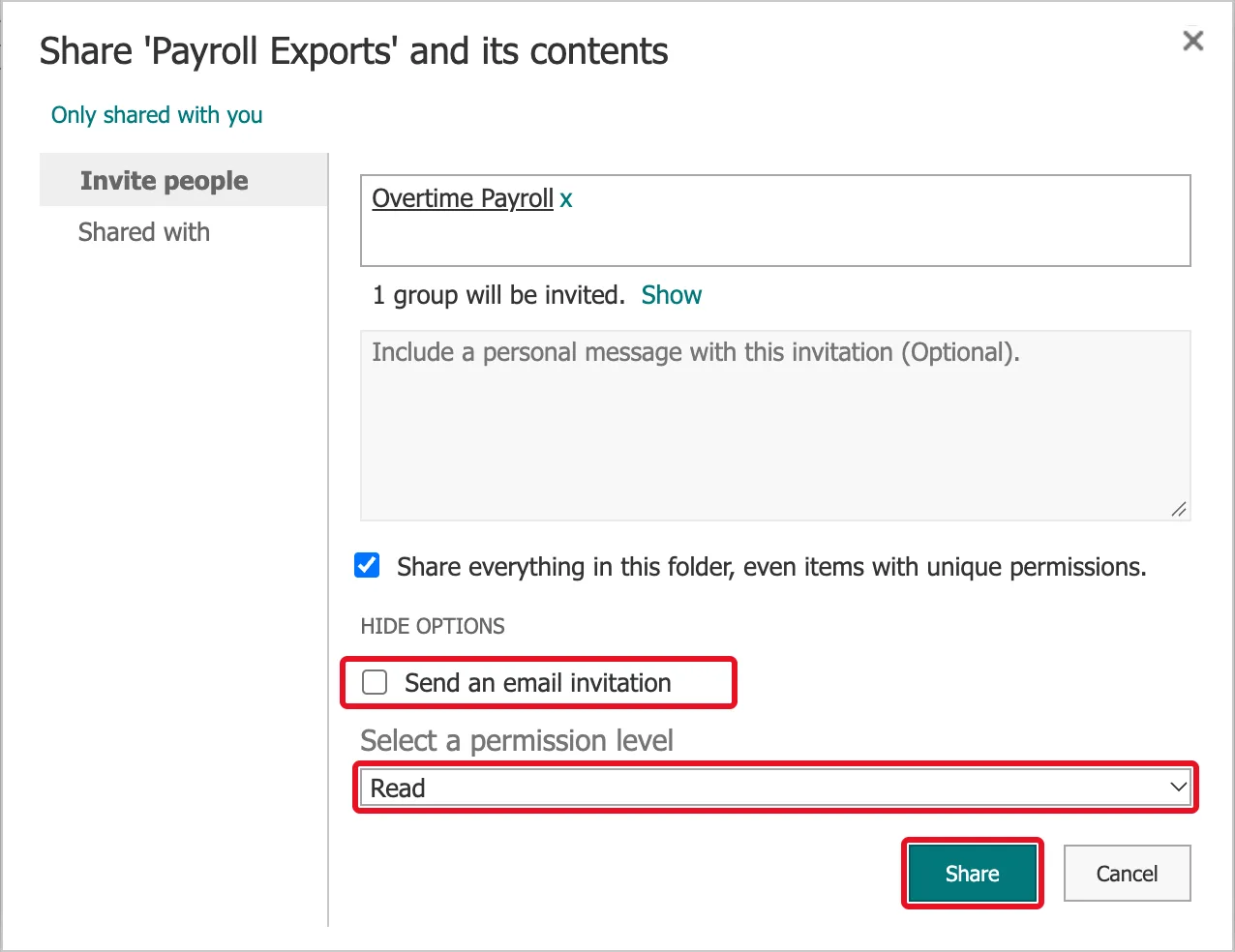
A library's dialog is titled Share 'Payroll Exports' and its contents and adds one option a list doesn't have: Share everything in this folder, even items with unique permissions. Microsoft's Customize permissions for a SharePoint list or library: "This will grant or restrict access to items you already set unique permissions for." The library was empty, so it was left ticked. Select Share.
Step 6: Check the Permissions
Reload the page. Two entries are left: the group with Read and the site's owners:

Step 7: Test as Someone Outside and Inside the Group
Aisha Khan, a staff nurse who can read the rest of the site, opened the library's address. SharePoint refused:
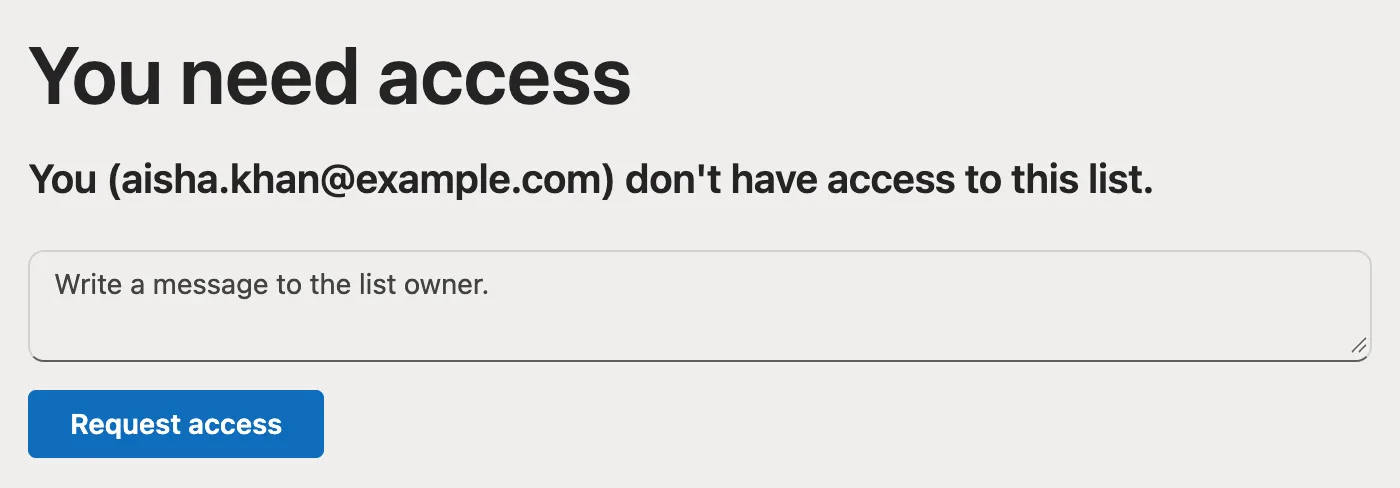
The library also no longer appears in her Site contents.
Leo Martin, the payroll officer, opened it. He sees the library, still empty, with no Create or upload command, because Read can't add files:
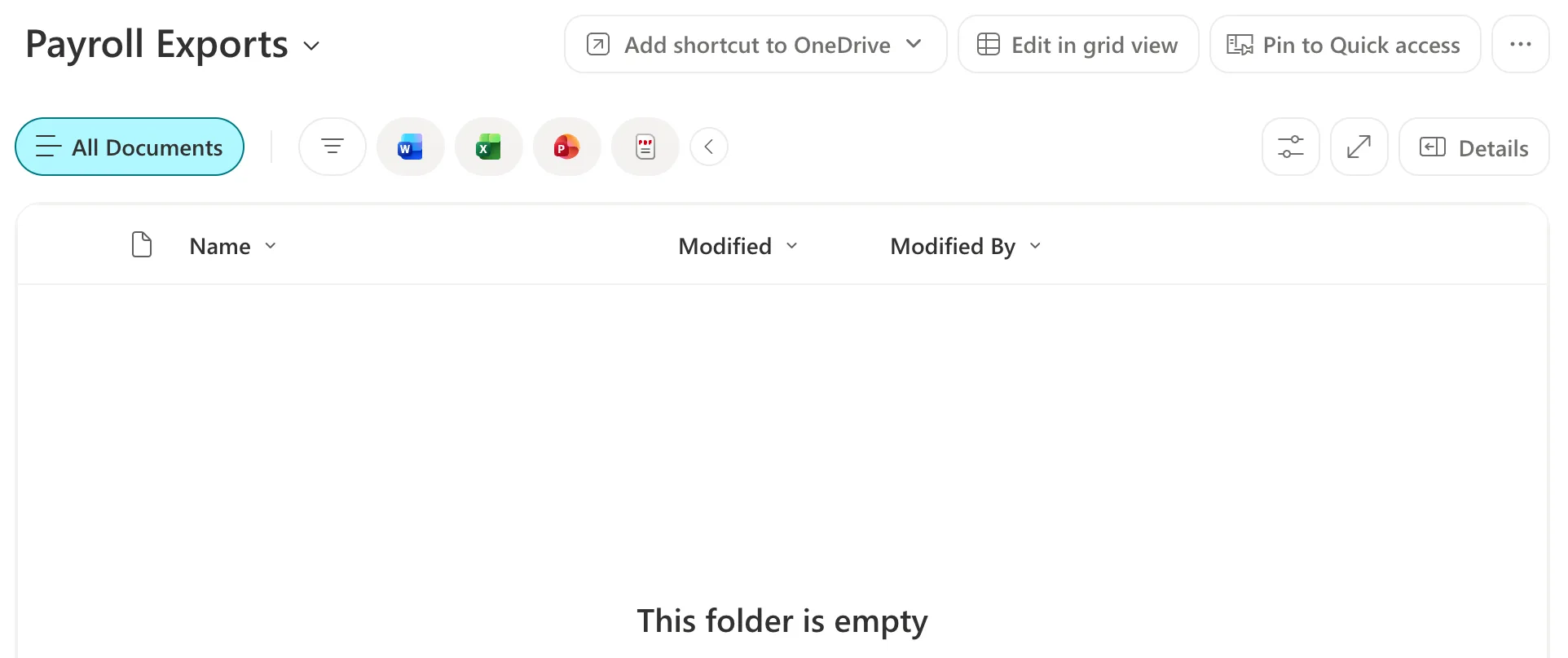
How to Check a User's Permissions in SharePoint gives the same answers in words: None for Aisha, and Read for Leo through Overtime Payroll.
Common Mistakes
| Mistake | What happens | Do this instead |
|---|---|---|
| Granting the group without removing Visitors | Everyone in Visitors can still read the library | Remove the copied groups |
| Sharing with the default Edit | The group can add, change and delete files, and manage the library | Choose the level they need |
| Leaving Send an email invitation ticked | Everyone in the group gets an email | Clear it |
Troubleshooting
| Symptom | Likely cause | Fix |
|---|---|---|
| Someone outside the group can still open it | They're in another group still listed, or they're an owner | Use Check Permissions on the library |
| The group can't open it | Its grant didn't save | Reload the Permissions page and check the entry |
FAQ
Who else can open the library?
The site's owners, through Owners. Microsoft's About the SharePoint Administrator role in Microsoft 365 adds that Global Administrators and SharePoint Administrators "don't have automatic access to all sites and each user's OneDrive, but they can give themselves access to any site or OneDrive."
Should the group get Read or more?
Whatever it needs. In the Overtime Timesheet series, a flow writes the workbooks and payroll only reads them, so Read is enough.
Conclusion
Library settings → More library settings → Permissions for this document library → Stop Inheriting Permissions → remove Members and Visitors → Grant Permissions to the one group with the level it needs. Then test it as someone outside the group and someone in it.
Additional Resources
- Customize permissions for a SharePoint list or library
- About the SharePoint Administrator role in Microsoft 365
