How to Respond to Approvals in Power Automate

Power Automate has its own place for approval requests: Approvals on the left of the portal. The Received tab lists what's waiting for you; select a request, choose a response, add a comment and select Confirm. It's the same request that reaches Teams and Outlook, so whichever you use, the flow gets one answer.
Microsoft's approve or reject requests article says Your pending approval requests appear on the Received tab. It points to Action items > Approvals; in the portal I used, Approvals was an item of its own in the left menu.
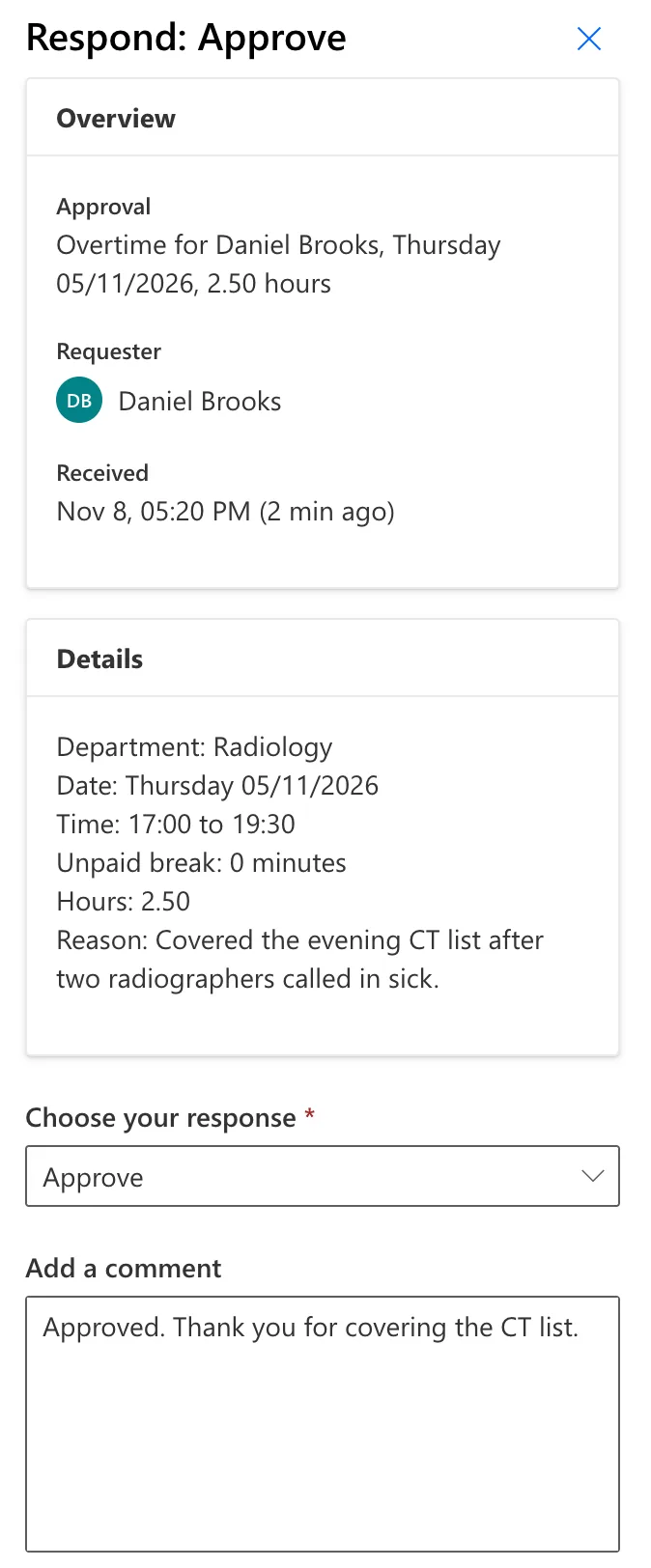
The example is a request from the approval flow of the Overtime Timesheet app. Daniel Brooks approves Radiology's overtime, so his own went to his manager, the app's maker, who answered it here.
Prerequisites
- An approval request sent to you by a flow (How to Send an Approval Request in Power Automate).
- Sign-in to Power Automate, in the environment the flow runs in.
Step 1: Open Approvals
Select Approvals in Power Automate's left menu. The Received tab lists the requests waiting for you, with when you received them and who requested them:

Step 2: Respond
Select the request. The Respond pane shows an Overview, with the title, the requester and when it was received, and the Details the flow wrote. Under Choose your response, the list had Approve, Reject and Reassign. Choose one, add a comment, and select Confirm:
The Result
The pane said Response successfully recorded:
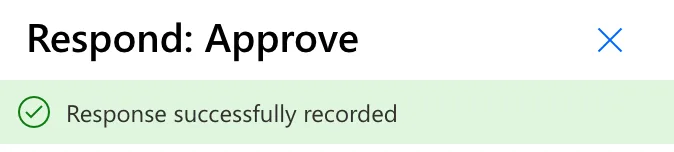
Select Done. The Received tab then said You don't have any pending approvals and To view past approvals switch to the history tab. The flow carried on at once: it saved the decision to Daniel's entry, with the comment and the maker as the approver, and emailed him.
Common Mistakes
| Mistake | What happens | Do this instead |
|---|---|---|
| Looking in the wrong environment | The request isn't listed | Switch to the flow's environment |
| Reassign when you mean to decline | Someone else gets the request | Reject, with a reason |
| Confirming without a response chosen | Confirm stays unavailable | Choose a response first |
Troubleshooting
| Symptom | Likely cause | Fix |
|---|---|---|
| Received is empty | Nothing is waiting, or it's in another environment | Check the environment at the top right |
| The request isn't there any more | Someone already answered it, in Teams or Outlook | Look in History |
FAQ
Is there a quicker way than the pane?
When I selected the request, Approve and Reject also appeared at the top of the list. I used the Respond pane, which shows the details and takes a comment.
Is this the same request as in Teams and Outlook?
Yes. Microsoft's approvals article lists an Outlook email, a Microsoft Teams adaptive card, or the Power Automate action center as places to answer the same request.
Conclusion
Power Automate's Approvals page lists what's waiting for you on Received. Select a request, choose Approve or Reject, add a comment and Confirm; the flow carries on with your answer.
Additional Resources
- Approve or reject requests: the Received and History tabs.
- Get started with Power Automate approvals: where approvers can respond.
