How to Reorder Controls in a Container in Power Apps

In a horizontal or vertical container, you can't drag a control to a new spot: the container places its controls one after another, in order. To move one, you change that order. Tree view's Reorder menu does it in two clicks.
Prerequisites
- A horizontal or vertical container with at least two controls in it (How to Add a Horizontal Container in Power Apps, How to Add a Vertical Container in Power Apps).
Why the Order Matters
A layout container positions every control for you. Microsoft notes that you can't drag or reposition controls inside one; you change their order in Tree view, or with the arrow keys (Building responsive canvas apps).
In the example, a Back button was added to the My Plan screen's header in the Career Development Plan app. A new control goes after the ones already there, so the button landed to the right of the title, lblTitleMPS. It belongs on the left.
Step 1: Open Reorder on the Control
In Tree view, hover over the control, select ... and point to Reorder. In a horizontal container the options are Move to start, Move left, Move right and Move to end:
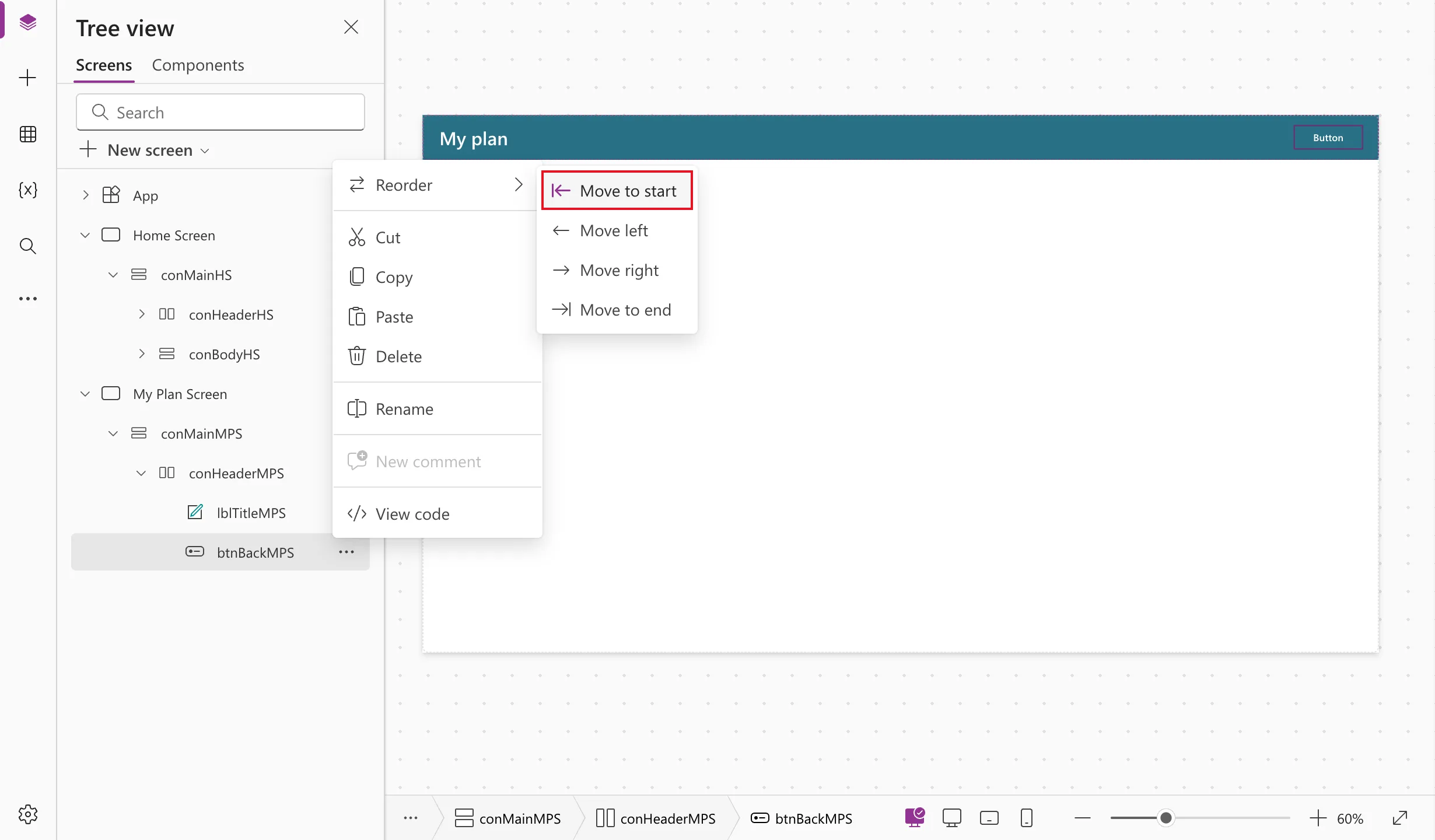
In a vertical container they read Move to top, Move up, Move down and Move to end.
Step 2: Choose Where It Goes
Select Move to start. The button moved above the title in Tree view, and to its left on the canvas:
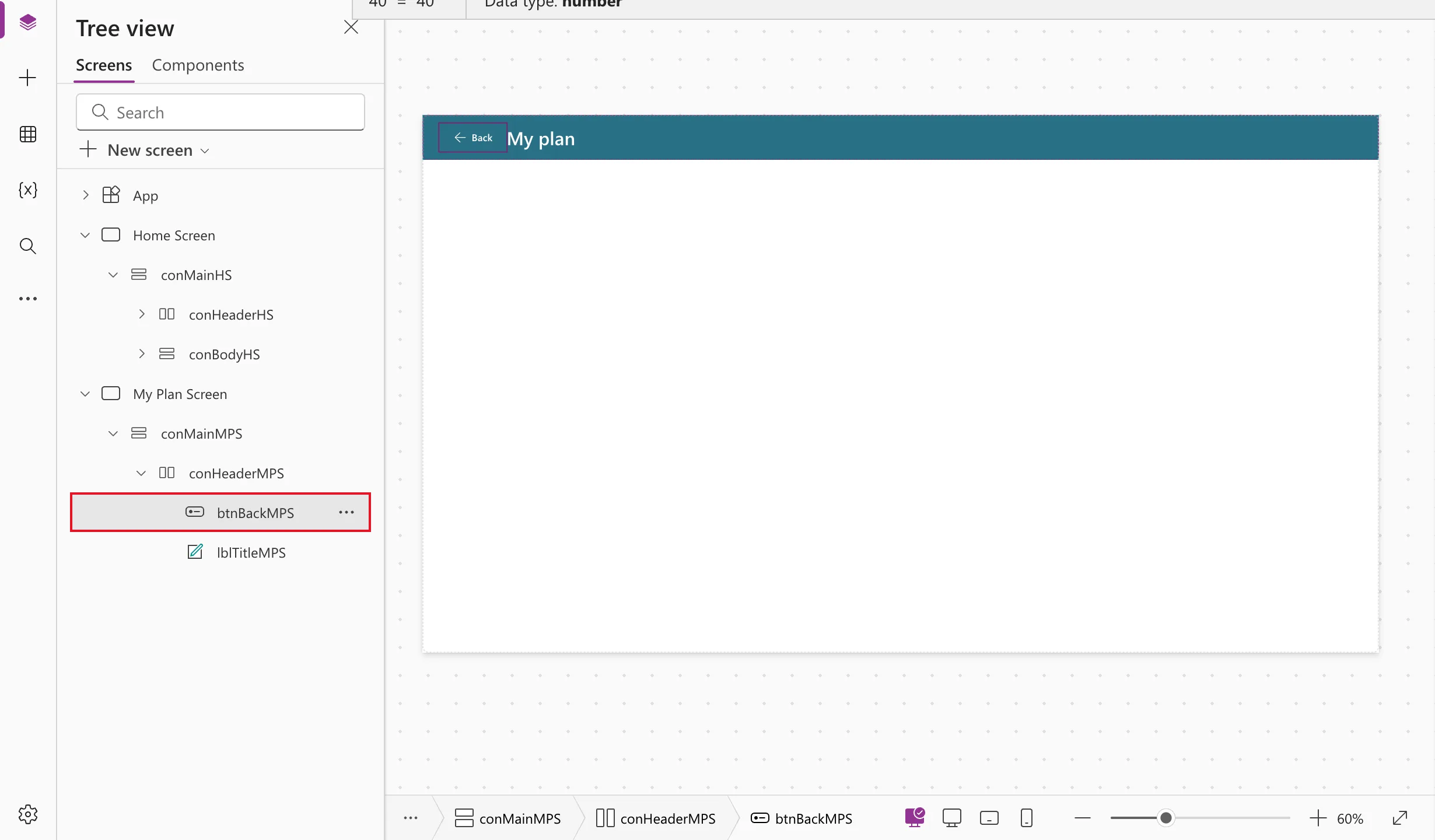
The same screen used Move to end in a vertical container, conBodyMPS, so that its gallery sits below the text, spinner and message above it.
Common Mistakes
| Mistake | What happens | Do this instead |
|---|---|---|
| Trying to drag a control inside a container | It doesn't move | Use Reorder |
| Changing X and Y of a control in a container | The container ignores them | Change the order, or the container's alignment and gap |
Troubleshooting
| Symptom | Likely cause | Fix |
|---|---|---|
| A new control appears after the others | Inserted controls go to the end of the container | Reorder → Move to start, or move it step by step |
| A control is still in the wrong place after Move to start | It's in a different container than you think | Check its parent in Tree view |
FAQ
Does the order in Tree view match the order on screen?
Inside a layout container, yes: the container lays its controls out in that order.
Can I use the keyboard?
Microsoft mentions the arrow keys as a shortcut for changing the order in a layout container.
Conclusion
Controls in a layout container follow their order. Open ... → Reorder and pick Move to start, Move left, Move right or Move to end (Move to top, up or down in a vertical container).
Additional Resources
- Building responsive canvas apps: how layout containers place their controls.
- Horizontal container control: the container's properties.
