How to Rename a Screen or Control in Power Apps

Every new screen and control gets a placeholder name: Screen1, Container1, Button1. Those names end up in your formulas, and screen names are read aloud by screen readers. Renaming takes a few seconds, and doing it as soon as you add something saves confusion later.
Prerequisites
- A canvas app open in Power Apps Studio. The example renames Screen1 of the Career Development Plan app from the Career Development Plan series to Home Screen.
- A naming scheme. See Power Apps Naming Conventions for Screens, Controls and Formulas.
Step 1: Open the Item's Menu in the Tree View
In the Tree view, hover over the screen or control and select … (More options). For a screen, the menu has Copy, Paste, Duplicate screen, Rename, New comment and View code. Select Rename:
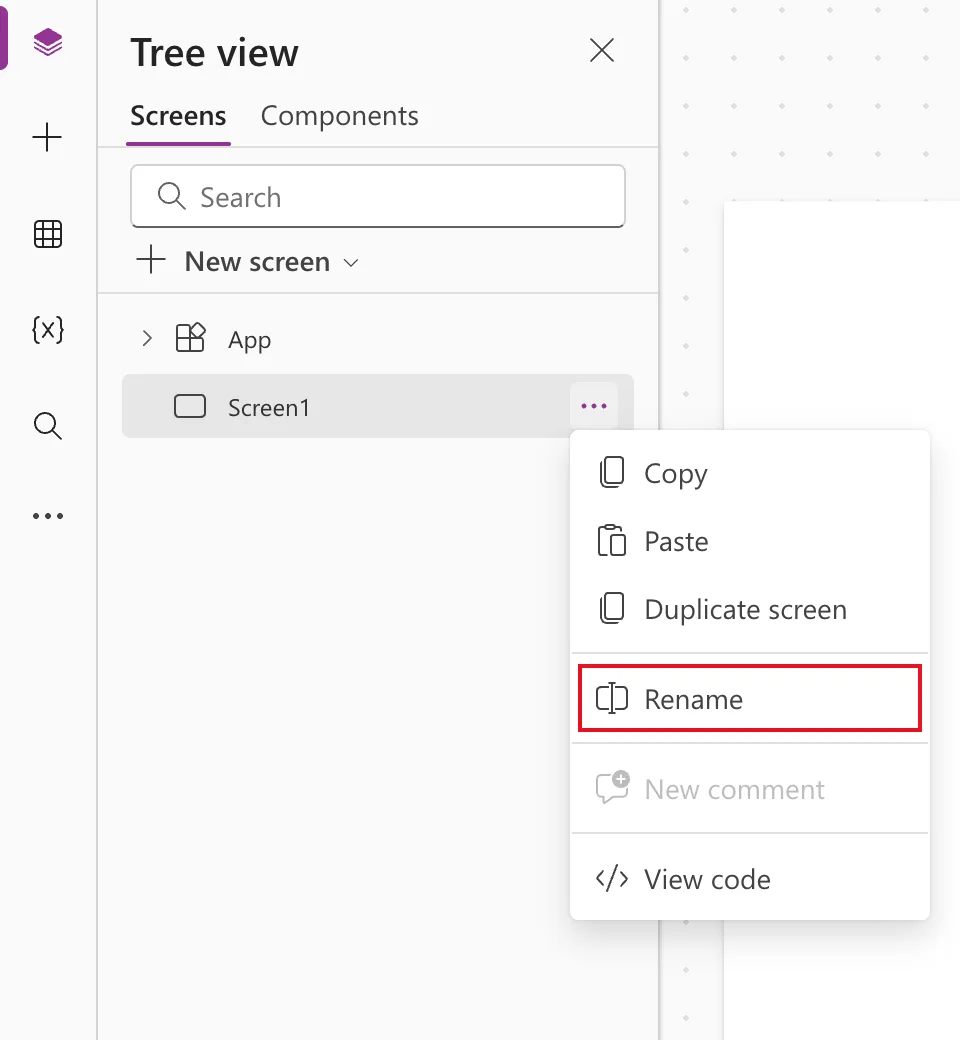
With the tree view focused, you can also select the item and press F2.
Step 2: Type the New Name
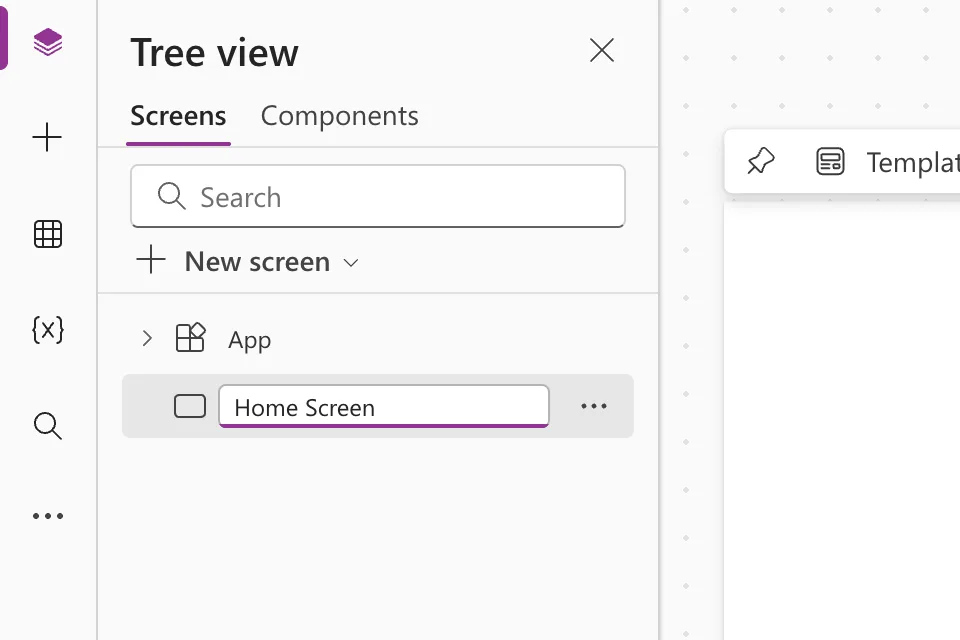
The name becomes a text box. Type the new name and press Enter:
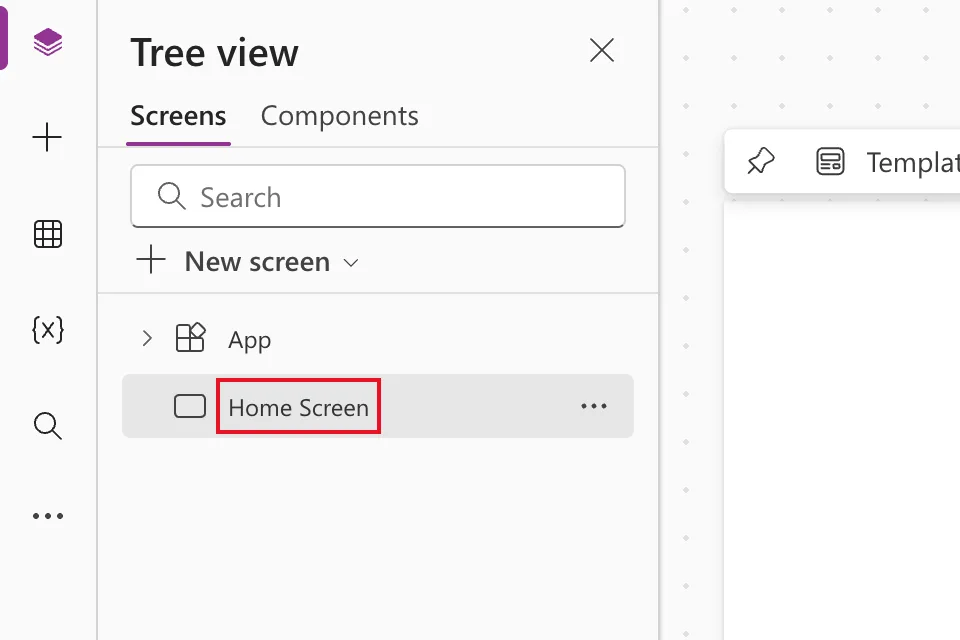
The tree view, the properties pane and the screen's tab at the bottom of the canvas now show the new name:
Press Esc instead of Enter to cancel.
Step 3: Rename Controls the Same Way
Controls use the same … → Rename. In the example, each control was renamed as soon as it was added: Container1 to conMainHS, Button1 to btnMyPlanHS, and so on. Renaming straight away means your formulas use the real names from the start.
Names With Spaces
Screen names may contain spaces; Microsoft recommends plain-language screen names ending in "Screen", because screen readers announce them. In formulas, put a name with spaces in single quotes:
'Home Screen'
Control names usually have no spaces, so they need no quotes.
Common Mistakes
| Mistake | What happens | Do this instead |
|---|---|---|
| Leaving Screen1 and Button1 | Formulas like Navigate(Screen3) say nothing | Rename as soon as you add something |
| Two controls with the same name | Not allowed: names must be unique across the app | Add a screen suffix, such as HS for Home Screen |
| Referring to a spaced name without quotes | A syntax error | Use single quotes: 'Home Screen' |
Troubleshooting
| Symptom | Likely cause | Fix |
|---|---|---|
| Rename isn't in the menu | The menu was opened on a different item | Hover the item you want, then … |
| The new name is rejected | Another control already uses it | Pick a unique name |
| F2 does nothing | The tree view doesn't have focus | Click the item in the tree view first |
FAQ
Do formulas update when I rename?
Microsoft's documentation on renaming says formulas that reference a control are updated with its new name. Renaming early still avoids surprises.
What's the Copilot rename suggestion?
When Proactive control rename is on (Settings → Updates → Preview), Copilot can offer to rename similar controls after you rename one by hand. It's a preview feature.
Can I rename the App object?
No. App keeps its name; you change the app's display name in Settings → General.
Conclusion
Tree view → … → Rename (or F2) → type → Enter. Rename every screen and control as you add it, using a consistent scheme, and put names with spaces in single quotes in formulas.
Additional Resources
- Add and configure controls: rename a control: the tree view menu.
- Keyboard shortcuts for canvas apps: F2 to rename in the tree view.
- Code readability: screen names: how to name screens.
