How to Rename a Column in Power Query

Column names from a data source aren't always the names you want people to see. Every SharePoint list, for example, has a Title column, whatever it holds. Renaming it in Power Query gives the model and every report a clearer name. Here's how.
Microsoft's Rename columns shows the ways to rename a column in Power Query. The example renames the Title column of an Expenses query, which holds each expense's description, to Expense (How to Get Data from a SharePoint List in Power BI in the Browser).
Step 1: Select Rename
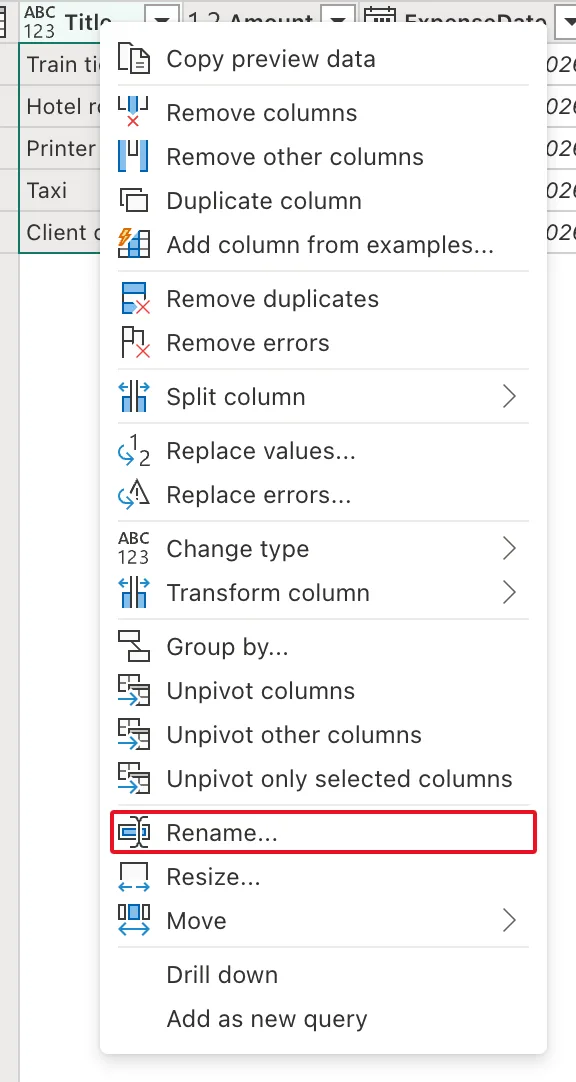
Right-click the column's header and select Rename...:
Step 2: Type the New Name
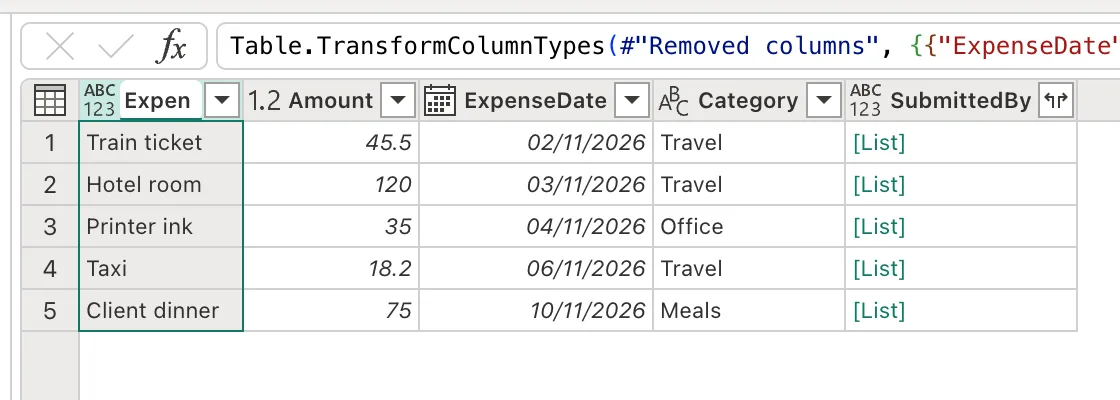
The header becomes a text box with the old name selected. Type the new name, here Expense:
Press Enter.
Step 3: Check the Result
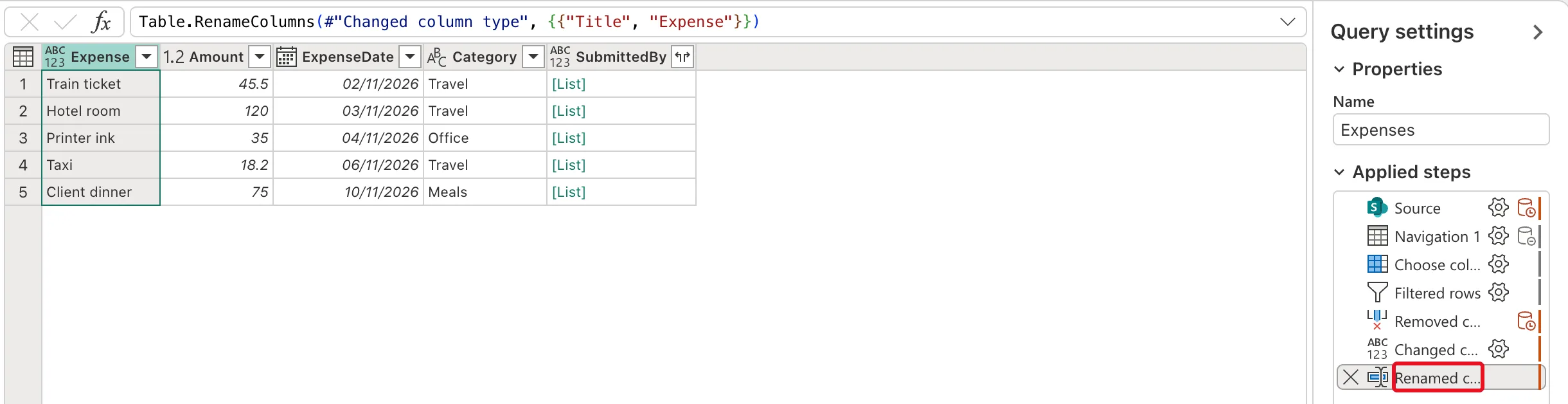
The header reads Expense, and Applied steps gains Renamed columns:
Table.RenameColumns(#"Changed column type", {{"Title", "Expense"}})
#"Changed column type"is the step before.{{"Title", "Expense"}}pairs each old name with its new one; a step that renames several columns has one pair for each.
Common Mistakes
| Mistake | What happens | Do this instead |
|---|---|---|
| Keeping SharePoint's Title name | Reports say Title for whatever the column holds | Rename it to what it holds |
| Renaming the same column in every report | Each report needs the change again | Rename it once in Power Query |
| Giving two columns the same name | Microsoft's article says Power Query shows a Column Name Conflict error | A unique name for every column |
Troubleshooting
| Symptom | Likely cause | Fix |
|---|---|---|
| A shortcut menu without Rename... | The right-click landed on a cell | Right-click the column's header |
| Column Name Conflict | Another column already has the name | Choose another name |
| A later step shows an error | It refers to the column's old name | Rename after that step, or change the step to the new name |
FAQ
Is there a faster way?
Microsoft's Rename columns lists two more ways: double-click the header, or select Rename in the Any column group of the Transform tab.
Can I rename a column only in one visual?
Yes, a report can show a different name in one visual without changing the model (How to Rename a Field in One Power BI Visual).
Conclusion
Right-click the header, Rename..., type the name, Enter. Power Query adds a Table.RenameColumns step; the example turned Title into Expense.
