How to Remove Spaces from the Start and End of a String with Trim in C#

Text that people type often has spaces they didn't mean to type, at its start or its end. Trim removes them, together with tabs and line breaks, and leaves the text in between alone.
Trim returns a copy of a string without the white space at either end. Microsoft's reference: Removes all leading and trailing white-space characters from the current string. It's the usual first step before you check, compare or store something a user typed.
Syntax
string <result> = <text>.Trim();
string <result> = <text>.Trim(<character1>, <character2>, ...);
| Part | What it is |
|---|---|
<text> | The string to clean |
Trim() | Removes white space from both ends: spaces, tabs, line breaks and every other character for which char.IsWhiteSpace returns true |
Trim(<character1>, ...) | Removes the characters you list from both ends instead |
<result> | A new string. <text> itself doesn't change |
The reference defines the white space: White-space characters are defined by the Unicode standard. The Trim method removes any leading and trailing characters that produce a return value of true when they are passed to the Char.IsWhiteSpace method.
The Example
A console app called TrimSpaces trims four inputs and prints each one between quotes with its length, before and after.
Prerequisites
- The .NET 10 SDK.
dotnet --versionprints a version that starts with10.0.
Step 1: Create a Console App
dotnet new console -n TrimSpaces
cd TrimSpaces
The template "Console App" was created successfully.

Processing post-creation actions...
Restoring /Users/you/source/TrimSpaces/TrimSpaces.csproj:
  Determining projects to restore...
  Restored /Users/you/source/TrimSpaces/TrimSpaces.csproj (in 49 ms).
Restore succeeded.
dotnet new console -n TrimSpaces creates a folder named TrimSpaces with a project file and a Program.cs, and cd moves into it. Everything this example uses is part of .NET, so there's no package to add. Open the folder in VS Code, or TrimSpaces.csproj in Visual Studio.
Step 2: Write the Code
Replace everything in Program.cs. First the inputs, with spaces in different places:
string[] inputs = [" Asha ", "London ", " ", "New York"];
Then the loop:
foreach (string input in inputs)
{
    // Remove the white space at the start and the end.
    string clean = input.Trim();
    Console.WriteLine($"\"{input}\" ({input.Length}) -> \"{clean}\" ({clean.Length})");
}
input.Trim()returns the input without the white space at its start and its end.\"{input}\"prints the value between quotes, so you can see where the spaces are.input.Lengthandclean.Lengthcount the characters before and after.
Step 3: Run It
Run it in VS Code's terminal, or press Ctrl+F5 in Visual Studio:
dotnet run
"  Asha  " (8) -> "Asha" (4)
"London   " (9) -> "London" (6)
"   " (3) -> "" (0)
"New  York" (9) -> "New  York" (9)
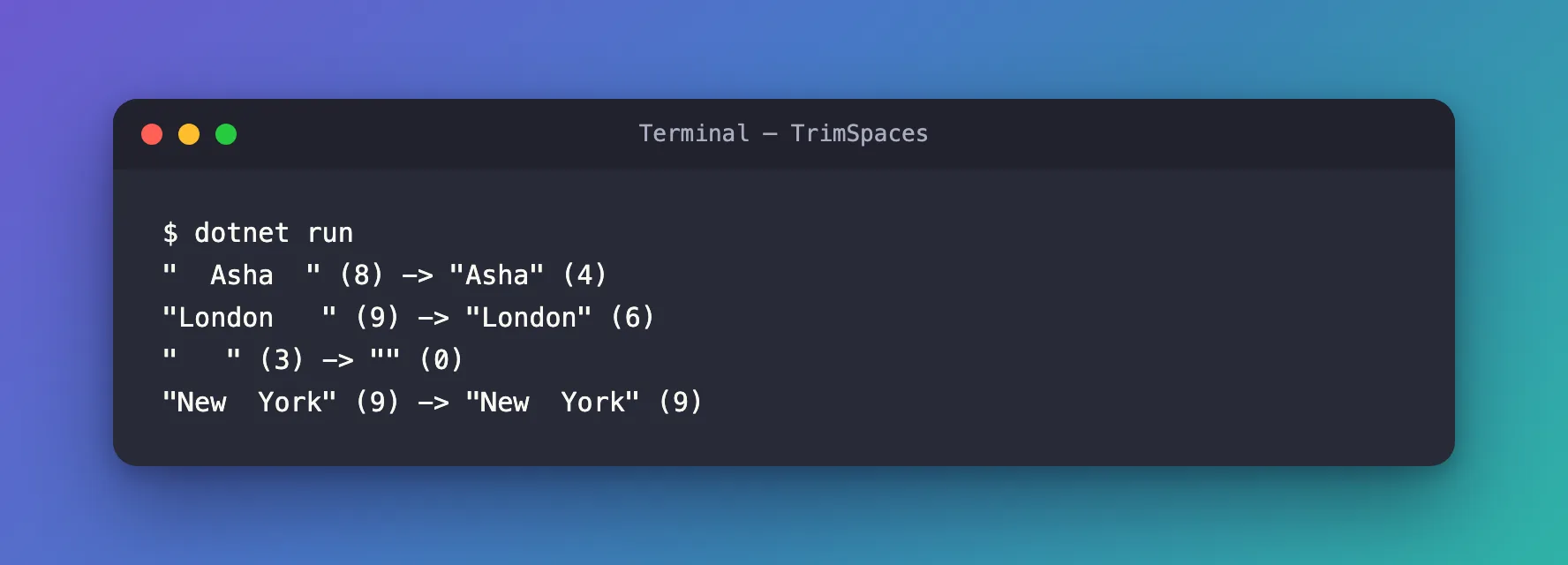
" Asha "lost two spaces at each end: 8 characters became 4."London "lost the three spaces at its end." "was nothing but spaces, so the result is an empty string. The reference says so: If the current string equals Empty or all the characters in the current instance consist of white-space characters, the method returns Empty."New York"kept both spaces in the middle:Trimonly touches the ends.
The Complete File
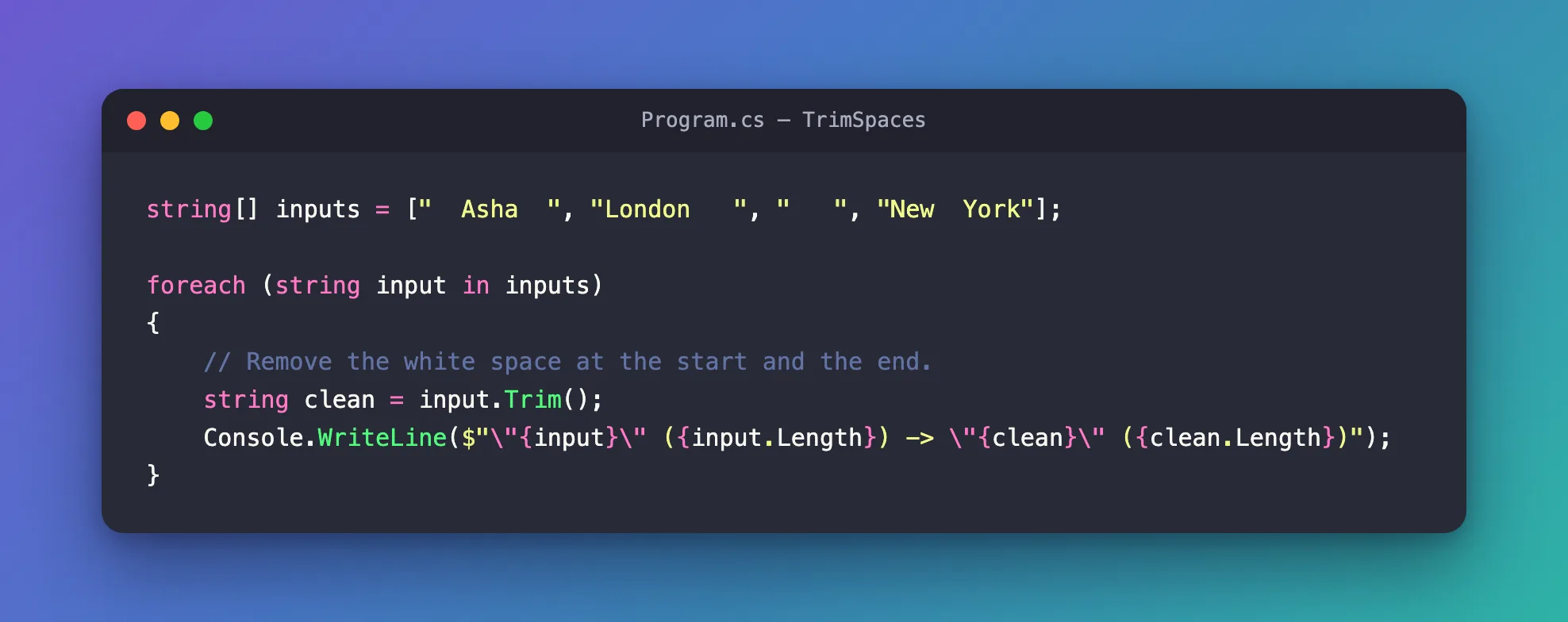
string[] inputs = ["  Asha  ", "London   ", "   ", "New  York"];

foreach (string input in inputs)
{
    // Remove the white space at the start and the end.
    string clean = input.Trim();
    Console.WriteLine($"\"{input}\" ({input.Length}) -> \"{clean}\" ({clean.Length})");
}
Common Mistakes
| Mistake | What happens | Do this instead |
|---|---|---|
Expecting Trim to remove spaces in the middle | "New York" kept its two spaces | Replace runs of white space inside the text separately: Regex.Replace("New York", @"\s+", " ") returned New York |
Calling Trim on null | NullReferenceException: Object reference not set to an instance of an object. | Write input?.Trim(), which gives null instead of throwing |
FAQ
Does Trim remove tabs and line breaks too?
Yes: "\tLondon\n".Trim() returned London, 6 characters.
Can Trim remove other characters?
Yes, list them: "**sale**".Trim('*') returned sale.
How do I trim only one end?
TrimStart() cleans the start and TrimEnd() the end: " Asha " became "Asha " with TrimStart() and " Asha" with TrimEnd().
Conclusion
text.Trim() returns the text without the white space at its start and its end, and text.Trim('*') does the same for the characters you list. It never changes the original string, and it never touches the middle of the text.
Additional Resources
- String.Trim — both forms, and which characters count as white space.
- Char.IsWhiteSpace — the test
Trim()uses for each character.
