How to Remove Extra Spaces in Power Apps with Trim and TrimEnds

Text typed by people often has spaces you can't see: one at the end of a job title, two between words. They look harmless, but "Sales Engineer " isn't equal to "Sales Engineer", so lookups quietly fail. Power Fx has two functions to clean them up, Trim and TrimEnds, and they don't do quite the same thing.
Trim or TrimEnds?
From Microsoft's Trim and TrimEnds reference:
| Function | Removes | " Sales Engineer " becomes |
|---|---|---|
| Trim | All spaces except single spaces between words | "Sales Engineer" |
| TrimEnds | Spaces at the start and end only | "Sales Engineer" |
Trim works like Excel's TRIM. TrimEnds works like most programming languages' trim.
Prerequisites
- A canvas app with a Text control to try formulas in. The example uses a Text control on the Career Development Plan app's Home screen, from Part 4 of the series.
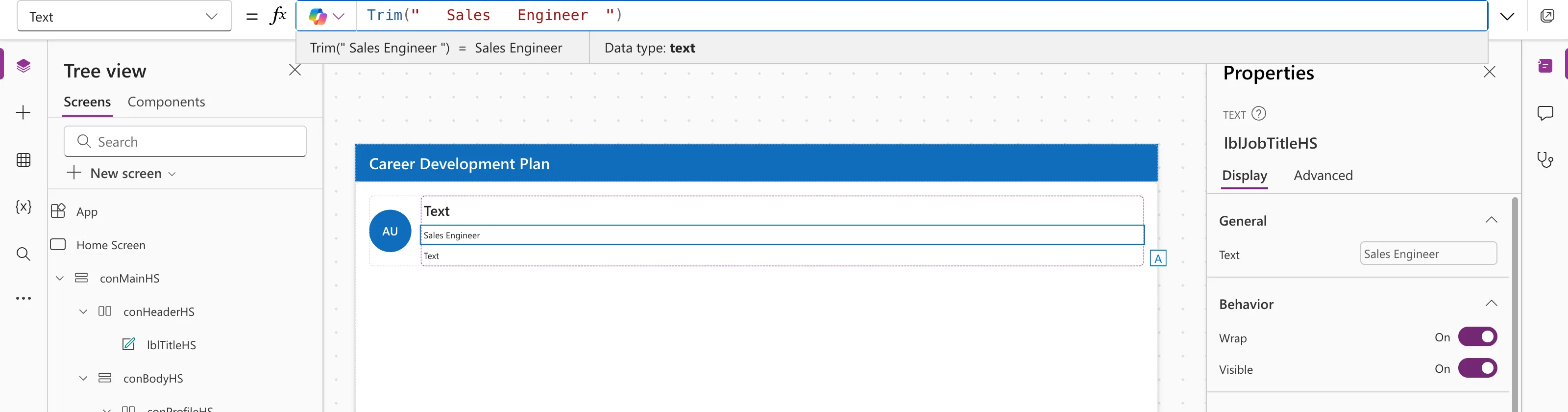
Step 1: Trim a Value
Trim(" Sales Engineer ")
Step 2: See the Difference with Len
The preview strip collapses runs of spaces when it displays text, so you can't see them there. Count characters with Len instead (see How to Count Characters in Power Apps with Len):
| Formula | Result |
|---|---|
Len(" Sales Engineer ") | 21 |
Len(Trim(" Sales Engineer ")) | 14 |
Len(TrimEnds(" Sales Engineer ")) | 16 |
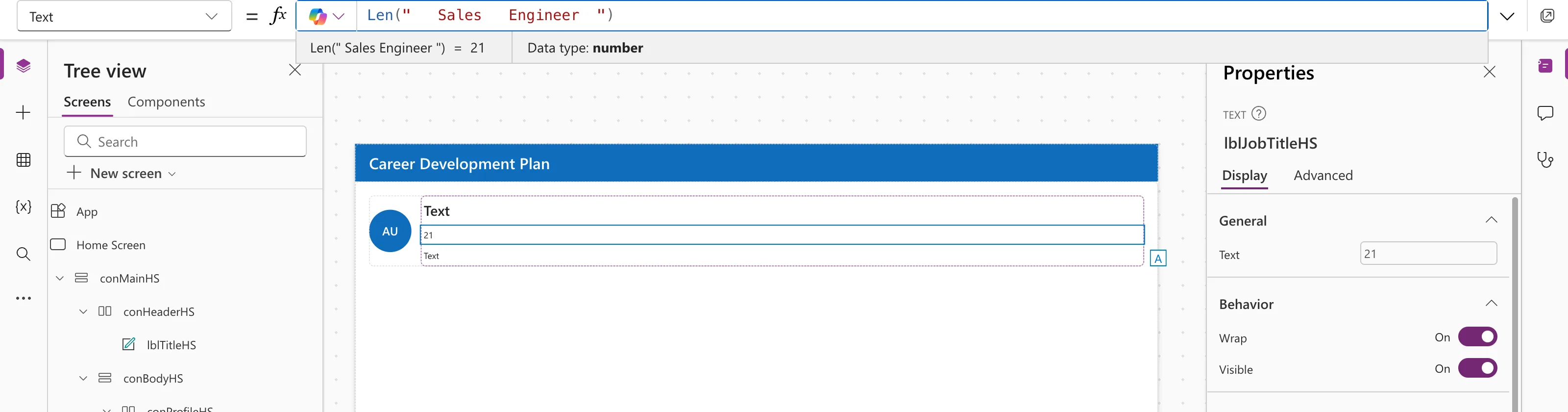
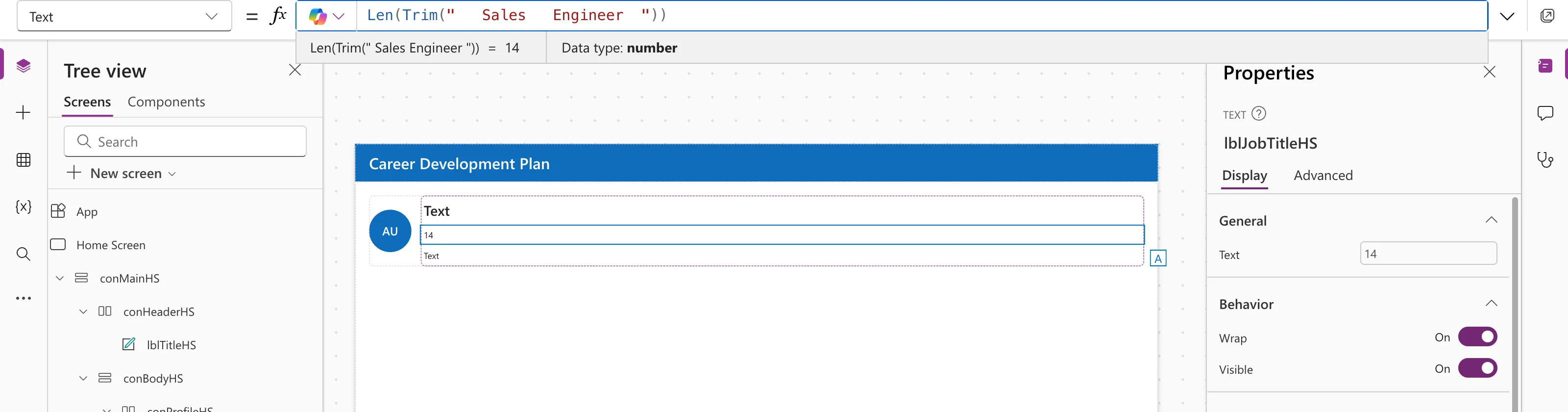
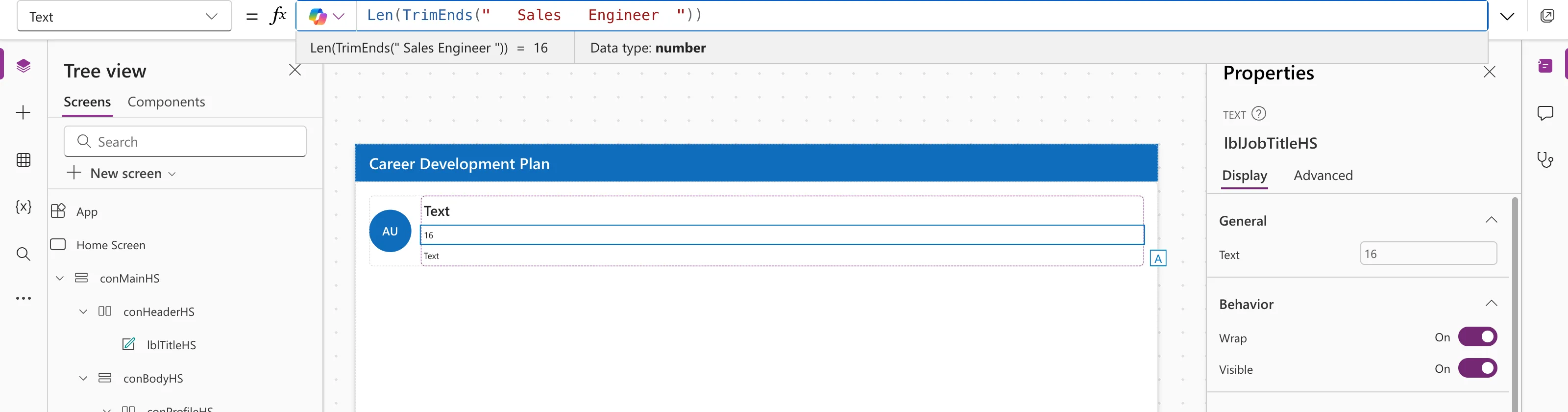
"Sales Engineer" is 14 characters. TrimEnds left the three spaces between the words, so 16.
Step 3: Use It Where Text Gets Compared
The Career Development Plan app shows each person the competencies for their Microsoft 365 job title, matching it against a SharePoint list. A stray space in either place would break the match, so the app cleans the job title once, in a named formula:
MyJobTitle = Trim(MyProfile.jobTitle);
Everything else uses MyJobTitle. See How to Use Named Formulas in Power Apps.
Common Mistakes
| Mistake | What happens | Do this instead |
|---|---|---|
| Checking the preview strip for spaces | It collapses them | Use Len |
| Using TrimEnds to clean names | Double spaces inside stay | Use Trim |
| Trimming in every formula | Easy to miss one | Trim once, in a named formula |
Troubleshooting
| Symptom | Likely cause | Fix |
|---|---|---|
Two texts look equal but = says false | Hidden spaces | Compare Trim of both |
| A lookup by text finds nothing | Spaces in the stored values | Trim values when you save them, too |
FAQ
Does Trim work on a table?
Yes. Given a single-column table of text, it returns a table of trimmed text.
Does Trim remove line breaks or tabs?
Microsoft's reference describes removing spaces. Test any other character with Len before relying on it.
Is it case-sensitive?
Trim doesn't change letters at all; only spaces.
Conclusion
Use Trim to remove extra spaces everywhere but between words, TrimEnds to touch only the ends, and Len to see what changed. Trim text once, where it enters your app, before you compare it.
Additional Resources
- Trim and TrimEnds functions: syntax and examples.
- Len function: counting characters.
