How to Remove Columns in Power Query

Sometimes a column is only needed for a moment. Once a filter has kept only the approved rows, for example, a Status column that says Approved on every row adds nothing. Remove columns drops the columns you select. Here's how.
Microsoft's Choose or remove columns says Remove columns removes the selected columns, and Remove other columns keeps them and removes the rest. The example is a query of an Expenses list that a previous step filtered to approved claims (How to Filter Rows by Two Conditions in Power Query).
Step 1: Select the Column
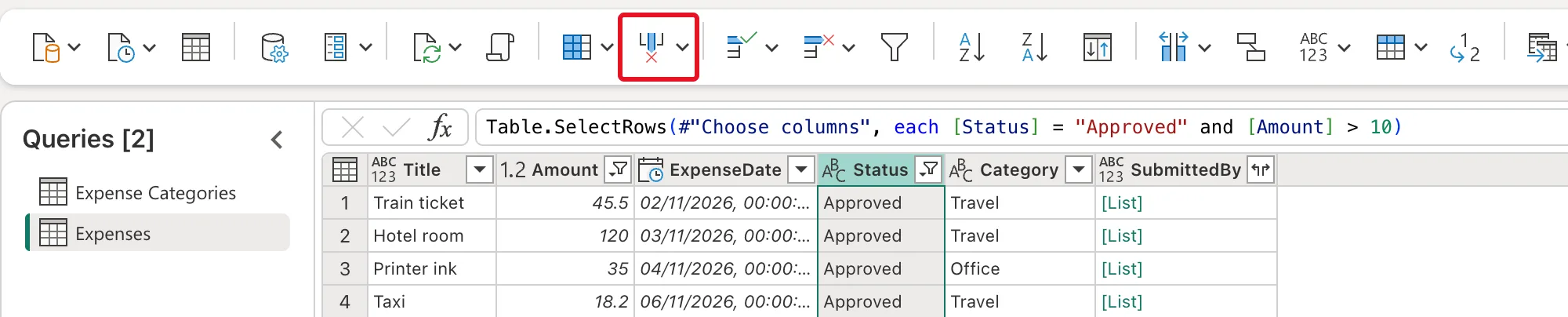
Select the header of the column to remove, here Status. To remove several, hold Ctrl (Cmd on a Mac) and select each header.
Step 2: Select Remove Columns
Select Remove columns on the Home tab. Its arrow opens a menu with Remove columns and Remove other columns; the button itself removes the selected columns:
Step 3: Check the Result
Status is gone, and Applied steps gains Removed columns:
Table.RemoveColumns(#"Filtered rows", {"Status"})
#"Filtered rows"is the step before.{"Status"}is the list of columns to remove.
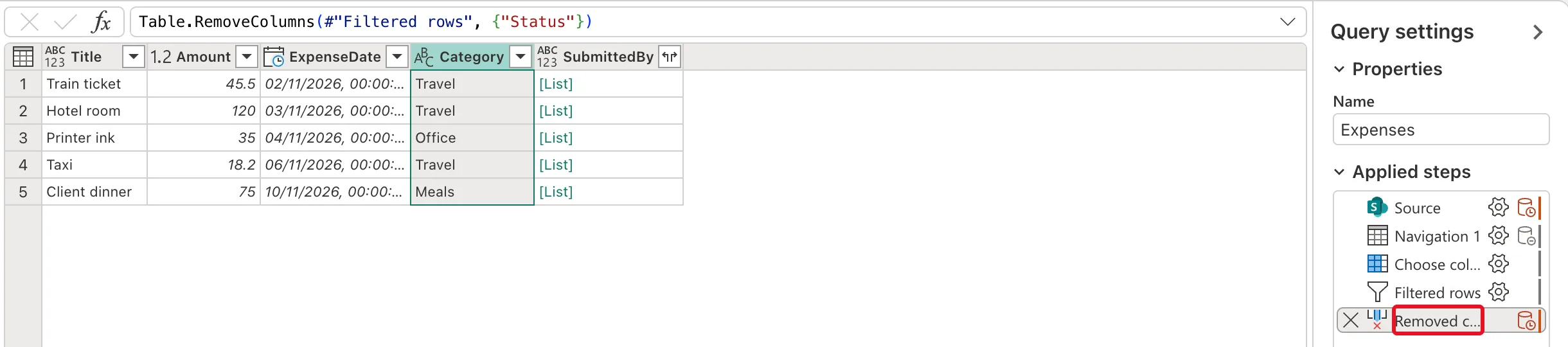
The filter before it still works: steps run in order, so Filtered rows used Status before Removed columns took it away.
Common Mistakes
| Mistake | What happens | Do this instead |
|---|---|---|
| Removing a column before the step that uses it | That step fails | Remove it after its last use |
| Selecting Remove other columns by mistake | Only the selected column is left | Undo by deleting the step, or use the button itself |
| Removing a column the report needs | The report's visuals lose their field | Check the reports before removing |
Troubleshooting
| Symptom | Likely cause | Fix |
|---|---|---|
| A step after Removed columns shows an error | It uses the removed column | Move the removal later, or keep the column |
| The wrong column disappeared | Another column was selected | Delete the step with its X in Applied steps and try again |
FAQ
How do I bring a removed column back?
Delete the Removed columns step with the X next to it in Applied steps, or select its gear icon to change it.
When should I use Choose columns instead?
When you keep a few columns out of many (How to Choose Columns in Power Query). Remove columns suits dropping one or two.
Conclusion
Select the column, then Remove columns. Power Query adds a Table.RemoveColumns step; the example dropped Status once the filter had used it.
