How to Remove Characters from the End of a String with TrimEnd in C#

TrimEnd removes characters from the end of a string: the ones you list, as many as are there, until it reaches one that isn't on the list. It's the quick way to take trailing punctuation, slashes or spaces off a value.
TrimEnd is a method of every C# string. Give it the characters to remove, and it returns the string without them at its end. Give it nothing, and it removes white space. Microsoft's reference: Removes all the trailing occurrences of a set of characters specified in an array from the current string.
Syntax
string <result> = <text>.TrimEnd(<character1>, <character2>, ...);
string <result> = <text>.TrimEnd();
| Part | What it is |
|---|---|
<text> | The string to trim |
<character1>, <character2>, ... | The characters to remove, each in single quotes, such as '.' and '!'. Their order doesn't matter |
TrimEnd() with nothing in the brackets | Removes white space instead: spaces, tabs and line breaks |
<result> | A new string. <text> itself doesn't change |
The reference is clear about that last point: this method does not modify the value of the current instance. Instead, it returns a new string in which all trailing characters found in trimChars are removed from the current string.
The Example
A console app called TrimEndChars takes five words and removes full stops, commas, exclamation marks and closing brackets from the end of each one.
Prerequisites
- The .NET 10 SDK.
dotnet --versionprints a version that starts with10.0.
Step 1: Create a Console App
dotnet new console -n TrimEndChars
cd TrimEndChars
The template "Console App" was created successfully.

Processing post-creation actions...
Restoring /Users/you/source/TrimEndChars/TrimEndChars.csproj:
  Determining projects to restore...
  Restored /Users/you/source/TrimEndChars/TrimEndChars.csproj (in 44 ms).
Restore succeeded.
dotnet new console -n TrimEndChars creates a folder named TrimEndChars with a project file and a Program.cs, and cd moves into it. Everything this example uses is part of .NET, so there's no package to add. Open the folder in VS Code, or TrimEndChars.csproj in Visual Studio.
Step 2: Write the Code
Replace everything in Program.cs. First the words:
string[] words = ["Spring2026#.", "hello!", "(see below)", "done...", "ok"];
Some end in punctuation, one has a bracket at its start and one has nothing to remove.
Then the loop that trims each word:
foreach (string word in words)
{
    // Remove full stops, commas, exclamation marks and closing brackets from the end.
    string trimmed = word.TrimEnd('.', ',', '!', ')');
    Console.WriteLine($"{word,-13} -> {trimmed}");
}
word.TrimEnd('.', ',', '!', ')')removes any of those four characters from the end ofword, and keeps going while the last character is one of them.{word,-13}prints the word padded to 13 characters, so the arrows line up.
Step 3: Run It
Run it in VS Code's terminal, or press Ctrl+F5 in Visual Studio:
dotnet run
Spring2026#.  -> Spring2026#
hello!        -> hello
(see below)   -> (see below
done...       -> done
ok            -> ok
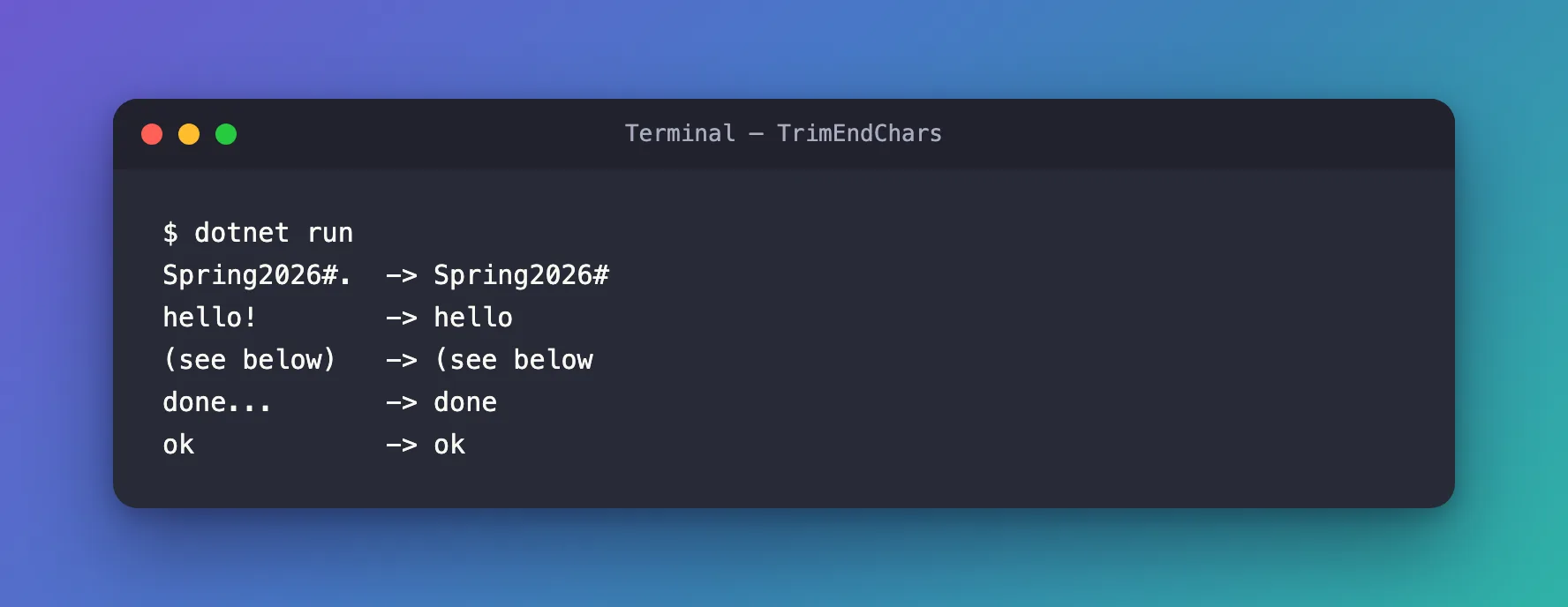
Each word lost the listed characters from its end, and only from its end:
Spring2026#.lost the full stop.#isn't on the list, so the trimming stopped there.done...lost all three full stops, becauseTrimEndkeeps going while the last character is on the list.(see below)lost the)but kept the(at its start.okcame back as it was.
The Complete File
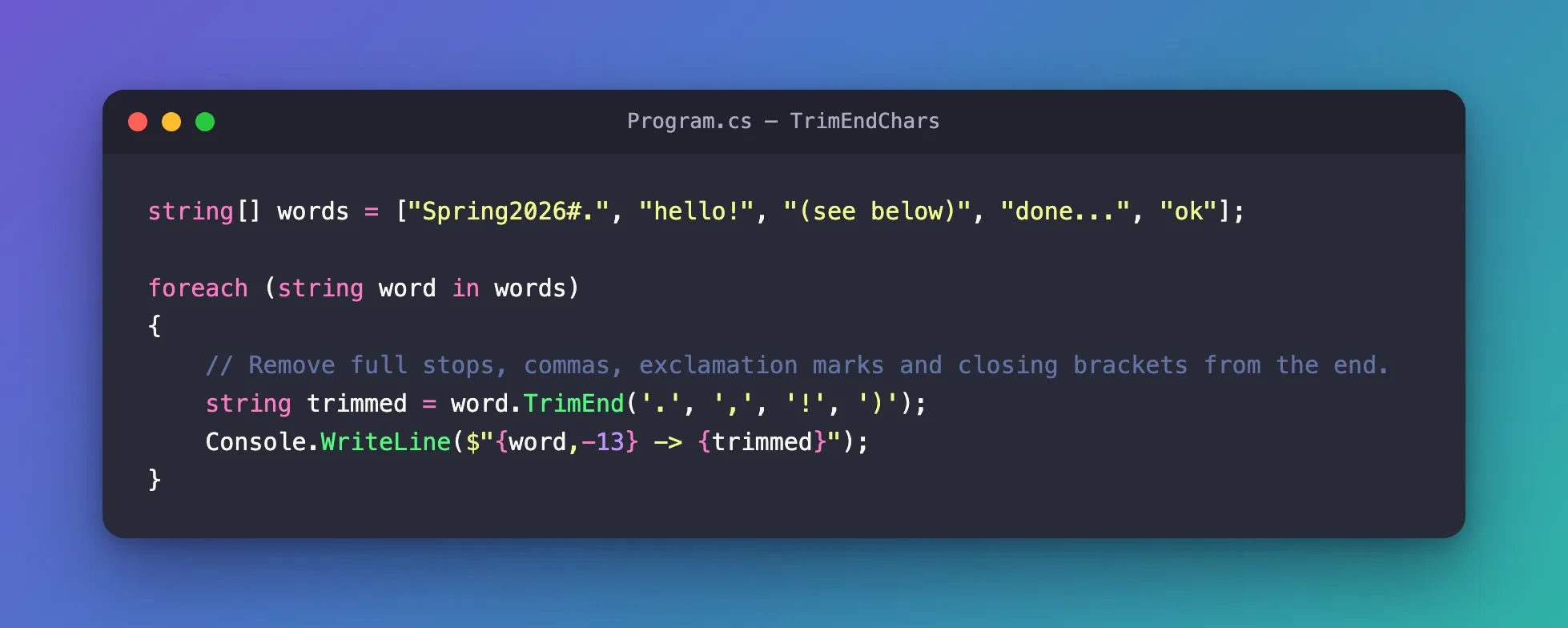
string[] words = ["Spring2026#.", "hello!", "(see below)", "done...", "ok"];

foreach (string word in words)
{
    // Remove full stops, commas, exclamation marks and closing brackets from the end.
    string trimmed = word.TrimEnd('.', ',', '!', ')');
    Console.WriteLine($"{word,-13} -> {trimmed}");
}
Common Mistakes
| Mistake | What happens | Do this instead |
|---|---|---|
Passing a word to remove, such as "report.txt".TrimEnd(".txt".ToCharArray()) | TrimEnd takes the characters one by one, so it removes every trailing t, x and . and returns repor | Check the ending with EndsWith and cut it off: name.EndsWith(".txt") ? name[..^4] : name returned report. For a file name, Path.GetFileNameWithoutExtension("report.txt") did the same |
Calling word.TrimEnd('.') without keeping the result | word still read done... afterwards | Assign the result: word = word.TrimEnd('.'); |
FAQ
What does TrimEnd remove with no arguments?
White space: "hi \t\n".TrimEnd() returned a string 2 characters long, without the spaces, the tab and the line break. The reference: Removes all the trailing white-space characters from the current string.
How do I trim the start instead?
Use TrimStart with the same arguments: "(see below".TrimStart('(') returned see below. Trim works on both ends at once.
What if there's nothing to remove?
You get the same string back. The reference: If no characters can be trimmed from the current instance, the method returns the current instance unchanged.
Conclusion
text.TrimEnd('.', '!') returns the text without those characters at its end, removing as many as it finds, and text.TrimEnd() does the same for white space. It works one character at a time, so use EndsWith and a range when you need to remove a whole word or a file extension.
Additional Resources
- String.TrimEnd — both forms and what they return.
- String.TrimStart — the same for the start of a string.
