How to Remove an Object from a Solution Without Deleting It in Power Apps

An object can belong to more than one solution, and sometimes it ends up in one it shouldn't. Remove from this solution takes it out of that solution and leaves the object itself, and every other solution it's in, alone. The command next to it deletes the object everywhere, so it's worth knowing which is which.
When You Need It
The example comes from Part 11 of the Career Development Plan series. A new flow was added both to the solution I created it in and to my preferred solution (Fixed: A New Cloud Flow Shows Up in Two Solutions tells the story). It belonged only in the first, so I removed it from the second.
Prerequisites
- An unmanaged solution that contains the object. You can't change what's in a managed solution.
- Permission to customize solutions in the environment. I used the System Administrator role (How to Make Yourself System Administrator of a Power Platform Environment).
Step 1: Find the Object
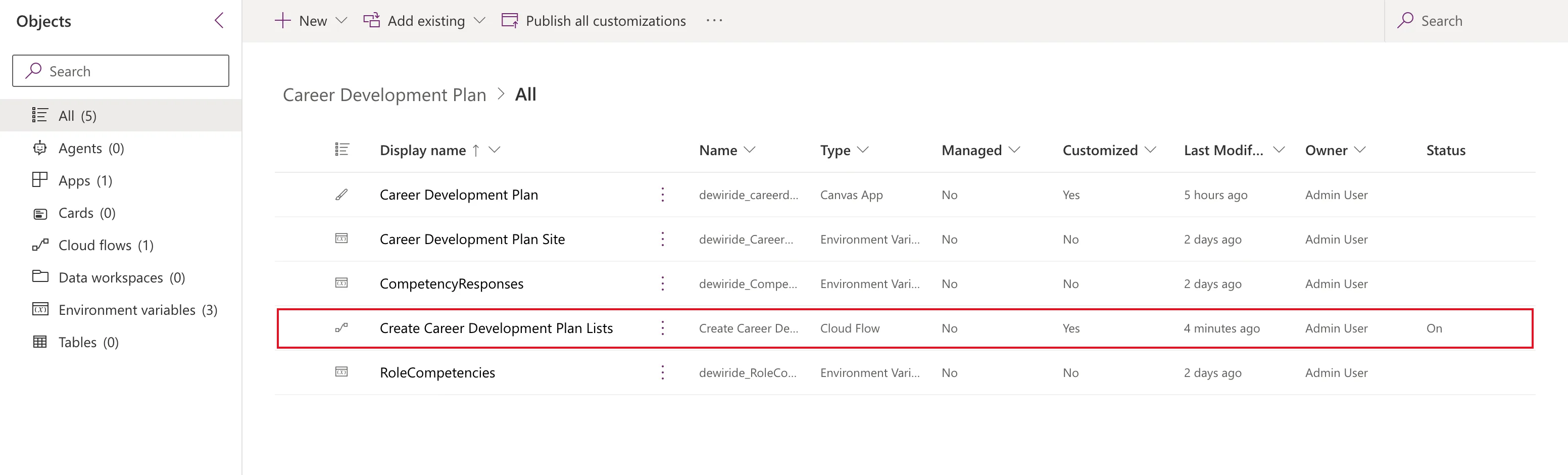
In Power Apps, go to Solutions and open the solution the object should leave, here Career Development Plan. Its Objects page lists everything in it. The flow is the fifth object:
Step 2: Choose Remove from This Solution
Select the object's row, then its More actions (⋮) → Remove → Remove from this solution:
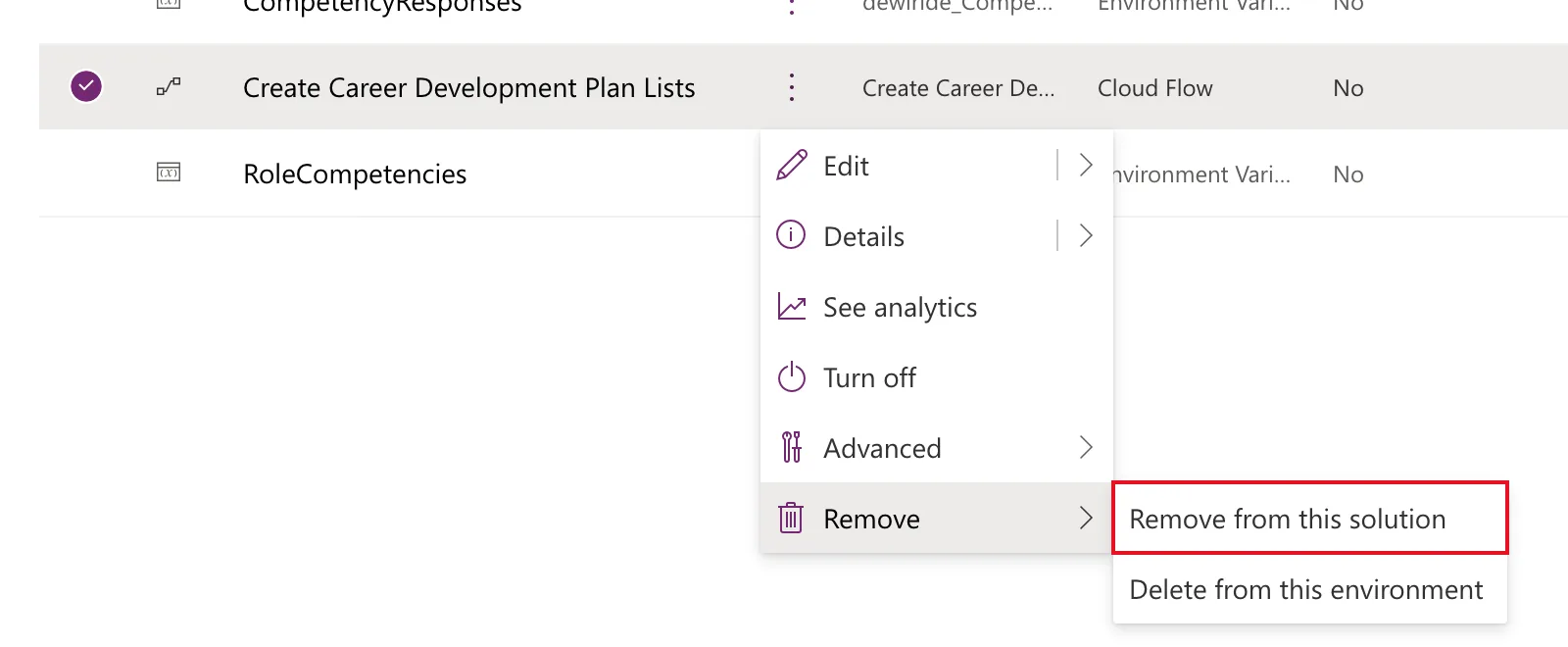
The two commands do very different things:
| Command | What it does |
|---|---|
| Remove from this solution | Takes the object out of this solution only. The object stays in the environment and in any other solution |
| Delete from this environment | Deletes the object itself, from every solution |
Step 3: Confirm
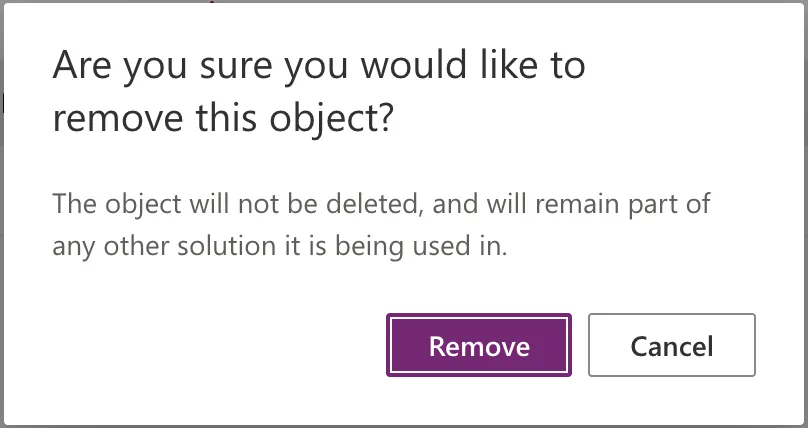
Power Apps asks Are you sure you would like to remove this object? and explains that the object won't be deleted and stays in any other solution that uses it. Select Remove:
Step 4: Check the Result
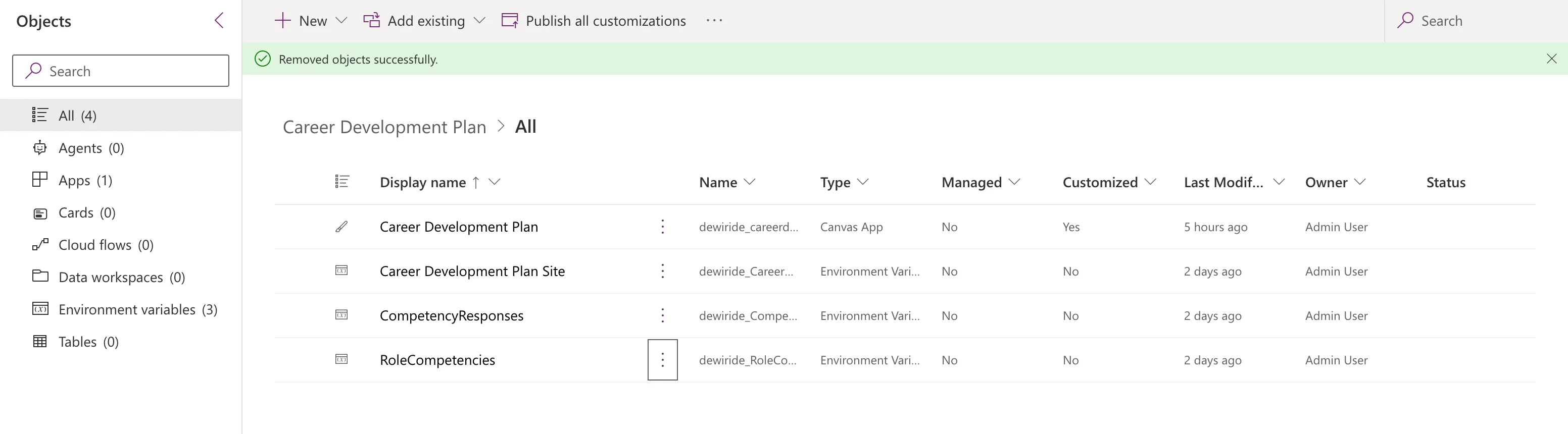
Removed objects successfully. The solution is back to its four objects, and Cloud flows reads 0:
The flow itself was untouched. It kept running, from the other solution.
Common Mistakes
| Mistake | What happens | Do this instead |
|---|---|---|
| Choosing Delete from this environment | The object is gone from everywhere | Choose Remove from this solution |
| Removing the object's only solution membership | It ends up only in the environment's default solution | Add it to the right solution first |
| Removing an object something in the solution still needs | The solution exports without it | Check what depends on it first |
Troubleshooting
| Symptom | Likely cause | Fix |
|---|---|---|
| Remove isn't offered | The solution is managed | Change it in the unmanaged solution it came from |
| The object is still listed | The list hasn't refreshed | Reopen the solution |
FAQ
Can I add it back later?
Yes. Add existing in the solution's command bar adds objects that are already in the environment.
Does removing it change the object?
No. It only changes which solutions list it.
Conclusion
To take an object out of a solution, select it, then ⋮ → Remove → Remove from this solution, and confirm. Nothing is deleted. Delete from this environment, right below it, is the command that deletes.
Additional Resources
- Solutions in Power Apps overview: the objects list and its commands.
- Set the preferred solution: why an object can land in a second solution.
