How to Remove an Item Without Deleting It in Power Apps (Soft Delete)

A soft delete hides an item instead of deleting it. A Yes/No column, such as IsActive, says whether the item is in use. "Removing" sets it to No, and every list in the app shows only items where it's Yes. The item stays in SharePoint with its history, and it can come back.
Why Not Delete?
The Remove function deletes records from a data source (Remove and RemoveIf functions). In the Career Development Plan app, each employee's response points at a competency by its ID. If a manager deleted a competency, its approved responses would point at nothing. With a soft delete, the competency leaves everyone's plan, and the responses keep their meaning.
Prerequisites
- A Yes/No column with the default Yes. The example is IsActive on the RoleCompetencies list (Part 2).
Step 1: Show Only Active Items
Every query that lists items adds the column to its conditions. The My Plan screen's query, from Part 5:
Filter(
    RoleCompetencies,
    JobTitle = MyJobTitle && IsActive
)
A Yes/No column on its own is a condition SharePoint can run, so the filter stays delegable (How to Filter a Table with Filter).
Step 2: Remove by Setting It to No
The Remove action patches the column instead of deleting (How to Create or Update a SharePoint List Item with Patch):
UpdateContext({locIsSaving: true});
IfError(
    Patch(RoleCompetencies, locCompetency, {IsActive: false}),
    UpdateContext({locIsSaving: false});
    Notify(If(FirstError.Kind = ErrorKind.Conflict, "This competency changed while you were editing it. Go back, open it again and try again.", "It wasn't removed. " & FirstError.Message), NotificationType.Error),
    UpdateContext({locIsSaving: false, locConfirmRemove: false});
    Notify(locCompetency.Competency & " is removed from the plan for " & locJobTitle & ".", NotificationType.Success);
    Back()
)
Patch with the loaded item sends its version along, so a change someone else made in the meantime is caught, not overwritten (Fixed: ETAG Mismatch). The app asks first (How to Ask for Confirmation Before an Action).
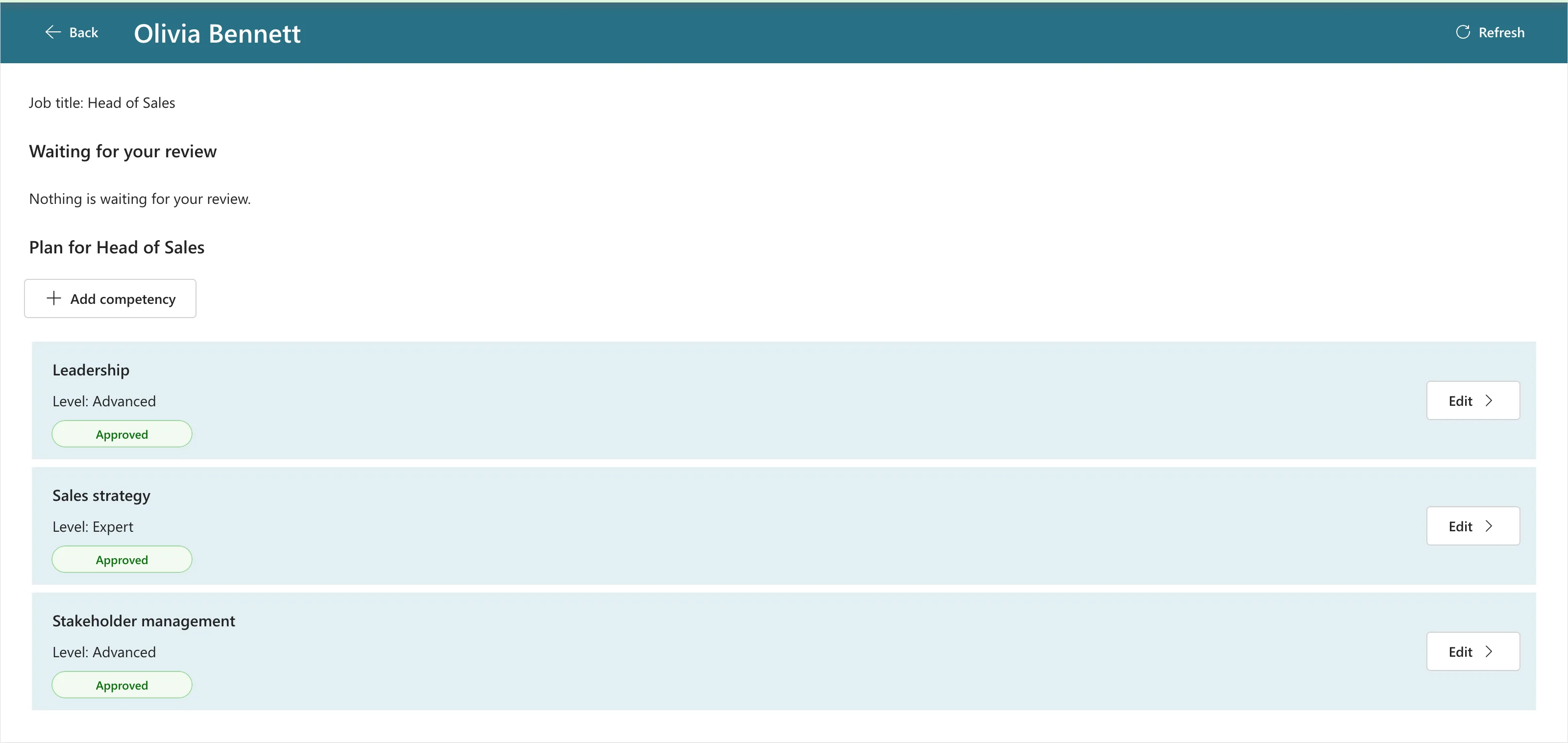
After removing Negotiation, the manager's list no longer showed it:
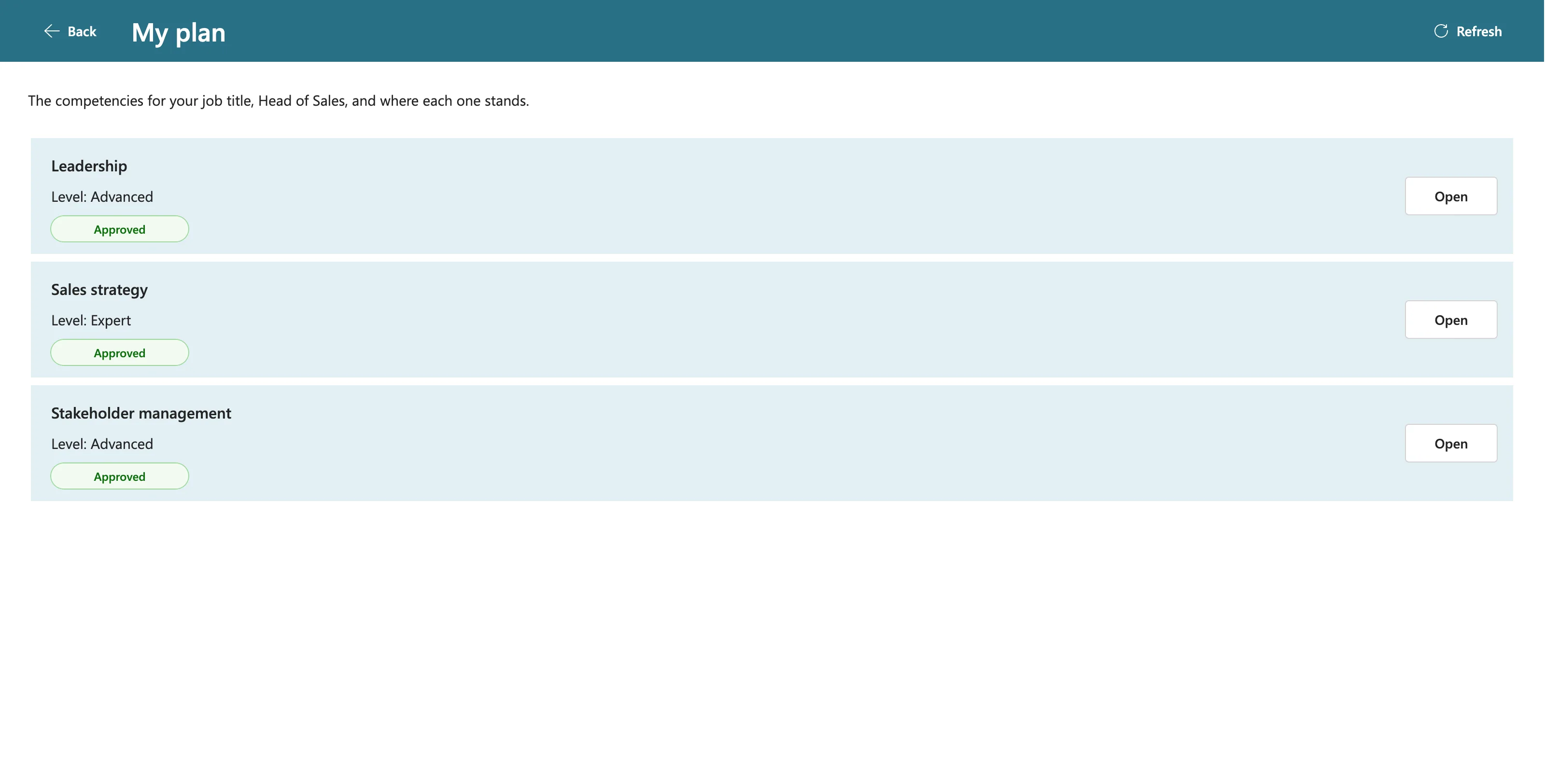
Neither did the employee's plan, after Refresh:
Step 3: Bring It Back by Adding It Again
When someone adds a name that was removed, the app finds the old item and turns it back on, instead of creating a second one. The duplicate check's lookup finds removed items too, and the save patches the found item with IsActive: true (How to Prevent Duplicate Items).
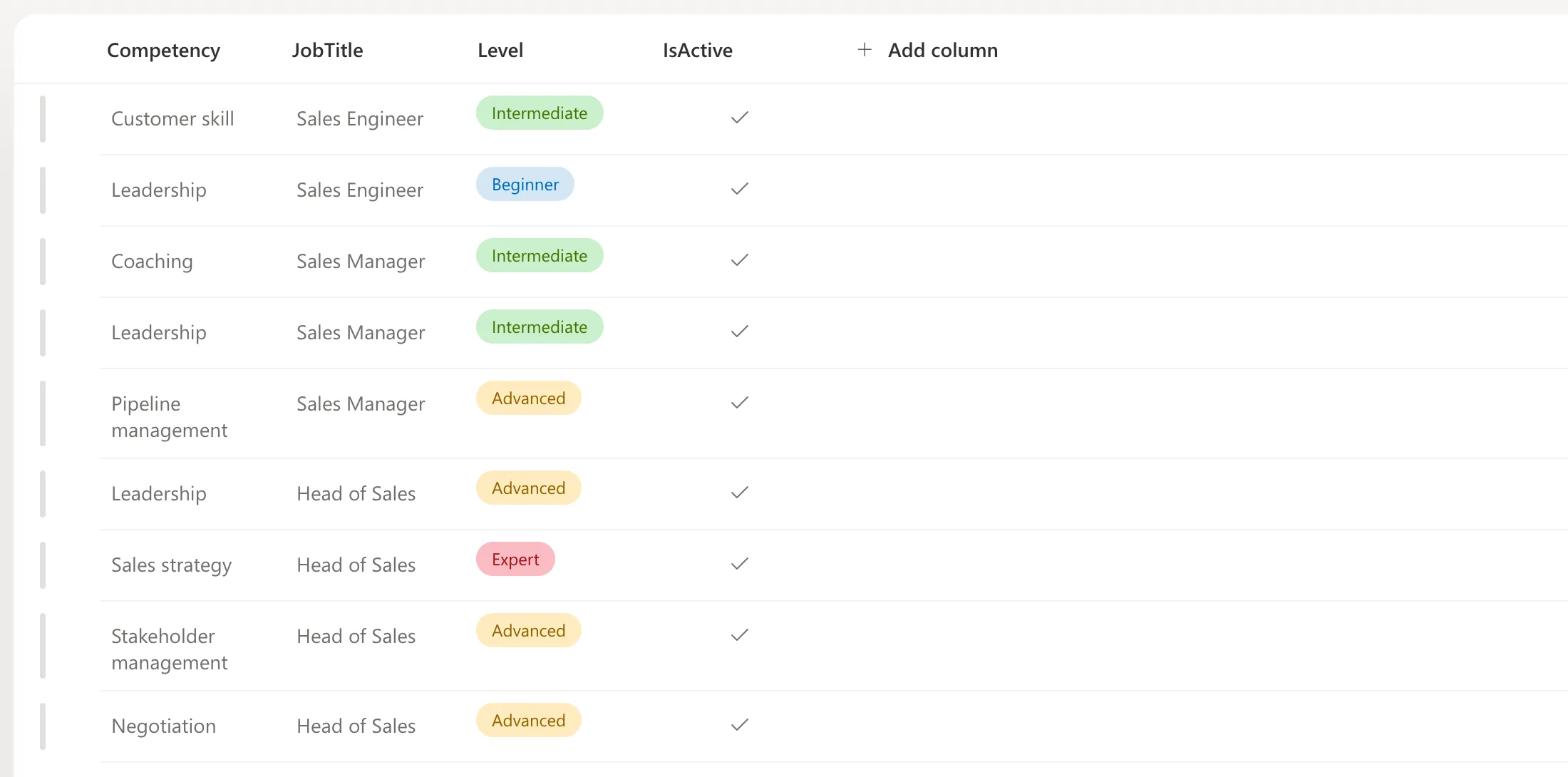
To check, I added Negotiation, removed it, then added it again. The list had one Negotiation, active, among nine items: the eight from Part 2 and this one:
Because it's the same item with the same ID, responses saved for it before it was removed belong to it again.
Common Mistakes
| Mistake | What happens | Do this instead |
|---|---|---|
Forgetting IsActive in one query | Removed items appear on that screen | Add it to every query that lists items |
| Using Remove | The item and what points to it are gone | Patch IsActive: false |
| Creating a new item when a removed one is added again | Two items with the same name | Look for a removed item first and turn it back on |
Troubleshooting
| Symptom | Likely cause | Fix |
|---|---|---|
| A removed item still shows for someone | Their screen kept an older copy | Refresh the list (How to Refresh Data) |
| New items are hidden | The column's default is No | Set the default to Yes in SharePoint |
FAQ
Can people still see removed items in SharePoint?
Yes. The list shows them with IsActive set to No. The app hides them, and a SharePoint view can filter them out too.
Does SharePoint keep a record of the removal?
The item's version history records each change. Versioning is on for new lists by default, which Part 2 checked.
Conclusion
A Yes/No column turns delete into hide: filter on it everywhere, patch it to No to remove, and patch it back to Yes to restore. Nothing that points at the item breaks, and nothing is lost.
