How to Remove an App from a Group Chat in Microsoft Teams

An app added to a Teams group chat stays there, with its bot, for everyone in the chat, until someone removes it. In the new Teams, you remove it from the chat's details panel: a list of the people and agents in the chat, an ✕, and a confirmation.
The Example
Card Demo is a custom app with one bot, added to a group chat called Lunch Club with three people in it. Once the testing is done, Leo Martin, who added it, removes it from the chat.
Step 1: Open the Chat Details
Open the group chat, then select Open chat details, the panel icon at the right of the chat's header:

Step 2: Select See All
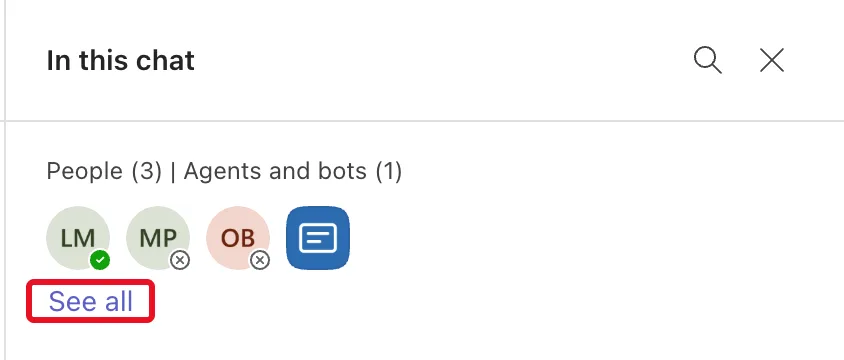
The In this chat panel counts who is in the chat, people and agents. Select See all below the pictures:
Step 3: Select the X Next to the App
The full list shows the people, then the apps under Agents. Point at the app's row, and an ✕ appears at its right. Select it:
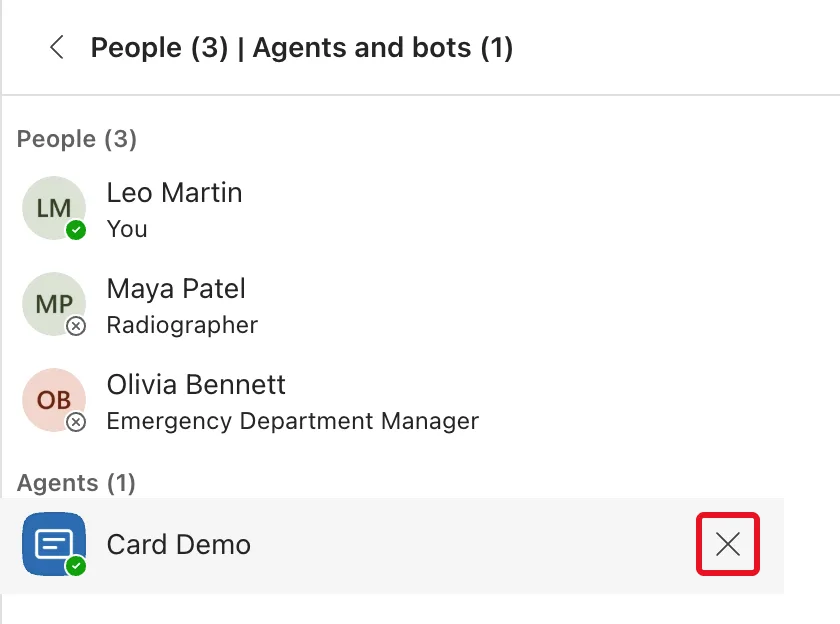
People's rows show the same ✕ when you point at them, for removing that person from the chat. Make sure you're on the app's row, under Agents.
Step 4: Confirm
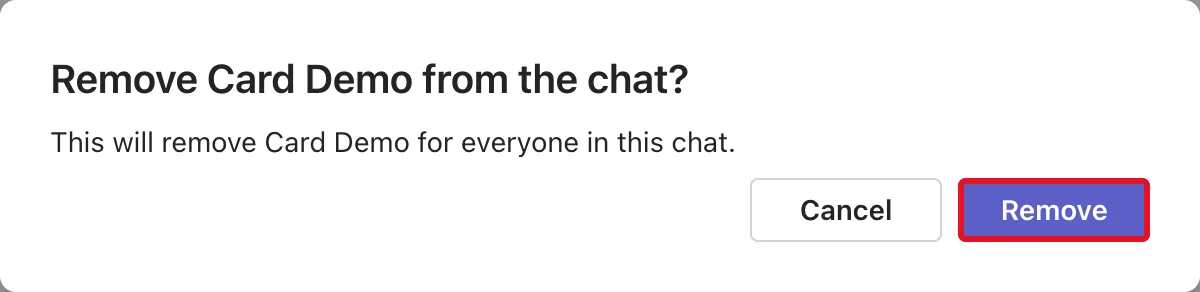
Teams asks Remove Card Demo from the chat? and explains: This will remove Card Demo for everyone in this chat. Select Remove:
The Result
The chat shows who removed the app:

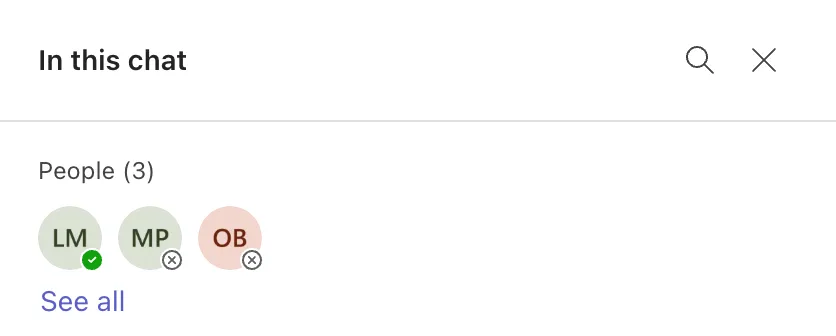
The open list still showed Card Demo after the removal. Closed and opened again, the panel counted only the people:
What Removing the App Leaves in Place
- The app's earlier messages stay in the chat history, as they were.
- The app itself, for the people who installed it for themselves. Leo had also added Card Demo to his own Teams, and after the removal it was still under Store > Manage your apps, as a personal app. How to Uninstall an App in Microsoft Teams removes it from there.
- The app and its bot in the Teams Developer Portal, if you built it: How to Delete an App in the Teams Developer Portal.
Common Mistakes
| Mistake | What happens | Do this instead |
|---|---|---|
| Selecting the ✕ on a person's row | That ✕ is for removing the person from the chat | Use the ✕ on the app's row, under Agents |
| Expecting the app's messages to disappear | They stay in the chat history | Nothing to do: they're part of the chat's history |
| Removing the app from the chat only | It stays installed for anyone who added it for themselves | Uninstall it from Manage your apps too |
Troubleshooting
| Symptom | Likely cause | Fix |
|---|---|---|
| The app still shows in the list right after removing it | The open panel doesn't refresh by itself | Close the panel and open it again |
| The panel shows People only, without Agents and bots | No app is in this chat | Nothing to remove here |
FAQ
Does everyone in the chat lose the app?
Yes. The confirmation says so: This will remove Card Demo for everyone in this chat.
Can I remove an app from a chat in code?
Yes, with Microsoft Graph: its Uninstall app in a chat request removes an app installed within a chat.
Conclusion
To remove an app from a Teams group chat, open Open chat details, select See all, select the ✕ on the app's row under Agents, and confirm with Remove. It leaves the chat for everyone, while its earlier messages stay, and anyone who installed it for themselves still has it.
Additional Resources
- Uninstall app in a chat, on Microsoft Learn: the Microsoft Graph request.
