How to Remove a Run-Only User from a Flow in Power Automate

To stop someone running a flow you shared with them, open the flow's details page, select Edit on the Run-only user card, select the trash can next to the person, and Save.
The example is Say Hello, an instant flow with a manual trigger and one Compose action, shared with one run-only user, Maya Patel. This post removes her.
Microsoft's Share a cloud flow article gives the same steps: select Delete (the trash can) next to the user whose access you want to remove, and then select Save. The user or group no longer has access to run this flow.
Prerequisites
- You own the flow, or are a co-owner. Run-only users can't change who the flow is shared with.
Step 1: Open the Run-Only Users
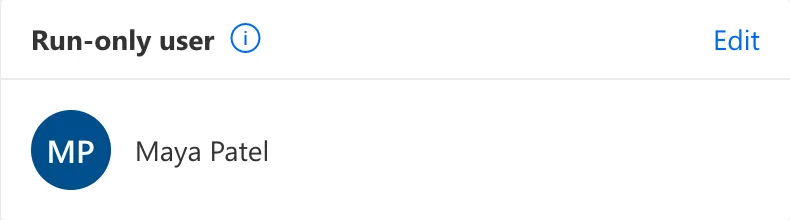
Open the flow's details page from My flows, or from the solution it's in. The Run-only user card lists the people and groups who can run it, here Maya Patel. Select Edit:
Step 2: Select the Trash Can
The Manage run-only permissions panel opens. Under Currently shared with, each person or group has a trash can on the right:
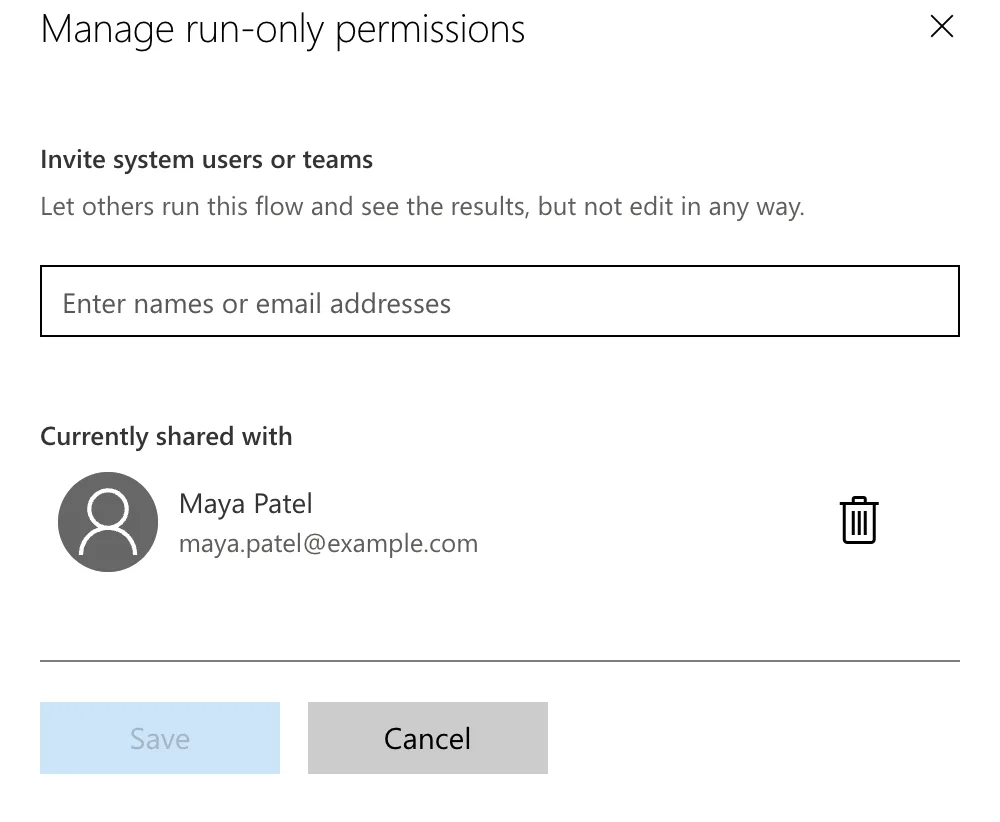
Say Hello has no connectors, only Compose, so the panel has no Connections Used section. A flow with connectors shows it below the people (How to Choose the Connections Run-Only Users Use in Power Automate).
Select the trash can next to the person. The row turns grey, the trash can becomes a +, and Save turns blue. The person isn't removed until you save:
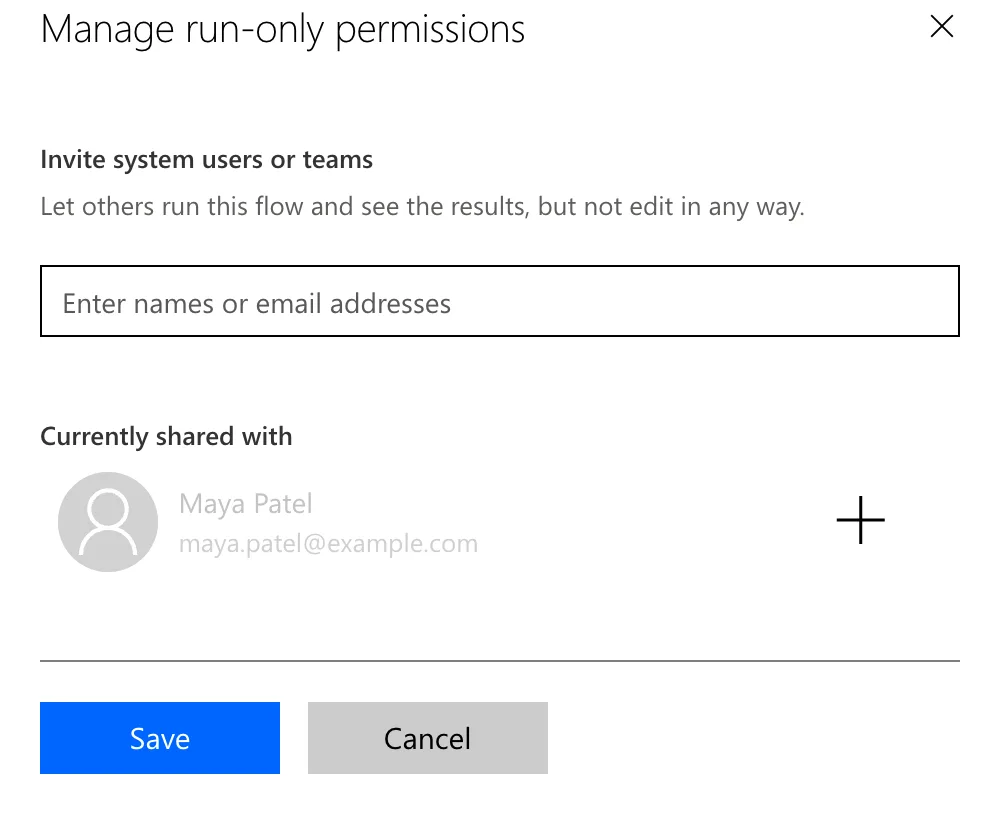
Selected the wrong person? Select the + to bring them back.
Step 3: Save
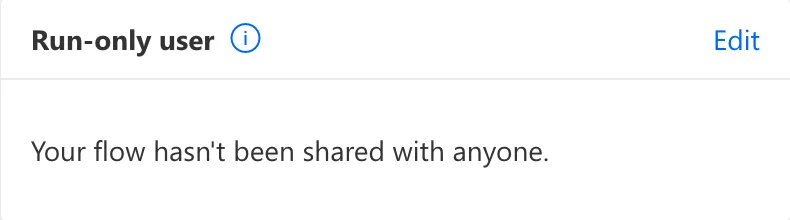
Select Save. The panel closes, and the card lists whoever is left. With nobody left, it says Your flow hasn't been shared with anyone.:
The person can no longer run the flow, from a button or from an app. If a canvas app runs the flow for them, the app's call to it fails for them too, so stop sharing the app as well (How to Stop Sharing a Canvas App with Someone in Power Apps).
Common Mistakes
| Mistake | What happens | Do this instead |
|---|---|---|
| Closing the panel without Save | The person stays a run-only user | Select Save |
| Removing a person who's also in a run-only group | They can still run it through the group | Remove them from the group too |
| Removing the run-only user but leaving the app shared | The app opens for them but can't run the flow | Stop sharing the app too |
Troubleshooting
| Symptom | Likely cause | Fix |
|---|---|---|
| No Run-only user card | The flow isn't an instant flow | Only flows with a manual trigger have run-only users |
| The person's row is grey with a + | The removal isn't saved yet | Select Save |
| The person still runs the flow | They're in a group on the card | Remove the group, or them from it |
FAQ
Can I remove a group?
Yes, the same way: groups have a trash can too, and removing one removes everyone who had the flow through it.
Is the person told?
The panel didn't offer to tell them.
Conclusion
On the flow's details page, select Edit on the Run-only user card, select the trash can next to the person, and Save. Then check the other ways they had the flow: groups on the card, and any app that runs it.
