How to Remove a Member from a Security Group in Microsoft Entra

When someone moves on, taking them out of a security group takes away everything the group gives them: an app shared with the group, a site's permissions, a Teams app. In the Microsoft Entra admin center it's four selections on the group's Members page.
The example is Test Group, a security group I made for this guide, with one member, Sam Reed, a test account. Both were deleted afterwards.
Prerequisites
- The right role. Microsoft's article Manage Microsoft Entra groups and group membership names Groups Administrator or User Administrator.
Step 1: Find the Group
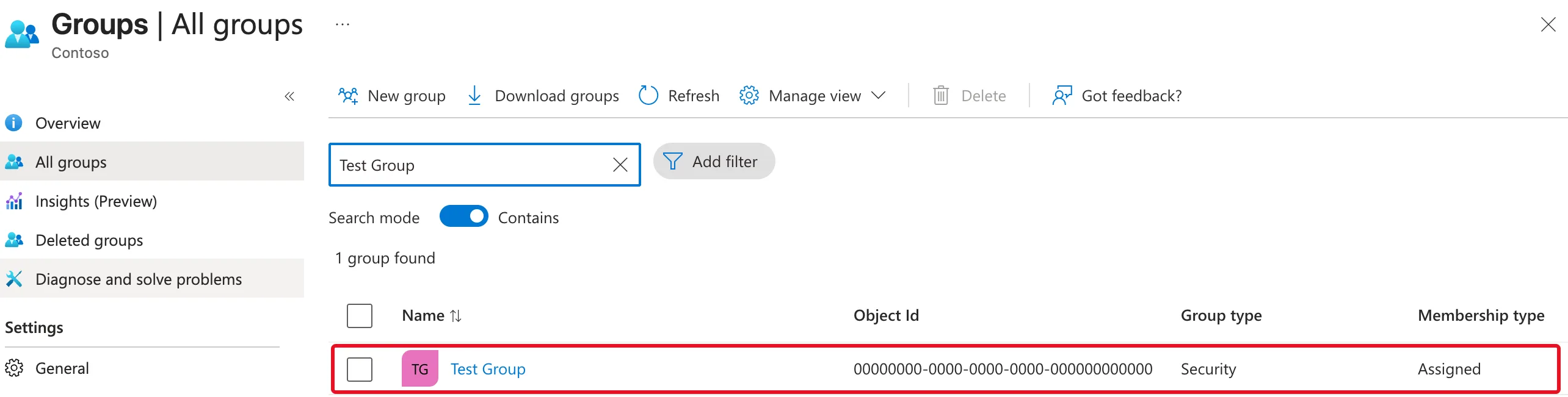
In the Microsoft Entra admin center, go to Entra ID → Groups → All groups. Type part of the group's name in the Search box, then select the group:
Step 2: Tick the Person and Select Remove
In the group's menu, under Manage, select Members. Tick the person on the Direct members tab, then select Remove in the command bar:
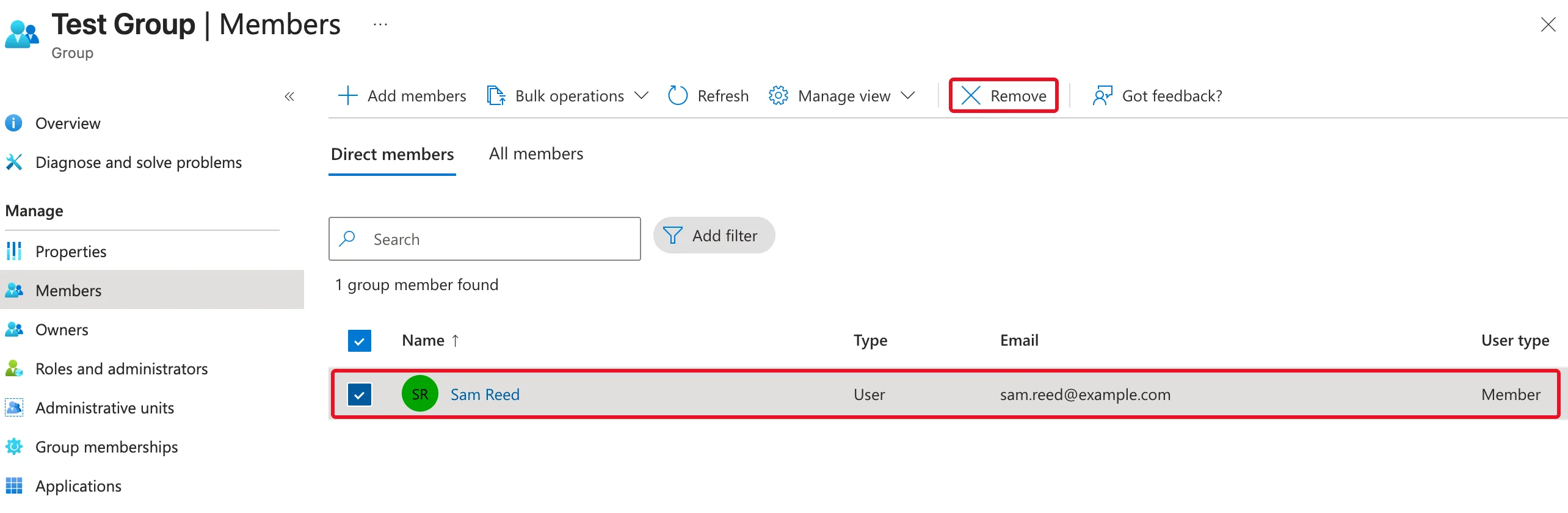
To remove several people at once, tick each of them before Remove.
Step 3: Confirm
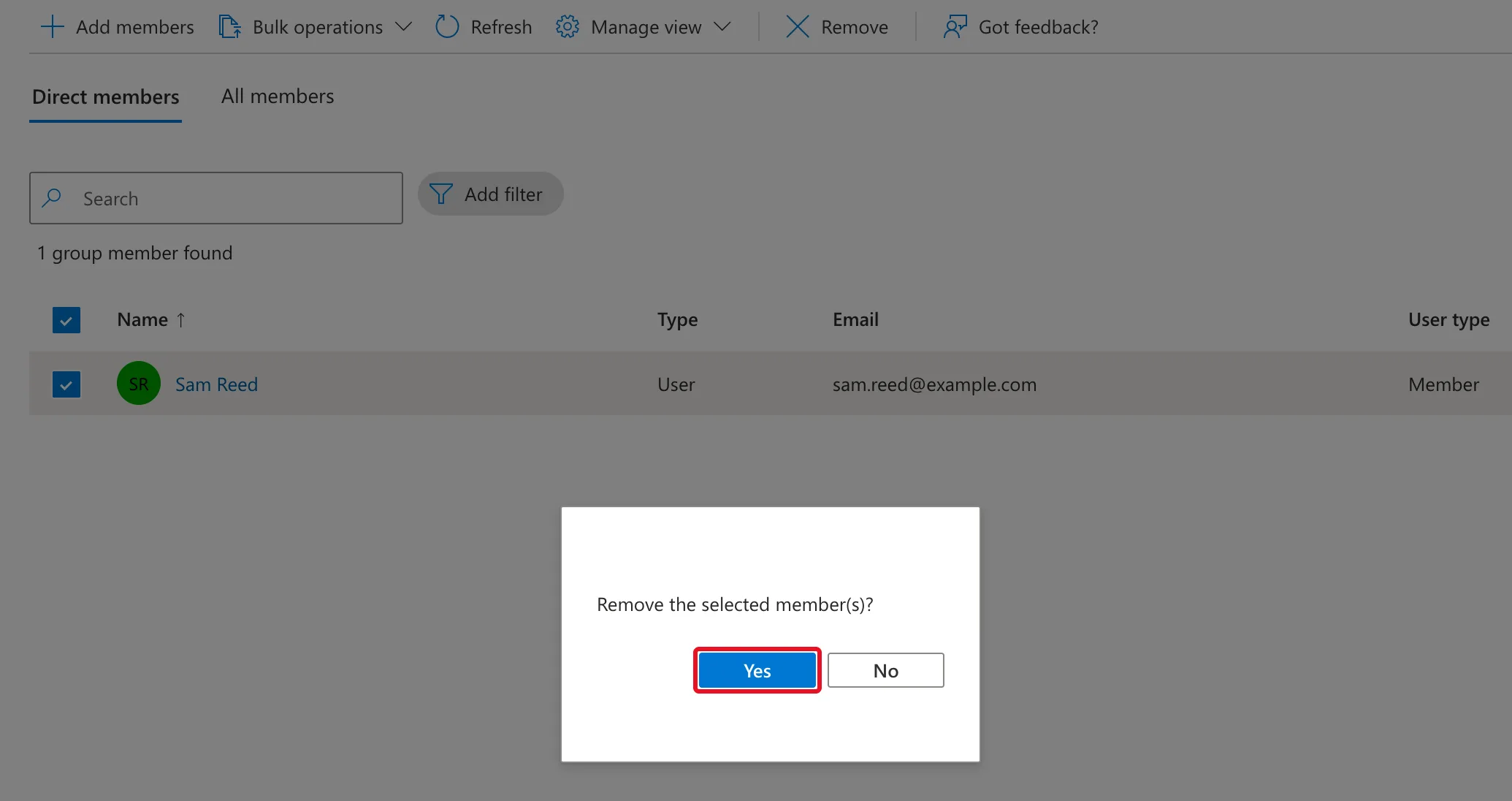
The portal asks Remove the selected member(s)? Select Yes:
Step 4: Check the List
The list doesn't update by itself. Select Refresh: 0 group members found and No members have been found:
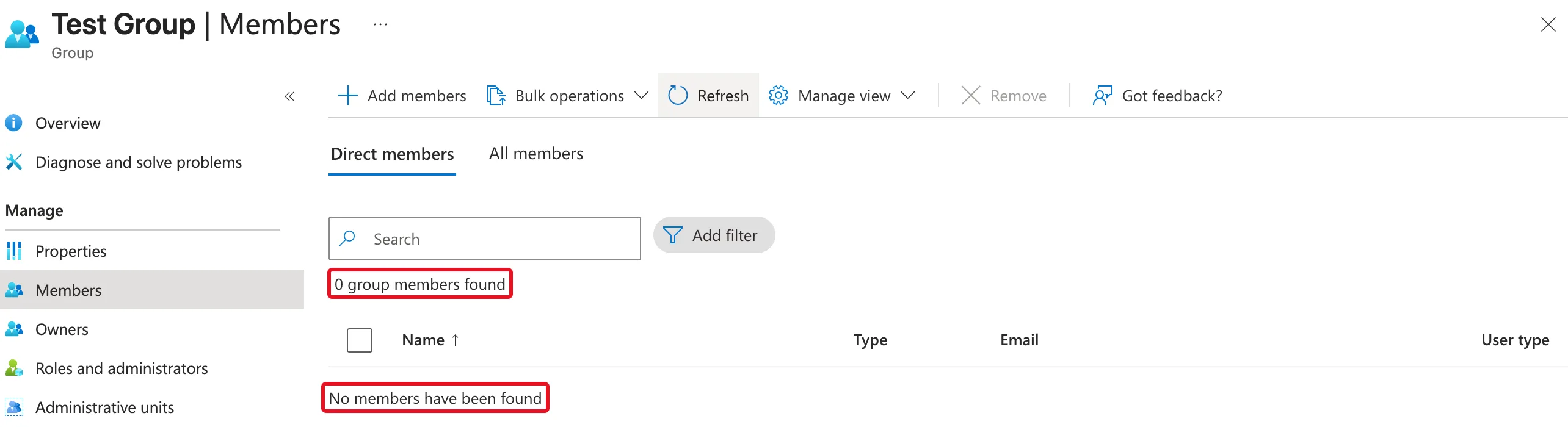
The bell icon's notifications say it too: Member successfully removed. Sam Reed is no longer a member. Recent changes may take some time to appear.
What Removal Does
The person loses what the group gave them, and nothing else. Their account, their licenses and their files stay as they were. Other services pick up the change on their own schedule, which is what Recent changes may take some time to appear warns about.
Common Mistakes
| Mistake | What happens | Do this instead |
|---|---|---|
| Expecting the count to change by itself | The list still shows the person | Select Refresh |
| Removing someone from the wrong group | They lose access you meant to keep | Check the group's name in the page title before Remove |
| Removing them under Owners instead of Members | They stay a member | Use Members |
Troubleshooting
| Symptom | Likely cause | Fix |
|---|---|---|
| Remove is greyed out | Nobody is ticked | Tick the person's row |
| You can't remove someone | The group's Membership type is Dynamic, so rules decide who's in it | Change the rule, or the details the rule checks |
| They still have access after removal | Other services catch up later, or another group gives the same access | Wait, then check the person's other groups |
FAQ
Does removing someone from a group delete their account?
No. Only their membership of that group goes.
Can I put them back?
Yes, add them again (How to Add Members to a Security Group in the Microsoft Entra Admin Center).
Can I do this with PowerShell?
Yes. Microsoft Graph PowerShell's Remove-MgGroupMemberDirectoryObjectByRef removes a member, taking the group's and the person's object IDs. Its reference notes You can't remove a member from groups with dynamic memberships.
Conclusion
Entra ID → Groups → All groups → the group → Members, tick the person, Remove, Yes, then Refresh to see them gone.
