How to Remove a License from a User in Microsoft 365

Removing a Microsoft 365 license from someone puts it back in your organization's pool, ready for the next person. In the Microsoft 365 admin center, it's a box to clear on the person's Licenses and apps tab.
The example is Sam Reed, a test account I created for this guide with a Microsoft 365 E5 Developer license, and deleted afterwards.
Prerequisites
- The right role. Microsoft's article Assign or unassign licenses for users says You must be at least a License or User Administrator.
Before You Remove It
Microsoft's article lists what happens to the person's data:
- Exchange Online data that is associated with that account is held for 30 days. After the 30-day grace period, the data is deleted and can't be recovered, unless retention labels keep it.
- Files saved in OneDrive for Business aren't deleted unless the user is deleted.
- The mailbox is no longer searchable with eDiscovery tools.
If someone is leaving, Microsoft's former employee steps block their sign-in first and save their mailbox and OneDrive before the license goes.
Step 1: Find the Person
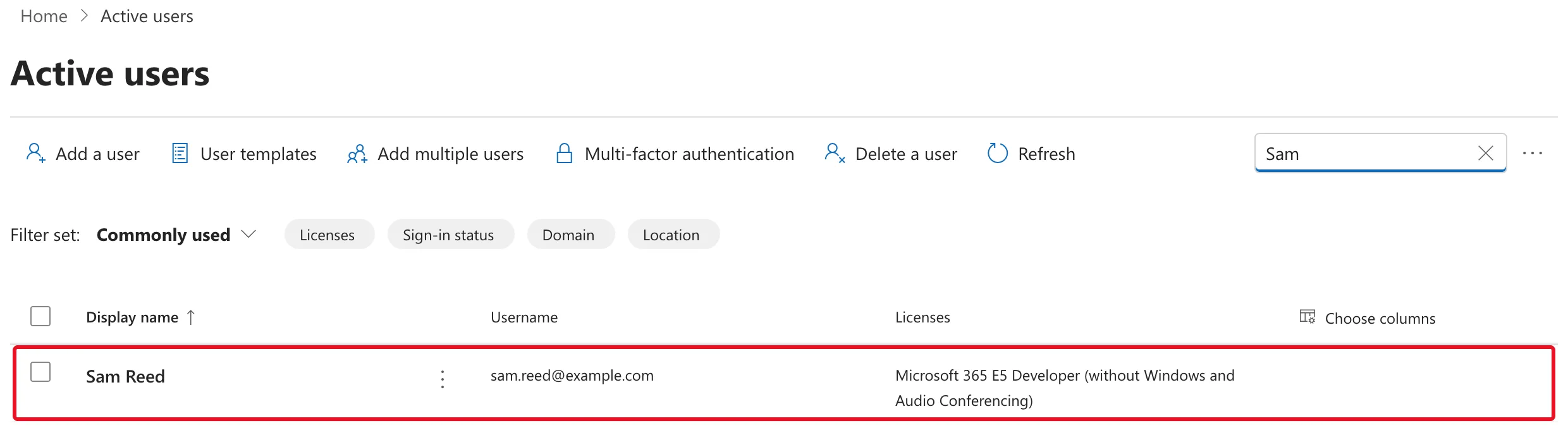
In the Microsoft 365 admin center, go to Users → Active users. Type part of their name in Search active users list (the box above the list, not the admin center's search bar at the top), then select their name:
Step 2: Open Licenses and Apps
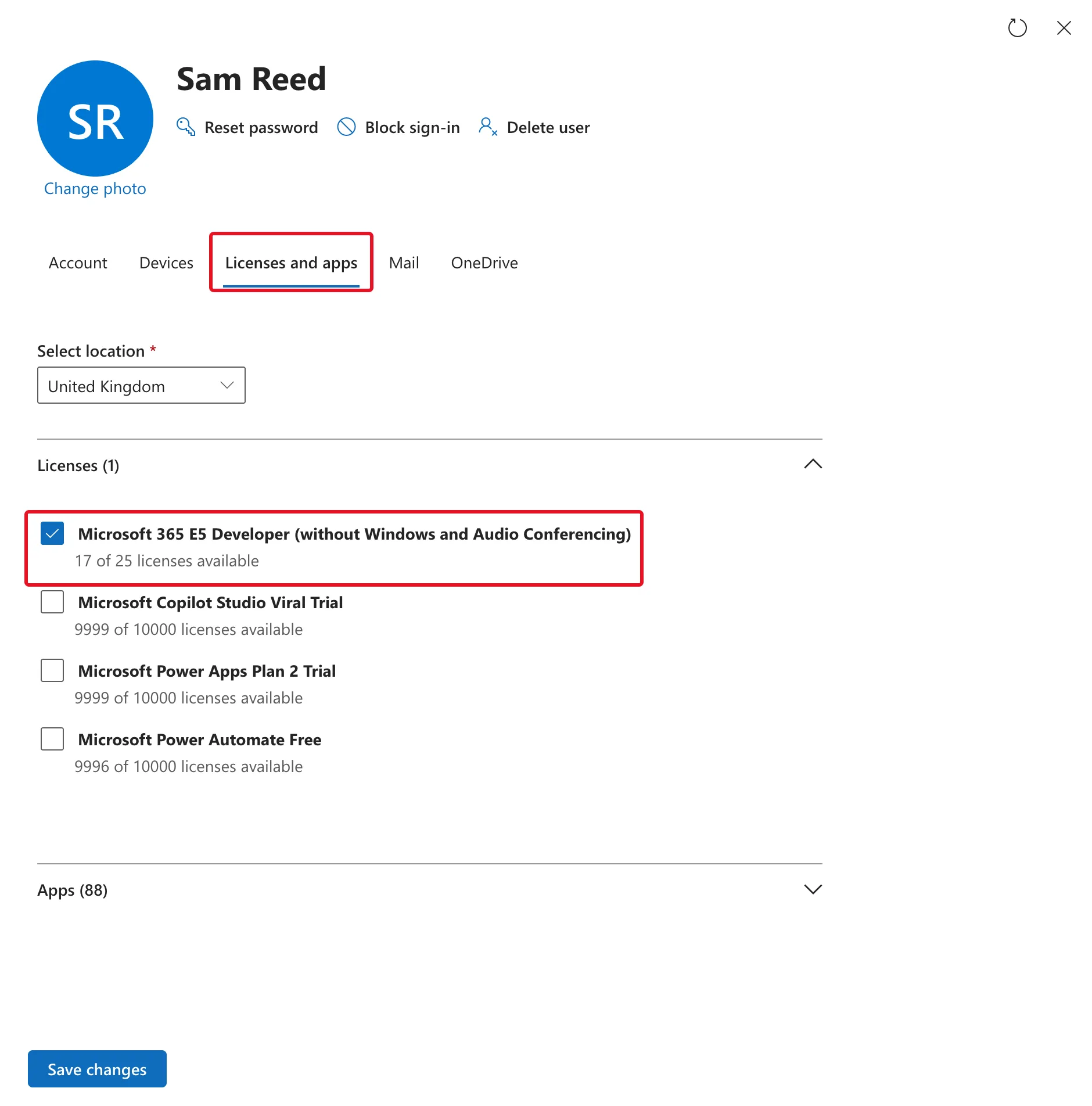
Their details open on Account. Select the Licenses and apps tab. Licenses (1) shows the license ticked, with how many are left: 17 of 25 licenses available:
Step 3: Clear the Box and Save
Clear the license's box. The heading becomes Licenses (0), the count goes up to 18 of 25, and Apps becomes Apps (0). Select Save changes:
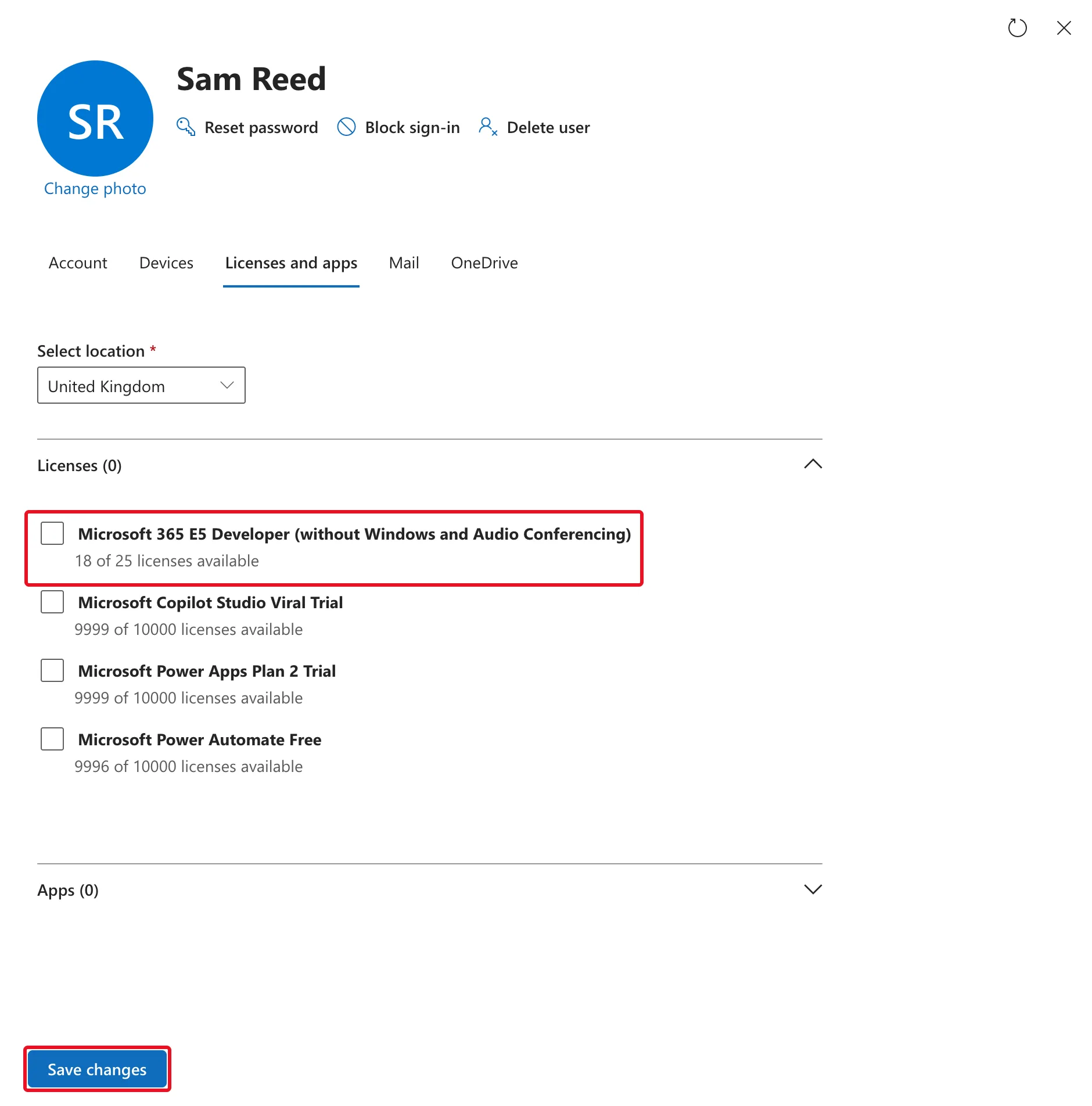
Nothing changes until you save: the new count is only a preview.
Step 4: Check the Result
A green bar says Your changes have been saved.
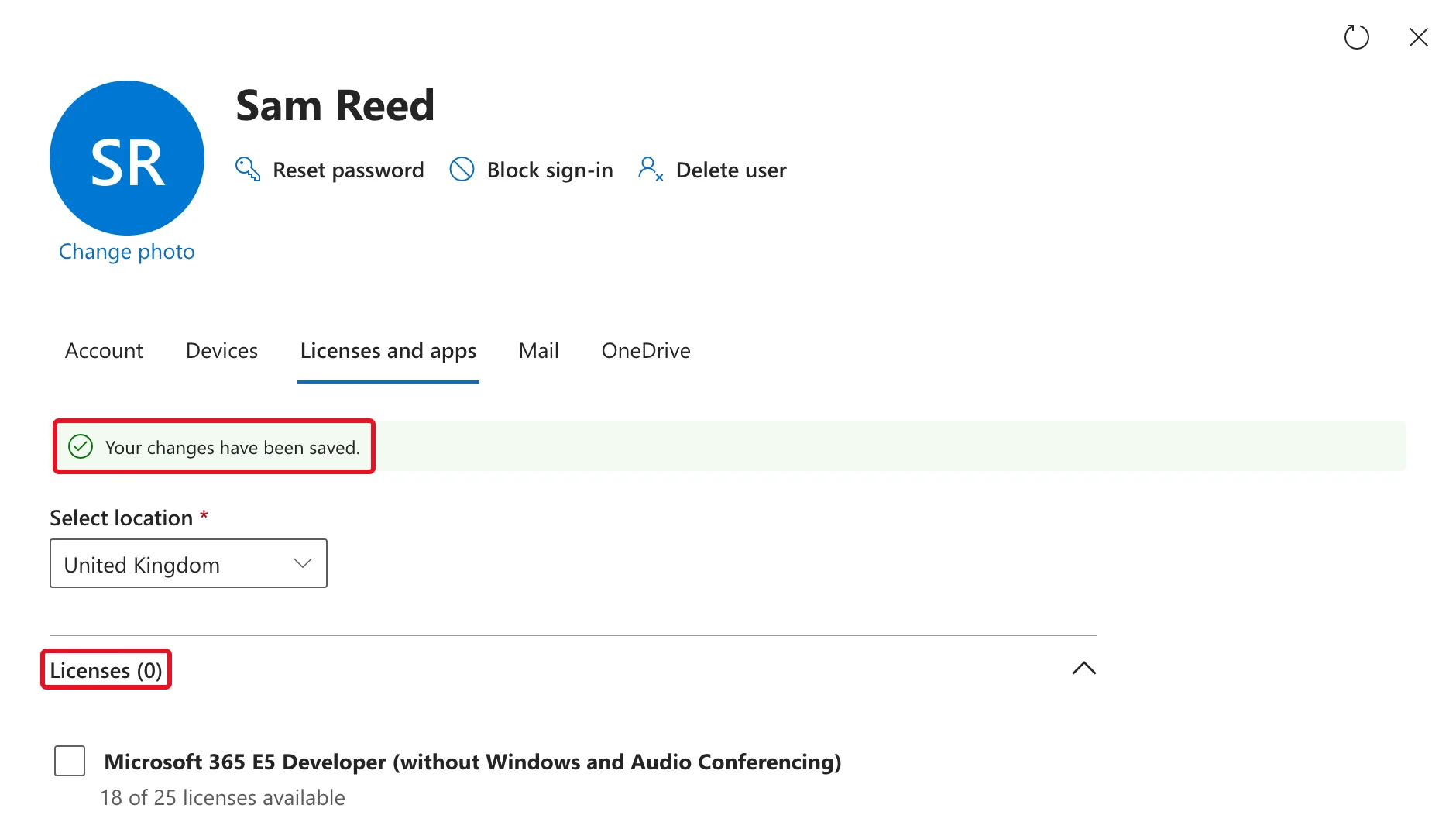
Close the details and select Refresh above the list. The Licenses column now says Unlicensed:
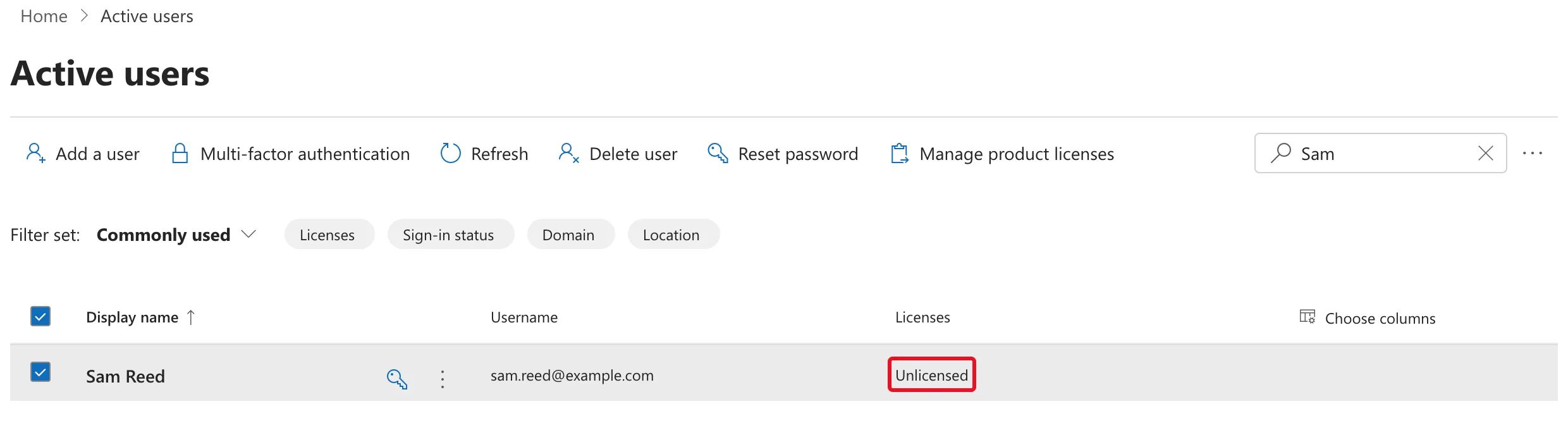
The license is back in the pool, ready to assign to someone else (How to See How Many Licenses Are Available in Microsoft 365).
Common Mistakes
| Mistake | What happens | Do this instead |
|---|---|---|
| Closing the details without Save changes | The license stays assigned | Select Save changes |
| Removing a leaver's license before saving their data | The mailbox is deleted after 30 days | Save what you need first |
| Expecting fewer licenses on the bill | You still pay for the license, now unassigned | Reduce the subscription's quantity, or give the license to someone else |
| Searching in the admin center's top search bar | It searches the whole admin center | Use Search active users list |
Troubleshooting
| Symptom | Likely cause | Fix |
|---|---|---|
| The list still shows the license | The list hasn't refreshed | Select Refresh above the list |
| The count of available licenses didn't go up | The change wasn't saved | Open Licenses and apps again and look for Your changes have been saved. |
FAQ
Does removing the license delete the user?
No. The account stays, and can still sign in, without the licensed apps. To remove the account, delete the user (How to Delete a User in Microsoft 365).
Can I give the license back later?
Yes. Tick the box again and save. Exchange data is kept for 30 days after the license is removed.
Can I do this with PowerShell?
Yes. Microsoft's article Remove Microsoft 365 licenses from user accounts with PowerShell uses Set-MgUserLicense with -RemoveLicenses.
Conclusion
Users → Active users → the person → Licenses and apps, clear the license's box, Save changes. The list then shows them as Unlicensed, and the license is free for someone else.
Additional Resources
- Assign or unassign licenses for users in the Microsoft 365 admin center
- Overview: Remove a former employee and secure data
- Remove Microsoft 365 licenses from user accounts with PowerShell
