How to Remove a Group's Permissions from a SharePoint List

After a list stops inheriting permissions, it holds a copy of every group that had access to the site. To take a group's access away from just this list, tick it on the list's Permissions page and select Remove User Permissions. The group itself, and its access everywhere else, stays as it was.
In the Overtime Timesheet series, the OvertimeEntries list should be reachable only by the site's owners and the staff group. This guide removes the copied Members and Visitors groups from it.
Why Remove the Copies
Breaking inheritance copied three groups onto the list: Owners with Full Control, Members with Edit and Visitors with Read. On this site Members is empty and Visitors holds all staff, but either can change: anyone later added to Members would get Edit on this list, which includes Manage Lists (changing the list's columns and settings). Removing the copies leaves the list with exactly the groups it needs.
Prerequisites
- Owner of the site.
- The list has unique permissions. Microsoft's Customize permissions for a SharePoint list or library: "You must break inheritance from the parent site before you can remove user permissions." See How to Stop Inheriting Permissions on a SharePoint List.
Step 1: Open the List's Permissions
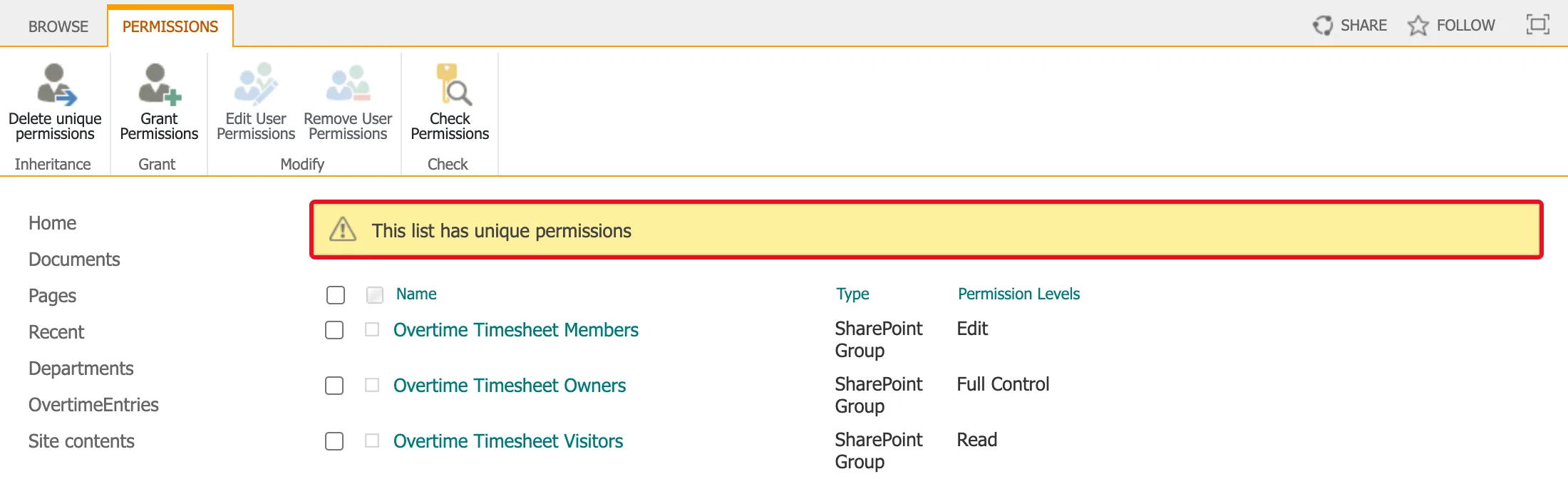
Settings → List settings → Permissions for this list. The page says This list has unique permissions and lists the copied groups:
Step 2: Tick the Groups and Remove Them
Tick the checkbox next to each group to remove: here Overtime Timesheet Members and Overtime Timesheet Visitors. Then select Remove User Permissions on the ribbon:
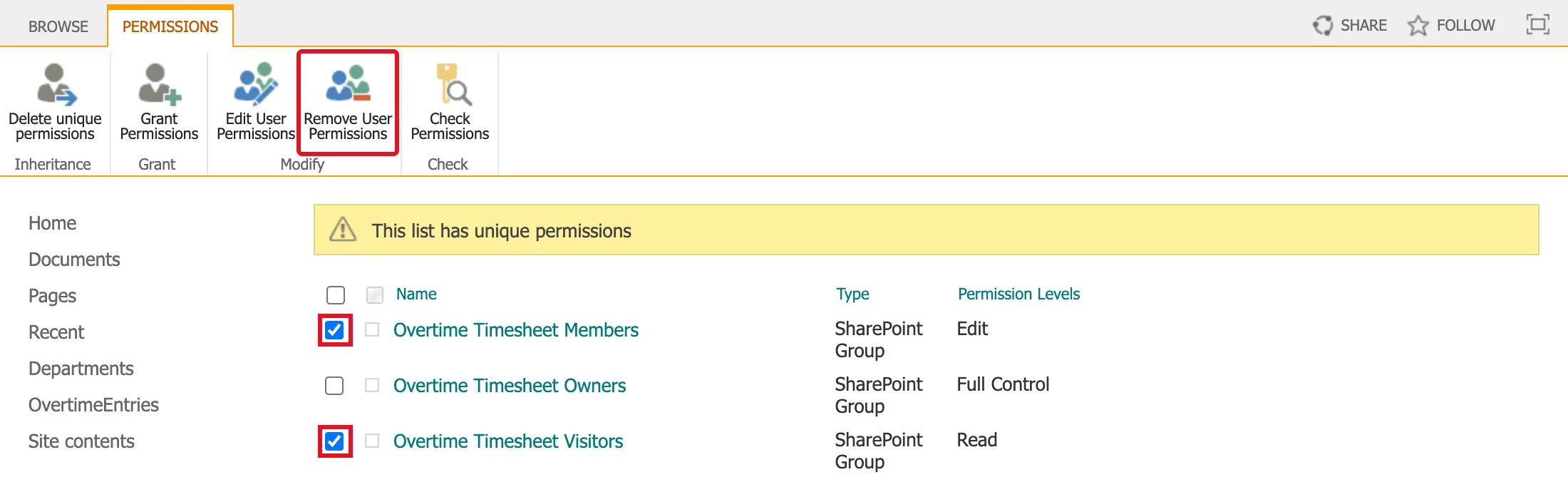
Leave Owners unticked: removing it would take the list away from the site's owners.
Step 3: Confirm
The browser asks:
Are you sure you want to remove all permissions for the selected users and groups to "OvertimeEntries"?
With a single group ticked, the wording names it instead, as it did on another list of the series:
You are about to remove all permissions for the following user or group to "Departments": Overtime Timesheet Members
Select OK.
Step 4: Check the Result
Only the groups you kept are left; here, just Overtime Timesheet Owners:

The two groups still exist and still have their access to the site and to every list that inherits. Only their entries on this list are gone.
What Removing Doesn't Do
- It doesn't delete the group. Members and Visitors are still there, with the same people, under Advanced permissions settings for the site.
- It doesn't touch other lists. Lists that inherit still give these groups access through the site.
- It does reach items below the list. Microsoft's article: "the user or group permissions will be removed in all the children, including those with broken permission inheritance. Restoring them will not be possible." If some items had their own permissions for the group, those go too.
Common Mistakes
| Mistake | What happens | Do this instead |
|---|---|---|
| Removing the Owners group | The site's owners lose access to the list | Keep Owners |
| Removing before granting the right group | Nobody but owners can open the list for a moment | Grant first if people are working in the list |
| Removing a person instead of taking them out of the group | They still have access through the group elsewhere | Change the group's members in Microsoft Entra |
Troubleshooting
| Symptom | Likely cause | Fix |
|---|---|---|
| Remove User Permissions is greyed out | Nothing is ticked | Tick a group's checkbox |
| No Remove User Permissions on the ribbon | The list still inherits | Stop inheriting first |
| Someone still opens the list after removing their group | They're in another group that still has access | Use Check Permissions to see where it comes from |
FAQ
Can I give the group its access back?
Yes. Use Grant Permissions on the same page and choose a permission level: How to Give a Group Access to One SharePoint List. Per-item permissions that were removed with it don't come back.
Why not just change the group's level to something lower?
You can, with Edit User Permissions. Removing is clearer when the group shouldn't be on the list at all: the page then shows only who should have access.
Conclusion
On a list with its own permissions, tick the groups to drop, select Remove User Permissions and confirm. The list then shows only the groups that really need it, and nothing else on the site changes.
