How to Register a Web API in Microsoft Entra ID

Before a web API can accept sign-ins from Microsoft Entra ID, Entra ID has to know the API exists. An app registration introduces it: an entry in your organization's directory with an ID that every access token for the API will carry. This guide registers an API in the Microsoft Entra admin center, then does the same with the Azure CLI.
What an App Registration Is
Microsoft Entra ID is Microsoft's identity service, the one you sign in to Azure and Microsoft 365 with. When an app wants to call your API for a signed-in person, it asks Entra ID for an access token, and Entra ID issues tokens only for APIs it knows. An app registration is how it knows: an entry in your organization's directory, called a tenant, with a name, an ID and settings.
Registering an API gives it two things you use right away:
| What | Why it matters |
|---|---|
| Application (client) ID | The API's ID. Your API's code uses it to check that a token was issued for this API and not another |
| Directory (tenant) ID | Your organization's ID. Your API's code uses it to accept tokens from your organization's Entra ID |
Registering costs nothing. An app registration is an object in your organization's directory, not an Azure resource, so it never appears on an Azure bill.
The examples on this page register an API called Dewiride Service Desk API. Use your own API's name.
Prerequisites
- Permission to register applications in your Microsoft Entra tenant. By default every member of a tenant has it. If your organization has set Users can register applications to No, you need the Application Developer role (Restrict who can create applications).
- For the Azure CLI route: the Azure CLI signed in to that tenant (
az login).
Step 1: Start a New Registration
- Open the Microsoft Entra admin center and sign in with your work account.
- If you can reach more than one tenant, select the Settings icon in the top menu and switch to the right one under Directories + subscriptions.
- Browse to Entra ID > App registrations and select New registration.
Step 2: Fill In the Form
The Register an application form has three parts:
| Field | Value for an API | Why |
|---|---|---|
| Name | Your API's name, here Dewiride Service Desk API | The name people see, on consent screens for example. You can change it later |
| Supported account types | Single tenant only | Only accounts from your own organization can get tokens for the API |
| Redirect URI (optional) | Leave it empty | A redirect URI is where Entra ID sends someone after they sign in. An API never signs anyone in: it only checks the tokens other apps bring |
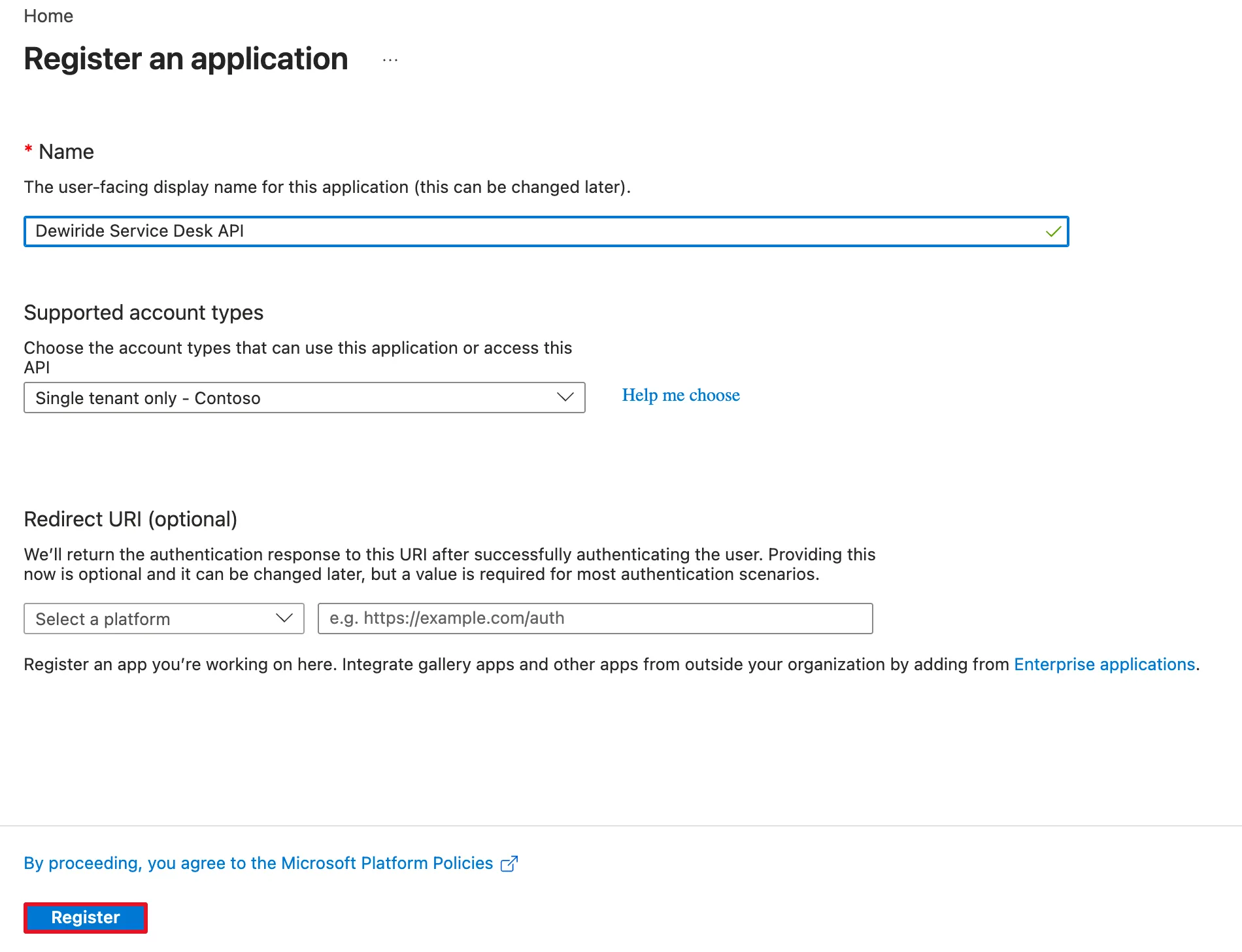
Supported account types decides whose tokens the API can accept. Microsoft's registration guide recommends single tenant for most applications. The four choices:
| Option | Who can get tokens for the API |
|---|---|
| Single tenant only - <your tenant> | People (and guests) in your own organization |
| Multiple Entra ID tenants | People in any organization that uses Microsoft Entra ID, for software sold to many companies |
| Any Entra ID Tenant + Personal Microsoft accounts | The same, plus personal accounts such as Outlook.com and Xbox |
| Personal accounts only | Personal Microsoft accounts only |
Select Register.
Step 3: Copy the IDs from the Overview
The registration's Overview page opens:
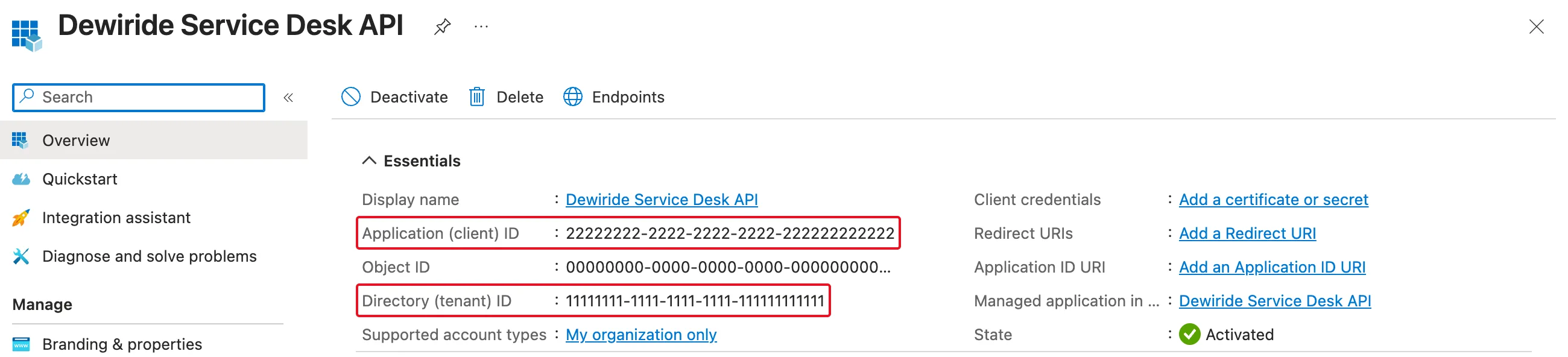
Copy the two highlighted values. The screenshots on this page show them as 22222222-… and 11111111-…; yours are different. The page shows a few more things worth knowing:
| Field | What it is |
|---|---|
| Application (client) ID | The API's ID. Tokens for the API carry it, and your API's settings need it |
| Object ID | The ID of this registration as an object in the directory. Tools that change the registration through Microsoft Graph use it; your API's code never does |
| Directory (tenant) ID | Your organization's ID |
| Application ID URI | Still empty. It's the name apps use when they ask for a token for the API, and it comes with the API's first permission (How to Expose an API Scope in Microsoft Entra ID) |
| Managed application in local directory | The registration's service principal, explained next |
What Registering Created
Registering in the admin center created two objects, not one. In Microsoft's words: If you register an application, an application object and a service principal object are automatically created in your home tenant (Application and service principal objects).
- The application object is the registration itself: the definition of your API. You manage it under App registrations.
- The service principal is the API's presence in your tenant: who may use it and what was consented. You find it under Enterprise applications, and the Managed application in local directory link opens it.
The difference matters as soon as you use the Azure CLI: there, creating the service principal is a separate command.
Do It with the Azure CLI
The same registration takes two commands. The first creates the application object. --sign-in-audience AzureADMyOrg is the CLI's name for Single tenant only, and --query keeps just the two IDs from the long answer:
az ad app create --display-name "My Web API" --sign-in-audience AzureADMyOrg --query "{appId:appId, id:id}"
{
  "appId": "44444444-4444-4444-4444-444444444444",
  "id": "45454545-4545-4545-4545-454545454545"
}
appId is the Application (client) ID and id is the Object ID. The command works unchanged in bash, zsh and PowerShell. The other choices for --sign-in-audience are AzureADMultipleOrgs, AzureADandPersonalMicrosoftAccount and PersonalMicrosoftAccount, in the same order as the table in Step 2.
Next, keep the client ID in a variable, so the following commands don't need it pasted in:
- macOS / Linux
- Windows (PowerShell)
API_APP_ID=$(az ad app list --display-name "My Web API" --query "[0].appId" --output tsv)
$apiAppId = az ad app list --display-name "My Web API" --query "[0].appId" --output tsv
az ad app list --display-name finds registrations by their exact name, and [0].appId takes the client ID of the first one. Names don't have to be unique, so give each registration its own.
Now create the service principal, the object the admin center created for you:
- macOS / Linux
- Windows (PowerShell)
az ad sp create --id $API_APP_ID --query "{appId:appId, displayName:displayName, id:id}"
az ad sp create --id $apiAppId --query "{appId:appId, displayName:displayName, id:id}"
{
  "appId": "44444444-4444-4444-4444-444444444444",
  "displayName": "My Web API",
  "id": "46464646-4646-4646-4646-464646464646"
}
The service principal has the registration's client ID as its appId, and an object ID of its own. Microsoft's documentation explains why the step is separate: If you register/create an application using the Microsoft Graph APIs, creating the service principal object is a separate step — and the az ad commands work through Microsoft Graph.
To check the result:
- macOS / Linux
- Windows (PowerShell)
az ad app show --id $API_APP_ID --query "{displayName:displayName, appId:appId, signInAudience:signInAudience}"
az ad app show --id $apiAppId --query "{displayName:displayName, appId:appId, signInAudience:signInAudience}"
{
  "appId": "44444444-4444-4444-4444-444444444444",
  "displayName": "My Web API",
  "signInAudience": "AzureADMyOrg"
}
Delete a Registration
When you no longer need a registration, delete it: in the admin center, select Delete in the toolbar of its Overview page; with the Azure CLI:
- macOS / Linux
- Windows (PowerShell)
az ad app delete --id $API_APP_ID
az ad app delete --id $apiAppId
The command prints nothing. Its service principal goes with it: afterwards, az ad sp show --id with the same client ID answers Resource '44444444-4444-4444-4444-444444444444' does not exist or one of its queried reference-property objects are not present. A deleted registration isn't gone for good yet. It stays under App registrations > Deleted applications for 30 days, where its owner can restore it with all its settings or delete it permanently (Restore or remove a recently deleted application).
Common Mistakes
| Mistake | What happens | Do this instead |
|---|---|---|
| Choosing a multitenant account type for an internal API | People from other organizations can get tokens for it too | Single tenant only, unless you sell the API to other organizations |
| Adding a redirect URI to the API's registration | The registration lists a sign-in address the API never uses | Leave Redirect URI empty. The apps that call the API get their own registrations |
| Using the Object ID as the client ID | The API refuses every token: their audience is the client ID | Copy Application (client) ID |
Creating the registration with the CLI and skipping az ad sp create | The registration has no service principal in your tenant | Run az ad sp create --id <client ID> right after az ad app create |
| Two registrations with the same name | az ad app list --display-name returns both, and [0] picks either | Give every registration a unique name |
Troubleshooting
| Symptom | Likely cause | Fix |
|---|---|---|
| You can't register an application | Your organization doesn't let members register applications | Ask an administrator for the Application Developer role |
| The registration doesn't appear in the list | You're in another tenant | Switch tenants under Settings > Directories + subscriptions |
az ad app list returns nothing | The Azure CLI is signed in to another tenant | az account show --query tenantId shows which one; az login --tenant <tenant ID> switches |
Resource '…' does not exist from az ad app show | The client ID is wrong, or the registration was deleted | Check the ID on the Overview page, or under Deleted applications |
FAQ
Does an app registration cost anything?
No. It's an object in your organization's directory, not an Azure resource, and Microsoft charges nothing for registering or for issuing tokens.
Does the API need a client secret?
Not to accept tokens. An API only checks the tokens other apps send it, and checking needs no secret. A credential becomes necessary only when the API itself calls other APIs, which is a different setup.
Can I change the name later?
Yes, any time, under Branding & properties. The client ID never changes, so tokens and your API's settings keep working. Scripts that look the registration up by its name, like the commands on this page, need the new name.
Is there a limit on how many registrations I can create?
Yes. Microsoft's deletion FAQ says a non-admin user can create no more than 250 Microsoft Entra resources, including applications and service principals, and that deleted ones count until they're permanently deleted.
Conclusion
An app registration introduces your API to Microsoft Entra ID. Register it as Single tenant only without a redirect URI, and copy the Application (client) ID and Directory (tenant) ID from its Overview. The admin center creates the application object and its service principal together; with the Azure CLI, az ad app create and az ad sp create are two steps. Next, give the API the name and the permission that apps ask for: How to Expose an API Scope in Microsoft Entra ID.
Additional Resources
- Register an application in Microsoft Entra ID — the admin center steps and the account types.
- Application and service principal objects in Microsoft Entra ID — the two objects a registration creates.
- az ad app and az ad sp — the Azure CLI commands.
- Restore or remove a recently deleted application — the 30-day window.
Related
- How to Expose an API Scope in Microsoft Entra ID
- How to Pre-Authorize a Client Application for Your API in Microsoft Entra ID
- How to Get an Access Token for Your Own API with the Azure CLI
- How to Protect an ASP.NET Core Minimal API with Microsoft.Identity.Web
- How to Register a Single-Page Application in Microsoft Entra ID
