How to Register a Model in the MLflow UI

A model you log with MLflow lives in its experiment, under the run that made it. Registering it adds it to the Model Registry as version 1 of a named model, where you can give it aliases and load it by name. This guide registers a model from the MLflow UI, with no code, using real screens from MLflow 3.18.0.
Prerequisites
- An MLflow tracking server with a database backend, such as
mlflow server --port 8080with its default SQLite database. MLflow's Model Registry workflows page notes that "you must use a database-backed backend store in order to access the model registry via the UI or API."
The Example
The model is a linear regression on scikit-learn's diabetes data, logged by a short script into an experiment called register-ui-demo:
import mlflow
from sklearn.datasets import load_diabetes
from sklearn.linear_model import LinearRegression

mlflow.set_tracking_uri("http://127.0.0.1:8080")
mlflow.set_experiment("register-ui-demo")

X, y = load_diabetes(return_X_y=True, as_frame=True)
model = LinearRegression().fit(X, y)

with mlflow.start_run(run_name="diabetes-linear"):
    info = mlflow.sklearn.log_model(model, name="model", input_example=X.head(3))

print(f"Logged {info.model_uri}")
uv run python log_diabetes_model.py
🏃 View run diabetes-linear at: http://127.0.0.1:8080/#/experiments/7/runs/10afb916b1b84076ae6ac98b7ec68992
🧪 View experiment at: http://127.0.0.1:8080/#/experiments/7
Logged models:/m-9a14a1b3fb6d4602bb2fde5a33962fa6
Step 1: Find the Model
Open the MLflow UI at http://127.0.0.1:8080, click Experiments, then the experiment, register-ui-demo, and the Models tab on the left:

The Registered models column shows a dash: the model isn't registered yet. Click its name, model.
Step 2: Click Register Model
The model's page says Not registered next to its name, and has a Register model button at the top right:

Click Register model.
Step 3: Create a Registered Model
In the dialog, open the Model list and pick Create New Model; the list also shows every registered model, so the same dialog adds a new version to an existing one. A Model Name field appears. Type the name, diabetes-regressor:
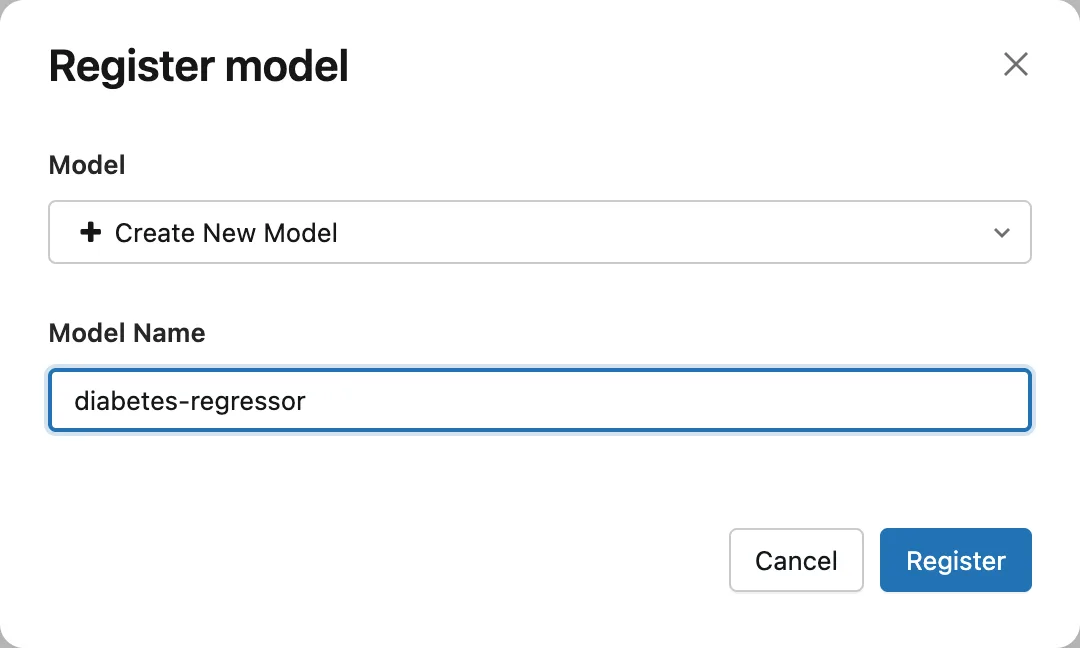
Click Register. A Model registered successfully message appears at the top right.
Step 4: See the New Version
The model's page now links to its registry entry, under Model versions in the panel on the right:
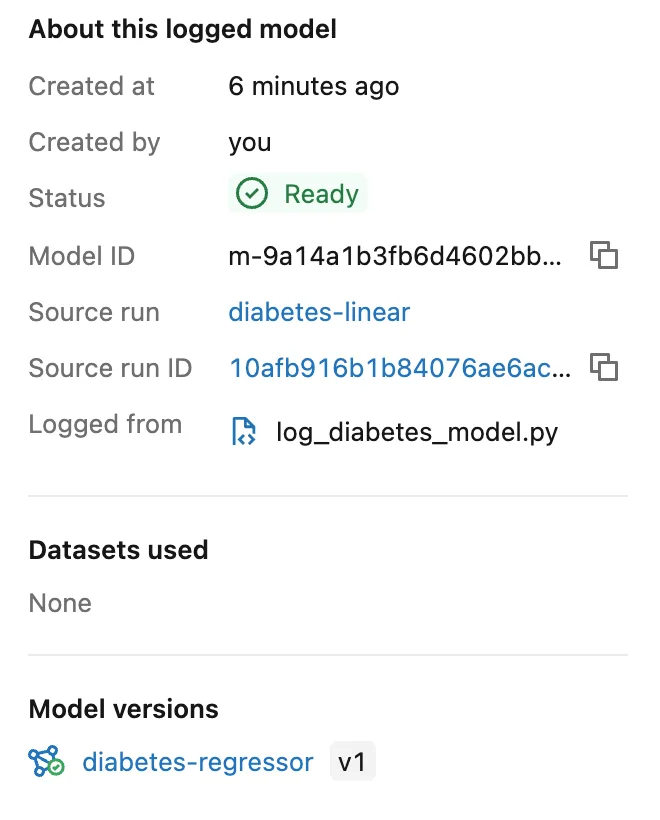
diabetes-regressor v1: the logged model is now version 1 of the registered model diabetes-regressor. Clicking the link opens it in the registry.
Step 5: Find It in the Model Registry
Click Model registry on the left. The first time you open it, a window introduces the registry's newer pages; click Try it now. Type the name in Search registered models and press Enter:

The registered model is listed with Version 1, ready for aliases, tags and a description.
Common Mistakes
| Mistake | What happens | Do this instead |
|---|---|---|
| Picking an existing model in the list for a new use | The model becomes a new version of something else | Create New Model for a new use, an existing name for a new version of the same one |
| A typo in the name | A second registered model, with a name nobody searches for | Copy the name from the list when you add versions |
Troubleshooting
| Symptom | Likely cause | Fix |
|---|---|---|
| The new model isn't in the Registered Models list | The search box still holds an earlier search | Clear it, or click Reset filters |
| The registry pages don't work | The server stores runs in files, not a database | Start it with a database backend, such as its default SQLite database |
FAQ
Can I register the same logged model twice?
Yes: each registration makes a new version, even of the same files. Register a model once, then add new versions as you train new models.
Can I do this in code?
Yes: mlflow.register_model registers a logged model, and log_model(..., registered_model_name=...) registers it while logging it. How to Register a Model with mlflow.register_model shows the first.
Conclusion
From the experiment's Models tab, Register model and Create New Model turned the logged diabetes model into version 1 of diabetes-regressor, linked from the model's page and listed in the Model Registry.
Additional Resources
- Model Registry workflows — registering and finding models in the UI.
- MLflow Model Registry — registered models, versions and aliases.
