How to Register a Bot with the Teams Developer CLI

The Teams developer CLI registers a bot with one command. teams app create makes the Microsoft Entra app, a client secret, the bot registration and a Teams app, then writes the credentials your code needs into a settings file.
The CLI, teams, is Microsoft's command-line tool for Teams app development. Microsoft's documentation describes what teams app create sets up: An Entra ID app registration in your tenant, configured with a client secret, A Teams-managed ACS registration linked to the Entra ID app registration (ACS is the Agent Communication Service, which carries messages between Teams and the bot), A starter app manifest, registered in the Teams Developer Portal, and A local agent runtime configuration file. By default the bot is Teams-managed, so no Azure subscription is involved.
Syntax
teams app create --name <name> --endpoint <url> --env <file>
| Part | What it is |
|---|---|
teams app create | Creates the app registration, a client secret, the bot registration and the Teams app |
--name <name> | The name of the app and the bot |
--endpoint <url> | Optional. The public HTTPS address Teams sends the bot's messages to, ending in your code's path, such as /api/messages |
--env <file> | Optional. The file the CLI writes the credentials to: a .env file or an appsettings.json |
Other options, from teams app create --help: --messaging-mode socket instead of an HTTPS endpoint, --sign-in-audience myOrg for a single-tenant app registration, --no-secret to skip the client secret, and --azure for an Azure-managed bot instead of a Teams-managed one.
The Example
The bot is called Hello Bot. Its code will listen on port 3978 at /api/messages, published by a dev tunnel at https://q856tzrv-3978.inc1.devtunnels.ms. The credentials go into appsettings.json, the settings file of an ASP.NET Core app.
Prerequisites
-
Node.js and npm, to install the CLI. Microsoft's Teams quickstart asks for Node.js 24 or later. Check what you have:
Terminalnode --versionnpm --versionOutputv24.22.312.2.3 -
A Microsoft 365 work or school account that can register apps in your organization, and upload custom apps if you want to try the bot in Teams.
Step 1: Install the CLI
The CLI is an npm package. On npm 12, which blocks dependency install scripts unless you allow them, allow the two that the CLI's sign-in storage needs:
npm install -g --allow-scripts=@azure/msal-node-extensions,keytar @microsoft/teams.cli@3.1.0
npm warn deprecated prebuild-install@7.1.3: No longer maintained. Please contact the author of the relevant native addon; alternatives are available.

added 123 packages in 7s
-g installs it globally, so the teams command works in every folder. The deprecation warning comes from a dependency and doesn't stop anything. Without --allow-scripts, the CLI installs but can't save your sign-in: Fixed: Teams Developer CLI Says "Not logged in" Right After teams login explains why. On npm 11 and older, install scripts run by default, and the option isn't needed.
Check the version:
teams --version
3.1.0
Step 2: Sign In
teams login --device-code
To sign in, use a web browser to open the page https://login.microsoft.com/device and enter the code A1B2C3D4E to authenticate.
Logged in as user@example.com
✔ Sideloading: enabled
--device-code lets you sign in from any browser with the code the CLI prints; without it, the CLI opens a browser itself. Sideloading: enabled means your account may upload custom apps to Teams. If the Azure CLI is installed, the output continues with its sign-in status, which only matters for Azure-managed bots.
Step 3: Create the App and the Bot
teams app create --name "Hello Bot" --endpoint https://q856tzrv-3978.inc1.devtunnels.ms/api/messages --env appsettings.json
✔ Tokens acquired
✔ Created Azure AD app (44444444-4444-4444-4444-444444444444)
✔ Generated client secret
✔ Created Teams app (44444444-4444-4444-4444-444444444444)
✔ Bot registered

App created successfully!
Name: Hello Bot
Teams App ID: 44444444-4444-4444-4444-444444444444
Bot ID: 44444444-4444-4444-4444-444444444444
Endpoint: https://q856tzrv-3978.inc1.devtunnels.ms/api/messages

  ▸ Install in Teams    → https://teams.microsoft.com/l/app/44444444-4444-4444-4444-444444444444?installAppPackage=true&appTenantId=11111111-1111-1111-1111-111111111111
  ▸ Developer Portal    → https://dev.teams.microsoft.com/apps/44444444-4444-4444-4444-444444444444
Credentials written to ./appsettings.json
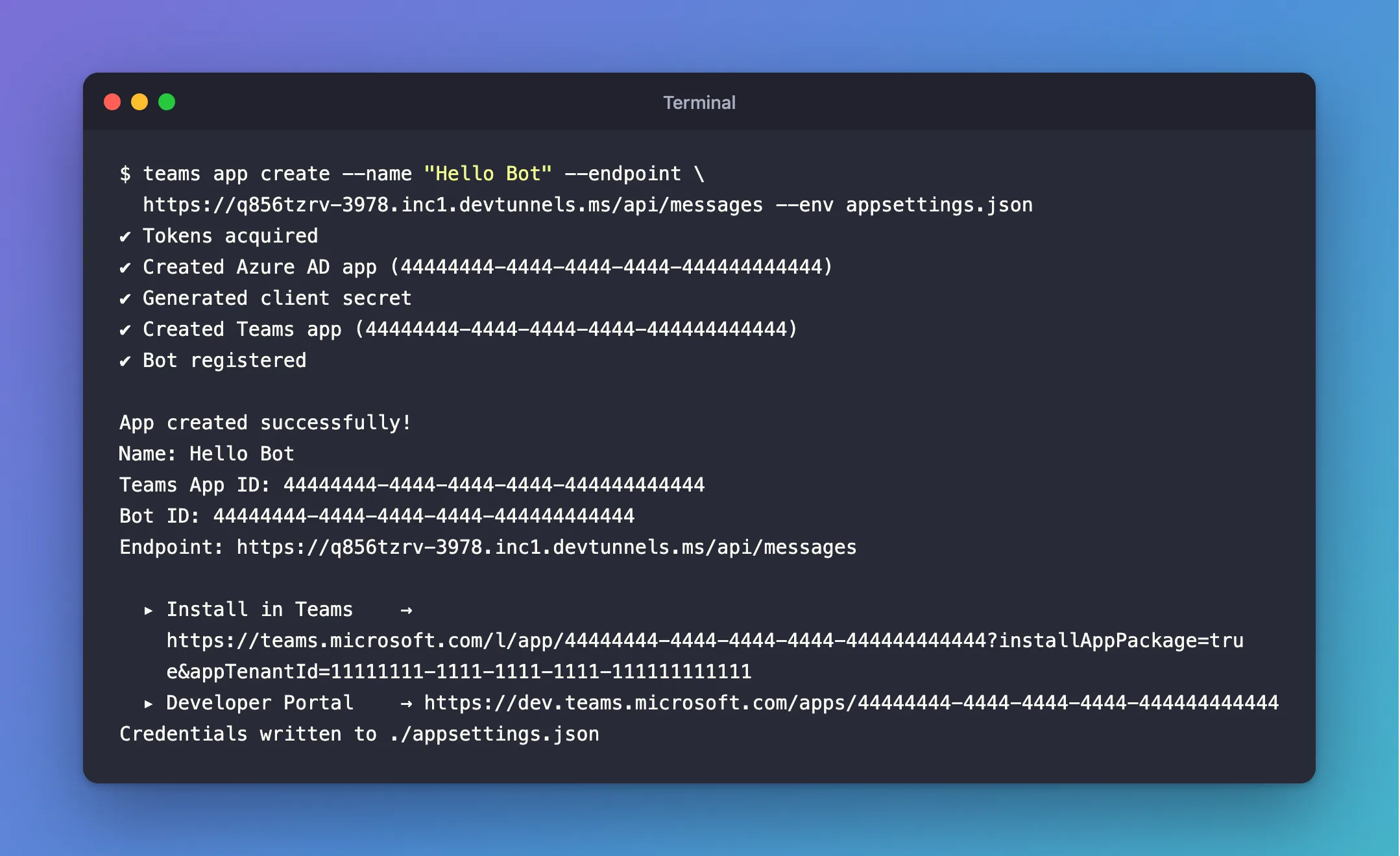
Each check mark is one thing the CLI created. Azure AD app is the Microsoft Entra app registration (Azure AD is Microsoft Entra ID's old name). The Teams App ID and the Bot ID are the same GUID: the app registration's client ID. The two links open the new app for installing in Teams and in the Developer Portal.
The settings file now holds the credentials:
{
  "Teams": {
    "ClientId": "44444444-4444-4444-4444-444444444444",
    "ClientSecret": "<the client secret>",
    "TenantId": "11111111-1111-1111-1111-111111111111"
  }
}
ClientSecret is the real secret, in plain text. Keep the file out of source control, or move the secret to a secret store such as .NET user secrets and delete it from the file.
Step 4: Check the Result
teams app doctor checks an app's registration from end to end. Give it the Teams app ID:
teams app doctor 44444444-4444-4444-4444-444444444444
Diagnosing: Hello Bot (44444444-4444-4444-4444-444444444444)

Bot Registration
  ✔ Bot registered (44444444-4444-4444-4444-444444444444)
  ✔ Bot location: Teams (managed)
  ✔ Bot details fetchable
  ✔ Teams channel enabled
  ✔ Messaging mode: HTTP endpoint
  ✔ Endpoint: https://q856tzrv-3978.inc1.devtunnels.ms/api/messages
  ✔ Endpoint reachable

AAD App
  ✔ AAD app found (44444444-4444-4444-4444-444444444444)
  ✔ 1 active secret (nearest expiry: 11/26/2028)
  ℹ Sign-in audience: AzureADMultipleOrgs

Manifest
  ✔ Bot ID matches app ID
  ✔ Endpoint domain in validDomains
  ✔ *.botframework.com in validDomains
  ℹ webApplicationInfo not configured (SSO not set up)

No issues found.
A few lines are worth reading closely:
- Bot location: Teams (managed): a Teams-managed bot, as Microsoft's quickstart creates by default.
- Endpoint reachable: the dev tunnel was up when the check ran.
- 1 active secret (nearest expiry: 11/26/2028): the secret lasts two years. Renew it before then.
- Sign-in audience: AzureADMultipleOrgs: the app registration is multitenant, as Microsoft's documentation notes for agents created with
teams app create. Add--sign-in-audience myOrgwhen you create one that only your organization uses. Microsoft's tenancy guidance adds that this setting doesn't replace checking, in your bot's code, which organization each incoming message comes from.
Common Mistakes
| Mistake | What happens | Do this instead |
|---|---|---|
Committing appsettings.json with the secret in it | Anyone who can read the repository can sign in as your bot | Move the secret to a secret store |
| Creating the app twice with the same name | Two apps, two bots and two app registrations | List yours with teams app list first |
| Using a temporary dev tunnel URL as the endpoint | The endpoint breaks when the tunnel restarts | Use a persistent tunnel |
Troubleshooting
| Symptom | Likely cause | Fix |
|---|---|---|
⚠ Not logged in right after teams login | npm blocked keytar's install script | Reinstall with --allow-scripts |
teams app doctor reports the endpoint as unreachable | The bot's code or the tunnel isn't running | Start both, and run doctor again |
| Sideloading isn't enabled | Your account can't upload custom apps | Ask your Teams admin to allow it |
FAQ
How do I delete an app the CLI created?
CLI 3.1.0 has no delete command: teams app --help lists list, create, get, update, package, manifest, auth, bot, rsc and doctor. Delete the app under Apps in the Teams Developer Portal, the bot under Tools > Bot management, and then the app registration in Microsoft Entra ID.
Is this the same as registering a bot in the Developer Portal?
The bot is the same kind: Teams-managed, with an app registration behind it. The CLI also creates the Teams app and its manifest in the same step, and writes the credentials into your project.
How do I sign out?
teams logout.
Conclusion
Install the CLI with npm install -g --allow-scripts=@azure/msal-node-extensions,keytar @microsoft/teams.cli, sign in with teams login, and teams app create --name <name> --endpoint <url> --env <file> registers the whole bot in one go. teams app doctor then confirms each part before you open Teams.
Additional Resources
- Teams developer CLI — Microsoft's overview.
- Registering an agent on the Teams platform — what
teams app createcreates. - Agent tenancy — single-tenant and multitenant agents.
